
Уводзіны
This manual provides comprehensive instructions for the D-Link DCS-900 10/100TX Home Security Internet Camera. The DCS-900 is designed as an inexpensive remote monitoring solution, combining video surveillance with Fast Ethernet reliability. It features a built-in web server, allowing direct streaming of images to the internet without requiring a dedicated PC. Users can remotely access the camera via any web браўзер, увёўшы яго IP-адрас.
Асноўныя функцыі ўключаюць у сябе:
- Compact design with an integrated web сервер.
- Здольнасць да view up to 4 cameras on a single screen.
- Web-based remote access using any Java-enabled browser.
- Functionality to archive and record streaming video directly to a hard drive.
- Bundled software for multi-camera monitoring and management.
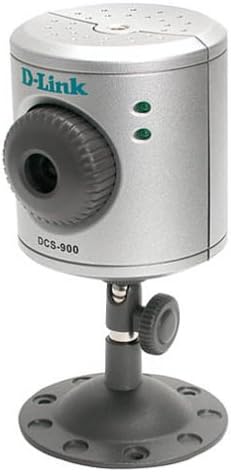
Малюнак 1: The D-Link DCS-900 Internet Camera, a compact silver cylindrical device mounted on an adjustable black stand. The front features a camera lens with a textured adjustment ring, and two green indicator lights. The D-Link logo and "DCS-900" model number are visible on the front.
Настройка і ўстаноўка
The D-Link DCS-900 is designed for quick and easy integration into your existing Fast Ethernet network.
- Фізічнае падключэнне: Connect the camera to your network router or switch using an Ethernet cable. Ensure the camera is powered on using the provided AC/DC adapter.
- Першапачатковая канфігурацыя: The camera typically uses a default IP address or obtains one via DHCP. A setup wizard is included to guide you through the initial configuration process. This wizard helps in assigning a static IP address if required, or confirming the dynamically assigned one.
- Web-Based Access: Once connected and powered, open a web browser on a computer connected to the same network. Enter the camera's IP address into the browser's address bar. This will open the camera's web-based interface for further management and configuration.
- Ўстаноўка праграмнага забеспячэння: Install the included Windows-based software, such as IPView SE. This software provides enhanced features for multi-camera monitoring and management, including video capture and motion detection capabilities.
- Мантаж: The camera comes with sturdy mounting hardware suitable for use as a table stand or for screwing into a wall. It can also be mounted on a standard tripod. Ensure the camera is positioned to cover the desired surveillance area.
Заўвага: D-Link recommends consulting the detailed setup guide provided with the product for specific network configurations, especially when integrating with DSL modems, firewalls, or routers.
Інструкцыя па эксплуатацыі
The D-Link DCS-900 offers various operational modes and settings for effective surveillance.
- Аддалены доступ: Access the camera remotely from any location with internet access by typing its IP address into a web браўзэр. The web-based interface allows for real-time viewing and configuration adjustments.
- Multi-Camera Monitoring: The included software, such as IPView SE, allows you to monitor up to four cameras simultaneously on a single screen. This feature is useful for comprehensive surveillance setups.
- Video Archiving and Recording: Utilize the bundled software to archive and record streaming video directly to your computer's hard drive. This enables review of past footage.
- Image Settings Adjustment: Праз web interface or bundled software, you can adjust various image parameters:
- дазвол: Adjust video capture resolution (e.g., 320x240 to 640x480 pixels).
- Compression Rate: Optimize video quality versus file памер.
- Частата кадраў: Control the smoothness of video playback (e.g., 1 frame per second for low bandwidth, higher for smoother motion).
- Brightness, Contrast, Saturation: Fine-tune image appearance.
- Частата святла: Adjust for different lighting environments.
- Выяўленне руху: IPView SE software provides motion detection capabilities, allowing the camera to trigger recordings or alerts when movement is detected within its field of view.
Тэхнічнае абслугоўванне
Regular maintenance ensures optimal performance and longevity of your D-Link DCS-900 camera.
- Абнаўленні прашыўкі: Periodically check the D-Link support website for firmware updates. Updating the firmware can improve performance, add new features, and resolve known issues. Instructions for updating firmware are typically provided with the update package.
- Уборка: Gently clean the camera lens and exterior casing with a soft, dry cloth. Avoid using abrasive cleaners or solvents that could damage the camera's surfaces. Ensure the lens is free from dust and smudges for clear image quality.
- Умовы навакольнага асяроддзя: Ensure the camera is operated within its specified environmental conditions (temperature, humidity) to prevent damage. Avoid exposing the camera to extreme temperatures or direct moisture.
Ліквідацыю непаладак
This section addresses common issues you might encounter with your D-Link DCS-900 camera.
- Camera Not Accessible via Web Браўзэр:
- Verify the camera is powered on and connected to the network.
- Пераканайцеся, што ваш камп'ютар знаходзіцца ў тым жа сегменце сеткі, што і камера.
- Confirm the camera's IP address is correct. If using DHCP, check your router's client list.
- Check firewall settings on your computer and network router; they might be blocking access.
- If accessing from the internet, ensure port forwarding is correctly configured on your router for the camera's port.
- Poor Image Quality / Low Light Performance:
- Adjust brightness, contrast, and saturation settings in the camera's web інтэрфейс.
- Пераканайцеся, што лінза чыстая і без перашкод.
- The DCS-900 may struggle in very low light conditions. Consider adding external illumination for night viewпры неабходнасці.
- Slow Browser Interface / Configuration Timeouts:
- Пераканайцеся ў сваім web браўзер абноўлены.
- Try clearing your browser's cache and cookies.
- A stable network connection is crucial. Check for network congestion.
- If issues persist, try a different web браўзер.
- Recording Function Not Working:
- Verify that the bundled software (e.g., IPView SE) is correctly installed and configured for recording.
- Ensure there is sufficient disk space on your computer for storing recordings.
- Check motion detection settings if recording is triggered by motion.
- Праблемы з абнаўленнем прашыўкі:
- Follow the firmware update instructions precisely.
- Не выключайце прыладу падчас абнаўлення прашыўкі.
- If an update fails, consult D-Link support for recovery procedures.
Тэхнічныя характарыстыкі
| Асаблівасць | Дэталь |
|---|---|
| Нумар мадэлі | DCS-900 |
| Марка | D-Link |
| Тэхналогія падлучэння | Правадной (Ethernet) |
| Дазвол відэазахопу | Да 640 х 480 пікселяў |
| Фармат захопу відэа | MPEG-4 |
| Колькасць каналаў | Supports monitoring up to 4 cameras |
| Крыніца харчавання | Адаптар пераменнага/пастаяннага току |
| Памеры прадмета (Д х Ш х У) | 4 х 7 х 3 цалі |
| Вага прадмета | 0.01 унцыі |
| Тып мацавання | Ceiling Mount, Table Stand, Tripod |
| Метад кантролю | Аддалены (Web-based interface) |
| Рэкамендуемае выкарыстанне | Surveillance (Home, Office, Classroom, Kitchen, Living Room) |
Інфармацыя аб гарантыі
Specific warranty details for the D-Link DCS-900 Internet Camera are typically provided with the product packaging or on the official D-Link website. Please refer to the documentation included with your purchase or visit the D-Link support portal for the most current and accurate warranty terms and conditions.
Падтрымка кліентаў
For further assistance, technical support, or to access additional resources, please contact D-Link customer support.
- Інтэрнэт-падтрымка: Visit the official D-Link support website for FAQs, troubleshooting guides, driver downloads, and firmware updates.
- Падтрымка па тэлефоне: Contact D-Link's technical support hotline during business hours for direct assistance. Refer to the D-Link webсайт рэгіянальных кантактных тэлефонаў.