
Logitech 931689-0403
Кіраўніцтва карыстальніка бесправадной лазернай мышы Logitech MX Revolution
Брэнд: Logitech
Мадэль: 931689-0403
1. Уводзіны
The Logitech MX Revolution Cordless Laser Mouse is an advanced peripheral designed to enhance your computing experience with powerful controls and ergonomic comfort. It features innovative technologies for efficient navigation and precise control across various surfaces.
This manual provides detailed instructions for setting up, operating, and maintaining your MX Revolution mouse, ensuring optimal performance and longevity.
2. Змесціва ўпакоўкі
Праверце, ці ёсць усе прадметы ў камплекце з вашым прадуктам:
- Logitech MX Revolution Cordless Laser Mouse
- Станцыя падзарадкі
- Сеткавы шнур
- USB мікрапрыёмнік
- Logitech SetPoint software CD
- User's guide (this document)
- HQRP Coaster (additional item)
3. Кіраўніцтва па наладцы
3.1 Першапачатковая зарадка
Before first use, it is recommended to fully charge your mouse. Connect the AC power cord to the recharging station and plug it into a power outlet. Place the Logitech MX Revolution mouse onto the recharging station. The four-stage battery level meter on the mouse will indicate charging status.
The built-in rechargeable Li-ion battery provides extended use, typically several weeks, before requiring a recharge.
3.2 Connecting the USB Micro-Receiver
Insert the USB micro-receiver into an available USB port on your computer. The mouse utilizes full-speed USB wireless technology for a reliable connection.

Апісанне: This image shows the Logitech MX Revolution Cordless Laser Mouse from a top-down perspective, highlighting its ergonomic shape and the main scroll wheel. The Logitech logo is visible on the palm rest.
3.3 Усталёўка праграмнага забеспячэння
For full functionality and customization, install the Logitech SetPoint software from the included CD. This software allows you to configure mouse buttons, adjust sensitivity, and manage other advanced features.
- Insert the Logitech SetPoint software CD into your computer's CD-ROM drive.
- Выконвайце інструкцыі на экране, каб завяршыць усталёўку.
- Перазагрузіце кампутар, калі будзе прапанавана.
4. Інструкцыя па эксплуатацыі
4.1 MicroGear Precision Scroll Wheel
The MX Revolution features an innovative MicroGear Precision Scroll Wheel that operates in two distinct modes:
- Free-spin mode: For hyper-fast, nearly frictionless scrolling. A single flick can scroll hundreds of pages or thousands of rows, ideal for long documents.
- Click-to-click mode: For detailed navigation. An ultra-precise ratchet-scrolling mechanism allows for line-by-line movement, useful for spreadsheets or slideshows.
SmartShift technology automatically detects your current application and applies the most suitable scrolling mode. You can also manually switch between modes using the scroll wheel button.
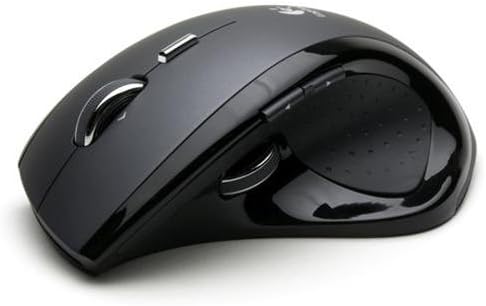
Апісанне: This image displays the Logitech MX Revolution mouse from a side angle, emphasizing its contoured shape designed for right-handed users. The thumb rest and side buttons are visible.
4.2 Side-to-Side Scrolling
The scroll wheel also supports side-to-side scrolling, allowing you to navigate horizontally within documents, images, or spreadsheets that extend beyond the screen's width. This eliminates the need to move the mouse to the scrollbar.
4.3 Quick-Flip Thumb Wheel
Located on the side of the mouse, the convenient Quick-Flip thumb wheel allows you to effortlessly toggle between open documents and applications. This feature streamlines multitasking, enabling quick switching for cutting, pasting, comparing documents, or checking emails.
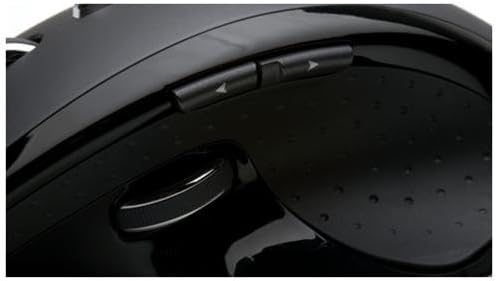
Апісанне: This close-up image focuses on the left side of the Logitech MX Revolution mouse, clearly showing the two thin, customizable web buttons and the Quick-Flip thumb wheel, designed for easy access with the thumb.
4.4 Наладжвальныя кнопкі
The MX Revolution includes customizable buttons that can be programmed using the SetPoint software to perform various functions, such as forward and back controls for web pages, or other shortcuts to enhance your workflow.
4.5 Integrated Search Button
Highlight a word or phrase and press the dedicated Search button to instantly display results from your preferred search engine. This feature provides quick access to information without interrupting your workflow.
4.6 Laser Tracking Technology
The mouse utilizes state-of-the-art laser engine technology, delivering absolute precision and control. This advanced tracking ensures smooth and accurate cursor movement on nearly all surfaces, unlike traditional optical sensors that may struggle on certain textures.
5. Тэхнічнае абслугоўванне
5.1 Battery Recharging
The Logitech MX Revolution mouse features a rechargeable Li-ion battery. When the battery level is low, indicated by the battery level meter, simply place the mouse on its recharging station. Charging is quick and convenient, ensuring your mouse is always ready for use.
5.2 Ачыстка
To maintain optimal performance, periodically clean your mouse. Use a soft, dry cloth to wipe down the exterior. For the laser sensor, ensure it is free from dust or debris. Avoid using harsh chemicals or abrasive materials.
6. Выпраўленне непаладак
6.1 Cursor Jumps or Inaccurate Tracking
- Ensure the laser sensor on the bottom of the mouse is clean and free from obstructions.
- Verify that the mouse is being used on a suitable surface. While the laser sensor is highly accurate, extremely reflective or transparent surfaces may affect performance.
- Праверце перашкоды ад іншых бесправадных прылад.
6.2 No Response from Mouse
- Confirm the mouse is charged. Place it on the recharging station.
- Ensure the USB micro-receiver is securely plugged into an active USB port on your computer.
- Паспрабуйце падключыць прыёмнік да іншага USB-порта.
- Verify the mouse is turned on using the switch on its underside.
- Re-establish the connection between the mouse and receiver if necessary (refer to SetPoint software for pairing instructions).
7. Тэхнічныя характарыстыкі
| Асаблівасць | Дэталь |
|---|---|
| Памеры прадукту | 1.18 х 3.54 х 3.54 цалі |
| Вага прадмета | 1.45 фунта |
| Нумар мадэлі тавару | 931689-0403 |
| Батарэі | Патрабуецца 1 літый-іённы акумулятар (у камплекце) |
| Тэхналогія падлучэння | Бесправадная сувязь, USB |
| Тэхналогія выяўлення руху | Лазерная |
| Колер | Чорны |
| Асаблівасць | Акумулятарная |
| Дата першай даступнасці | 23 жніўня 2006 г |
8. Сістэмныя патрабаванні
ПК:
- Windows XP
- Windows Vista (requires Internet connection)
- Даступны порт USB
- Дыск CD-ROM
Mac:
- Mac OS X 10.2.8+
- Даступны порт USB
- Дыск CD-ROM
- падключэнне да інтэрнэту
9. Гарантыя і падтрымка
9.1 Абмежаваная гарантыя
The Logitech MX Revolution Cordless Laser Mouse comes with a 3-year limited warranty. Please refer to the warranty card included in your package or visit the official Logitech webсайт для атрымання поўных умоў.
Юрыдычная адмова ад адказнасці: No returns. Product tested before it shipped. (Note: This disclaimer is provided in the source data and included for informational purposes.)
9.2 Падтрымка кліентаў
For technical assistance, troubleshooting, or product inquiries, please visit the Logitech support website or contact their customer service. Contact information can typically be found on the Logitech website or in the user's guide.
Ask a question about this manual
Ask about setup, troubleshooting, compatibility, parts, safety, or missing instructions. Manuals+ will review the question and use this page’s manual context to help answer it.