
1. Уводзіны
This manual provides detailed instructions for the installation, operation, and maintenance of your AZZA Solano 1000R CSAZ-1000R Full Tower Computer Case. Please read this manual thoroughly before beginning installation to ensure proper setup and to maximize the performance and longevity of your system components.
2. Асаблівасці прадукту
- Аптымізаванае кіраванне тэмпературай: Features multiple fans for superior cooling, including a 230mm top fan, a 230mm side fan, two 140mm front fans, and a 120mm rear fan.
- Bottom-Mounted Power Supply: Designed for improved thermal separation and stability, allowing installation facing up or down.
- Пашыранае кіраванне кабелямі: Pre-drilled motherboard tray and ample space behind for organized cable routing, enhancing airflow and aesthetics.
- Tool-Less Design: Thumb screws for easy installation of optical drives and hard disk drives.
- Зручны пярэдні ўвод/вывад: USB and audio ports, along with an eSATA port, located on the top panel for easy access.
- Прасторны інтэр'ер: Full tower design accommodates large components, including extended graphics cards and tall CPU coolers.
- Эстэтычны дызайн: Black exterior with a vibrant red painted interior and red LED fans.
3. Змесціва ўпакоўкі
Калі ласка, пераканайцеся, што ўсе прадметы прысутнічаюць у вашай упакоўцы:
- AZZA Solano 1000R CSAZ-1000R Full Tower Case
- Скрынка з аксэсуарамі (утрымлівае шрубы, распоркі, кабельныя сцяжкі і г.д.)
- Кіраўніцтва карыстальніка (гэты дакумент)
4. Кампанент надview
4.1 Знешні Views
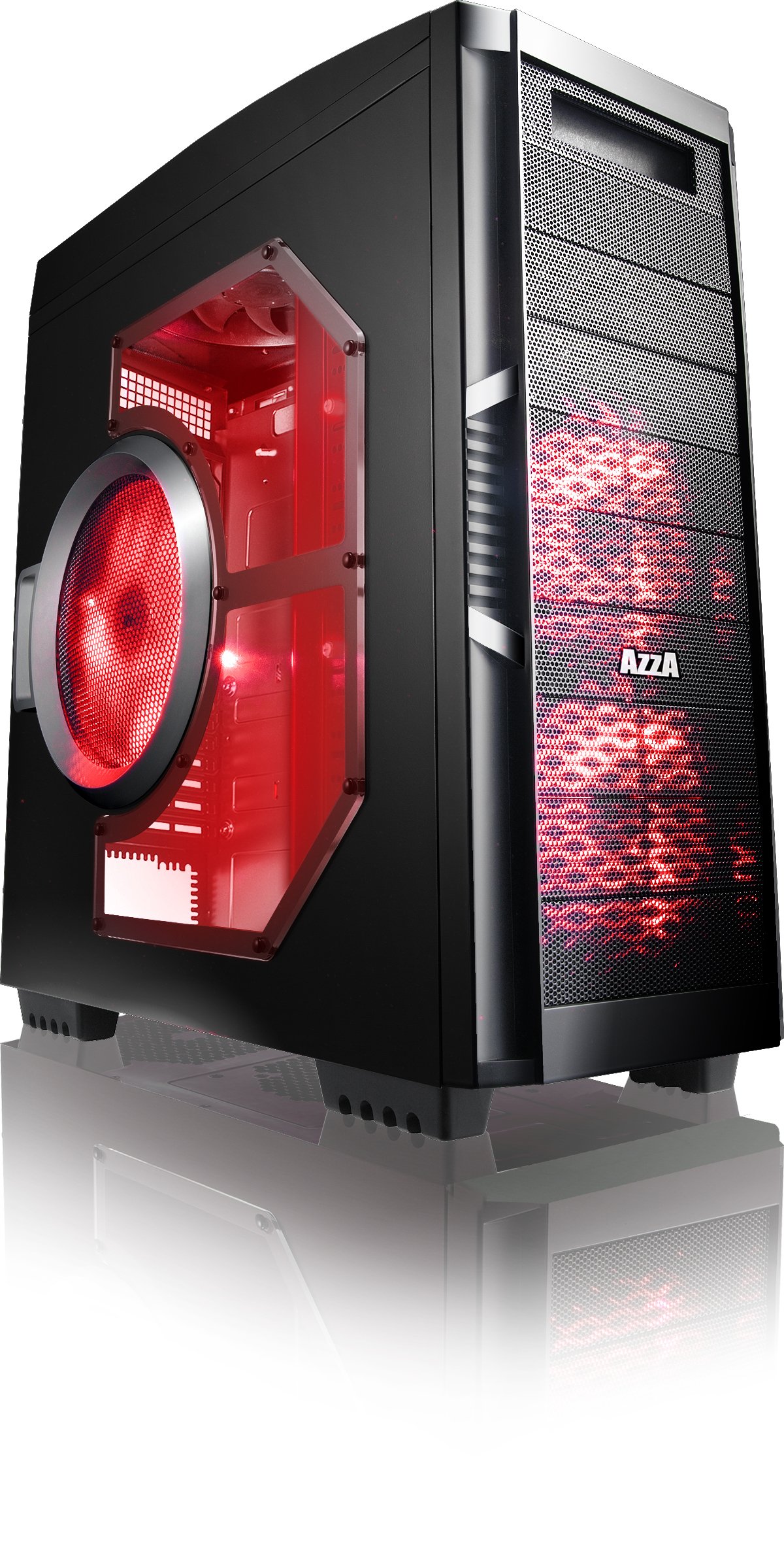
Малюнак 4.1: Пярэдняя частка view of the AZZA Solano 1000R case, showcasing the red LED fans on the front and side panel.

Малюнак 4.2: Спераду view of the AZZA Solano 1000R case, highlighting the two 140mm red LED intake fans behind the mesh panel.

Малюнак 4.3: бок view of the AZZA Solano 1000R case, showing the large 230mm red LED side panel fan and the transparent window.

Figure 4.4: Top-front angled view of the AZZA Solano 1000R case, showing the top ventilation grille, front I/O panel with USB and audio ports, and power button.
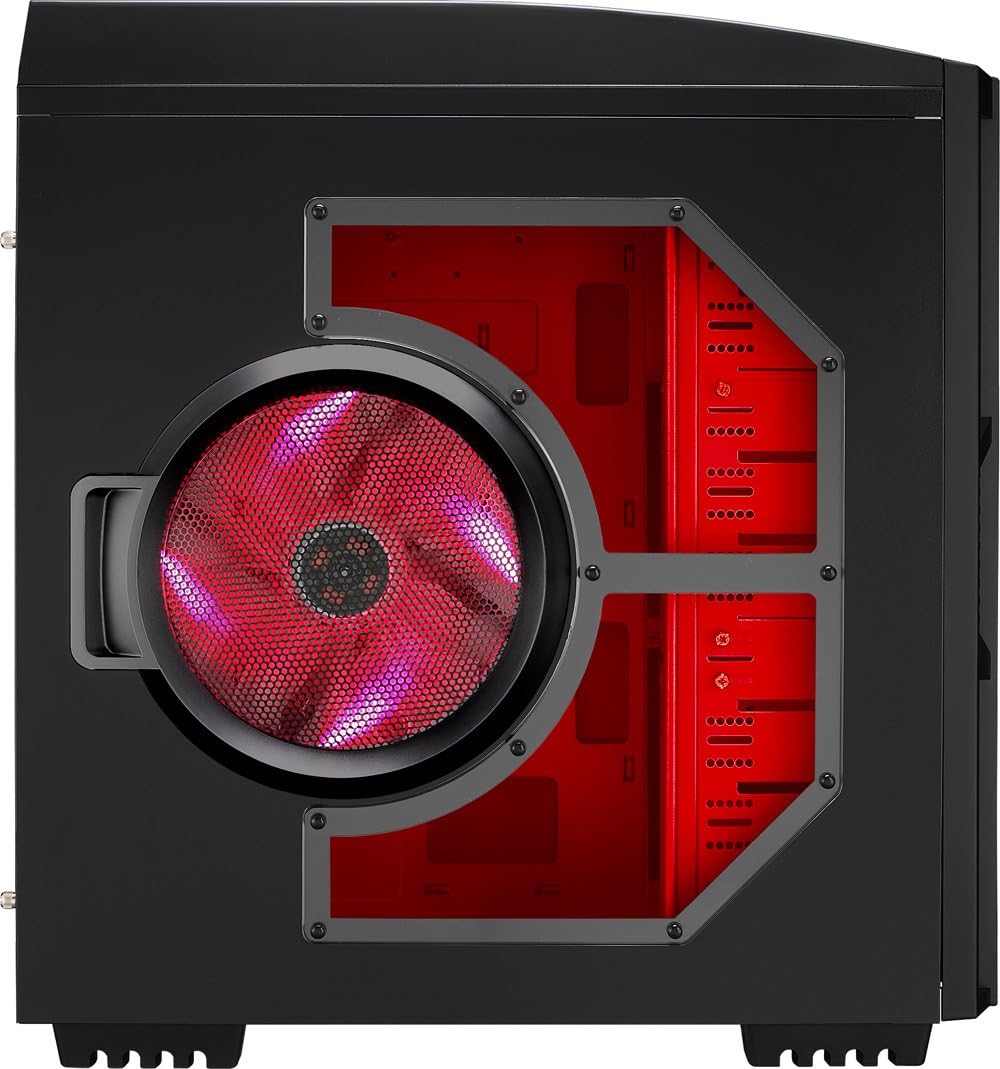
Малюнак 4.5: Задняя частка view of the AZZA Solano 1000R case, displaying the red interior, rear exhaust fan, and expansion slots.
4.2 Унутраны Views

Малюнак 4.6: Інтэр'ер view of the AZZA Solano 1000R case with the left side panel removed, revealing the red painted motherboard tray, drive bays, and cable routing cutouts.

Figure 4.7: Angled interior view of the AZZA Solano 1000R case, focusing on the multiple 5.25" and 3.5" drive bays.

Figure 4.8: Angled interior view of the AZZA Solano 1000R case, showing the rear 120mm exhaust fan, expansion slots, and the extensive drive bay structure.

Малюнак 4.9: Інтэр'ер view of the AZZA Solano 1000R case with the right side panel removed, showing the space behind the motherboard tray for cable management.
5. Кіраўніцтва па ўстаноўцы
Перад пачаткам усталёўкі пераканайцеся, што ваша працоўная прастора чыстая і без статычнай электрычнасці. Рэкамендуецца насіць антыстатычны бранзалет.
5.1 Падрыхтоўка справы
- Пастаўце корпус на роўную, устойлівую паверхню.
- Remove the side panels by unscrewing the thumb screws at the rear of the case and sliding the panels backward.
5.2 Устаноўка мацярынскай платы
- Install the I/O shield provided with your motherboard into the opening at the rear of the case.
- Align the motherboard with the pre-installed standoffs. If necessary, install additional standoffs according to your motherboard's form factor.
- Акуратна ўсталюйце матчыну плату на апоры, пераканаўшыся, што парты ўводу/вываду супадаюць з экранам.
- Замацуйце матчыну плату адпаведнымі шрубамі з скрынкі з аксэсуарамі.
5.3 Устаноўка блока харчавання
- Position the power supply unit (PSU) in the bottom-rear compartment of the case. You can orient it with the fan facing up or down, depending on your cooling preference and PSU design.
- Secure the PSU to the case using the screws provided with your power supply.
5.4 Storage Drive Installation (HDD/SSD)
- For 3.5" HDDs, slide the drive into an available drive bay until it clicks into place. Use the provided thumb screws for additional security if desired.
- For 2.5" SSDs, an adapter bracket (not included) may be required to fit into the 3.5" bays. Secure the SSD to the adapter, then install the adapter into a 3.5" bay.
- Connect the SATA data and power cables to your installed drives.
5.5 Optical Drive Installation
- Remove the desired 5.25" front bay cover from the case.
- Slide the optical drive into the bay from the front until it aligns with the screw holes.
- Secure the optical drive using the provided thumb screws.
- Connect the SATA data and power cables to the optical drive.
5.6 Усталёўка платы пашырэння
- Зніміце неабходныя вечкі слотаў пашырэння на задняй панэлі корпуса.
- Insert your graphics card or other expansion card into the appropriate PCIe/PCI slot on your motherboard.
- Secure the card with the provided screw or tool-less latch mechanism.
5.7 Арганізацыя кабеляў
Utilize the cutouts and space behind the motherboard tray to route and organize your cables. This improves airflow and gives your build a cleaner appearance. Use cable ties from the accessory box to bundle cables.
5.8 Падключэнне ўваходных/выхадных прылад пярэдняй панэлі
Connect the front panel cables (USB, Audio, Power Switch, Reset Switch, Power LED, HDD LED) to the corresponding headers on your motherboard. Refer to your motherboard manual for exact header locations.
6. Аперацыя
6.1 Уключэнне/выключэнне сілкавання
Press the power button located on the top panel to turn your system on or off. A power LED will illuminate when the system is active.
6.2 Кіраванне вентылятарам
The case features a fan speed control switch (L/M/H) at the rear, primarily for the top, side, and rear fans. Adjust this switch to balance cooling performance and noise levels according to your preference.
7. Тэхнічнае абслугоўванне
7.1 Ачыстка
Regular cleaning helps maintain optimal airflow and component longevity.
- Знешні выгляд: Працярыце вонкавыя паверхні мяккай, damp тканіна. Пазбягайце абразіўных ачышчальнікаў.
- Пылавыя фільтры: The case includes mesh filters at the bottom. Periodically remove and clean these filters to prevent dust buildup.
- Інтэр'ер: Use compressed air to remove dust from inside the case, especially from fans and heatsinks. Ensure the system is powered off and unplugged before cleaning the interior.
8. Выпраўленне непаладак
- Сістэма не ўключаецца: Ensure all power cables (24-pin ATX, 8-pin CPU, GPU power) are securely connected. Verify the PSU switch is in the 'ON' position. Check front panel power switch connection to the motherboard.
- Вентылятары не круцяцца: Check fan power connections to the motherboard or fan controller. Ensure the fan speed switch is not set to 'Off' or 'Low' if fans are not spinning at all.
- Side Panel Not Closing: If a large CPU cooler or tall components prevent the side panel from closing, especially due to the side fan, consider relocating the side fan to the exterior of the panel if possible, or ensure your cooler fits within the case's clearance specifications.
- Cable Management Difficulty: If the rear panel bulges due to thick cables, try rerouting cables more efficiently or using flatter cables where possible.
9. Тэхнічныя характарыстыкі
| Асаблівасць | Дэталь |
|---|---|
| Нумар мадэлі | CSAZ-1000R |
| Тып корпуса | Поўная вежа |
| Колер | Чорны/чырвоны |
| Памеры прадукту (Д х Ш х У) | 19.7 х 8.1 х 21.5 цалі (500 х 206 х 546 мм) |
| Вага прадмета | 24 фунта (10.89 кг) |
| Спосаб астуджэння | паветра |
| Тып мацавання блока харчавання | Ніжняе мацаванне |
| Усяго партоў USB | 2 (USB 2.0) + 1 (eSATA) |
| Hard Disk Form Factor Support | 3.5 цалі |
| Уключаны вентылятары | 2x 230mm (Top, Side), 2x 140mm (Front), 1x 120mm (Rear) |
10. Гарантыя і падтрымка
For warranty information and technical support, please refer to the official AZZA webсайт або звярніцеся да мясцовага прадаўца. Захоўвайце пацвярджэнне пакупкі для прэтэнзій па гарантыі.