
1. Настройка
1.1 Распакоўка і першапачатковы агляд
Carefully remove your ASUS K52F-A2B laptop from its packaging. Inspect the laptop and all accessories for any signs of damage. The package should contain the laptop, AC adapter, power cord, and documentation.
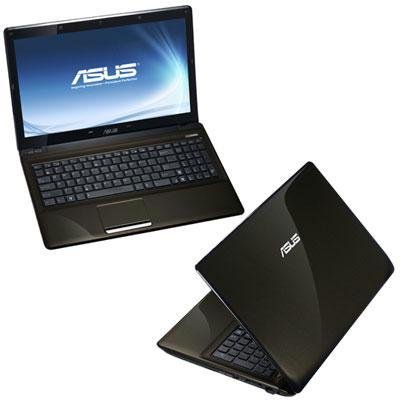
Image 1.1: The ASUS K52F-A2B laptop. This image shows the closed laptop from an angle, highlighting its dark brown finish and sleek design.
1.2 Падключэнне адаптара пераменнага току
Before initial use, connect the AC adapter to the laptop and a power outlet. This ensures the battery is charged and provides stable power for setup.
- Падключыце адаптар пераменнага току да раздыма харчавання на бакавой панэлі ноўтбука.
- Падключыце шнур харчавання да адаптара пераменнага току.
- Падключыце другі канец шнура сілкавання да заземленай электрычнай разеткі.
1.3 Першапачатковае ўключэнне
Once the AC adapter is connected, open the laptop lid and press the power button. The laptop will begin its initial boot sequence. Follow the on-screen instructions to complete the operating system setup (Windows 7 Professional 64-bit).
2. Operating Your ASUS K52F-A2B Laptop
2.1 Уключэнне/выключэнне харчавання і рэжым сну
- Уключэнне: Націсніце кнопку харчавання, размешчаную над клавіятурай.
- Выключэнне: Click the Start button, then select 'Shut down'.
- Рэжым сну: Close the laptop lid or select 'Sleep' from the Start menu. Press the power button or any key to wake the laptop.
2.2 Выкарыстанне клавіятуры і сэнсарнай панэлі
The ASUS K52F-A2B features a full-sized keyboard and a multi-touch touchpad.
- Клавіятура: Standard QWERTY layout with function keys (Fn) for brightness, volume, and other system controls.
- Сэнсарная панэль: Supports multi-touch gestures for scrolling, zooming, and navigation. Refer to the operating system's help for detailed gesture information.
2.3 Падключэнне знешніх прылад
Ваш ноўтбук мае розныя парты для падключэння знешніх прылад:
- Парты USB: For connecting USB devices such as mice, keyboards, and external storage.
- Порт HDMI: Connects to external displays or TVs for high-definition video and audio output.
- Порт VGA: Connects to older external monitors or projectors.
- Аўдыёраздымы: Для навушнікаў і мікрафонаў.
- Ethernet порт: Для правадных сеткавых злучэнняў.
2.4 Using the Optical Disk Drive
The laptop includes a Super Multi Optical Disk Drive for reading and writing CDs and DVDs.
- Націсніце кнопку выкіду на дыску, каб адкрыць латок.
- Змесціце CD або DVD у латок этыкеткай уверх.
- Акуратна ўстаўце латок назад у ноўтбук, пакуль ён не зачыніцца.
3. Тэхнічнае абслугоўванне
3.1 Чыстка ноўтбука
Рэгулярная чыстка дапамагае падтрымліваць знешні выгляд і функцыянальнасць ноўтбука.
- экран: Выкарыстоўвайце мяккую тканіну без ворса. dampвадой або сродкам для чысткі экранаў. Не распыляйце вадкасць непасрэдна на экран.
- Клавіятура і Casing: Выкарыстоўвайце мяккую, сухую тканіну. Для ўстойлівага бруду злёгку працярыце тканінайampened with mild soap and water can be used. Ensure the laptop is powered off and unplugged before cleaning.
- вентылі: Use compressed air to clear dust from the cooling vents to prevent overheating.
3.2 Сыход за акумулятарам
Каб максімальна павялічыць тэрмін службы і прадукцыйнасць батарэі:
- Пазбягайце частай поўнай разрадкі акумулятара.
- Захоўвайце ноўтбук у прахалодным, сухім месцы, калі ён не выкарыстоўваецца працяглы час.
- Калі вы захоўваеце прыладу працяглы час, зарадзіце яе прыкладна да 50% перад захоўваннем.
3.3 Абнаўленне праграмнага забеспячэння
Рэгулярна абнаўляйце аперацыйную сістэму і драйверы, каб забяспечыць аптымальную прадукцыйнасць і бяспеку. Звярніцеся ў службу падтрымкі ASUS. website for the latest drivers for your K52F-A2B model.
4. Выпраўленне непаладак
This section addresses common issues you might encounter with your ASUS K52F-A2B laptop.
4.1 Праблемы з харчаваннем
- Ноўтбук не ўключаецца: Ensure the AC adapter is securely connected to both the laptop and a working power outlet. Check if the power outlet is functional. If the battery is completely drained, allow it to charge for a few minutes before attempting to power on.
- Laptop shuts down unexpectedly: This could indicate overheating. Ensure cooling vents are clear and the laptop is on a hard, flat surface.
4.2 Праблемы з дысплеем
- Няма адлюстравання на экране: Connect an external monitor to the VGA or HDMI port to check if the issue is with the laptop's internal display. Press Fn+F8 to toggle display output modes.
- Цёмны дысплей: Adjust screen brightness using the Fn+F5 (dim) and Fn+F6 (bright) function keys.
4.3 Праблемы з падключэннем
- Wi-Fi не падключаецца: Ensure Wi-Fi is enabled (often via a function key, e.g., Fn+F2). Check network settings in Windows.
- Прылада USB не распазнаецца: Try connecting the device to a different USB port. Ensure device drivers are installed.
4.4 Operating System Recovery
The ASUS K52F-A2B comes with Windows 7 Professional. For system recovery or reinstallation, it is recommended to use the recovery partition or create recovery media as instructed by ASUS. Note that official support for downgrading to Windows XP Pro may be limited, and recovery media for Windows 7 Pro might need to be created by the user.
5. Тэхнічныя характарыстыкі
| Асаблівасць | Спецыфікацыя |
|---|---|
| Нумар мадэлі | K52F-A2B |
| Працэсар | Intel Core i3-350M (2.26 ГГц) |
| Аперацыйная сістэма | Windows 7 прафесійная 64-разрадная |
| Дысплей | 15.6-inch HD (1366x768) LED |
| Графіка | Intel GMA HD (Integrated) |
| Аператыўная памяць | 3 GB DDR3 1066MHz (Max 8GB) |
| Захоўванне | 320 GB Hard Drive (5400 RPM) |
| Аптычны прывад | DVD супермульты |
| Бесправоднае падключэнне | 802.11bgn |
| Парты | HDMI, VGA, USB, Audio Jacks |
| Webкамера | 0.3 МП |
| Вага | 5.8 фунта |
6. Гарантыя і падтрымка
6.1 Інфармацыя аб гарантыі
Your ASUS K52F-A2B laptop comes with the following warranty coverage:
- 2-гадовая сусветная гарантыя
- 1-Year Accidental Damage Warranty
- 30-Day Zero Bright Dot Guarantee
- 2-way FREE shipping for repairs
6.2 Тэхнічная падтрымка
Каб атрымаць тэхнічную дапамогу, загрузку драйвераў або дадатковую інфармацыю, наведайце афіцыйную службу падтрымкі ASUS. website. 24/7 technical support is available as part of your warranty.
For the most up-to-date support contact information, please refer to the documentation included with your product or visit www.asus.com/support.