
1. Уводзіны
The D-Link DHP-1320 Wireless-N PowerLine Router combines wireless networking with PowerLine AV technology, allowing you to extend your network using your home's existing electrical wiring. This device provides both Wi-Fi and wired connectivity for various devices.

Figure 1: D-Link DHP-1320 Wireless-N PowerLine Router
На гэтым малюнку паказаны пярэдні бок view of the D-Link DHP-1320 Wireless-N PowerLine Router, highlighting its compact design and external antennas.
Асноўныя характарыстыкі:
- IEEE 802.11n and 802.11g Compliant for Wi-Fi connectivity.
- Up to 300 Mbps throughput for Wi-Fi networks.
- Up to 200 Mbps throughput for PowerLine AV networks.
- Utilizes your home’s existing electrical wiring for network extension.
- Three 10/100 Mbps Fast Ethernet switch ports for wired connections.
- Supports WPA, WPA2, and WPS security protocols.
2. Настройка і ўстаноўка
Follow these steps to set up your D-Link DHP-1320 Wireless-N PowerLine Router.
2.1 Змест пакета
- D-Link DHP-1320 Wireless-N PowerLine Router
- Кабель Ethernet
- Адаптар сілкавання
- Кіраўніцтва па хуткай усталёўцы (падрабязныя інструкцыі глядзіце ў гэтым кіраўніцтве)
2.2 Падключэнне маршрутызатара
- Падключэнне да сілкавання: Plug the power adapter into the router's AC IN port and then into a standard electrical outlet.
- Падключэнне да крыніцы Інтэрнэту: Connect an Ethernet cable from your modem or existing router's LAN port to the ІНТЭРНЭТ port (WAN) on the DHP-1320.
- Connect Wired Devices: For wired devices (e.g., computers, gaming consoles), connect an Ethernet cable from the device to any of the three лакальная сетка ports (1, 2, or 3) on the DHP-1320.
- Уключэнне: Націсніце ВКЛ/ВЫКЛ button to power on the router.

Малюнак 2: Падключэнні на задняй панэлі
This image illustrates the rear panel of the DHP-1320, showing the Internet port, LAN ports, Reset button, USB port, ON/OFF switch, and AC IN port. The AP/RT switch is also visible.
2.3 PowerLine AV Pairing
To establish a secure PowerLine network with other D-Link PowerLine AV adapters, follow these steps:
- Ensure all PowerLine AV devices, including the DHP-1320, are plugged into electrical outlets.
- Знайдзіце PowerLine Sync Connection (ENY) Button on the side of the DHP-1320.
- Press and hold the ENY button on the DHP-1320 for 1-3 seconds. The PowerLine AV LED on the front panel should begin to flash.
- Within two minutes, press and hold the corresponding sync button on your other PowerLine AV adapter for 1-3 seconds.
- The PowerLine AV LEDs on both devices should turn solid, indicating a successful secure connection.

Малюнак 3: бок View with PowerLine Sync Button
This image shows the side of the DHP-1320, highlighting the PowerLine Sync Connection (ENY) button, which is used for pairing with other PowerLine AV devices.
2.4 Канфігурацыя Wi-Fi
The DHP-1320 comes with a default Wi-Fi network name (SSID) and password, usually found on a label on the device.
- To connect to Wi-Fi, search for the default SSID on your wireless device and enter the default password.
- For advanced settings, access the router's web-based configuration utility by typing its default IP address (e.g., 192.168.0.1) into a web browser. Refer to the Quick Installation Guide for default login credentials.
3. Аперацыя
Understanding the router's indicators and modes of operation.
3.1 Святлодыёдныя індыкатары
The front panel LEDs provide status information about the router's operation.
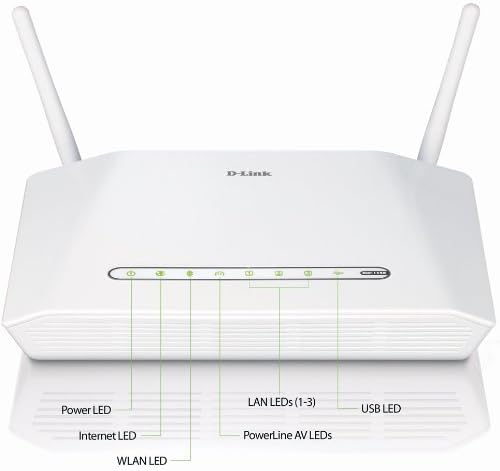
Малюнак 4: Святлодыёдныя індыкатары на пярэдняй панэлі
This image displays the front panel of the DHP-1320, with labels pointing to the Power LED, Internet LED, WLAN LED, LAN LEDs (1-3), PowerLine AV LEDs, and USB LED, indicating their respective statuses.
| святлодыёд | Статус | Апісанне |
|---|---|---|
| Магутнасць | Суцэльны зялёны | Прылада ўключана. |
| Інтэрнэт | Суцэльны зялёны | Падключаны да Інтэрнэту. |
| Міргае зялёны | Data activity on the Internet port. | |
| WLAN | Суцэльны зялёны | Wireless network is active. |
| Міргае зялёны | Актыўнасць бесправадной перадачы дадзеных. | |
| ЛВС (1-3) | Суцэльны зялёны | Device connected to corresponding LAN port. |
| Міргае зялёны | Data activity on corresponding LAN port. | |
| PowerLine AV | Суцэльны зялёны | PowerLine AV network is active and connected. |
| Міргае зялёны | PowerLine AV data activity or pairing mode. | |
| USB | Суцэльны зялёны | USB device connected and recognized. |
3.2 Router Modes (AP/RT Switch)
The DHP-1320 features an AP/RT switch on its rear panel, allowing you to select its operational mode:
- RT (Router) Mode: In this mode, the DHP-1320 acts as a primary router, providing network address translation (NAT) and DHCP services. Connect your modem to the Internet port.
- Рэжым кропкі доступу (AP): In this mode, the DHP-1320 functions as a wireless access point, extending an existing network. Connect it to a LAN port of your main router.
Note: Change the AP/RT switch position only when the device is powered off to prevent potential configuration issues.
4. Тэхнічнае абслугоўванне
Proper maintenance ensures optimal performance and longevity of your DHP-1320 router.
4.1 Ачыстка
- Перад чысткай пераканайцеся, што прылада выключана і адключана ад сеткі.
- Use a soft, dry cloth to wipe the exterior of the router.
- Не выкарыстоўвайце вадкія ачышчальнікі або аэразольныя спрэі, бо яны могуць пашкодзіць прыладу.
- Keep ventilation openings clear of dust and obstructions.
4.2 Абнаўленне прашыўкі
Periodically check the D-Link support website for firmware updates. Firmware updates can improve performance, add new features, and fix bugs. Refer to the D-Link website for instructions on how to update the firmware.
4.3 Скід налад маршрутызатара
If you encounter persistent issues or forget your login credentials, you may need to reset the router to its factory default settings.
- Уключыўшы маршрутызатар, знайдзіце СКІД button on the rear panel (refer to Figure 2).
- Use a paperclip or a similar pointed object to press and hold the RESET button for approximately 10 seconds.
- Release the button when the Power LED begins to flash or all LEDs briefly illuminate.
- The router will reboot with factory default settings. You will need to reconfigure your network settings.
5. Выпраўленне непаладак
This section addresses common issues you might encounter with your DHP-1320 router.
5.1 Няма падключэння да Інтэрнэту
- Праверце кабелі: Ensure the Ethernet cable from your modem is securely connected to the DHP-1320's ІНТЭРНЭТ порт.
- Статус мадэма: Пераканайцеся, што ваш мадэм працуе правільна і мае актыўнае падключэнне да Інтэрнэту.
- Рэжым маршрутызатара: Confirm the AP/RT switch is set to RT (Router) mode if the DHP-1320 is your primary router.
- Перазагрузка прылад: Power cycle your modem, then the DHP-1320, and then your connected devices.
- Інтэрнэт LED: Check if the Internet LED on the front panel is solid green. If not, there might be an issue with your internet service provider or modem connection.
5.2 Праблемы з падключэннем да Wi-Fi
- Святлодыёд WLAN: Ensure the WLAN LED is solid or flashing green. If off, Wi-Fi may be disabled.
- SSID і пароль: Verify you are connecting to the correct Wi-Fi network (SSID) and entering the correct password.
- Моц сігналу: Move closer to the router to check if signal strength is an issue.
- Перашкоды: Other wireless devices or appliances can cause interference. Try changing the Wi-Fi channel in the router's settings.
5.3 PowerLine AV Network Not Connecting
- PowerLine AV LED: Check if the PowerLine AV LED on both devices is solid green. If not, they are not paired or connected.
- Электрычныя разеткі: Ensure both PowerLine devices are plugged directly into wall outlets, not power strips or surge protectors.
- Працэс спалучэння: Re-attempt the PowerLine AV pairing process as described in Section 2.3.
- Электрычная схема: PowerLine devices work best when on the same electrical circuit. Large appliances or circuit breakers can affect performance.
5.4 Router Requires Frequent Resets
If your router frequently requires reboots or resets to restore functionality, consider the following:
- Прашыўка: Пераканайцеся, што прашыўка вашага маршрутызатара абноўлена.
- Перагрэў: Ensure the router has adequate ventilation and is not placed in an enclosed space.
- крыніца харчавання: Verify the power adapter is the original D-Link adapter and is functioning correctly.
- Нагрузка на сетку: Excessive network traffic or too many connected devices might strain the router.
- Скід да заводскіх налад: As a last resort, perform a factory reset (Section 4.3) and reconfigure the settings carefully.
6. Тэхнічныя характарыстыкі
Detailed technical specifications for the D-Link DHP-1320 Wireless-N PowerLine Router.

Малюнак 5: Тэхнічныя характарыстыкіview
Гэта выява дае візуальнае ўяўленне праview of the DHP-1320's technical specifications and a diagram illustrating a typical network setup using PowerLine AV technology.
| Асаблівасць | Апісанне |
|---|---|
| Марка | D-Link |
| Назва мадэлі | ДХП-1320 |
| бесправадной стандарт | 802.11g/n (Wi-Fi 4) |
| Дыяпазон частот | Аднадыяпазонны (2.4 ГГц) |
| Wi-Fi Throughput | Да 300 Мбіт/с |
| PowerLine AV Throughput | Да 200 Мбіт/с |
| Тэхналогія падлучэння | Wireless, Wired (Ethernet, HomePlug) |
| Парты Ethernet | 3 x 10/100 Mbps LAN, 1 x 10/100 Mbps WAN (Internet) |
| Порт USB | 1 x USB (for printer or storage device) |
| Пратаколы бяспекі | WPA, WPA2, WPS, 128-bit AES Encryption (PowerLine) |
| Сумяшчальныя прылады | Гульнявая прыстаўка, ноўтбук, персанальны камп'ютар |
| Рэкамендуемае выкарыстанне | Gaming, Home, Office |
| Аперацыйная сістэма | D-Link OS |
| Вага прадмета | 1.02 фунта (прыблізна 0.46 кг) |
| Is Modem Compatible | No (Functions as a router, requires a separate modem) |
| Вытворца | Кампанія D-Link Systems, Inc. |
| Model Number (Mfr Part Number) | ДХП-1320 |
| UPC / GTIN | 115971261906, 163120603176, 790069339219 |
7. Інфармацыя аб гарантыі
The D-Link DHP-1320 Wireless-N PowerLine Router comes with a 1-гадовая абмежаваная гарантыя.
For detailed terms and conditions of the warranty, please refer to the warranty card included with your product or visit the official D-Link website. This warranty covers defects in materials and workmanship under normal use.
8. Тэхнічная падтрымка
If you require further assistance or encounter issues not covered in this manual, please contact D-Link Technical Support.
- Інтэрнэт-падтрымка: Visit the official D-Link support website for FAQs, troubleshooting guides, firmware downloads, and contact information.
- Webсайт: www.dlink.com
Please have your product model number (DHP-1320) and serial number ready when contacting support.