BlackBerry BB 9900 Bold Touch Smartphone User Manual
Model: BB 9900
1. Уводзіны
This manual provides essential instructions for setting up, operating, and maintaining your BlackBerry BB 9900 Bold Touch smartphone. Please read this guide thoroughly to ensure proper use and to maximize the device's capabilities. The BlackBerry BB 9900 Bold Touch combines a capacitive touchscreen with a full QWERTY keyboard, running on BlackBerry OS 7.
2. Змесціва ўпакоўкі
Пераканайцеся, што ваш пакет змяшчае наступныя элементы:
BlackBerry BB 9900 Bold Touch Smartphone
Акумулятарная батарэя
Зарадная прылада
Кабель USB
Кіраўніцтва карыстальніка (гэты дакумент)
3. Прылада скончанаview
Familiarize yourself with the physical features of your BlackBerry BB 9900 Bold Touch.
3.1 фронт View
Выява: спераду view of the BlackBerry BB 9900 Bold Touch, highlighting the 2.8-inch touchscreen and the physical QWERTY keyboard below it. The device also features a trackpad and call/end buttons.
Сэнсарны дысплей: 2.8-inch capacitive display for interactive navigation.
Клавіятура QWERTY: Full physical keyboard for efficient typing.
Optical Trackpad: For precise navigation and selection.
Call/End Buttons: Standard telephony controls.
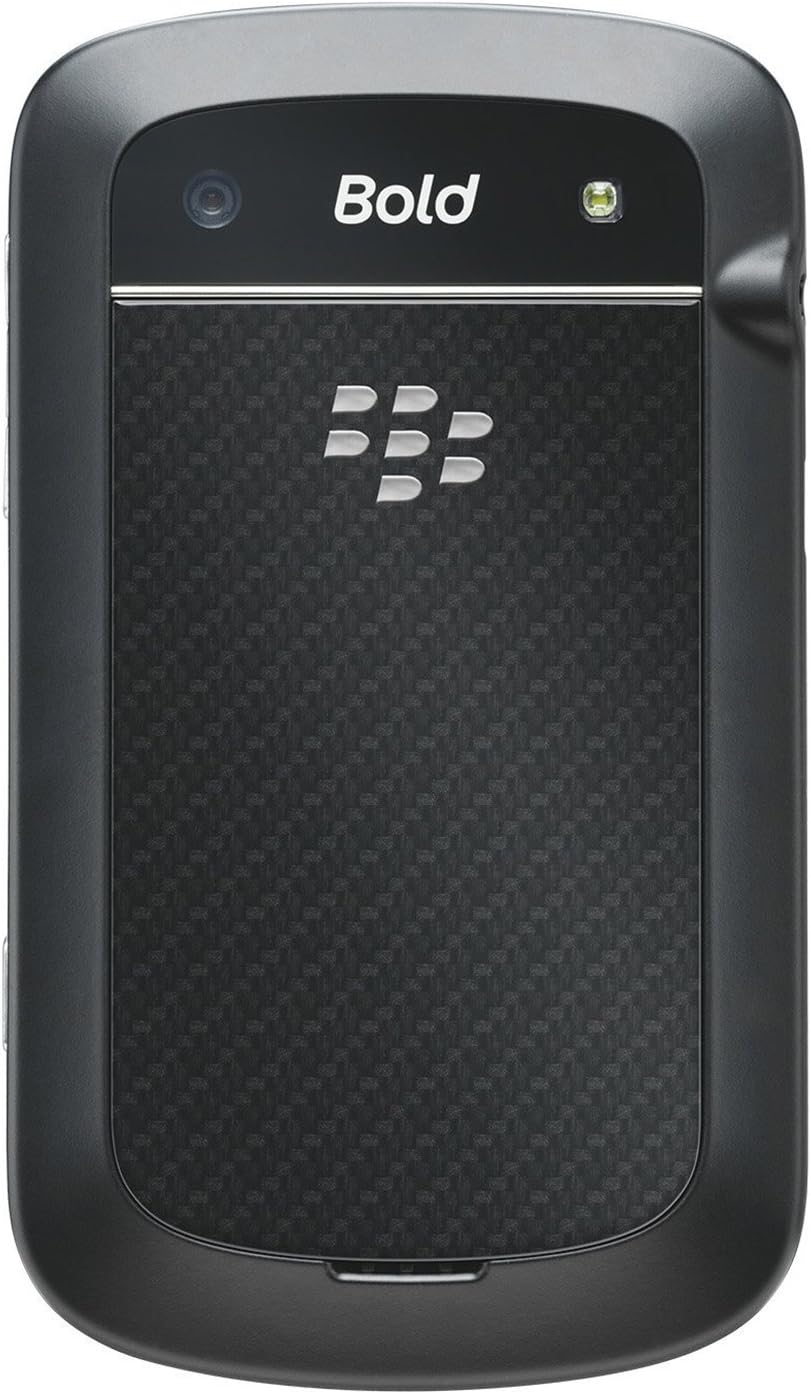
3.2 Ззаду View
Выява: Задняя частка view of the BlackBerry BB 9900 Bold Touch, featuring the 5-megapixel camera lens, LED flash, and the BlackBerry logo.
Камера 5 МП: Primary camera with autofocus and LED flash.
Крышка акумулятара: Removable cover for battery and SIM card access.
3.3 бок View
Выява: Збоку view of the BlackBerry BB 9900 Bold Touch, illustrating the placement of the volume control buttons and a customizable convenience key.
Remove the battery cover from the back of the device.
Знайдзіце слот для SIM -карты.
Устаўце SIM-карту залатымі кантактамі ўніз, а зрэзаны куток павінен быць сумешчаны са слотам.
Пераканайцеся, што SIM-карта надзейна замацавана.
4.2 Устаўка батарэі
After inserting the SIM card, align the battery's gold contacts with the contacts in the battery compartment.
Акуратна ўстаўце батарэйку на месца, пакуль не пачуеце пстрычку.
Замяніце крышку батарэйнага адсека.
4.3 Зарадка прылады
Connect the USB cable to the charging port on your device.
Plug the other end of the USB cable into the wall charger, then into a power outlet.
Перад першым выкарыстаннем дайце прыладзе цалкам зарадзіцца. Індыкатар батарэі на экране будзе паказваць стан зарадкі.
4.4 Уключэнне/выключэнне
Каб уключыць: Press and hold the Power/Lock button (usually located on the top edge) until the BlackBerry logo appears.
Каб выключыць: Press and hold the Power/Lock button until the 'Power Off' option appears on the screen. Tap 'Power Off' to confirm.
5. Інструкцыя па эксплуатацыі
5.1 Навігацыя па сэнсарным экране
Націсніце: Touch the screen briefly to open applications, select items, or activate buttons.
Правядзіце пальцам: Drag your finger across the screen to scroll through lists or switch between home screen panels.
Звядзенне пальцамі для павелічэння: Use two fingers to zoom in or out on photos, web старонкі або карты.
5.2 Using the QWERTY Keyboard
The physical QWERTY keyboard allows for fast and accurate text entry. Each key corresponds to a letter, number, or symbol. Use the 'Alt' key for alternate characters and the 'Shift' key for capitalization.
5.3 Здзяйсненне званкоў
From the home screen, tap the Phone icon or press the green Call button.
Enter the phone number using the keyboard.
Націсніце зялёную кнопку выкліку, каб пачаць званок.
Каб завяршыць выклік, націсніце чырвоную кнопку «Завяршыць выклік».
5.4 Адпраўка паведамленняў
Tap the Messages icon from the home screen.
Select 'Compose New' or similar option.
Увядзіце нумар атрымальніка або выберыце з кантактаў.
Type your message using the QWERTY keyboard.
Tap 'Send'.
5.5 Выкарыстанне камеры
Націсніце на значок камеры, каб адкрыць праграму камеры.
Скампануйце здымак, выкарыстоўваючы экран у якасці viewшукальнік.
Tap the screen or press the convenience key (if configured) to take a photo.
The 5MP camera features autofocus and an LED flash for improved image quality.
5.6 Падключэнне да Wi-Fi
Go to 'Options' > 'Networks and Connections' > 'Wi-Fi'.
Выберыце патрэбную сетку і ўвядзіце пароль, калі будзе прапанавана.
Once connected, the Wi-Fi indicator will appear in the status bar.
5.7 Using NFC (Near Field Communication)
The BlackBerry BB 9900 Bold Touch supports NFC for short-range wireless communication. This allows for quick pairing with compatible accessories or sharing data with other NFC-enabled devices by tapping them together.
Пераканайцеся, што NFC уключаны ў наладах прылады.
Hold your device close to another NFC-enabled device or tag.
Follow on-screen prompts to complete the desired action (e.g., pairing, data transfer).
6. Тэхнічнае абслугоўванне
6.1 Ачыстка прылады
Выкарыстоўвайце мяккую тканіну без ворса, каб праціраць экран і корпус прылады.
Пазбягайце выкарыстання агрэсіўных хімікатаў, абразіўных ачышчальнікаў або аэразольных распыляльнікаў.
Не падвяргайце прыладу ўздзеянню празмернай вільготнасці.
6.2 Сыход за акумулятарам
Пазбягайце экстрэмальных тэмператур, якія могуць пагоршыць прадукцыйнасць акумулятара.
Выкарыстоўвайце толькі арыгінальную або зацверджаную зарадную прыладу.
Не праколвайце і не пашкоджвайце акумулятар.
6.3 Абнаўленне праграмнага забеспячэння
Periodically check for software updates to ensure your device has the latest features and security enhancements. Updates can typically be found in the device's 'Options' or 'Settings' menu under 'Software Updates'.
7. Выпраўленне непаладак
7.1 Прылада не ўключаецца
Пераканайцеся, што акумулятар правільна ўстаўлены і зараджаны.
Падключыце прыладу да зараднай прылады і пачакайце некалькі хвілін, перш чым спрабаваць зноў уключыць яе.
If the issue persists, try removing and reinserting the battery.
7.2 Праблемы з падключэннем да сеткі
Check if your SIM card is correctly inserted and activated with your carrier.
Verify that cellular data or Wi-Fi is enabled in your device settings.
Перазапусціце прыладу.
If using Wi-Fi, ensure your router is working and you have entered the correct password.
7.3 Сэнсарны экран не рэагуе
Перазапусціце прыладу.
Пераканайцеся, што экран чысты і не мае смецця або вільгаці.
If the issue is intermittent, check for any recent software installations that might be causing conflicts.
8. Тэхнічныя характарыстыкі
Асаблівасць
Дэталь
Назва мадэлі
ВВ 9900
Аперацыйная сістэма
Аперацыйная сістэма BlackBerry 7
Дысплей
2.8-inch Capacitive Touchscreen, 640 x 480 Resolution
Працэсар
Not specified (typically 1.2 GHz for this model)
АЗП
768 Мб
Унутраная памяць
8 ГБ
Задняя камера
5 MP, Autofocus, LED Flash
Сувязь
Wi-Fi 802.11 b/g/n, NFC, Bluetooth, GPS
Падтрымка сеткі
Quad-band GSM/GPRS/EDGE, Tri-band HSPA+
Памеры
4.53 х 2.6 х 0.41 цалі (115 х 66 х 10.5 мм)
Вага
4.6 унцыі (130 грам)
Аўдыёраз'ём
3.5 мм
9. Падтрымка і гарантыя
9.1 Падтрымка кліентаў
For technical assistance, troubleshooting beyond this manual, or service inquiries, please visit the official BlackBerry support website or contact your local service provider. Refer to the packaging or official webсайт для атрымання канкрэтнай кантактнай інфармацыі.
9.2 Інфармацыя аб гарантыі
Your BlackBerry BB 9900 Bold Touch is covered by a limited warranty. Please refer to the warranty card included in your product packaging or visit the official BlackBerry webпадрабязныя ўмовы, у тым ліку гарантыйны тэрмін і ўмовы пакрыцця, глядзіце на сайце. Захоўвайце пацвярджэнне пакупкі для прэтэнзій па гарантыі.
Ask a question about this manual
Ask about setup, troubleshooting, compatibility, parts, safety, or missing instructions. Manuals+ will review the question and use this page’s manual context to help answer it.