
1. Уводзіны
The SteelSeries Kana Optical Gaming Mouse is engineered for precision and versatility, designed to accommodate all three primary grip styles: palm, claw, and fingertip. This ambidextrous mouse features an ergonomic button layout and size, developed in collaboration with professional gaming teams to ensure consistent performance and accuracy in competitive environments. This manual provides comprehensive instructions for setup, operation, maintenance, and troubleshooting to help you maximize your gaming experience.
2. Змесціва ўпакоўкі
- SteelSeries Kana Optical Gaming Mouse (White)
- Quick Start Guide (integrated into this manual)
3. Прадукт скончыўсяview
Familiarize yourself with the key components of your SteelSeries Kana mouse:
- Левая кнопка мышы: Кнопка асноўнага дзеяння.
- Правая кнопка мышы: Кнопка другаснага дзеяння.
- Кола пракруткі: For scrolling and a clickable middle button. The scroll wheel is illuminated.
- CPI Toggle Button: Located centrally, allows quick switching between sensitivity settings.
- Side Buttons (x2): One on each side, large and easily accessible for rapid-fire actions. These can be customized or disabled via software.
- Аптычны датчык: Размешчаны на ніжняй баку, забяспечвае дакладнае адсочванне.
- Раз'ём USB: For connecting the mouse to your computer.
- Braided Cable: Durable, tangle-free nylon cord.
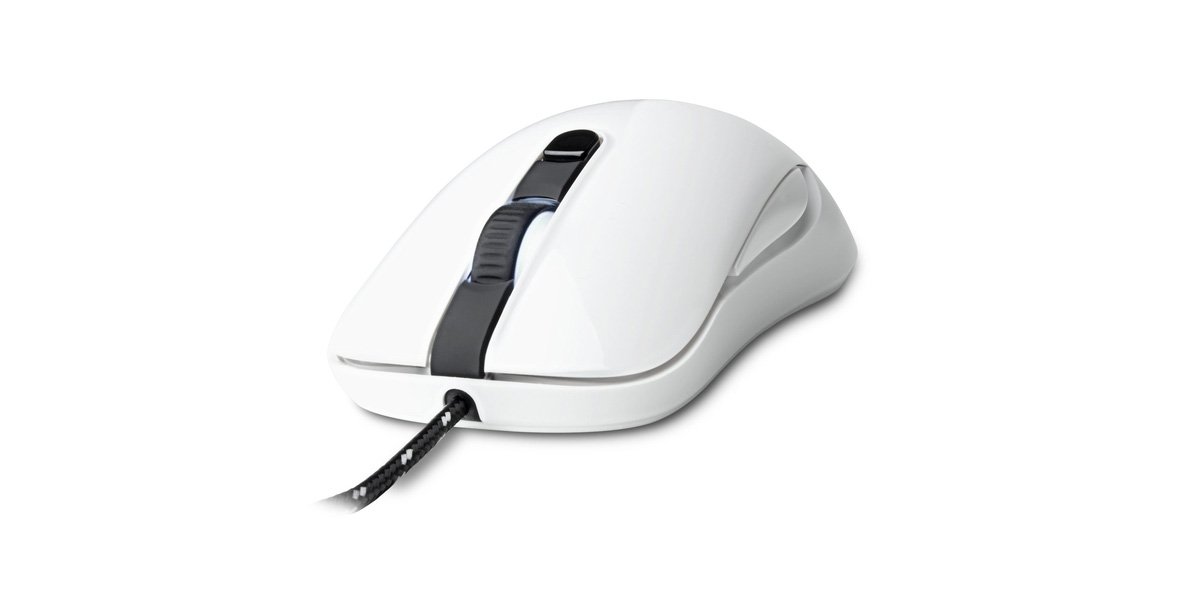
Image of the SteelSeries Kana Optical Gaming Mouse in white, showcasing its ambidextrous design, illuminated scroll wheel, and side buttons.
4. Настройка
4.1 Падлучэнне абсталявання
- Знайдзіце даступны USB-порт на вашым кампутары.
- Plug the USB connector of the SteelSeries Kana mouse into the USB port.
- Your operating system should automatically detect and install basic drivers for the mouse.
4.2 Software Installation (SteelSeries Engine)
To unlock the full customization potential of your SteelSeries Kana mouse, including CPI settings, button programming, macros, and LED intensity, install the SteelSeries Engine software.
- Наведайце афіцыйны сайт SteelSeries webсайт: steelseries.com/engine
- Download the SteelSeries Engine software compatible with your operating system (Windows or macOS).
- Выконвайце інструкцыі на экране, каб завяршыць усталёўку.
- Once installed, launch the SteelSeries Engine to configure your mouse settings.
Заўвага для карыстальнікаў Mac: Compatibility with macOS versions 10.9 and later for SteelSeries Engine 2.0 (required for Kana) has historically been inconsistent. Please check the official SteelSeries website for the latest software updates and compatibility information before installation.
5. Інструкцыя па эксплуатацыі
5.1 Асноўныя функцыянальныя магчымасці
- Рух: Move the mouse across a surface to control the cursor on your screen.
- Пстрычка: Use the left and right buttons for primary and secondary actions.
- Пракрутка: Rotate the scroll wheel to navigate documents and web pages. Press the scroll wheel for its assigned middle-click function.
5.2 Adjusting CPI (Counts Per Inch)
The centrally located CPI toggle button allows you to switch between two pre-defined sensitivity settings instantly. The default CPI settings are optimized for gaming, but can be customized using the SteelSeries Engine software. The maximum CPI supported is 3200.
- Press the CPI toggle button once to switch to the alternate CPI setting.
- Press it again to revert to the previous setting.
5.3 Customizing with SteelSeries Engine
The SteelSeries Engine software provides extensive customization options:
- CPI Settings: Fine-tune or set custom CPI values beyond the pre-defined options.
- Праграмаванне кнопак: Assign custom functions, keyboard shortcuts, or macros to any of the 6 programmable buttons (including side buttons and scroll wheel click).
- Макрасы: Create and assign complex sequences of commands with precise timing control.
- LED Intensity: Adjust the brightness of the illuminated scroll wheel.
- профіfiles: Стварыць і захаваць некалькі прафесіяналаўfiles for different games or applications, with automatic switching based on game triggers.
6. Тэхнічнае абслугоўванне
6.1 Чыстка мышы
To ensure optimal performance and longevity, keep your mouse clean.
- Знешні выгляд: Выкарыстоўвайце мяккую безворсовую тканіну, злёгку dampПрацірайце паверхню мышы вадой або мяккім ачышчальным растворам. Пазбягайце выкарыстання агрэсіўных хімічных рэчываў або абразіўных матэрыялаў.
- Аптычны датчык: Gently clean the optical sensor lens on the underside of the mouse with a dry cotton swab or compressed air to remove dust or debris.
- Лапкі мышкі: Ensure the mouse feet are clean and free of obstructions for smooth gliding.
Увага: Do not immerse the mouse in water or any cleaning solution. Avoid spraying liquids directly onto the mouse.
7. Выпраўленне непаладак
| праблема | Магчымае рашэнне |
|---|---|
| Mouse not detected / Not responding |
|
| Inaccurate or erratic tracking |
|
| Buttons not responding or performing incorrectly |
|
| SteelSeries Engine software not recognizing mouse (Mac OS) |
|
8. Тэхнічныя характарыстыкі
| Марка | SteelSeries |
| Нумар мадэлі | 62029 |
| Колер | Белы |
| Тэхналогія выяўлення руху | Аптычны |
| Колькасць кнопак | 6 (праграмуемых) |
| Рука арыентацыі | Ambidextrous (Left, Right) |
| Апаратная платформа | PC |
| Тып кабеля | Плётаны нейлон |
| Вага прадмета | 0.16 кілаграма |
| Асаблівасць | Ergonomic Design, Illuminated Scroll Wheel |
9. Гарантыя і падтрымка
9.1 Інфармацыя аб гарантыі
The SteelSeries Kana Optical Gaming Mouse comes with a 1-гадовая абмежаваная гарантыя з даты пакупкі. Гэтая гарантыя распаўсюджваецца на вытворчыя дэфекты і дэфекты вырабу пры нармальным выкарыстанні. Яна не распаўсюджваецца на пашкоджанні, выкліканыя няправільным выкарыстаннем, аварыямі, несанкцыянаванымі мадыфікацыямі або нармальным зносам. Калі ласка, захавайце пацвярджэнне пакупкі для прэтэнзій па гарантыі.
9.2 Падтрымка кліентаў
For technical assistance, warranty claims, or further information, please visit the official SteelSeries support webсайт:
You can find FAQs, driver downloads, and contact information for customer service on their webсайт.