
Уводзіны
The Amped Wireless UA1000 High Power Wireless-N 500mW Directional USB Adapter is designed to significantly enhance Wi-Fi connectivity and range for both Mac and Windows laptop and desktop computers. This high-performance wireless network adapter facilitates connection to 2.4GHz 802.11b/g/n Wi-Fi networks, offering up to three times greater distance compared to standard wireless adapters. This is achieved through its high-gain, dual-polarity, directional antenna, dual 500mW power amplifiers, and wireless reception amplifiers. The UA1000 also features a design that allows it to be clipped onto a laptop monitor for improved mobility and signal positioning.
Асаблівасці прадукту
- Extreme Range Wireless Connectivity: Designed to extend Wi-Fi range for Mac or PC.
- Высокая магутнасць Ampліфёры: Features dual 500mW amplifiers for boosting wireless transmissions and dual low-noise amplifiers for improving wireless reception.
- Directional High Gain Antenna: An advanced high-gain, dual-polarity, 5dBi directional antenna concentrates Wi-Fi signals in a single direction, maximizing signal strength and creating a more reliable connection.
- Высокія хуткасці Wi-Fi: Supports 2.4GHz 300Mbps Wi-Fi speeds, ideal for transferring large files and streaming HD media without buffering, thanks to MIMO and dual radio technology.
- Простая ўстаноўка: Installation involves inserting the CD, installing the software, and plugging in the adapter.
- Падтрымка WPS: Supports one-touch WPS push-button configuration for easy network setup.
- Dual USB Connectors: Uses two USB ports for maximum power and range, but can also operate with a single USB connection if only one is available.
- Універсальная сумяшчальнасць: Works with all 2.4GHz 802.11b/g/n wireless routers and Wi-Fi networks.
- Sleek and Travel Friendly: Features a sleek enclosure and includes a laptop monitor clip for convenient mounting and mobility.
Змест пакета
The Amped Wireless UA1000 package includes the following items:
- Amped Wireless UA1000 High Power Wireless-N 500mW накіраваны адаптар USB
- Dual USB 2.0 Cable
- Кіраўніцтва па ўстаноўцы
- Installation CD with User's Guide and Software
- Laptop Monitor Mounting Clip
- Інфармацыя аб гарантыі
Інструкцыя па наладзе
Выканайце наступныя дзеянні, каб наладзіць Amped Wireless UA1000 USB Adapter:
- Усталяваць праграмнае забеспячэнне: Insert the provided installation CD into your computer's CD/DVD drive. Follow the on-screen prompts to install the necessary drivers and software. Do not connect the UA1000 adapter to your computer until the software installation is complete.
- Падключэнне адаптара: Once the software is installed, connect the dual USB 2.0 cable to the UA1000 adapter. Plug both ends of the dual USB cable into available USB 2.0 ports on your computer. Using two USB ports ensures maximum power delivery and optimal performance. If only one USB port is available, the adapter will still function, but performance may be reduced.
- Positioning (Optional): For enhanced mobility and signal direction, attach the included laptop monitor mounting clip to the UA1000 adapter and then secure it to your laptop's monitor. Ensure the front of the adapter is facing the direction of your Wi-Fi source for best results.
- Падключыцеся да сеткі Wi-Fi: After connecting the adapter, your computer should detect it. Use your operating system's network settings to scan for available Wi-Fi networks and connect to your desired network. The UA1000 also supports WPS (Wi-Fi Protected Setup) for a quick, one-touch connection to compatible routers.
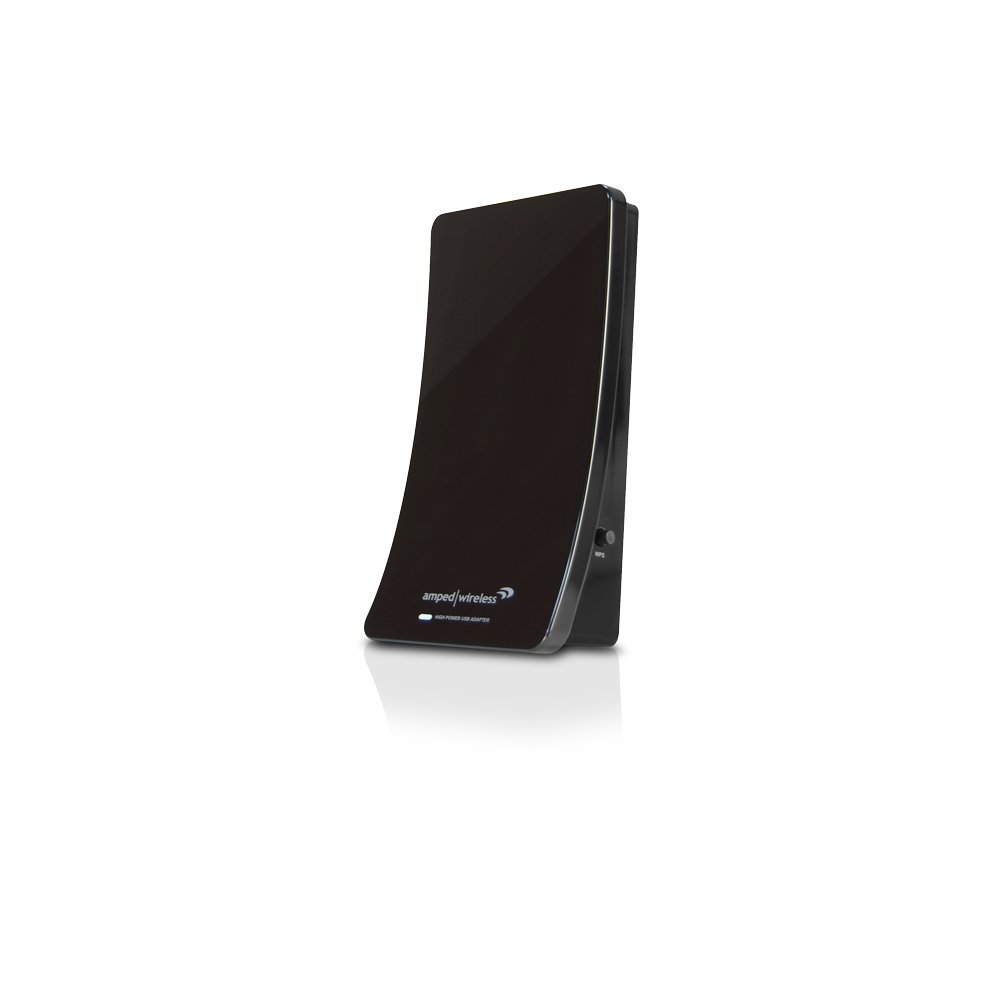
Выява 1: Спераду view з Amped Wireless UA1000 adapter.

Малюнак 2: Спіна view з Amped Wireless UA1000 adapter, displaying model information and FCC ID.
Інструкцыя па эксплуатацыі
Аднойчы Amped Wireless UA1000 is set up, it will function as your computer's primary Wi-Fi adapter, providing extended range and improved performance.
- Падключэнне да сеткі: The adapter will automatically scan for available Wi-Fi networks. Select your desired network from the list and enter the password if required.
- Накіраваная антэна: The UA1000 features a directional antenna. For optimal signal strength and range, position the adapter so its front face points towards your wireless router or access point. This concentrates the Wi-Fi signals, maximizing performance.
- Маніторынг прадукцыйнасці: Use your computer's network status indicators to monitor signal strength. If signal strength is low, try adjusting the adapter's orientation or repositioning it using the monitor clip.
- High-Speed Applications: The 300Mbps Wi-Fi speed is suitable for demanding applications such as online gaming, large file transfers, and high-definition video streaming.
Відэа 1: Афіцыйна Amped Wireless overview of the UA1000 High Power Wireless-N 500mW Directional USB Adapter, demonstrating its features and setup.
Ліквідацыю непаладак
Калі ў вас узнікнуць праблемы з вашым Amped Wireless UA1000 adapter, consider the following troubleshooting steps:
- Няма падключэння да Wi-Fi:
- Ensure the adapter is securely plugged into your computer's USB ports.
- Verify that the drivers and software from the installation CD were successfully installed. Reinstall if necessary.
- Check if your computer's built-in Wi-Fi is disabled to prevent conflicts.
- Confirm that your wireless router is powered on and broadcasting a signal.
- Павольная хуткасць або абрыў злучэння:
- Reposition the UA1000 adapter, ensuring its front face is directed towards your wireless router.
- Minimize physical obstructions (walls, large furniture) between the adapter and the router.
- Check for potential interference from other 2.4GHz devices (e.g., cordless phones, microwaves).
- If using USB 3.0 ports, be aware that some USB 3.0 devices can cause interference with 2.4GHz Wi-Fi. Try using USB 2.0 ports if available, or ensure proper shielding.
- Выкарыстоўвайце Amped Wireless Wi-Fi Analytics Tool (available for Android) to analyze your Wi-Fi network for channel interference and signal strength, helping you optimize your network settings.
- Адаптар не распазнаны:
- Try plugging the adapter into different USB ports on your computer.
- Restart your computer after installing the drivers.
- Check Device Manager (Windows) or System Information (Mac) to see if the adapter is listed and functioning correctly.
Тэхнічныя характарыстыкі
| Асаблівасць | Дэталь |
|---|---|
| Нумар мадэлі | UA1000 |
| Бесправадны тып | 802.11b, 802.11g, 802.11n |
| Дыяпазон частот | 2.4 ГГц |
| Хуткасць бесправадной сувязі | Да 300 Мбіт/с |
| Rx/Tx Ampзадымнік | Dual high power 500mW amplifiers, dual low noise ampасаднікі |
| Бесправадная выхадная магутнасць | 27 дБм (макс.) |
| Wireless Sensitivity | -95 дБм (макс.) |
| Бесправадная бяспека | WEP, WPA, WPA2, WPA Mixed, WPS |
| Антэна | High gain dual polarity directional antenna (5dBi) |
| Інтэрфейс | USB 2.0 |
| Сумяшчальныя прылады | Настольны кампутар, ноўтбук |
| Падтрымка аперацыйнай сістэмы | Windows 2000, XP (32/64 bit), Vista (32/64 bit), 7 (32/64 bit); Mac OS X 10.4, 10.5, 10.6, 10.7 |
| Памеры (ДхШхВ) | 6 х 8 х 2.25 цалі |
| Вага прадмета | 13.6 унцыі (0.85 фунта) |
Note: Specifications are subject to change without notice. Actual performance may vary based on operating environment, building materials, and wireless obstructions.
Гарантыя і падтрымка
Amped Wireless provides comprehensive support for its products, including the UA1000 adapter.
- Тэхнічная падтрымка: Amped Wireless offers industry-leading "Elite Support" to assist with any installation questions or troubleshooting needs. This support is available free of charge.
- Wi-Fi Analytics Tool: A free Wi-Fi Analytics Tool Android App is included to help users analyze and optimize their Wi-Fi networks. This tool can identify channel interference and signal strength issues.
- Range Increase Guarantee: Amped Wireless offers a satisfaction guarantee related to range increase.
- Палітыка вяртання: The product typically comes with a 30-day return policy for refund or replacement. Please refer to your purchase documentation for specific terms.
Каб атрымаць дадатковую дапамогу, звярніцеся на афіцыйны сайт Amped Wireless support webсайт або звярніцеся ў службу падтрымкі кліентаў.