
1. Уводзіны
This manual provides detailed instructions for the installation, configuration, operation, and maintenance of your D-Link DNS-320L Cloud Storage 2-Bay Network Attached Storage (NAS) device. Please read this manual thoroughly before using the device to ensure proper setup and optimal performance. The DNS-320L is designed to provide a centralized storage solution for your home or small office network, offering data redundancy, remote access, and media streaming capabilities.
2. Інфармацыя па бяспецы
- Ensure the device is placed on a stable, flat surface to prevent accidental falls.
- Не падвяргайце прыладу ўздзеянню вады, вільгаці або экстрэмальных тэмператур.
- Use only the power adapter supplied with the device. Using an incorrect adapter may damage the device and void the warranty.
- Не адкрывайце прыладу casing. Па ўсіх пытаннях тэхнічнага абслугоўвання звяртайцеся да кваліфікаванага персаналу.
- Трымайце вентыляцыйныя адтуліны чыстымі, каб прадухіліць перагрэў.
- Disconnect the power cable before cleaning or moving the device.
3. Змесціва ўпакоўкі
Пераканайцеся, што ваш пакет змяшчае наступныя элементы:
- D-Link DNS-320L Cloud Storage 2-Bay NAS Enclosure
- Адаптар сілкавання
- Кабель Ethernet
- Кіраўніцтва па хуткай ўстаноўцы
- Resource CD (may include software and full manual)
Калі якія-небудзь элементы адсутнічаюць або пашкоджаныя, звярніцеся да прадаўца або ў службу падтрымкі D-Link.
4. Фізічны канецview
Familiarize yourself with the ports, buttons, and indicators on your DNS-320L device.
Малюнак 4.1: Спераду View of D-Link DNS-320L. This image displays the front panel of the DNS-320L, typically showing LED indicators for power, network activity, and hard drive status. It may also feature a power button and a USB port for quick access.
4.1 Пярэдняя панэль
- Святлодыёд харчавання: Паказвае стан харчавання.
- HDD 1/2 LEDs: Indicate hard drive activity and status for each bay.
- Порт USB: For connecting external USB storage devices or printers.
- Кнопка харчавання: Для ўключэння/выключэння прылады.
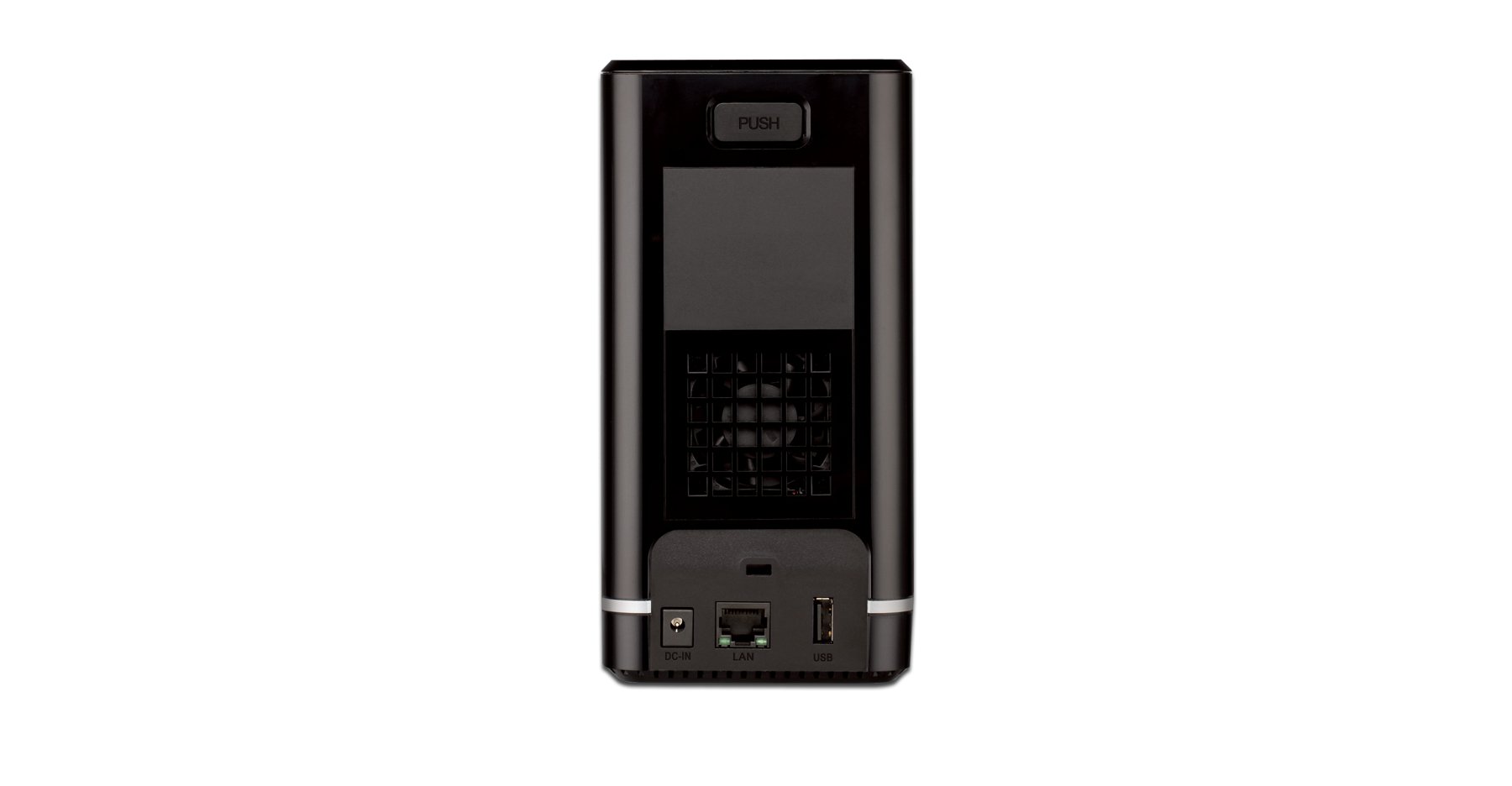
4.2 Задняя панэль
- Порт Gigabit Ethernet: Connects the NAS to your network router or switch.
- Раз'ём харчавання: Для падлучэння адаптара сілкавання.
- Кнопка скіду: Выкарыстоўваецца для аднаўлення заводскіх налад (патрабуецца скрепка або падобны востры прадмет).
- Слот замка Kensington: Для фізічнай бяспекі.
5. Устаноўка абсталявання
This section guides you through installing hard drives and connecting the DNS-320L to your network.
5.1 Устаноўка жорсткіх дыскаў
The DNS-320L supports two 3.5-inch SATA hard drives. Ensure your drives are compatible and unformatted for initial setup.
- Ensure the DNS-320L is powered off and disconnected from the power outlet.
- Gently slide open the front cover of the NAS enclosure.
- Slide each hard drive into an available bay until it clicks into place, ensuring the SATA connectors align properly. No screws are typically required for tool-less installation.
- Надзейна зачыніце пярэднюю крышку.
Figure 5.1: Hard Drive Installation. This image illustrates the process of inserting a 3.5-inch SATA hard drive into one of the bays of the DNS-320L, highlighting the tool-less design.
5.2 Connecting the NAS to Your Network
- Connect one end of the Ethernet cable to the Gigabit Ethernet port on the rear of the DNS-320L.
- Падключыце іншы канец кабеля Ethernet да вольнага порта LAN маршрутызатара або сеткавага камутатара.
- Connect the power adapter to the power connector on the rear of the DNS-320L, then plug the adapter into a power outlet.
- Press the Power button on the front panel to turn on the device. The Power LED will illuminate, and the HDD LEDs will flash during startup.
6. Пачатковая налада
After hardware installation, you will need to configure the DNS-320L using its webінтэрфейс кіравання на аснове.
6.1 Доступ да Web Інтэрфейс
- Ensure your computer is connected to the same network as the DNS-320L.
- Адкрыйце a web браўзер (напрыклад, Chrome, Firefox, Edge).
- The DNS-320L typically obtains an IP address automatically via DHCP. You can use the D-Link ShareCenter Utility (if provided on the Resource CD or D-Link website) to discover its IP address. Alternatively, try accessing
http://dlinksharecenterorhttp://dlinksharecenter.local. - Увядзіце імя карыстальніка па змаўчанні (звычайна
admin) and leave the password blank (oradmin) to log in for the first time. You will be prompted to change the password.
6.2 Running the Setup Wizard
Upon first login, a setup wizard will guide you through essential configurations:
- Disk Volume Creation: You will be prompted to create a disk volume. Options typically include:
- стандартны: Each drive is treated as a separate volume.
- RAID 0 (чаргаванне): Combines drives for maximum capacity and performance, but offers no data redundancy. If one drive fails, all data is lost.
- RAID 1 (люстраванне): Mirrors data across both drives, providing data redundancy. If one drive fails, data is preserved on the other. Capacity is limited to the size of one drive.
- JBOD (Just a Bunch Of Disks): Combines drives into a single large volume sequentially. No performance or redundancy benefits.
Choose RAID 1 for data protection. RAID 0 offers speed but no protection.
- User Account Creation: Create at least one user account with administrative privileges.
- Налады сеткі: Confirm or adjust network settings (DHCP or static IP).
- Часавы пояс: Усталюйце правільную дату і час.
7. Operating the DNS-320L
This section covers common operational tasks for your NAS.
7.1 Accessing Shared Folders
After setup, shared folders will be accessible from your network:
- Windows: Адкрыты File Explorer, type
\DNS-320L(or its IP address) in the address bar, and press Enter. - MacOS: In Finder, go to Перайдзіце> Падключыцца да сервера, тыпу
smb://DNS-320L(or its IP address), and click Connect. - Linux: Выкарыстоўвайце свой file manager's network browsing feature or mount the share using SMB/CIFS.
7.2 User and Group Management
Manage who can access your NAS and what permissions they have:
- Увайдзіце ў web interface as an administrator.
- Перайсці да Management > User Management or similar section.
- Create new users, assign passwords, and add them to groups.
- Configure folder permissions for users and groups (Read/Write, Read Only, No Access).
7.3 Cloud Access and Remote Management
The DNS-320L supports D-Link's Cloud features for remote access.
- Register your device with the D-Link Cloud service (if applicable, refer to D-Link's official documentation for specific steps).
- Use the D-Link mobile app (e.g., mydlink ShareCenter) to access files remotely from your smartphone or tablet.
- Configure port forwarding on your router if direct remote access to the web interface is desired (advanced users only, consult your router manual).
7.4 USB Device Functionality
The USB 2.0 port on the front panel can be used for:
- Знешняя памяць: Connect USB hard drives or flash drives to expand storage or for backup purposes. These devices will appear as shared folders.
- USB Printer: Connect a compatible USB printer to share it across your network.
8. Тэхнічнае абслугоўванне
Regular maintenance ensures the longevity and reliability of your DNS-320L.
8.1 Абнаўленне прашыўкі
Periodically check for and install firmware updates from the D-Link support website. Firmware updates can provide new features, performance improvements, and security patches.
- Спампуйце апошнюю версію прашыўкі file for your DNS-320L model from the official D-Link support site.
- Log in to the NAS web interface as an administrator.
- Перайсці да Management > Firmware Upgrade or a similar section.
- Перайдзіце да спампаванай прашыўкі file and initiate the upgrade process. Do not power off the device during the update.
8.2 Рэзервовае капіраванне дадзеных
While RAID 1 provides redundancy against a single drive failure, it is not a substitute for a comprehensive backup strategy. Regularly back up critical data from your NAS to an external drive or another storage location.
8.3 Ачыстка
Keep the device clean to ensure proper airflow and prevent dust buildup.
- Перад чысткай выключыце і адключыце прыладу ад сеткі.
- Выкарыстоўвайце мяккую, сухую тканіну для працірання вонкавага боку.
- Выкарыстоўвайце сціснутае паветра, каб ачысціць вентыляцыйныя адтуліны ад пылу.
9. Выпраўленне непаладак
This section addresses common issues you might encounter with your DNS-320L.
| праблема | Магчымае рашэнне |
|---|---|
| Прылада не ўключаецца. | Пераканайцеся, што адаптар сілкавання надзейна падключаны як да прылады, так і да спраўнай разеткі. Праверце разетку з іншай прыладай. |
| Cannot access the NAS on the network. | Verify the Ethernet cable is properly connected. Check network settings on your computer and router. Ensure the NAS has an IP address (use the D-Link utility). Try restarting the NAS and your router. |
| Hard drive LED is red or flashing abnormally. | This may indicate a drive error or failure. Check the NAS web interface for drive status. If a drive has failed in a RAID 1 configuration, replace the faulty drive and rebuild the array. |
| Забыўся пароль адміністратара. | Use the reset button on the rear panel to restore factory default settings. Warning: This will erase all configurations, but typically not data on the drives. You will need to reconfigure the NAS. |
| павольна file хуткасці перадачы. | Ensure all network components (NAS, router, computer) support Gigabit Ethernet. Check for network congestion or faulty cables. |
10. Тэхнічныя характарыстыкі
Key technical specifications for the D-Link DNS-320L:
| Асаблівасць | Дэталь |
|---|---|
| Нумар мадэлі | DNS-320L |
| Прывадныя адсекі | 2 x 3.5-inch SATA I/II/III HDD |
| Падтрымка RAID | Standard, JBOD, RAID 0, RAID 1 |
| Сеткавы інтэрфейс | 1 гігабітныя Ethernet (10/100/1000 Мбіт/с) |
| Парты USB | 1 х USB 2.0 |
| Апаратная платформа | Мак, ПК |
| Памеры (ДхШхВ) | 3.54 х 5.68 х 7.61 цалі |
| Вага прадмета | 1.39 pounds (without drives) |
| Колер | Чорны |
| Матэрыял | Метал |
| Сумяшчальныя прылады | CPU, Desktop, Laptop, Server |
11. Гарантыя і падтрымка
For warranty information, please refer to the warranty card included with your product or visit the official D-Link website. D-Link provides technical support and resources to assist you with your DNS-320L.
- Інтэрнэт-падтрымка: Наведайце www.dlink.com/support for FAQs, troubleshooting guides, firmware downloads, and product documentation.
- Тэхнічная падтрымка: Contact D-Link technical support for assistance with installation, configuration, or troubleshooting issues that cannot be resolved using this manual or online resources. Contact details are available on the D-Link support webсайт для вашага рэгіёну.