
ATI 100-505746
ATI AMD FirePro W600 Graphics Card User Manual
Мадэль: 100-505746
1. Уводзіны
This user manual provides comprehensive instructions for the installation, operation, and maintenance of your ATI AMD FirePro W600 2GB GDDR5 6Mini DisplayPort PCI-Express Video Card. The FirePro W600 is designed for professional graphics applications, offering high performance and multi-display capabilities. Please read this manual thoroughly before installing and operating the graphics card to ensure proper functionality and safety.
2. Інфармацыя па бяспецы
Always observe the following safety precautions to prevent damage to the product or injury to yourself.
- Перад усталёўкай пераканайцеся, што камп'ютарная сістэма выключана і адключана ад разеткі.
- Discharge any static electricity from your body by touching a grounded metal object (e.g., the computer chassis) before handling the graphics card.
- Handle the graphics card by its edges; avoid touching the components or gold-plated connectors.
- Не падвяргайце відэакарту ўздзеянню вільгаці або экстрэмальных тэмператур.
- Only use the card in a well-ventilated computer case to prevent overheating.
3. Змесціва ўпакоўкі
Праверце, ці ёсць усе прадметы ў вашай упакоўцы:
- ATI AMD FirePro W600 Graphics Card
- Кароткае кіраўніцтва карыстальніка (калі ўключана)
- Driver CD (if included, otherwise download from manufacturer's webсайт)
- Mini DisplayPort to DVI adapters (quantity may vary, often sold separately)
4. Настройка і ўстаноўка
4.1 Сістэмныя патрабаванні
- PCI-Express x16 slot available on motherboard.
- Sufficient power supply (consult your system's power supply specifications).
- Compatible operating system (e.g., Windows 7/8/10, Linux).
- Мінімум 2 ГБ сістэмнай памяці.
4.2 Устаноўка абсталявання
- Падрыхтуйце свой камп'ютар: Выключыце камп'ютар і адключыце шнур харчавання. Адкрыйце корпус камп'ютара.
- Locate an available PCI-Express x16 slot: Identify an empty PCI-Express x16 slot on your motherboard. Remove the corresponding expansion slot cover from the computer case.
- Усталюйце відэакарту: Carefully align the graphics card with the PCI-Express x16 slot. Press down firmly and evenly until the card is securely seated in the slot. Secure the card with the screw or latch mechanism of your computer case.
- Connect power (if applicable): The FirePro W600 typically does not require additional power connectors beyond the PCIe slot, but always verify your specific model's requirements.
- Зачыніце корпус кампутара: Пасля таго, як карта надзейна ўсталявана, зачыніце корпус кампутара і зноў падключыце ўсе кабелі.
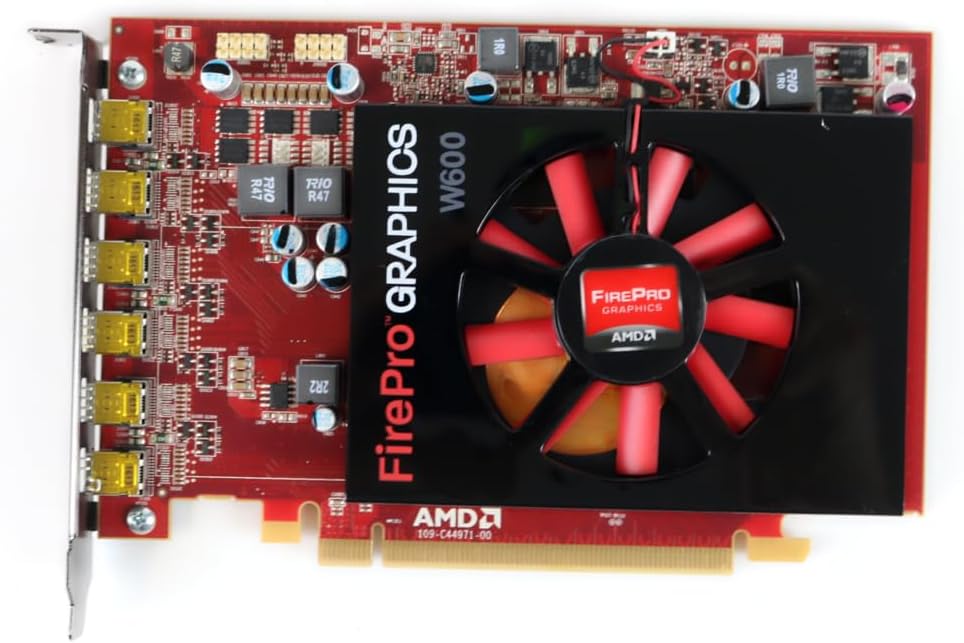
Малюнак 1: Спераду view of the ATI AMD FirePro W600 graphics card, showing the cooling fan and the FirePro Graphics branding.

Малюнак 2: Задняя частка view of the ATI AMD FirePro W600 graphics card, displaying the intricate circuitry and components on the back of the PCB.
4.3 Ўстаноўка драйвера
- Уключыце камп'ютар: Boot your computer. The operating system may automatically detect the new hardware and install a basic driver.
- Download the latest drivers: For optimal performance and stability, it is highly recommended to download the latest professional drivers directly from the AMD official website. Navigate to the support section and search for "FirePro W600" drivers.
- Install the drivers: Run the downloaded driver installer and follow the on-screen prompts. You may need to restart your computer after installation.
5. Кіраванне відэакартай
5.1 Падключэнне дысплеяў
The ATI AMD FirePro W600 features six Mini DisplayPort outputs. You will need Mini DisplayPort cables or Mini DisplayPort to DVI/HDMI/VGA adapters (active adapters are recommended for multi-monitor setups, especially for AMD Eyefinity features) to connect your monitors.
- Connect your Mini DisplayPort cables or adapters to the Mini DisplayPort outputs on the graphics card.
- Connect the other end of the cables to your monitors.
- Power on your monitors.

Figure 3: Detail of the six Mini DisplayPort outputs on the FirePro W600, indicating its multi-display capability.
5.2 Configuring Multi-Monitor Setups (AMD Eyefinity)
The FirePro W600 supports AMD Eyefinity technology, allowing you to combine multiple displays into a single large desktop or create independent display groups.
- After driver installation, right-click on your desktop and select "AMD Radeon Settings" or "AMD Catalyst Control Center" (depending on driver version).
- Navigate to the "Display" or "Eyefinity" section.
- Follow the on-screen instructions to detect and configure your connected displays. You can arrange displays, set resolutions, and create Eyefinity display groups for a panoramic viewвопыту.
- For optimal performance with Eyefinity, ensure you are using active Mini DisplayPort adapters for any non-DisplayPort monitors.
6. Тэхнічнае абслугоўванне
Рэгулярнае тэхнічнае абслугоўванне дапамагае забяспечыць даўгавечнасць і аптымальную прадукцыйнасць вашай відэакарты.
- Выдаленне пылу: Periodically clean dust from the graphics card's fan and heatsink using compressed air. Ensure the computer is powered off and unplugged before cleaning. Hold the fan blades gently to prevent over-spinning during cleaning.
- Абнаўленні драйвераў: Keep your graphics drivers updated by regularly checking the AMD official webсайт для апошніх версій.
- Сістэмная вентыляцыя: Ensure your computer case has adequate airflow to prevent the graphics card from overheating.
7. Выпраўленне непаладак
Калі ў вас узніклі праблемы з відэакартай, звярніцеся да наступных распаўсюджаных праблем і рашэнняў:
| праблема | Магчымая прычына / рашэнне |
|---|---|
| Пасля ўсталёўкі вываду на дысплей няма. |
|
| Памылка ўстаноўкі драйвера. |
|
| Only some monitors are detected in a multi-monitor setup. |
|
| System crashes or freezes during graphics-intensive tasks. |
|
8. Тэхнічныя характарыстыкі
| Асаблівасць | Дэталь |
|---|---|
| Набор мікрасхем | AMD FirePro W600 |
| рухавік Гадзіннік | 600 МГц |
| Памяць | 2 ГБ GDDR5 |
| Інтэрфейс памяці | 128-бітны |
| Макс. дазвол | 4096 х 2304 |
| Злучальнікі | 6x Mini DisplayPorts |
| Інтэрфейс | PCI-Express x16 |
| Вага прадмета | 7 унцыі |
| Памеры прадукту (ДxШxВ) | 1.57 х 4.21 х 6.45 цалі |
9. Інфармацыя аб гарантыі
For detailed warranty information regarding your ATI AMD FirePro W600 graphics card, please refer to the warranty card included with your product or visit the official ATI/AMD support website. Warranty terms and conditions may vary by region and retailer. Keep your proof of purchase for warranty claims.
10. Падтрымка
For technical support, driver downloads, and frequently asked questions, please visit the official AMD support webсайт:www.amd.com/en/support
You may also contact your retailer or point of purchase for assistance.
Ask a question about this manual
Ask about setup, troubleshooting, compatibility, parts, safety, or missing instructions. Manuals+ will review the question and use this page’s manual context to help answer it.