
1. Уводзіны
The Nektar Panorama P6 is a 61-key USB MIDI Controller Keyboard designed for deep integration with various Digital Audio Workstations (DAWs). It offers extensive control over your music production environment with its comprehensive set of controls, including a motorized fader, velocity-sensitive keys, and aftertouch.
Асноўныя характарыстыкі:
- 61 semi-weighted, full-size, velocity-sensitive keys with aftertouch.
- 100mm ALPS motorized touch-sensitive high-resolution fader.
- Deep DAW integration for Cubase, Logic, Studio One, Bitwig Studio, Nuendo, Mainstage, Reason, and Reaper.
- Comprehensive MIDI functionality, compatible with all MIDI music software applications.
- Mac and PC compatible.
- Includes PreSonus Studio One Artist DAW license.
2. Што ў скрынцы
Upon unpacking your Nektar Panorama P6, please ensure all the following items are present:
- Nektar Panorama P6 Keyboard
- Кабель USB
- Кіраўніцтва карыстальніка (гэты дакумент)
- PreSonus Studio One Artist License
3. Настройка
3.1 Connecting the Panorama P6
The Panorama P6 connects to your computer via a standard USB cable. It can also utilize MIDI ports for external hardware. For optimal performance and to enable the motorized fader, an external power supply (not included) may be required, though the unit can be USB bus-powered for basic functionality.
- Connect one end of the supplied USB cable to the USB port on the Panorama P6.
- Падключыце іншы канец кабеля USB да вольнага порта USB на вашым кампутары.
- If using an external power supply for the motorized fader, connect it to the DC input on the Panorama P6 and then to a power outlet.
- For MIDI hardware connections, use standard MIDI cables to connect the MIDI OUT port on the Panorama P6 to the MIDI IN port of your external device.

Выява: спераду view of the Nektar Panorama P6, showcasing the 61 keys, control surface, and display.
3.2 Driver Installation and DAW Integration
The Panorama P6 is class-compliant on most operating systems (Mac and PC), meaning no specific drivers are usually required for basic MIDI functionality. However, for deep DAW integration, you will need to download and install the appropriate integration files from the Nektar webсайт.
- Visit the official Nektar Technology webсайт (www.nektartech.com) and navigate to the support section for the Panorama P6.
- Download the latest DAW integration files specific to your operating system and preferred DAW (e.g., Cubase, Logic, Reason, Studio One).
- Follow the installation instructions provided with the downloaded files. These typically involve running an installer and then configuring your DAW to recognize the Panorama P6 as a control surface.
- Refer to your DAW's user manual for specific instructions on setting up MIDI controllers and control surfaces.
4. Operating the Panorama P6
4.1 Асноўныя элементы кіравання
The Panorama P6 features a comprehensive control surface designed for intuitive interaction with your DAW and virtual instruments.
- Клавіятура: The 61 semi-weighted keys provide a responsive playing experience with velocity sensitivity and aftertouch for expressive control.
- калодкі: The 12 velocity-sensitive pads are ideal for drumming, triggering sampфайлы або запуск кліпаў.
- Фейдэры і ручкі: A bank of faders and rotary knobs allows for precise control over mixer channels, instrument parameters, and effects. The 100mm motorized fader provides tactile feedback and automatically updates its position to match your DAW's mixer.
- кнопкі: Dedicated buttons for transport control (Play, Stop, Record, etc.), navigation, and various functions streamline your workflow.
- Дысплей: The integrated display provides visual feedback on parameters, settings, and DAW status.

Выява: Крупны план view of the Nektar Panorama P6's control surface, highlighting the pads, rotary knobs, and faders for detailed parameter manipulation.
4.2 Інтэграцыя з DAW
Once properly set up, the Panorama P6 offers deep integration with supported DAWs, allowing you to control various aspects of your software directly from the hardware.
- Кіраванне міксерам: Adjust volume, pan, sends, and other mixer parameters. The motorized fader will reflect the selected track's volume.
- Кіраванне прыборам: Map controls to virtual instrument parameters for hands-on sound design and performance.
- Кантроль транспарту: Start, stop, record, fast forward, and rewind your projects without touching your mouse or keyboard.
- Навігацыя: Browse presets, tracks, and projects directly from the controller.
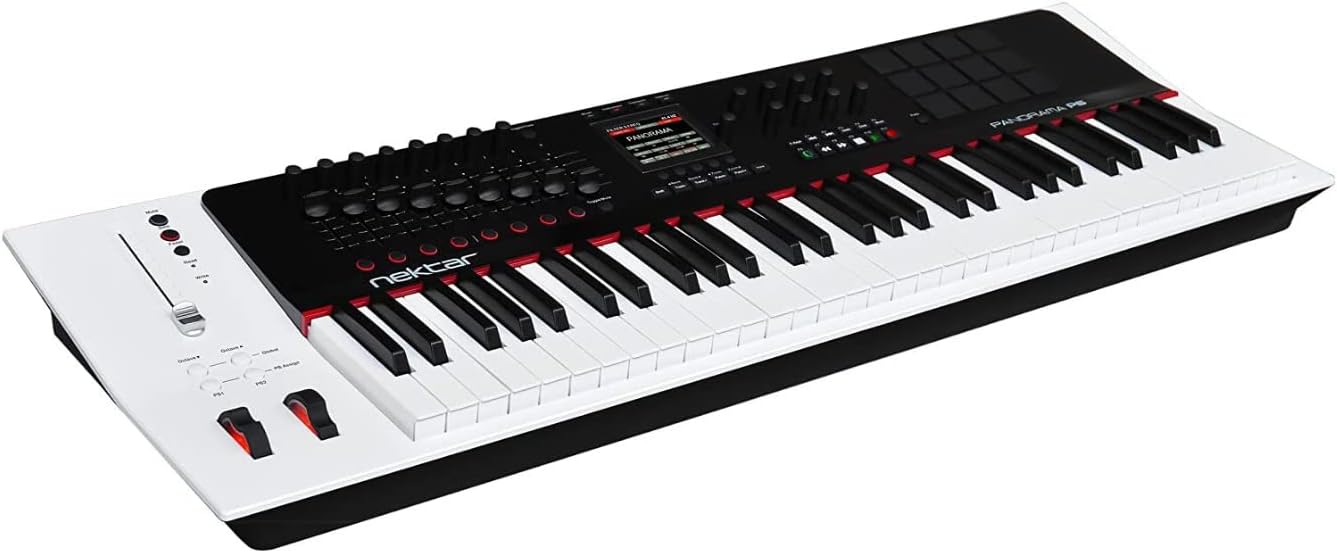
Выява: Пад вуглом view of the Nektar Panorama P6, providing a perspective of the entire keyboard and its integrated control panel.
5. Тэхнічнае абслугоўванне
5.1 Ачыстка
To maintain the appearance and functionality of your Panorama P6, follow these cleaning guidelines:
- Always disconnect the power and USB cable before cleaning.
- Use a soft, dry, lint-free cloth to wipe down the surface of the unit.
- Для ўстойлівага бруду злёгку ачысціцеampen the cloth with water. Avoid using harsh chemicals, abrasive cleaners, or solvents, as these can damage the finish and electronic components.
- Не дапускайце траплення вадкасцей у якія-небудзь адтуліны.
5.2 Захоўванне
When not in use, store the Panorama P6 in a clean, dry environment away from direct sunlight, extreme temperatures, and excessive dust. Consider using a dust cover to protect the keys and control surface.
5.3 Абнаўленне прашыўкі
Nektar periodically releases firmware updates to improve performance, add features, or address issues. Check the official Nektar Technology website regularly for the latest firmware and installation instructions.
6. Выпраўленне непаладак
If you encounter issues with your Nektar Panorama P6, try the following troubleshooting steps:
- Няма харчавання/Прылада не рэагуе:
- Ensure the USB cable is securely connected to both the Panorama P6 and your computer.
- If using an external power supply, verify it is correctly connected and plugged into a working power outlet.
- Паспрабуйце падключыцца да іншага порта USB на вашым кампутары.
- DAW Not Recognizing Panorama P6:
- Confirm that the correct DAW integration files have been installed from the Nektar webсайт.
- Check your DAW's preferences or settings to ensure the Panorama P6 is selected as a MIDI input device and control surface.
- Restart your DAW and/or computer.
- Motorized Fader Not Moving:
- The motorized fader requires an external power supply for full functionality. Ensure an appropriate power supply is connected.
- Verify that the DAW integration is correctly configured and communicating with the Panorama P6.
- Клавішы/пэды не рэагуюць:
- Check MIDI input settings in your DAW.
- Ensure the Panorama P6 is in the correct mode for sending MIDI notes (e.g., not in a control-only mode).
If these steps do not resolve your issue, please refer to the Nektar Technology support webабо звярніцеся ў службу падтрымкі кліентаў для атрымання дадатковай дапамогі.
7. Тэхнічныя характарыстыкі
| Асаблівасць | Спецыфікацыя |
|---|---|
| Нумар мадэлі | P6 |
| Вага прадмета | 17 фунта |
| Памеры прадукту | 39.76 х 12.99 х 3.78 цалі |
| Колер | Белы |
| Тып матэрыялу | Метал |
| Колькасць клавіш клавіятуры | 61 |
| Тып ключа | Semi-weighted, Velocity Sensitive, Aftertouch |
| Тэхналогія падлучэння | MIDI, USB |
| Тып раздыма | USB |
| Абсталяванне інтэрфейсу | USB |
| Сумяшчальныя прылады | Devices with USB and MIDI ports |
| Праграмнае забеспячэнне, якое падтрымліваецца | Cubase, Logic, Studio One, Bitwig Studio, Nuendo, Mainstage, Reason, Reaper |
| Асаблівасць | Keyboard Controller, Velocity Sensitive Key, Motorized Fader |
8. Гарантыя і падтрымка
8.1 Інфармацыя аб гарантыі
Nektar products are covered by a limited warranty against defects in materials and workmanship. The specific terms and duration of the warranty may vary by region and product. Please retain your proof of purchase. For detailed warranty information, including coverage and how to make a claim, visit the official Nektar Technology webсайт.
8.2 Падтрымка кліентаў
For technical assistance, product inquiries, or support, please visit the Nektar Technology support page:
- Webсайт: www.nektartech.com/support
The website provides FAQs, troubleshooting guides, driver downloads, and contact information for direct support.