
1. Уводзіны
This manual provides comprehensive instructions for the installation, operation, and maintenance of your Swann SWDVK-163208S-US 3200S 16-Channel 960H DVR Security System. Please read this manual thoroughly before using the product to ensure proper setup and functionality. Keep this manual for future reference.
The system includes a 16-channel 960H Digital Video Recorder (DVR) with a pre-installed 1TB hard drive and eight 700TVL security cameras designed for both indoor and outdoor use. It supports continuous recording, motion detection, and remote viewныя магчымасці.
2. Інфармацыя па бяспецы
- Ensure all power connections are secure and correctly rated for the device.
- Do not expose the DVR or cameras to water or excessive moisture.
- Пазбягайце размяшчэння відэарэгістратара пад прамымі сонечнымі прамянямі або побач з крыніцамі цяпла.
- Use only the power adapters supplied with the system.
- Do not attempt to open or service the DVR or cameras yourself. Refer all servicing to qualified personnel.
- Keep cables organized to prevent tripping hazards and ensure proper ventilation.
3. Змесціва ўпакоўкі
Verify that all items listed below are present in your package. If any items are missing or damaged, contact Swann customer support.
- Swann SWDVK-163208S-US 16-Channel 960H DVR with 1TB HDD
- 8 x 700TVL Security Cameras
- 8 x BNC Cables (60ft/18m)
- Адаптары харчавання для відэарэгістратараў і камер
- Кабель Ethernet
- Кабель HDMI
- USB мыш
- Мантажныя шрубы і дзюбелі
- Кароткае кіраўніцтва
- Налепкі, якія стрымліваюць крадзеж
4. Сістэма скончанаview
4.1 DVR Front Panel
The front panel of the DVR provides access to essential controls and indicators.
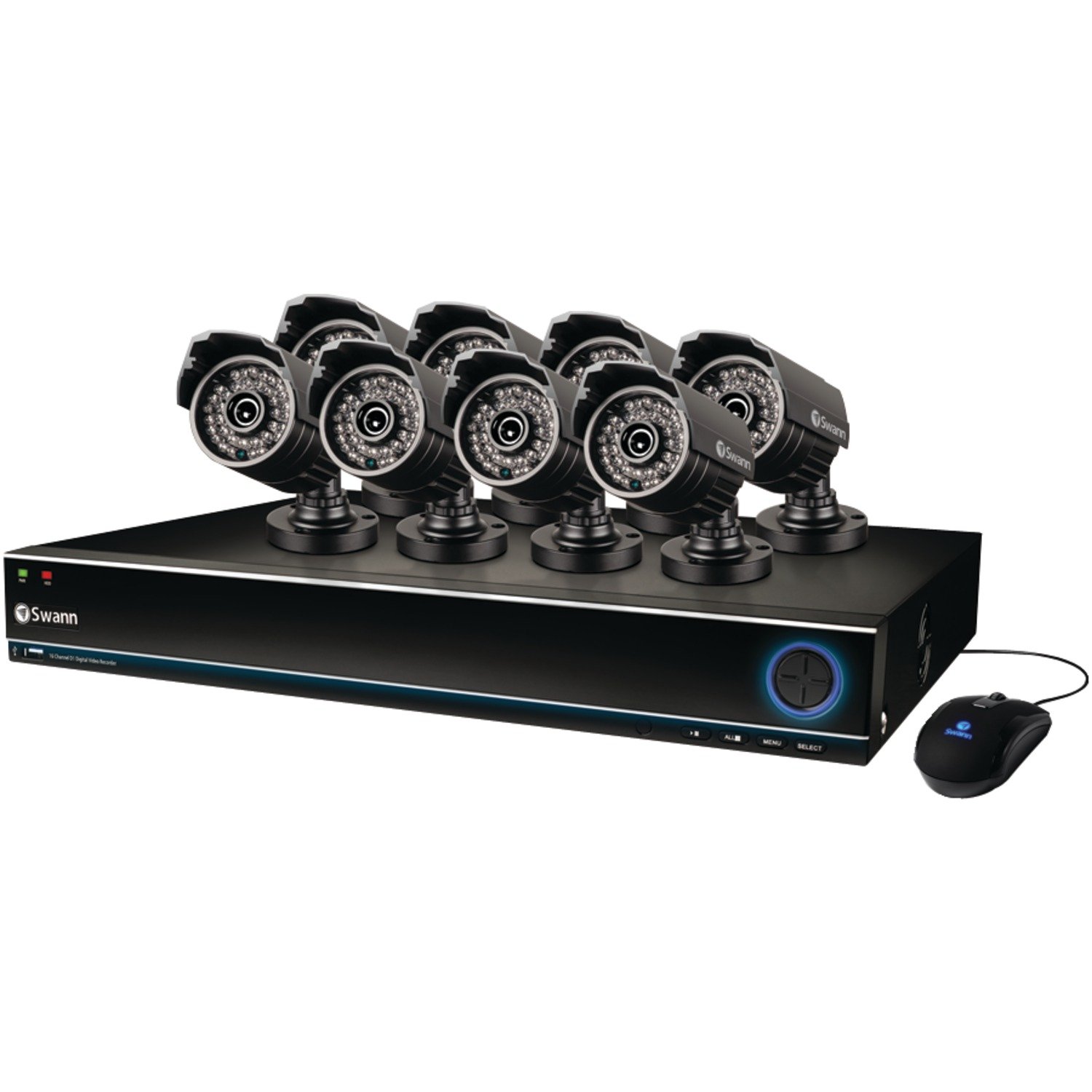
Image: The Swann SWDVK-163208S-US security system, showing the DVR unit and several cameras. The DVR features a blue-lit front panel with control buttons and status indicators.
- Індыкатар харчавання: Illuminates when the DVR is powered on.
- Індыкатар HDD: Мігае, калі жорсткі дыск актыўны.
- Індыкатар сеткі: Паказвае падключэнне да сеткі.
- Порт USB: For connecting a USB mouse or for data backup.
- Кнопкі кіравання: Navigate menus and control playback.
4.2 DVR Rear Panel
The rear panel contains all the necessary ports for connecting cameras, monitors, and network cables.
- Відэаўваход (BNC): 16 ports for connecting security cameras.
- Video Output (HDMI/VGA): For connecting a monitor or TV.
- Аўдыёўваход/выхад (RCA): For connecting microphones and speakers (if supported).
- Порт Ethernet (RJ45): Для падлучэння да сеткі.
- Парты USB: Дадатковыя USB-порты для перыферыйных прылад.
- Порт eSATA: For connecting an external hard drive for expanded storage.
- Спажываная магутнасць: For connecting the DVR power adapter.
4.3 Асаблівасці камеры
The included 700TVL cameras offer clear video surveillance with night vision capabilities.
- дазвол: 700TVL (Television Lines) for detailed images.
- Начное бачанне: Infrared LEDs provide visibility up to 82ft (25m) in low light or complete darkness.
- Устойлівы да надвор'я: Designed for both indoor and outdoor installation.
- Мантаж: Adjustable brackets for flexible positioning.
5. Настройка
5.1 Падключэнне відэарэгістратара
- Connect the included USB mouse to one of the USB ports on the DVR.
- Connect the HDMI cable from the DVR's HDMI output to an HDMI input on your TV or monitor. Alternatively, use a VGA cable for VGA connections.
- Для аддаленага viewing, connect an Ethernet cable from the DVR's Ethernet port to your router or network switch.
5.2 Падключэнне камер
- Mount each camera in your desired location using the provided screws and plugs. Ensure the camera has a clear field of view and is protected from direct impact.
- Connect one end of the BNC cable to the camera's video output.
- Connect the other end of the BNC cable to a video input port on the DVR (e.g., Video In 1, Video In 2, etc.).
- Connect the camera's power input to the power splitter cable, then connect the power adapter to the splitter and a power outlet.
5.3 Уключэнне
- Connect the DVR power adapter to the DVR's power input and then to a power outlet.
- The DVR will power on automatically. The power indicator light on the front panel will illuminate.
- Wait for the system to boot up. The Swann logo will appear on your connected monitor, followed by the live view дысплей.
5.4 Пачатковая канфігурацыя
Upon first boot-up, the DVR will guide you through an initial setup wizard.
- Выбар мовы: Выберыце пераважную мову.
- Дата і час: Set the correct date, time, and time zone. This is crucial for accurate recording timestamps.
- Налады сеткі: Configure network settings (DHCP is usually sufficient for automatic setup).
- Настройка пароля: Create a strong password for the administrator account to secure your system.
- Фармат жорсткага дыска: The system may prompt to format the hard drive. Confirm to proceed.
6. Кіраванне сістэмай
6.1 У прамым эфіры View
Пасля першапачатковай налады відэарэгістратар пакажа жывую трансляцыю view from all connected cameras. You can switch between single-camera view, multi-camera grids (e.g., 4-channel, 8-channel, 16-channel), and sequence modes using the on-screen menu or front panel controls.
6.2 Рэжымы запісу
Відэарэгістратар падтрымлівае розныя рэжымы запісу:
- Бесперапынная запіс: Records 24/7, overwriting the oldest footagе., калі жорсткі дыск запоўнены.
- Запіс выяўлення руху: Запісвае толькі пры выяўленні руху ў камеры view. This conserves hard drive space. Sensitivity and detection areas can be configured for each camera.
- Запланаваны запіс: Records during specific times of the day or week.
- Ручная запіс: Start and stop recording manually from the DVR interface.
Access recording settings via the DVR's main menu: Menu > Record > Record Schedule.
6.3 Прайграванне
Каб паўторнаview запісана footage:
- З прамога эфіру view, right-click with the mouse to open the main menu.
- Выберыце Прайграванне.
- Choose the desired date and camera channel(s).
- Use the timeline to navigate through recorded events. Different colors on the timeline indicate different recording types (e.g., continuous, motion).
- Выкарыстоўвайце элементы кіравання прайграваннем (прайграванне, паўза, перамотка наперад, перамотка назад), каб пераматацьview фуtage.
6.4 Рэзервовае капіраванне
You can back up important video footage to a USB flash drive or external hard drive.
- Insert a USB storage device into a USB port on the DVR.
- Перайсці да Menu > Backup.
- Select the camera channel, date, and time range for the footage you wish to back up.
- Choose the backup device and file format (e.g., AVI).
- Націсніце Пачаць to begin the backup process.
6.5 Аддалены Viewing (SwannLink & SwannView)
The SwannLink and SwannView applications allow you to view your cameras remotely from a smartphone or tablet.
- Ensure your DVR is connected to the internet via the Ethernet port.
- Download the SwannView праграму з крамы праграм вашай прылады.
- Open the app and follow the on-screen instructions to add your DVR. This typically involves scanning a QR code displayed on the DVR's monitor (Menu > Network > SwannLink) or manually entering the device ID.
- Enter the DVR's username and password when prompted.
- Цяпер вы павінны быць у стане view жывы footage and access playback remotely.
7. Тэхнічнае абслугоўванне
7.1 Кіраванне жорсткімі дыскамі
The 1TB hard drive will automatically overwrite the oldest footage when full. To ensure optimal performance, it is recommended to periodically check the hard drive status via Menu > HDD > Disk Manage. You can also connect an external hard drive to the eSATA port for additional storage capacity.
7.2 Cleaning Cameras
Перыядычна чысціце аб'ектывы камеры мяккай губкайamp тканінай, каб выдаліць пыл, бруд або плямы ад вады, якія могуць засланяць view. Do not use harsh chemicals or abrasive materials.
7.3 Абнаўленне прашыўкі
Swann may release firmware updates to improve system performance or add new features. Check the Swann support website for the latest firmware for your model. Follow the instructions provided with the firmware update carefully to avoid damaging the DVR.
8. Выпраўленне непаладак
| праблема | Магчымая прычына | Рашэнне |
|---|---|---|
| Няма малюнка на маніторы | Аслаблены відэакабель, на маніторы выбраны няправільны ўваход, відэарэгістратар не ўключаны. | Праверце падключэнне кабеляў HDMI/VGA. Пераканайцеся, што манітор падключаны да правільнага ўваходу. Праверце сілкаванне відэарэгістратара. |
| Няма выявы камеры | Loose BNC cable, camera power issue, faulty camera. | Check BNC and power connections for the specific camera. Test camera with a known working cable/power supply. |
| Відэарэгістратар не запісвае | Recording schedule not set, hard drive full or faulty, motion detection not configured. | Check recording schedule. Verify hard drive status. Ensure motion detection is enabled and configured correctly. |
| Не магу view дыстанцыйна | No network connection, incorrect network settings, app configuration error. | Verify DVR has internet access. Check network settings (DHCP). Reconfigure the DVR in the SwannView дадатак. |
| Purple image on camera | IR filter stuck, camera malfunction. | Power cycle the camera. If the issue persists, the camera may be faulty and require replacement. |
9. Тэхнічныя характарыстыкі
- Нумар мадэлі: SWDVK-163208S-US
- Відэа ўваходы: 16 Channels BNC
- Відэа выхад: HDMI, VGA
- Раздзяленне дысплея: Up to 1080p (HDMI)
- Дазвол запісу: 960H (960x576/960x480)
- Жорсткі дыск: 1TB SATA HDD (expandable via eSATA)
- Фармат сціску: H.264
- Сеткавы інтэрфейс: Порт Ethernet RJ45
- Інтэрфейс USB: 3 порта USB 2.0
- Раздзяленне камеры: 700TVL
- Начное бачанне камеры: Да 82 футаў (25 м)
- Camera Weatherproof Rating: IP66 (для вонкавага выкарыстання)
- Dimensions (DVR): 22.5 х 15.3 х 8.1 цалі (прыблізна)
- Weight (DVR): 14 фунтаў (прыблізна)
- Крыніца харчавання: 12 В пастаяннага току
10. Інфармацыя аб гарантыі
Swann products are covered by a limited warranty. The specific terms and duration of your warranty may vary by region and product. Please refer to the warranty card included with your product or visit the official Swann webпадрабязную інфармацыю пра гарантыю і працэдуры рэгістрацыі можна знайсці на сайце. Захоўвайце пацвярджэнне пакупкі для прэтэнзій па гарантыі.
11. Падтрымка
For technical assistance, product support, or to download the latest software and manuals, please visit the official Swann support website. You can typically find FAQs, troubleshooting guides, and contact information for customer service there. Have your product model number (SWDVK-163208S-US) ready when contacting support.
Падтрымка Свана Webсайт: https://www.swann.com/us/support