
1. Уводзіны
This manual provides instructions for setting up, operating, and maintaining your D-Link Wi-Fi AC750 Dual Band Router (DIR-813). The DIR-813 is designed to deliver high-speed wireless connectivity for your home network, supporting both 2.4 GHz and 5 GHz bands for optimal performance.
Асноўныя функцыі ўключаюць у сябе:
- Wireless AC750 Technology: Optimized performance for HD video streaming, fast file transfers, and lag-free video chatting.
- Dual Band Performance: Up to 300Mbps (2.4GHz) + 433Mbps (5GHz) for fast wireless speeds and reduced interference.
- Зваротная сумяшчальнасць: Works with older 802.11a/b/g/n devices.
- Правадное падключэнне: Four Fast Ethernet ports for connecting wired devices.
- High-Performance Antennas: Three external antennas for maximum range.
2. Змесціва ўпакоўкі
Пераканайцеся, што ваш пакет змяшчае наступныя элементы:
- D-Link Wi-Fi AC750 Dual Band Router (DIR-813)
- Адаптар сілкавання
- Кабель Ethernet
- Quick Installation Guide (not included in this digital manual)
If any of the above items are missing or damaged, please contact your local D-Link reseller.
3. Абсталяванне скончыласяview
3.1 Пярэдняя панэль
The front panel of the DIR-813 router features LED indicators that provide status information.
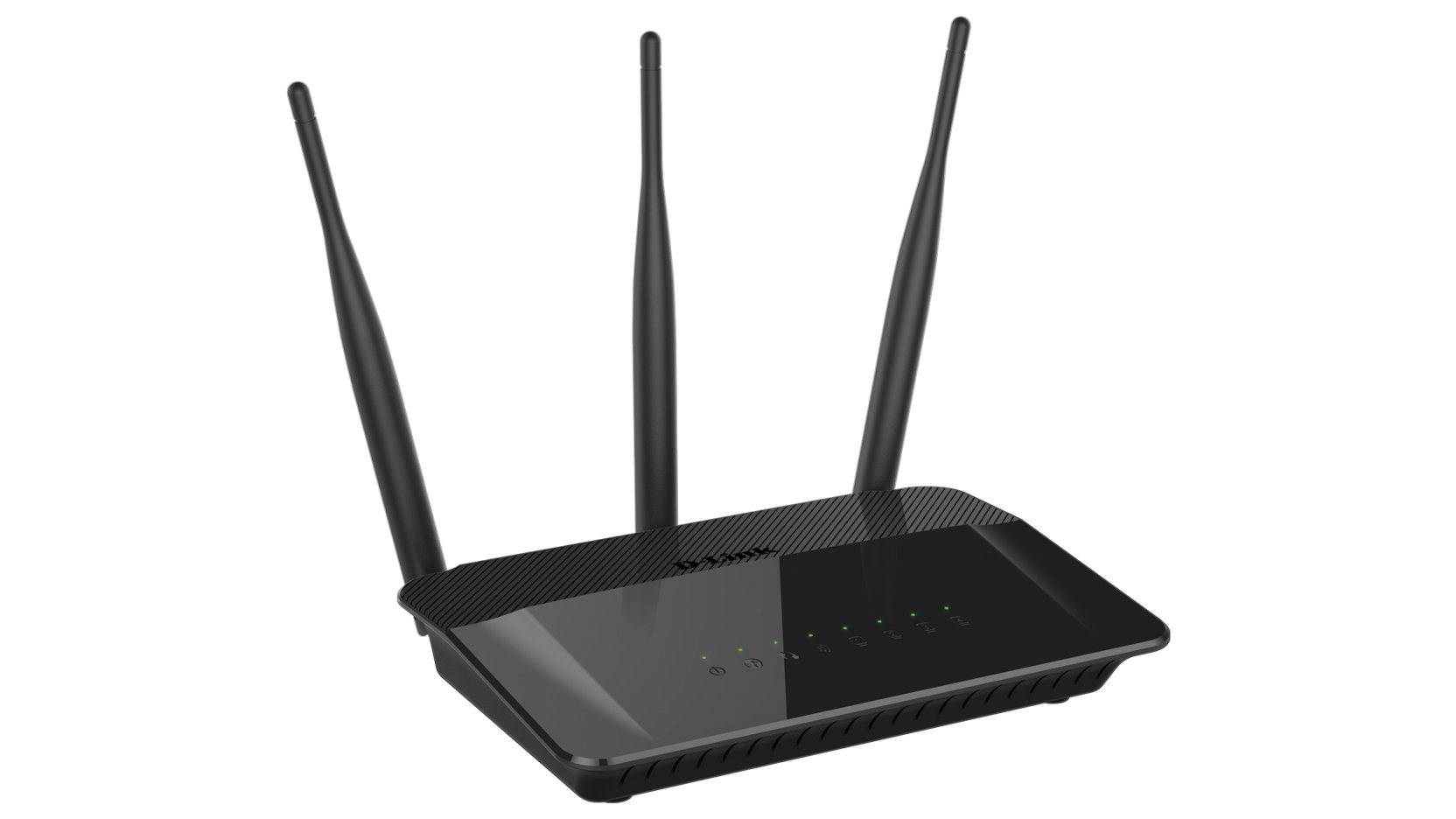
Малюнак 1: Фронт view of the D-Link DIR-813 router. This image shows the router's top surface with three external antennas and a row of LED indicators for power, internet, and wireless status.
- Святлодыёд харчавання: Паказвае стан харчавання.
- Інтэрнэт LED: Паказвае стан падключэння да Інтэрнэту.
- WLAN LEDs (2.4GHz/5GHz): Indicate wireless activity for each band.
- Святлодыёды лакальнай сеткі: Indicate activity on the wired Ethernet ports.
3.2 Задняя панэль
The rear panel contains all the physical connection ports and buttons.
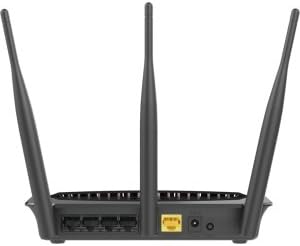
Малюнак 2: Тыл view of the D-Link DIR-813 router. This image displays the back of the router, showing the power input, WAN port (yellow), four LAN ports, and a WPS/Reset button.
- Раз'ём харчавання: Падключыце адаптар харчавання, які ўваходзіць у камплект.
- WAN Port (Yellow): Падключыце мадэм да гэтага порта з дапамогай кабеля Ethernet.
- Парты LAN (1-4): Connect your wired devices (computers, gaming consoles, etc.) to these ports.
- WPS/кнопка скіду:
- Press and hold for 2 seconds to activate WPS (Wi-Fi Protected Setup).
- Націсніце і ўтрымлівайце 10 секунд, каб выканаць скід да заводскіх налад.
4. Настройка
4.1 Перш чым пачаць
Ensure you have an active internet connection from your Internet Service Provider (ISP) and a modem (if required by your ISP).
4.2 Устаноўка абсталявання
- Выключэнне: Disconnect the power from your modem and router (if replacing an old router).
- Падключэнне мадэма: Connect an Ethernet cable from your modem's Ethernet port to the yellow WAN port on the back of your DIR-813 router.
- Падключыце харчаванне: Connect the included power adapter to the power connector on the router and then plug it into a power outlet.
- Уключэнне: Power on your modem first, wait for it to fully boot up (usually indicated by stable internet lights). Then, power on your DIR-813 router.
- Праверце святлодыёды: Wait for the Power LED and Internet LED on the router's front panel to turn solid.
4.3 Пачатковая канфігурацыя (Web-based Setup)
Вы можаце наладзіць свой маршрутызатар з дапамогай web браўзер.
- Падключыцеся да маршрутызатара:
- Wired: Падключыце кабель Ethernet ад аднаго з партоў LAN маршрутызатара да порта Ethernet вашага кампутара.
- Бесправадная сувязь: Connect to the default Wi-Fi network name (SSID) printed on the label at the bottom of your router. The default Wi-Fi password (WPA Key) is also on this label.
- Адкрыты Web Браўзэр: Адкрыйце a web браўзер (напрыклад, Chrome, Firefox, Edge) і ўвядзіце
http://dlinkrouter.localor192.168.0.1у адрасны радок. - Лагін: Імя карыстальніка па змаўчанні
admin. Leave the password field blank. Click Увайсці. - Запусціце майстар налады: Follow the on-screen instructions of the D-Link Setup Wizard to configure your internet connection and wireless settings. It is recommended to change the default Wi-Fi name (SSID) and password for security.
- Захаваць налады: After completing the wizard, save your settings.
4.4 Падключэнне прылад
Once the router is configured, you can connect your devices.
- Правадныя прылады: Connect computers, gaming consoles, or other network devices to the available LAN ports using Ethernet cables.
- Бесправадныя прылады: Connect smartphones, tablets, laptops, and other Wi-Fi enabled devices to your new Wi-Fi network using the SSID and password you configured.
5. Кіраванне маршрутызатарам
Доступ да маршрутызатара web-based interface (http://dlinkrouter.local or 192.168.0.1) to manage its settings.
5.1 Налады бесправадной сеткі
You can modify the Wi-Fi network name (SSID), password, and security type for both 2.4 GHz and 5 GHz bands.
- Перайсці да Налады > Бесправадная сувязь у web інтэрфейс.
- Select the 2.4 GHz or 5 GHz band to modify its settings.
- Змяніць Імя Wi-Fi (SSID) і Пароль Wi-Fi па жаданні.
- Забяспечыць WPA2-PSK or WPA2/WPA3 Mixed Mode is selected for optimal security.
- Націсніце Захаваць каб прымяніць змены.
5.2 Гасцявы Wi-Fi
Create a separate Wi-Fi network for guests to provide internet access without giving them access to your main network.
- Перайсці да Settings > Guest Wi-Fi.
- Enable the Guest Wi-Fi network.
- Set a unique SSID and password for the guest network.
- Configure access restrictions if needed (e.g., internet only).
- Націсніце Захаваць.
5.3 Налады бяспекі
Manage firewall rules, VPN passthrough, and other security features.
- Доступ Features > Firewall to configure firewall rules.
- Review Advanced > Port Forwarding if you need to open specific ports for applications or gaming.
5.4 Бацькоўскі кантроль
Control internet access for specific devices or users on your network.
- Перайсці да Features > Parental Control.
- Set up schedules for internet access or block specific websites for selected devices.
- Націсніце Захаваць after making changes.
6. Тэхнічнае абслугоўванне
6.1 Абнаўленне прашыўкі
Keeping your router's firmware up to date ensures optimal performance and security.
- Download the latest firmware for your DIR-813 model from the official D-Link support webсайт.
- Увайдзіце ў сістэму маршрутызатара web інтэрфейс.
- Перайсці да Management > Firmware Update.
- Перайдзіце да спампаванай прашыўкі file and follow the on-screen instructions to upload and update.
- Do not power off the router during the firmware update process.
6.2 Канфігурацыя рэзервовага капіявання і аднаўлення
Save your router's configuration settings to a file, which can be restored later if needed.
- Увайдзіце ў сістэму маршрутызатара web інтэрфейс.
- Перайсці да Management > System > Configuration Backup and Restore.
- Націсніце Рэзервовае капіраванне to save the current configuration to your computer.
- Каб аднавіць, націсніце Праглядзіце, select your saved configuration fileі націсніце Аднавіць.
6.3 Скід да заводскіх налад
A factory reset restores the router to its original default settings. This will erase all custom configurations.
- Скід праграмнага забеспячэння: Увайдзіце ў сістэму маршрутызатара web інтэрфейс, перайдзіце да Management > System > Restore to Factory Defaultsі пацвердзіце.
- Апаратнае скід: Калі маршрутызатар уключаны, націсніце і ўтрымлівайце скрепкай WPS/Скід button on the rear panel for 10 seconds. Release the button when the Power LED starts blinking. The router will restart with factory defaults.
7. Выпраўленне непаладак
7.1 Няма падключэння да Інтэрнэту
- Праверце, калі Інтэрнэт-святлодыёд on the router is solid green. If not, ensure the Ethernet cable from your modem is securely connected to the router's yellow WAN порт.
- Перазагрузіце мадэм, а затым маршрутызатар.
- Verify your ISP connection is active.
- Увайдзіце ў сістэму маршрутызатара web interface and check the internet connection status. Run the setup wizard again if necessary.
7.2 Не ўдаецца падключыцца да Wi-Fi
- Ensure the router's WLAN LEDs знаходзяцца на.
- Verify you are using the correct Wi-Fi network name (SSID) and password. These are case-sensitive.
- Try restarting your wireless device and the router.
- If you recently changed Wi-Fi settings, ensure your device has forgotten the old network and is trying to connect to the new one.
7.3 Павольная хуткасць бесправадной сувязі
- Пераканайцеся, што вашы прылады падключаны да адпаведнага дыяпазону (5 ГГц для большай хуткасці, 2.4 ГГц для лепшага радыусу дзеяння).
- Reduce interference by moving the router away from other electronic devices (cordless phones, microwaves).
- Consider changing the wireless channel in the router's settings to a less congested one.
- Ensure your device's wireless adapter supports 802.11ac for optimal performance.
7.4 Forgot Router Login Password
If you forgot the password for the router's web interface, you will need to perform a factory reset. Refer to section 6.3 for instructions. After a factory reset, the username will be admin and the password field will be blank.
8. Тэхнічныя характарыстыкі
| Асаблівасць | Апісанне |
|---|---|
| Марка | D-Link |
| Назва мадэлі | DIR-813 |
| бесправадной стандарт | 802.11ac (зваротная сумяшчальнасць з a/b/g/n) |
| Клас дыяпазону частот | Двухдыяпазонны (2.4 ГГц і 5 ГГц) |
| Хуткасць бесправадной сувязі | Up to 300Mbps (2.4GHz) + 433Mbps (5GHz) = AC750 |
| Парты Ethernet | 4 x Fast Ethernet LAN, 1 x Fast Ethernet WAN |
| Антэны | 3 x External High-Performance Antennas |
| Асаблівасць | WPS (абароненая налада Wi-Fi) |
| Тэхналогія падлучэння | WiFi, Wired |
| Колер | Чорны |
| Вага прадмета | 0.5 фунта |
| Рэкамендуемае выкарыстанне | дадому |
9. Гарантыя і падтрымка
For detailed warranty information, please refer to the warranty card included with your product or visit the official D-Link webсайт.
For technical support, product registration, or to download the latest firmware and documentation, please visit the D-Link support portal:
When contacting support, please have your router's model number (DIR-813) and serial number ready.