
1. Уводзіны
This manual provides detailed instructions for the setup, operation, and maintenance of your Intermec EasyCoder PX4i Thermal Transfer Printer. The PX4i is a robust and flexible industrial printer designed for high-volume label printing, offering monochrome output at a resolution of 203 dpi and speeds up to 12 inches per second. Please read this manual thoroughly before using the printer to ensure safe and efficient operation.
2. Асаблівасці прадукту
- Высакахуткасны друк: Capable of printing at speeds up to 12 inches per second.
- Высокая раздзяляльнасць: Delivers clear monochrome prints at 203 dpi.
- Гнуткая апрацоўка носьбітаў: Supports various media types including black mark, continuous label, fanfold, gap, general identification label, notch, roll fed, tag, and ticket.
- Падключэнне да Ethernet: Integrated Ethernet for network integration.
- Праграмуемы: Designed for optimized printing operations and streamlined deployment.
- Трывалы дызайн: Industrial-grade construction for demanding environments.
3. Змесціва ўпакоўкі
Verify that all items listed below are included in your printer package. If any items are missing or damaged, contact your supplier immediately.
- Intermec EasyCoder PX4i Thermal Transfer Printer
- Шнур харчавання
- Labels (Included Components)
- User Documentation (This manual)
4. Інфармацыя па бяспецы
Always observe the following safety precautions to prevent injury and damage to the printer:
- Пераканайцеся, што прынтар размешчаны на ўстойлівай, роўнай паверхні.
- Connect the printer to a grounded power outlet.
- Не выкарыстоўвайце прынтар у вільготных або празмерна вільготных умовах.
- Падчас працы трымайце рукі і свабодную вопратку далей ад рухомых частак.
- Адключыце электраэнергію перад выкананнем любога тэхнічнага абслугоўвання або чысткі.
- Выкарыстоўвайце толькі дазволеныя запасныя часткі і аксэсуары.
5. Настройка
5.1 Распакаванне
- Акуратна дастаньце прынтар з упакоўкі.
- Зніміце ўсе ўпаковачныя матэрыялы, стужкі і ахоўныя плёнкі.
- Захоўвайце арыгінальную ўпакоўку для будучай транспарціроўкі або захоўвання.
5.2 Падключэнне сілкавання
- Пераканайцеся, што выключальнік харчавання прынтара знаходзіцца ў становішчы ВЫКЛ.
- Connect the power cord to the printer's power inlet.
- Падключыце другі канец шнура сілкавання да заземленай электрычнай разеткі.
5.3 Loading Media (Labels)
The PX4i printer supports various label types. Follow these general steps to load your labels:

Выява: спераду view of the Intermec EasyCoder PX4i printer, showing a label being fed out of the front slot. The control panel with an LCD screen and numeric keypad is visible on the top front.
- Адкрыйце крышку носьбіта прынтара.
- Place the roll of labels onto the media supply spindle, ensuring it unwinds correctly.
- Feed the leading edge of the labels through the media guides and under the printhead assembly.
- Adjust the media guides to fit the width of your labels snugly but without binding.
- Close the media cover. The printer may automatically calibrate to the new media.
5.4 Падключэнне да камп'ютара/сеткі
The PX4i offers Ethernet connectivity for network integration.
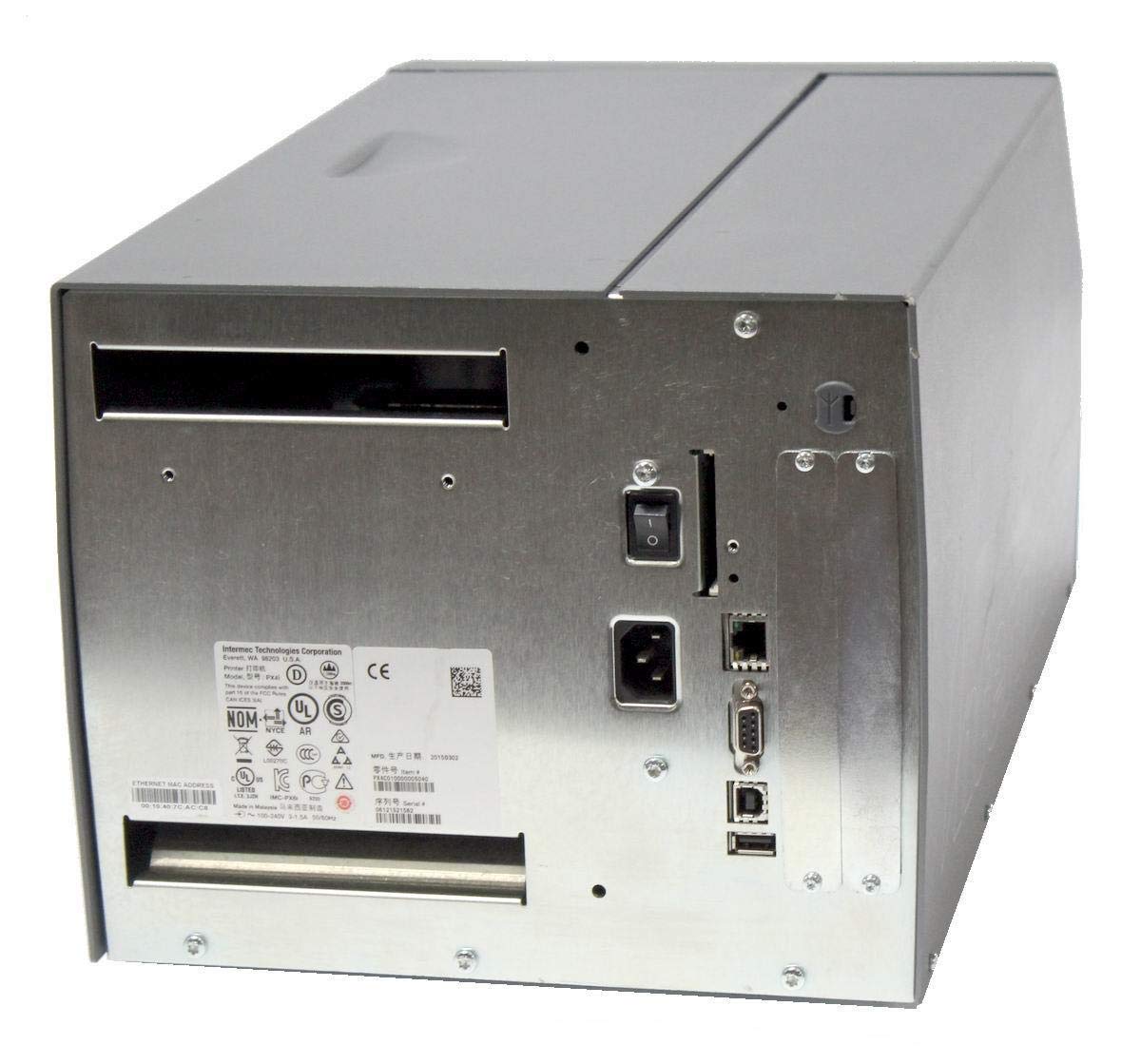
Выява: Задняя частка view of the Intermec EasyCoder PX4i printer, displaying the power inlet, power switch, Ethernet port, serial ports, and USB ports. The metallic casing is clearly visible.
- Locate the Ethernet port on the rear of the printer.
- Connect a standard Ethernet cable from the printer to your network router or switch.
- For direct connection to a computer, use an appropriate USB or serial cable if supported by your system and printer configuration.
- Refer to the printer's network configuration guide for setting up IP addresses and other network parameters.
6. Аперацыя
6.1 Панэль кіравання скончанаview
The front control panel provides access to printer functions and status information.
Image: Close-up of the Intermec EasyCoder PX4i control panel, featuring an LCD display, navigation buttons (up, down, left, right, enter), and a numeric keypad with function keys like Pause, Feed, and Clear.
- ВК-дысплей: Shows printer status, menu options, and error messages.
- Кнопкі навігацыі: Выкарыстоўваецца для пракруткі меню і выбару опцый.
- Лічбавая клавіятура: For entering data or selecting numbered options.
- Кнопка паўзы: Temporarily stops printing.
- Кнопка падачы: Advances one label.
- Кнопка наладкі: Accesses printer configuration menus.
6.2 Базавы друк
- Пераканайцеся, што прынтар уключаны і падлучаны да кампутара або сеткі.
- Open the document or application from which you wish to print labels.
- Select the Intermec PX4i printer from your printer list.
- Configure print settings such as label size, orientation, and quantity as needed.
- Initiate the print job. The printer will begin feeding and printing labels.
6.3 Налада параметраў друку
Advanced print settings can be adjusted through the printer's control panel or via the printer driver on your computer. These settings include print darkness, print speed, label gap sensing, and more. Consult your printer driver documentation for software-based adjustments.
7. Тэхнічнае абслугоўванне
Рэгулярнае тэхнічнае абслугоўванне забяспечвае аптымальную прадукцыйнасць і падаўжае тэрмін службы вашага прынтара.
7.1 Ачыстка друкавальнай галоўкі
The printhead should be cleaned regularly, especially if print quality degrades.
- Выключыце прынтар і адлучыце шнур сілкавання.
- Адкрыйце вузел друкавальнай галоўкі.
- Using a lint-free cloth or a printhead cleaning pen moistened with isopropyl alcohol, gently wipe the printhead surface from center to edge.
- Allow the printhead to dry completely before closing the assembly and reconnecting power.
7.2 Replacing Media and Ribbon
When the label roll or thermal transfer ribbon (if used) runs out, replace it promptly.
- Turn off the printer and open the media cover.
- Remove the empty label roll and/or used ribbon core.
- Install a new roll of labels and/or a new ribbon, following the loading instructions in Section 5.3.
- Ensure media and ribbon are properly tensioned and aligned.
- Зачыніце вокладку СМІ.
8. Выпраўленне непаладак
This section addresses common issues you might encounter with your PX4i printer.
- Прынтэр не ўключаецца: Check power cord connection, power outlet, and printer's power switch.
- No Print Output: Verify printer is online, connected to the computer/network, and has media loaded. Check for error messages on the LCD.
- Дрэнная якасць друку: Clean the printhead (Section 7.1). Adjust print darkness settings. Ensure correct media and ribbon are used.
- Этыкеткі падаюцца няправільна: Check media loading (Section 5.3) and ensure media guides are properly adjusted. Calibrate media sensors if necessary.
- Паведамленні пра памылкі: Refer to the printer's LCD display for specific error codes and consult the full Intermec PX4i technical manual for detailed explanations and solutions.
9. Тэхнічныя характарыстыкі
| Асаблівасць | Апісанне |
|---|---|
| Назва мадэлі | PX4i |
| Нумар мадэлі тавару | PX4C010000000020 |
| Тэхналогія друку | тэрмадрук |
| колер друку | Манахромны |
| Максімальная хуткасць друку | 12 in/s (Monochrome) |
| Максімальны дазвол друку | 203 dpi |
| Тэхналогія падлучэння | Ethernet |
| Максімальны памер носьбіта | 12 цаляў |
| Уключаныя кампаненты | Этыкеткі |
| Тып кантролера | Кнопка |
| Вытворца | INTERMEC INDUSTRIAL PRINTERS |
| Памеры ўпакоўкі | 23.25 х 15.5 х 15.25 цалі; 36.2 фунтаў |
10. Гарантыя і падтрымка
The Intermec EasyCoder PX4i Thermal Transfer Printer comes with a standard manufacturer's warranty. For specific warranty terms and conditions, please refer to the warranty card included with your product or visit the official Intermec (Honeywell) support website. For technical assistance, troubleshooting beyond this manual, or to inquire about service, please contact Intermec customer support or your authorized dealer.
Інтэрнэт-рэсурсы: For the latest drivers, firmware updates, and additional documentation, please visit the official Intermec support portal.