Уводзіны
This manual provides comprehensive instructions for the installation, operation, maintenance, and troubleshooting of your Intel DC S3710 800 GB 2.5" Internal Solid State Drive. Please read this manual thoroughly before using the product to ensure optimal performance and longevity.
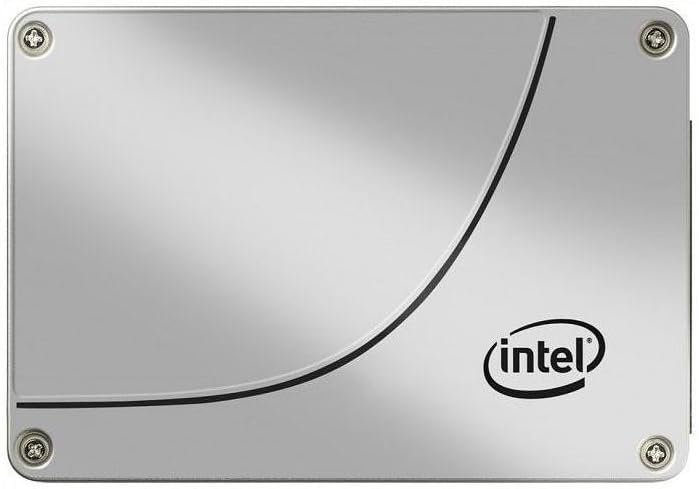
Малюнак 1: Спераду view of the Intel DC S3710 800 GB 2.5" Internal Solid State Drive, showcasing its metallic silver casing with the Intel logo and a distinctive curved line design.
Настройка і ўстаноўка
The Intel DC S3710 SSD is designed for internal installation in desktop computers. Ensure your system is powered off and disconnected from the power source before proceeding.
Патрабаванні:
- Настольны камп'ютар з даступным адсекам для 2.5-цалевага дыскавода.
- Кабель перадачы дадзеных SATA.
- SATA power cable from your power supply unit (PSU).
- Screwdriver (Phillips head recommended).
Этапы ўстаноўкі:
- Падрыхтуйце свой камп'ютар: Power down your desktop computer and unplug all cables. Open the computer case.
- Locate a drive bay: Identify an available 2.5-inch drive bay. Some cases may require a 3.5-inch to 2.5-inch adapter bracket (not included).
- Падключыце SSD-дыск: Secure the SSD into the drive bay using screws. Ensure it is firmly seated to prevent movement.
- Connect data cable: Connect one end of the SATA data cable to the SSD's SATA data port and the other end to an available SATA port on your motherboard.
- Падключыце кабель харчавання: Connect a SATA power cable from your PSU to the SSD's SATA power port.
- Зачыніць справу: Once all connections are secure, close your computer case and reconnect all cables.
- Уключэнне: Уключыце камп'ютар. Сістэма павінна выявіць новы SSD-назапашвальнік.
Інструкцыя па эксплуатацыі
After physical installation, the SSD needs to be initialized and formatted before use. If you plan to install an operating system, refer to your operating system's installation guide.
Initializing and Formatting (Windows 10 Exampле):
- Адкрыйце «Кіраванне дыскамі»: Right-click the Start button and select "Disk Management".
- Ініцыялізаваць дыск: A pop-up window may appear prompting you to initialize the new disk. Select MBR (Master Boot Record) or GPT (GUID Partition Table) based on your system's requirements (GPT is recommended for modern systems and drives larger than 2TB, though this drive is 800GB). Click OK.
- Стварыць новы просты том: Locate the unallocated space on your new SSD. Right-click it and select "New Simple Volume...".
- Сачыце за чараўніком: Follow the New Simple Volume Wizard to specify the volume size, assign a drive letter, and format the partition (NTFS file system is standard for Windows).
- Завяршыць: Once the wizard completes, your SSD will be ready for use.
Перадача дадзеных:
Можна перадаць files to and from the SSD like any other storage drive. For optimal performance, ensure your motherboard's SATA ports are configured for AHCI mode in the BIOS/UEFI settings.
Тэхнічнае абслугоўванне
Solid State Drives generally require less maintenance than traditional Hard Disk Drives. However, following these practices can help maintain performance and extend lifespan:
- Уключыць TRIM: Ensure TRIM is enabled in your operating system. TRIM helps the SSD manage data more efficiently, preventing performance degradation over time. Most modern operating systems (Windows 7+, macOS, Linux) enable TRIM by default.
- Пазбягайце дэфрагментацыі: Не дэфрагментуйце SSD-назапашвальнік. Дэфрагментацыя прызначана для жорсткіх дыскаў і можа скараціць тэрмін службы SSD-назапашвальніка, выклікаючы непатрэбныя цыклы запісу.
- Захоўвайце вольную прастору: Try to keep at least 10-15% of the SSD's capacity free. This allows the SSD's wear-leveling algorithms to function optimally.
- Абнаўленні прашыўкі: Перыядычна правярайце афіцыйную інфармацыю Intel website for firmware updates for your SSD model. Firmware updates can improve performance, stability, and address known issues.
- Proper Shutdowns: Always shut down your computer properly. Abrupt power loss can potentially lead to data corruption or drive issues.
Ліквідацыю непаладак
If you encounter issues with your Intel DC S3710 SSD, refer to the following common problems and solutions:
| праблема | Магчымая прычына | Рашэнне |
|---|---|---|
| SSD not detected by BIOS/OS. | Loose cables, incorrect BIOS settings, faulty port. |
|
| Павольная прадукцыйнасць. | TRIM not enabled, nearly full drive, outdated firmware. |
|
| Operating system not booting from SSD. | Няправільны парадак загрузкі, пашкоджаная ўстаноўка АС. |
|
Тэхнічныя характарыстыкі
| Асаблівасць | Дэталь |
|---|---|
| Марка | Intel |
| Серыя мадэляў | SSDSC2BA800G4 |
| Ёмістасць захоўвання | 800 ГБ |
| Формаў-фактар | 2.5 цалі |
| Інтэрфейс | SATA 6 Гбіт/с |
| Тып ўстаноўкі | Унутраны жорсткі дыск |
| Сумяшчальныя прылады | Працоўны стол |
| Вага прадмета | 2.53 унцыі |
| Памеры прадукту (ДxШxВ) | 4.1 х 2.7 х 0.3 цалі |
| Вытворца | Карпарацыя Intel |
| Першая даступная дата | 16 лютага 2015 г |
Гарантыя і падтрымка
Каб атрымаць інфармацыю аб гарантыі і тэхнічнай падтрымцы, звярніцеся да афіцыйнага сайта Intel. webсайт або звярніцеся ў службу падтрымкі кліентаў. Захоўвайце чэк аб куплі як пацвярджэнне пакупкі для прэтэнзій па гарантыі.
Intel may offer various support resources including:
- Інтэрнэт-база ведаў і часта задаваныя пытанні.
- Загрузка драйвераў і прашыўкі.
- Community forums.
- Direct customer support via phone or email.
Разгледзьце магчымасць купліasing additional data recovery plans for enhanced protection of your valuable data. Options such as 2-Year or 3-Year Data Recovery Plans may be available from various retailers.