
1. Уводзіны
Thank you for choosing the TECKNET M003 2.4G Wireless Optical Mouse. This ergonomic mouse is designed for comfort and precision, offering a reliable wireless connection for various computing tasks. Please read this manual carefully to ensure proper setup and operation.

Figure 1: TECKNET M003 Wireless Optical Mouse with ergonomic design highlighted.
2. Змесціва ўпакоўкі
- TECKNET Pro Wireless Mouse
- Nano USB-прыёмнік
- Кіраўніцтва карыстальніка (гэты дакумент)
3. Прадукт скончыўсяview
Familiarize yourself with the components of your TECKNET M003 mouse:
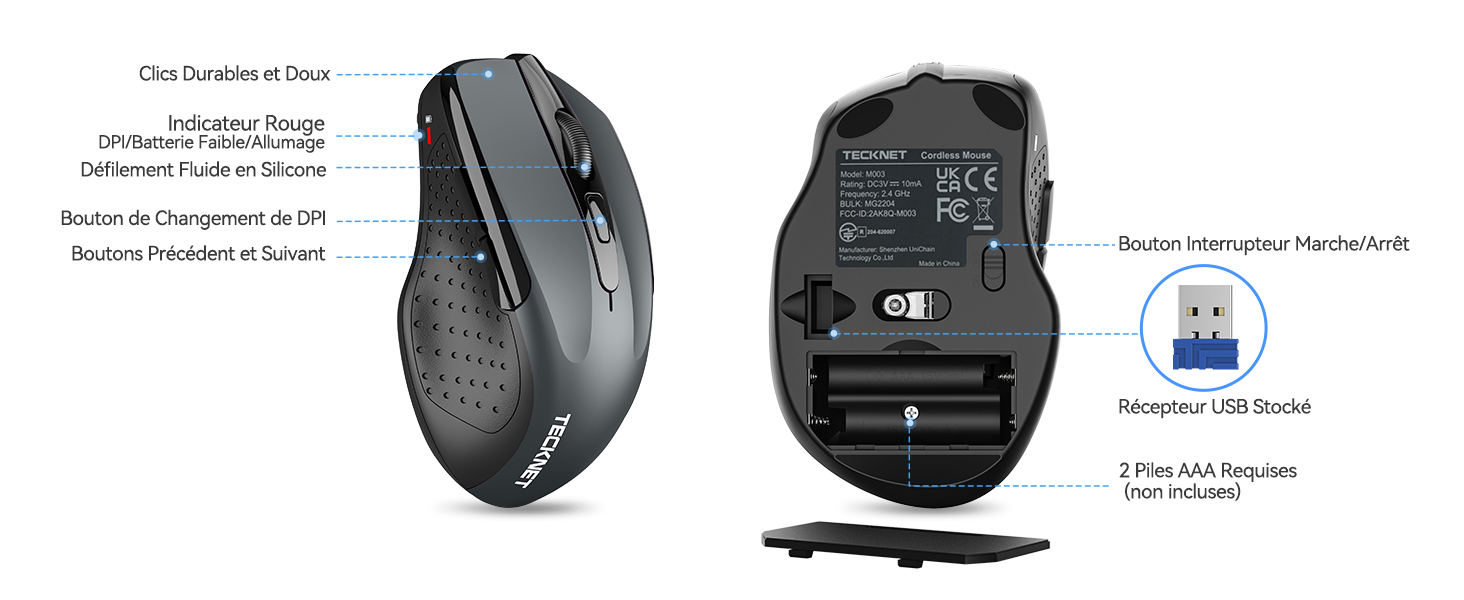
Figure 2: Front and bottom view of the mouse with labeled parts.
- Левая кнопка: Стандартная функцыя пстрычкі мышы.
- Правая кнопка: Стандартная функцыя правай кнопкі мышы.
- Кола пракруткі: Для вертыкальнай пракруткі і функцыі сярэдняга кліку.
- Кнопка пераключэння DPI: Рэгулюе адчувальнасць курсора.
- Кнопка "Наперад": Перамяшчаецца наперад web браўзэры або file explorers (not available for Mac OS).
- Кнопка "Назад": Пераходзіць назад у web браўзэры або file explorers (not available for Mac OS).
- Power Switch (On/Off): Located on the bottom of the mouse.
- Optical Tracking Sensor: For precise movement detection.
- Батарэйны адсек: Змяшчае дзве батарэйкі тыпу ААА.
- Слот для захоўвання USB-прыёмніка: Located inside the battery compartment for convenient storage.
4. Інструкцыі па ўсталёўцы
4.1 Устаноўка батарэі
- Адкрыйце вечка батарэйнага адсека, размешчанага ў ніжняй частцы мышы.
- Устаўце дзве (2) батарэйкі тыпу AAA, сачыце за правільнай палярнасцю (+/-). Батарэі не ўваходзяць у камплект.
- Надзейна зачыніце крышку батарэйнага адсека.
4.2 Падключэнне USB-прыёмніка
- Locate the nano USB receiver stored inside the battery compartment of the mouse.
- Выміце USB-прыёмнік з адсека для захоўвання.
- Plug the USB receiver into an available USB port on your computer (PC, laptop, Chromebook, Mac).
- Уключыце мыш з дапамогай выключальніка ўнізе.
Your computer should automatically detect and install the necessary drivers. The mouse will be ready for use within a few seconds.

Figure 3: Plugging the USB receiver into a computer.
5. Інструкцыя па эксплуатацыі
5.1 Асноўныя аперацыі
- Move the mouse on a flat surface to control the cursor on your screen.
- Use the left and right buttons for clicking and context menus.
- Roll the scroll wheel to navigate vertically through documents and web pages. Press the scroll wheel for a middle-click function (behavior may vary by application).
- The forward and backward buttons (side buttons) allow for quick navigation in web браўзэры або file explorers. Note: These buttons are not supported on Mac OS.
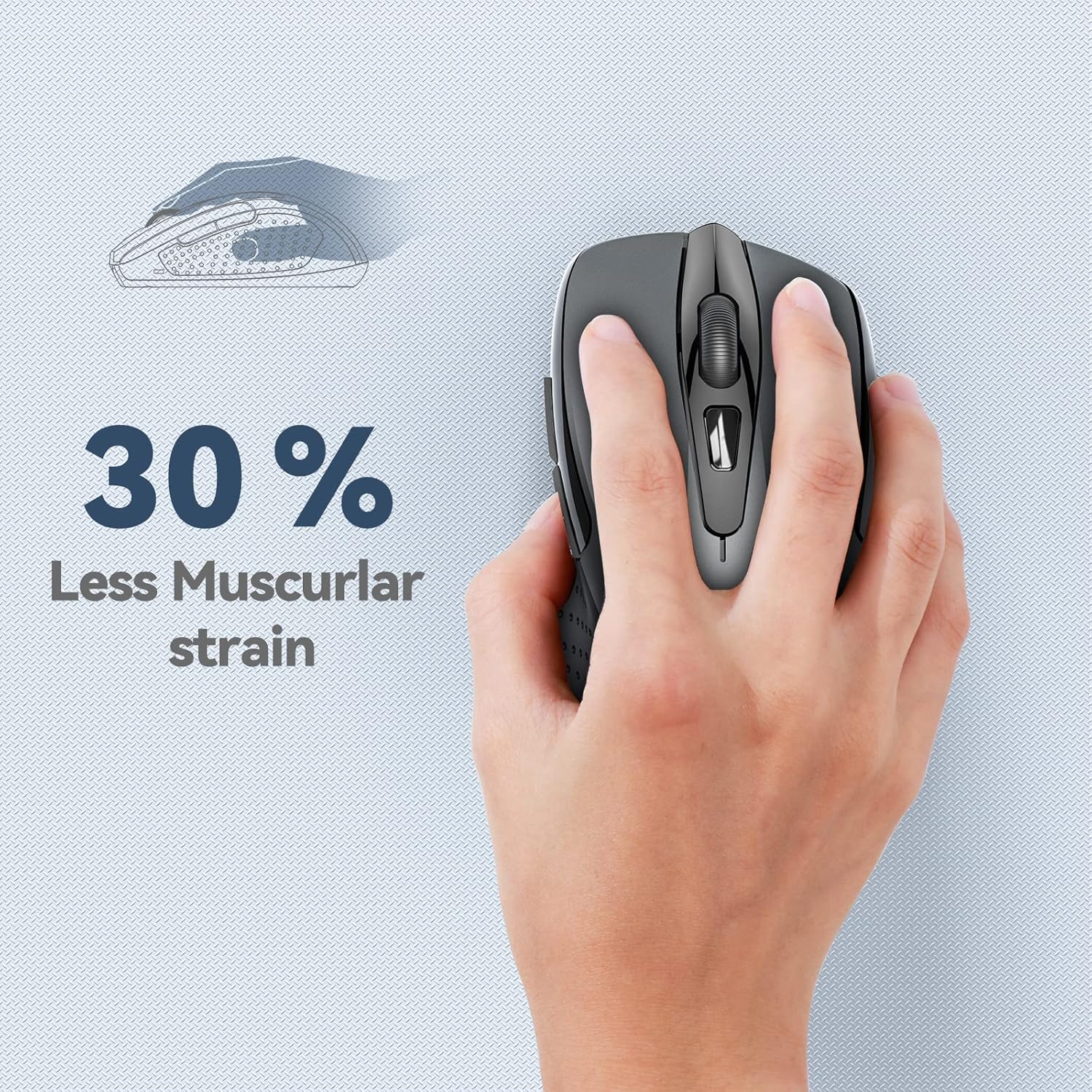
Figure 4: Ergonomic design reduces muscle strain during use.
5.2 Рэгуляванне DPI
The mouse features 5 adjustable DPI (Dots Per Inch) levels, allowing you to customize cursor sensitivity for different tasks. Press the DPI switch button (located below the scroll wheel) to cycle through the following settings:
- 800 DPI: Падыходзіць для агульнага web прагляд.
- 1200 DPI: Ideal for spreadsheet editing (e.g., Excel).
- 1600 DPI: Recommended for video editing.
- 2000 DPI: Useful for graphic design software (e.g., Photoshop).
- 2600 DPI: High sensitivity for gaming or fast-paced tasks.

Малюнак 5: Узроўні DPI і іх рэкамендаванае выкарыстанне.
6. Тэхнічнае абслугоўванне
6.1 Кіраванне батарэяй
- The mouse requires two AAA batteries. For optimal performance, use high-quality alkaline batteries.
- The mouse features an automatic sleep mode to conserve power when not in use.
- Always turn off the mouse using the power switch on the bottom when transporting it or when it will not be used for an extended period.
- Expected battery life is up to 24 months, depending on usage.
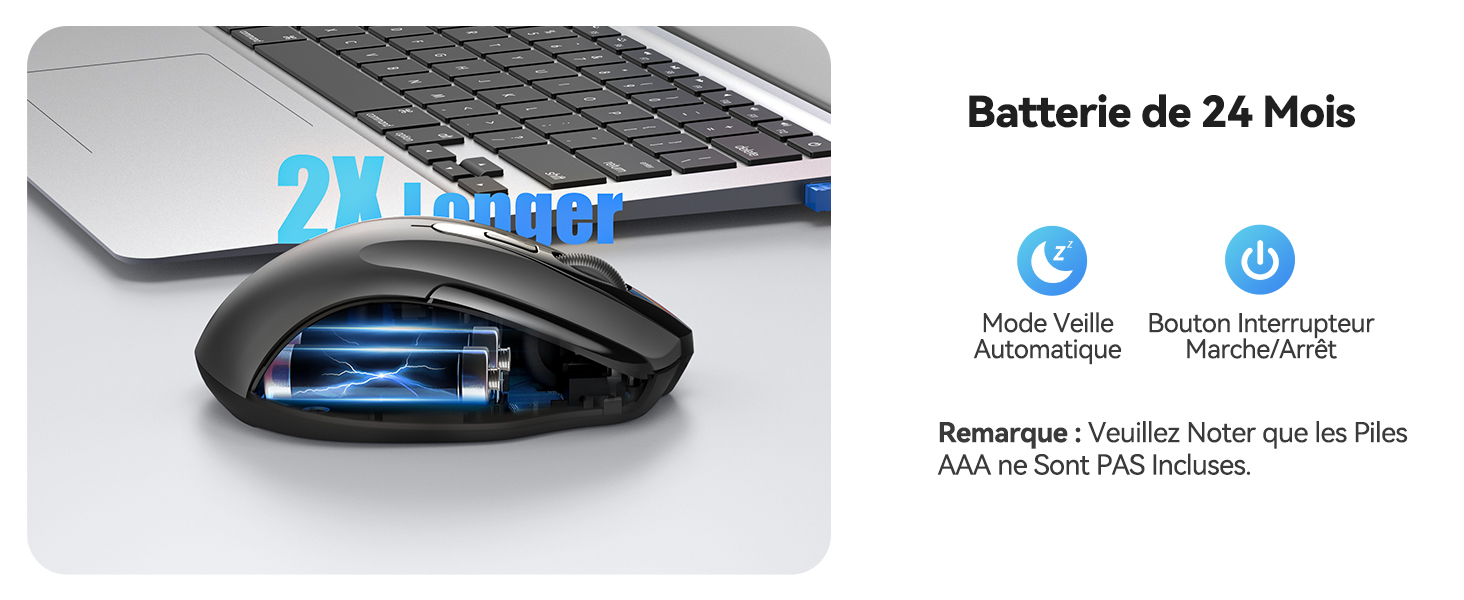
Figure 6: Battery saving features.
6.2 Ачыстка
Каб пачысціць мыш, акуратна працярыце яе мяккай губкайamp тканіна. Пазбягайце выкарыстання агрэсіўных хімікатаў або абразіўных матэрыялаў.
7. Выпраўленне непаладак
- Мышка не рэагуе:
- Пераканайцеся, што мыш уключана.
- Праверце, ці правільна ўстаўлены батарэйкі і ці дастаткова яны зараджаныя. Пры неабходнасці замяніце іх.
- Пераканайцеся, што USB-прыёмнік надзейна падключаны да спраўнага USB-порта вашага кампутара. Паспрабуйце іншы USB-порт.
- Move the mouse closer to the USB receiver to ensure it is within the 15-meter operating range.
- Перазагрузіце кампутар.
- Няправільны рух курсора:
- Ачысціце аптычны датчык у ніжняй частцы мышы.
- Пераканайцеся, што вы карыстаецеся мышшу на адпаведнай паверхні. Пазбягайце моцна бліскучых або празрыстых паверхняў.
- Знізіце адчувальнасць DPI, калі курсор рухаецца занадта хутка.
- Side buttons not working on Mac:
- The forward and backward side buttons are not supported on Mac OS. This is expected behavior.
8. Тэхнічныя характарыстыкі
| Асаблівасць | Спецыфікацыя |
|---|---|
| Нумар мадэлі | М003 |
| Тэхналогія падлучэння | Бесправадная сувязь 2.4G (USB-прыёмнік) |
| Тэхналогія выяўлення руху | Аптычны |
| Рэгуляваны DPI | 800 / 1200 / 1600 / 2000 / 2600 |
| Колькасць кнопак | 6 |
| Рука арыентацыі | Амбідэкстр |
| Працоўны дыяпазон | Да 15 метраў |
| Тып батарэі | 2 x AAA (не ўключаны) |
| Разліковы тэрмін службы батарэі | Up to 24 months (675 hours average) |
| Сумяшчальныя аперацыйныя сістэмы | Windows XP/Vista/7/8/10/11, Mac OS, Linux, Chromebook |
| Вага прадмета | 100 грам |
| Памеры (Д х Ш) | 10.6L x 6.8W centimeters |
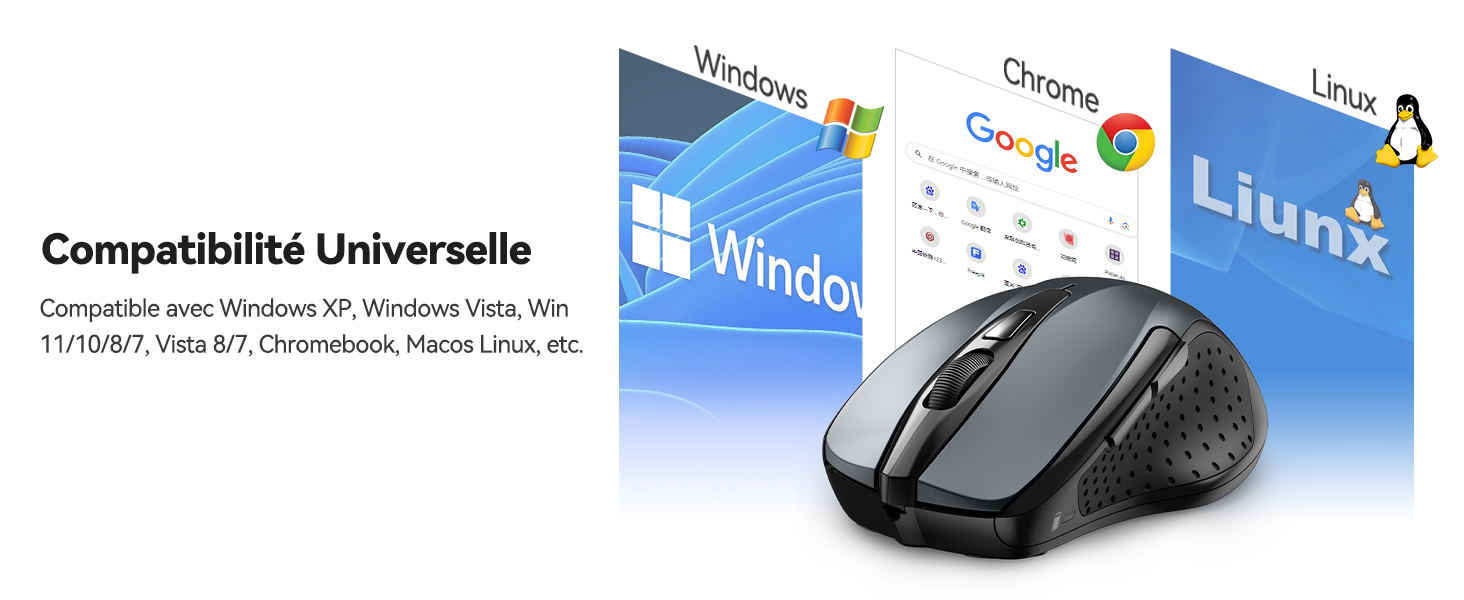
Малюнак 7: Універсальная сумяшчальнасць з рознымі аперацыйнымі сістэмамі.
9. Гарантыя і падтрымка
The TECKNET M003 Wireless Optical Mouse comes with a Гарантыя 2 год з дня пакупкі.
If you encounter any issues during product use, please contact the professional TECKNET customer service team for assistance. You can find contact information on the official TECKNET webна сайце або праз вашага прадаўца.
10. Відэа прадуктуview
Відэа 1: Кароткі аглядview of the TECKNET 2.4G Wireless Mouse, highlighting its features and ease of use.