
1. Уводзіны
This manual provides detailed instructions for the AUSDOM HD Webcam 1080P (Model LYSB012CK43W6). This webcam is designed for high-definition video communication and streaming, featuring a built-in microphone and manual focus capabilities. Please read this manual thoroughly before using the product to ensure proper operation and longevity.
2. Што ў скрынцы
- 1x AUSDOM HD Webкамера 1080p
- 1x Кіраўніцтва карыстальніка
3. Асноўныя магчымасці
- Відэа ў фармаце Full HD 1080P: Delivers superior sharpness and 1920×1080P high-definition image quality at 30 frames per second.
- Ручная факусоўка: Allows precise adjustment of the lens for desired clarity, supporting 3cm microspur shooting.
- Adjustable and Multi-function Design: Features 360° omni-directional and 30° adjustable movement for flexible positioning.
- Built-in Noise Reduction Microphone: Captures clear audio even in noisy environments.
- Automatic Low-Light Correction: Ensures clear images in dim lighting conditions.
- Plug and Play: Easy installation via USB 3.0/USB 2.0 connector for instant video chat.
- Універсальная сумяшчальнасць: Works with various platforms including Skype, FaceTime, YouTube, Zoom, and Windows Live Messenger.
4. Кіраўніцтва па наладцы
4.1 Падключэнне Webкамера
The AUSDOM HD Webcam is designed for plug-and-play functionality. Simply connect the USB cable from the webcam to an available USB 2.0 or USB 3.0 port on your computer.

Малюнак 1: Падключэнне webcam to a laptop via USB.
For most operating systems (Windows 7, Windows XP2, Windows 8, Windows Vista, Mac, Linux, Android TV), the webcam will be automatically recognized and ready for use. No additional drivers are typically required for basic functionality.
4.2 Пазіцыянаванне Webкамера
The webcam features a flexible clip/stand that allows it to be securely placed on top of a monitor, laptop screen, or freestanding on a desk. Adjust the clip to fit your display or position it on a flat surface.

Малюнак 2: Webcam positioned on a computer monitor.
The webcam offers 360° omni-directional and 30° adjustable movement, allowing you to find the optimal angle for your video calls or recordings.
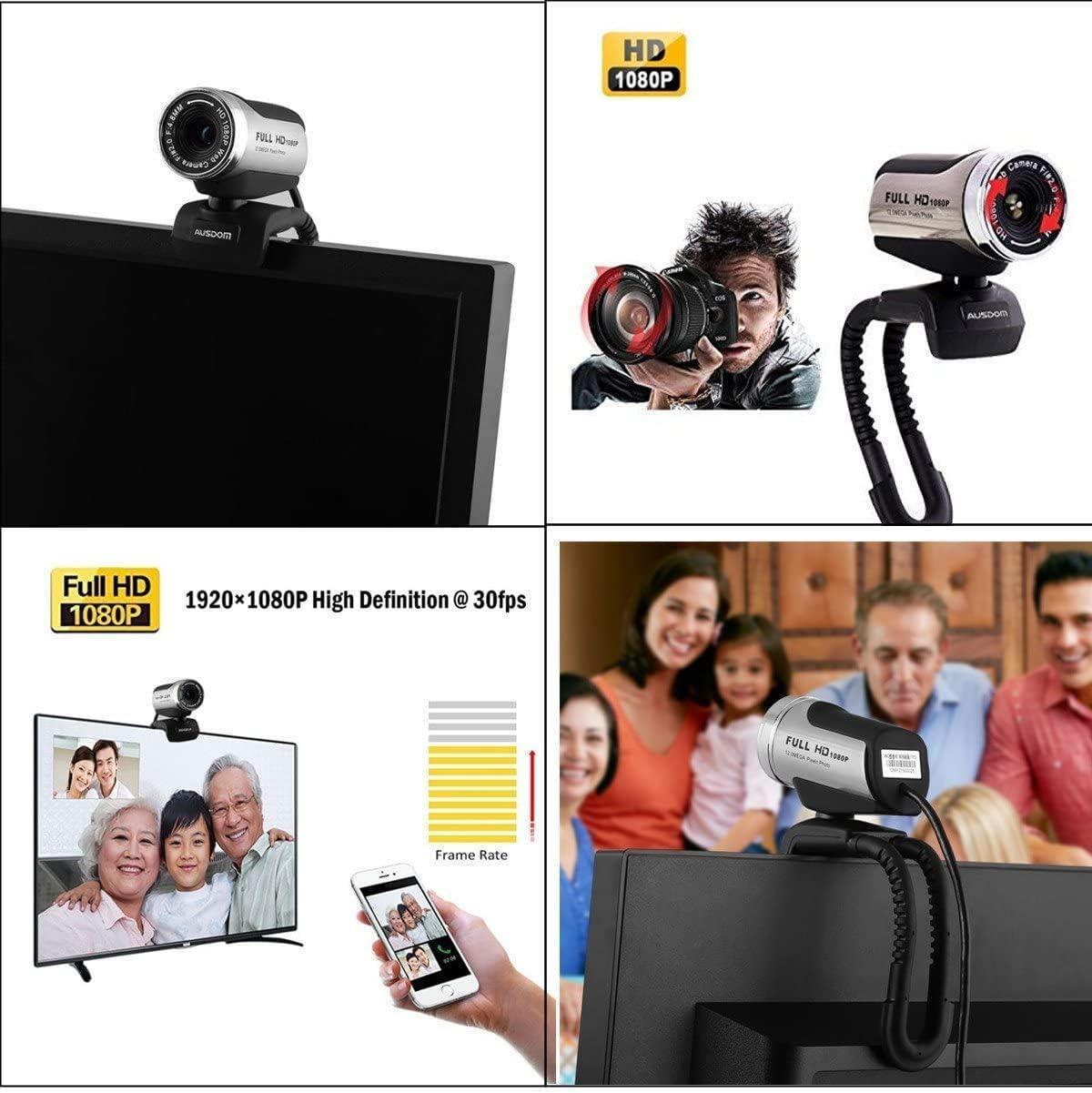
Figure 3: Adjustable angles for flexible positioning.
4.3 Initial Use and Driver Information
Пасля падлучэння, the webcam should be detected by your operating system. You can then open video conferencing software (e.g., Skype, Zoom, FaceTime) or recording applications to begin using the webcam. For some specific computer configurations, a driver might be necessary. If the webcam does not function immediately, please refer to the troubleshooting section.
Important Note for Mac Users: The driver is not compatible with iOS. For Mac, please use the webcam with applications like PHOTO BOOTH. FaceTime may not accept external cameras.
Відэа 1: Скончанаview of the AUSDOM HD 1080P Webcam with Microphone, demonstrating its features and ease of use.
5. Інструкцыя па эксплуатацыі
5.1 Ручная рэгуляванне факусоўкі
The AUSDOM HD Webcam features manual focus. To achieve optimal clarity, gently rotate the lens ring on the front of the webcam until the image on your screen appears sharp. This allows for precise focusing for various distances, including close-up shots (microspur shooting from 3cm).

Figure 4: Adjusting the manual focus ring on the webкулачковы аб'ектыў.
5.2 Using the Built-in Microphone
The webcam includes a built-in noise-reduction microphone. This microphone is designed to capture clear audio and minimize background noise, enhancing your communication experience. Ensure your operating system and application settings are configured to use the webcam's microphone as the input device.

Figure 5: Location of the noise-cancelling microphone.
5.3 Optimizing Video Quality
The webcam automatically adjusts for low-light conditions to provide a clear image. For best results, ensure adequate lighting in your environment. The 1920x1080P resolution at 30fps provides smooth and detailed video for various applications.

Малюнак 6: Webcam delivering 1080P High Definition at 30fps.
Before first use, ensure to remove the lens protective film for optimal image quality.

Figure 7: Removing the lens protective film.
6. Тэхнічнае абслугоўванне
- Уборка: Для чысткі выкарыстоўвайце мяккую сухую тканіну webcam lens and body. Avoid using harsh chemicals or abrasive materials.
- захоўванне: Калі ён не выкарыстоўваецца, захоўвайце яго webзахоўвайце камеру ў чыстым, сухім месцы, удалечыні ад прамых сонечных прамянёў і экстрэмальных тэмператур.
- Сыход за кабелем: Пазбягайце празмернага згінання або скручвання USB-кабеля, каб пазбегнуць пашкоджанняў.
7. Выпраўленне непаладак
7.1 Webcam Not Detected or Working
- Праверце падключэнне USB: Забяспечце webcam is securely plugged into a functional USB port. Try a different USB port or a different computer if available.
- Перазагрузіце кампутар: Просты перазапуск часта можа вырашыць праблемы з выяўленнем.
- Driver Installation (Windows): While typically plug-and-play, some Windows systems might require a driver. If the webcam is not working, check your device manager for unrecognized devices or visit the AUSDOM support website for specific drivers. Note that the webcam will not generate a shortcut icon after driver installation; you need to open it via software like Skype.
- Брандмаўэр/Антывірус: Ensure your firewall or antivirus software is not blocking the webcam's functionality.
- Сумяшчальнасць з Mac: The driver is not compatible with iOS. On Mac, use applications like PHOTO BOOTH. FaceTime may not accept external cameras.
7.2 Размытае выява
- Adjust Manual Focus: The webcam has manual focus. Rotate the lens ring until the image is clear. It does not feature autofocus.
- Умовы асвятлення: Ensure sufficient lighting in your environment. Poor lighting can lead to grainy or blurry images.
- Зняць ахоўную плёнку: Verify that the lens protective film has been removed.
7.3 Мікрафон не працуе
- Check System Settings: Go to your computer's sound settings and ensure the AUSDOM webcam microphone is selected as the default input device.
- Налады прыкладання: Verify that your video conferencing or recording application is configured to use the webмікрафон камеры.
8. Тэхнічныя характарыстыкі
| Асаблівасць | Дэталь |
|---|---|
| Марка | АСДАМ |
| Нумар мадэлі | LYSB012CK43W6-ELECTRNCS |
| Дазвол відэазахопу | 1080p |
| Хуткасць захопу выявы | 30 кадраў у секунду |
| Тэхналогія фотадатчыка | CMOS |
| Тып фокусу | Ручная факусоўка |
| Viewing кут | 65 градусаў |
| Тэхналогія падлучэння | USB (USB3.0/USB2.0/1.1) |
| Убудаваны мікрафон | Yes (Noise Reduction) |
| Падтрымка аперацыйнай сістэмы | Windows 7, XP2, 8, Vista, Mac OS 10.6, Android V5.0, Chrome OS |
| Вага прадмета | 123 грам |
| Колер | Black-WS |
9. Гарантыя і падтрымка
For warranty information and technical support, please refer to the official AUSDOM webсайт або звярніцеся непасрэдна ў службу падтрымкі кліентаў. Захоўвайце чэк аб куплі для прэтэнзій па гарантыі.
For any technical questions, you may also search online FAQs or contact AUSDOM support.