
1. Уводзіны
This manual provides comprehensive instructions for the setup, operation, and maintenance of the EDUP EP-3701 USB WiFi Disk. The EP-3701 is a portable wireless storage device designed to expand storage and facilitate data sharing for iOS and Android smartphones and tablets without the need for cables or a computer.
Калі ласка, уважліва прачытайце гэтую інструкцыю перад выкарыстаннем прылады, каб забяспечыць яе належную працаздольнасць і пазбегнуць пашкоджанняў.
2. Прадукт скончыўсяview
The EDUP EP-3701 acts as a bridge between your USB storage devices (like USB flash drives or external hard drives) and your mobile devices via a Wi-Fi connection. It creates its own Wi-Fi hotspot, allowing multiple devices to connect and access stored files адначасова.
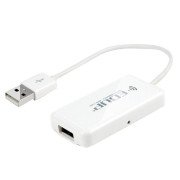
Выява 2.1: Спераду view of the EDUP EP-3701 USB WiFi Disk, showing the USB host port and the integrated USB cable.
3. Асноўныя магчымасці
- Wireless Data Access: Доступ files on connected USB storage devices wirelessly from smartphones, tablets, and computers.
- Шматкарыстальніцкая падтрымка: Allows multiple users to connect and stream/access data simultaneously.
- Партатыўны дызайн: Compact and lightweight, ideal for travel and on-the-go use.
- Крыніца харчавання: Powered via USB, can be connected to a USB wall adapter, power bank, or computer USB port.
- Кіраванне праграмамі: Dedicated mobile application for easy file management and device configuration.
4. Змесціва ўпакоўкі
Праверце наяўнасць усіх прадметаў у камплекце:
- EDUP EP-3701 USB WiFi Disk
- Кароткае кіраўніцтва (гэта кіраўніцтва)
5. Настройка
5.1. Уключэнне прылады
- Connect the integrated USB cable of the EP-3701 to a USB power source (e.g., a 5V/1A USB wall adapter, a power bank, or a computer's USB port).
- The power indicator light on the device will illuminate, indicating it is powered on.
5.2. Connecting USB Storage
- Insert your USB flash drive or external hard drive into the USB host port on the EP-3701.
- Ensure the USB storage device is properly seated.
5.3. Connecting Mobile Device
- On your smartphone or tablet, go to Wi-Fi settings.
- Locate and connect to the Wi-Fi network named "EDUP_XXXXXX" (XXXXXX will be the last six digits of the device's MAC address).
- The default password is "12345678". It is recommended to change this password after initial setup.
- Download and install the "WiFi Disk" application from your device's app store (App Store for iOS, Google Play Store for Android).
- Open the "WiFi Disk" app. The app will automatically detect and connect to the EP-3701.
6. Інструкцыя па эксплуатацыі
6.1. File Кіраванне
- Праглядзіце Files: Within the "WiFi Disk" app, navigate through the folders and files on the connected USB storage.
- Загрузіць Files: Трансфер files from your mobile device to the USB storage connected to the EP-3701.
- Спампаваць Files: Трансфер files from the USB storage to your mobile device.
- Паток СМІ: Прайгравайце відэа, музыку і view photos directly from the USB storage without downloading.
6.2. Налады сеткі
The "WiFi Disk" app allows you to configure network settings:
- Change Wi-Fi Name (SSID): Modify the name of the EP-3701's Wi-Fi network.
- Змяніць пароль Wi-Fi: Update the password for the Wi-Fi network.
- Internet Passthrough (Bridge Mode): Connect the EP-3701 to an existing Wi-Fi network to provide internet access to connected devices while still allowing access to the USB storage.
7. Тэхнічнае абслугоўванне
- Уборка: Для чысткі вонкавых паверхняў прылады выкарыстоўвайце мяккую сухую тканіну. Не выкарыстоўвайце вадкія ачышчальнікі або аэразолі.
- захоўванне: Захоўвайце прыладу ў прахалодным, сухім месцы, удалечыні ад прамых сонечных прамянёў і экстрэмальных тэмператур.
- Абнаўленні прашыўкі: Periodically check the "WiFi Disk" app or the EDUP official webсайт для абнаўленняў прашыўкі, каб забяспечыць аптымальную прадукцыйнасць і бяспеку.
- Бяспечнае выдаленне: Always ensure data transfer is complete before disconnecting the USB storage device or powering off the EP-3701.
8. Выпраўленне непаладак
8.1. Прылада не ўключаецца
- Ensure the USB cable is securely connected to a working USB power source.
- Паспрабуйце іншы порт USB або адаптар сілкавання.
8.2. Cannot Connect to Wi-Fi Network
- Verify you are selecting the correct "EDUP_XXXXXX" network.
- Double-check the Wi-Fi password (default is "12345678").
- Restart the EP-3701 device and your mobile device.
8.3. USB Storage Not Detected
- Ensure the USB storage device is properly inserted into the EP-3701's USB host port.
- Check if the USB storage device is formatted in a supported file system (FAT32, NTFS, exFAT).
- Some high-power consumption external hard drives may require an external power source.
- Try a different USB storage device to rule out a faulty drive.
8.4. Праграма працуе няправільна
- Ensure your mobile device is connected to the EP-3701's Wi-Fi network.
- Close and reopen the "WiFi Disk" app.
- Reinstall the "WiFi Disk" app.
- Праверце наяўнасць абнаўленняў праграм у краме праграм вашай прылады.
9. Тэхнічныя характарыстыкі
| Асаблівасць | Апісанне |
|---|---|
| мадэль | ЕР-3701 |
| Інтэрфейс | USB 2.0 (Host), USB 2.0 (Power Input) |
| бесправадной стандарт | IEEE 802.11b/g/n |
| Дыяпазон частот | 2.4 ГГц |
| Бяспека | WPA/WPA2, WPA-PSK/WPA2-PSK |
| Падтрымліваецца File сістэмы | FAT32, NTFS, exFAT |
| Увод магутнасці | DC 5V/1A (via USB) |
| Памеры | (Approximate, based on typical USB dongle size) 60mm x 25mm x 10mm |
| Працоўная тэмпература | Ад 0°C да 40°C (ад 32°F да 104°F) |
10. Гарантыя і падтрымка
EDUP products typically come with a limited warranty. Please refer to the warranty card included with your purchase or visit the official EDUP webпадрабязныя гарантыйныя ўмовы для вашага рэгіёна глядзіце на сайце.
For technical support, product inquiries, or warranty claims, please contact EDUP customer service through their official webсайт або кантактную інфармацыю, указаную на ўпакоўцы прадукту.
Webсайт: www.szedup.com