
1. Уводзіны
Дзякуй за пакупкуasing the ELECOM M-XGM10DBBK Wireless 5-Button BlueLED Mouse. This mouse is designed for comfort and precision, featuring an ergonomic shape that fits naturally in your hand and BlueLED technology for reliable tracking on various surfaces. This manual provides essential information for proper setup, operation, and maintenance of your device.
2. Прадукт скончыўсяview
The M-XGM10DBBK mouse is part of the "EX-G" series, known for its ergonomic design and comfortable grip. It features five buttons, including dedicated back and forward buttons, to enhance productivity.
Асноўныя характарыстыкі:
- Эрганамічны дызайн: Shaped to fit the hand for ultimate grip comfort.
- Сіні святлодыёдны датчык: Provides precise tracking on a wide range of surfaces, including glass and fabric.
- Функцыянальнасць 5 кнопак: Includes left, right, scroll wheel, and dedicated back/forward buttons.
- Бесправадное злучэнне 2.4 ГГц: Offers a stable connection with a range of approximately 10 meters (3 meters on steel desks).
- Наладжвальныя кнопкі: Button functions can be re-assigned using the free "ELECOM Mouse Assistant" software (Windows/Mac only).
- Індыкатар батарэі: А лamp indicates remaining battery life.
Кампаненты:
Азнаёмцеся з кампанентамі мышы:

Малюнак 2.1: Верх view of the mouse, highlighting the main buttons.
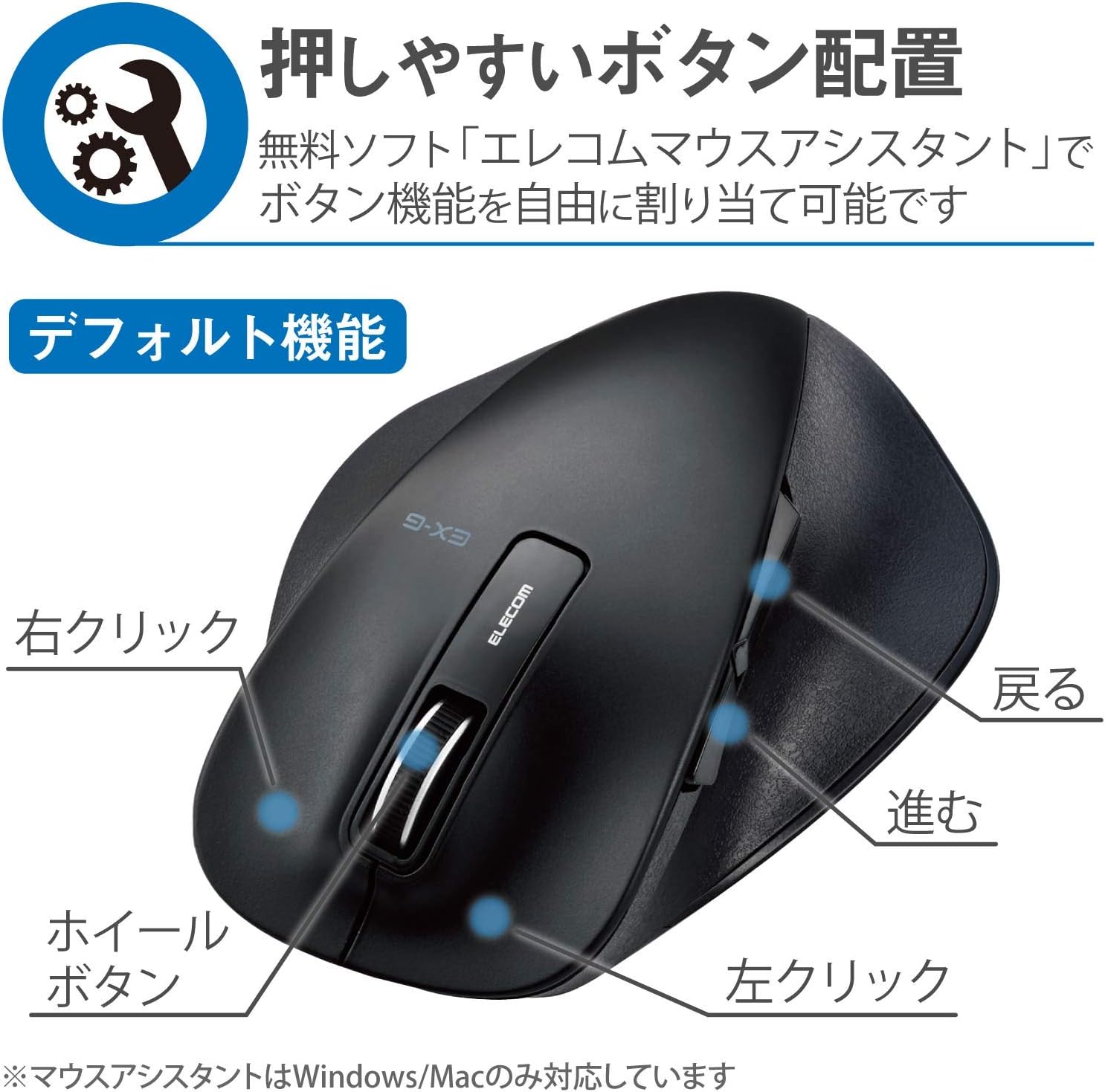
Малюнак 2.2: бок view of the mouse, showing the back and forward buttons.
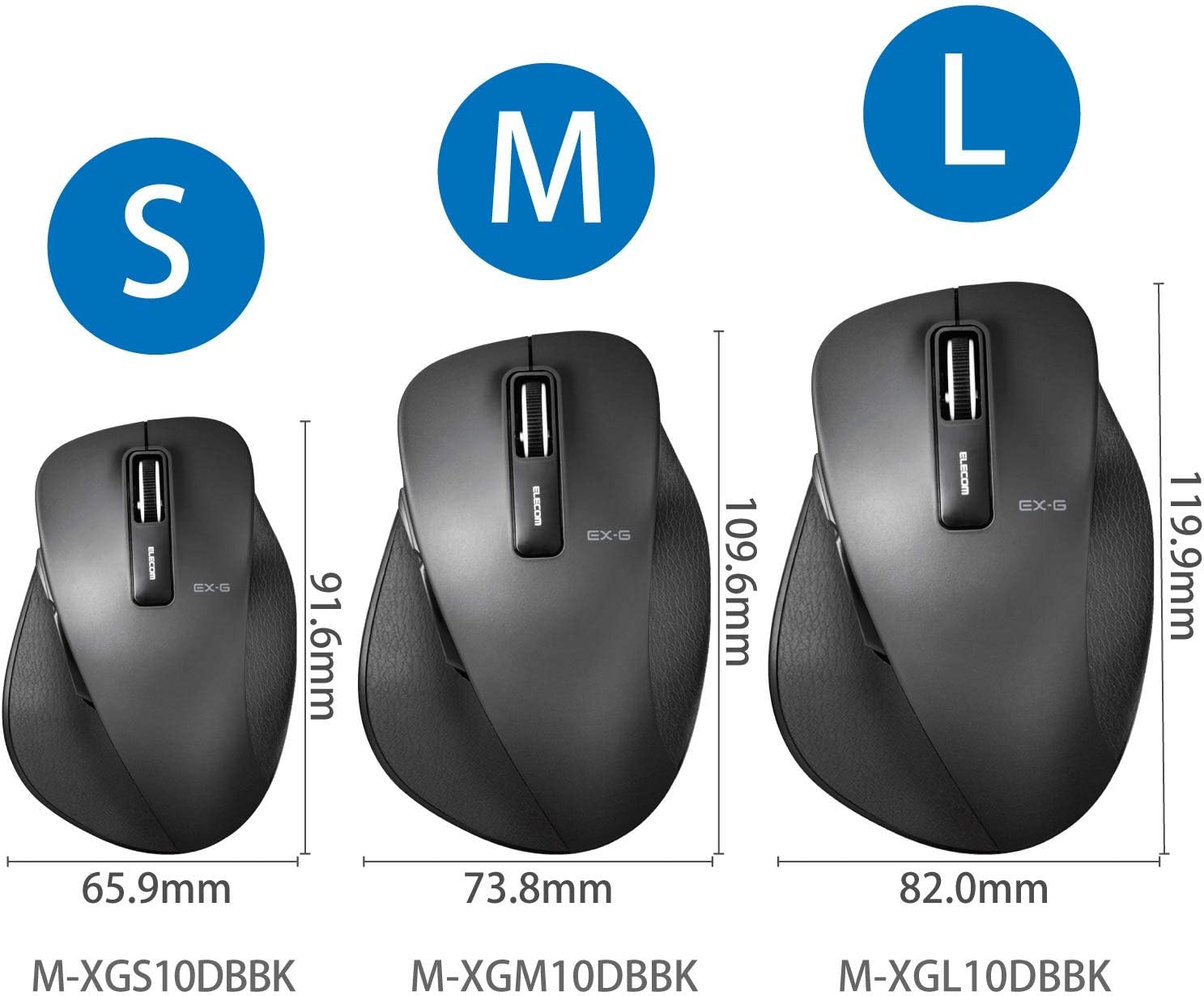
Figure 2.3: Size comparison of EX-G mice (S, M, L). The M-XGM10DBBK is the M size.

Малюнак 2.4: унізе view of the mouse, indicating the optical sensor, power switch, and receiver storage compartment.

Figure 2.5: Illustration of the durable Omron switches used for the left and right click buttons.
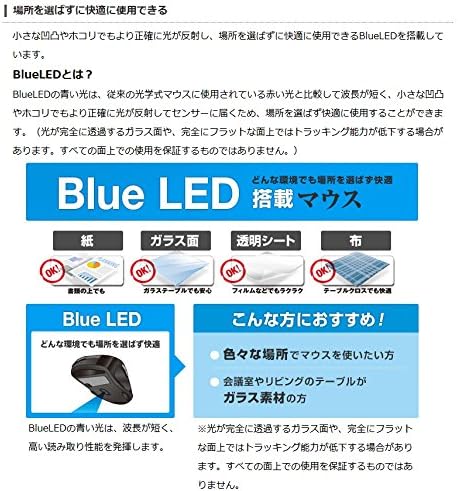
Figure 2.6: Explanation of BlueLED technology, demonstrating its versatility on different surfaces. Note: Tracking performance may decrease on completely transparent or perfectly flat surfaces.

Figure 2.7: Details on 2.4GHz wireless, battery indicator, and 2000 DPI resolution for smooth operation.

Figure 2.8: The ELECOM M-XGM10DBBK mouse is certified to work with Chromebooks.
3. Настройка
3.1 Устаноўка батарэі
- Locate the battery cover on the bottom of the mouse.
- Адкрыйце крышку.
- Insert one AA alkaline, manganese, or nickel-metal hydride battery, ensuring correct polarity (+/-).
- Надзейна зачыніце крышку батарэі.
3.2 Падключэнне прымача
- Выміце USB-прыёмнік з адсека для захоўвання ў ніжняй частцы мышы.
- Падключыце USB-прыёмнік да даступнага порта USB-A на вашым кампутары.
- Ваш камп'ютар павінен аўтаматычна выявіць і ўсталяваць неабходныя драйверы. Гэта можа заняць некалькі хвілін.
3.3 Уключэнне
- Slide the power switch on the bottom of the mouse to the "ON" position.
- Цяпер мыш гатовая да выкарыстання.
4. Інструкцыя па эксплуатацыі
4.1 Асноўныя функцыі
- Пстрычка левай кнопкай мышы: Першасны выбар і актывацыя.
- Пстрыкніце правай кнопкай мышы: Адкрывае кантэкстныя меню.
- Кола пракруткі: Пракручвае дакументы і web pages vertically. Can also be clicked for middle-click functionality.
4.2 Back/Forward Buttons
The dedicated back and forward buttons located on the side of the mouse allow for quick navigation in web браўзэры і file даследчыкі.
- Націсніце Назад button to go to the previous page or folder.
- Націсніце Наперад button to go to the next page or folder.
4.3 Customizing Buttons (ELECOM Mouse Assistant)
For advanced customization, download the free "ELECOM Mouse Assistant" software from the official ELECOM website. This software allows you to re-assign functions to the mouse buttons according to your preferences. Please note that this software is compatible with Windows and macOS only.
5. Тэхнічнае абслугоўванне
5.1 Ачыстка
Каб падтрымліваць аптымальную прадукцыйнасць і гігіену, рэгулярна чысціце мыш:
- Turn off the mouse using the power switch.
- Выкарыстоўвайце мяккую, сухую тканіну, каб працерці паверхню мышы.
- Для ўстойлівага бруду злёгку ачысціцеampпрацярыце тканіну вадой або мяккім мыйным растворам, а затым неадкладна вытрыце насуха.
- Пазбягайце выкарыстання агрэсіўных хімікатаў, абразіўных сродкаў або растваральнікаў.
- Gently clean the optical sensor area on the bottom of the mouse with a cotton swab if tracking issues occur.
5.2 Замена батарэі
Калі індыкатар батарэі lamp flashes or the mouse performance degrades, replace the battery:
- Выключыце мышку.
- Адкрыйце крышку батарэйнага адсека.
- Зніміце старую батарэю і ўтылізуйце яе ў адпаведнасці з мясцовымі правіламі.
- Устаўце новую батарэйку тыпу АА, сачыце за правільнай палярнасцю.
- Close the battery cover and turn the mouse back on.
6. Выпраўленне непаладак
Калі ў вас узніклі праблемы з мышшу, звярніцеся да наступных распаўсюджаных праблем і рашэнняў:
| праблема | Магчымая прычына | Рашэнне |
|---|---|---|
| Мышка не рэагуе | Low battery; Power switch off; Receiver not connected; Receiver interference. | Replace battery; Turn power switch ON; Ensure receiver is firmly plugged in; Try a different USB port; Move closer to the receiver. |
| Няўстойлівы рух курсора | Брудны аптычны датчык; непрыдатная паверхня; перашкоды. | Clean optical sensor; Use on a suitable mouse pad or surface; Reduce interference from other wireless devices. |
| Кнопкі не працуюць | Канфлікт праграмнага забеспячэння; праблема з драйверам. | Restart computer; Reinstall mouse drivers; Check for conflicting software. |
| Праблемы з бесправадным злучэннем | Distance too far; Obstructions; Interference. | Ensure mouse is within range (10m); Remove obstructions between mouse and receiver; Avoid using near other 2.4GHz devices. |
7. Тэхнічныя характарыстыкі
| Асаблівасць | Дэталь |
|---|---|
| Нумар мадэлі | M-XGM10DBBK |
| Спосаб падлучэння | Бесправадная сувязь 2.4 ГГц (прыёмнік USB-A) |
| Тып датчыка | Сіні святлодыёдны аптычны |
| Гузікі | 5 buttons (Left, Right, Scroll Wheel, Back, Forward) |
| дазвол | 2000 DPI |
| Памеры (Ш х Г х У) | 73.8 x 109.6 x 40.8 mm (M Size) |
| Вага | Прыбл. 151.95 г (з батарэяй) |
| Крыніца харчавання | 1 x AA battery (Alkaline, Manganese, or Ni-MH) |
| Разліковы тэрмін службы батарэі | Approx. 722 days (based on typical usage) |
| Сумяшчальная АС | Windows 11, 10, RT8.1, 8.1, 7, Vista; macOS High Sierra 10.13, OS X 10.10; Chrome OS |
| Колер | Чорны |
8. Гарантыя і падтрымка
8.1 Інфармацыя аб гарантыі
Гэты прадукт пастаўляецца з a Гарантыя 6 месяцаў from the date of purchase. Please retain your proof of purchase for warranty claims. The warranty covers manufacturing defects under normal use. It does not cover damage caused by misuse, accidents, unauthorized modifications, or normal wear and tear.
8.2 Падтрымка кліентаў
For technical assistance, troubleshooting, or warranty inquiries, please visit the official ELECOM website or contact ELECOM customer support. Contact details can typically be found on the ELECOM webсайта ў раздзеле «Падтрымка» або «Звязацца з намі».