
1. Уводзіны
The Excelvan HOP-E801 is a high-speed thermal receipt printer designed for Point of Sale (POS) systems and various other applications requiring efficient and reliable receipt printing. This manual provides detailed instructions for setting up, operating, maintaining, and troubleshooting your printer to ensure optimal performance.
Note: This device is not compatible with Mac OS.

Image 1.1: Excelvan HOP-E801 Thermal Receipt Printer. This image shows the overall design of the printer, highlighting its compact size and the receipt paper exiting the top.
2. Асаблівасці прадукту
- Спосаб друку: Thermal line printing for fast and quiet operation.
- Высокая хуткасць: Prints at up to 300 mm/s.
- дазвол: Supports 576 dots/line or 512 dots/line.
- Сумяшчальнасць з паперай: Supports 79.5 ± 0.5 mm and 57.5 ± 0.5 mm thermal paper rolls with a maximum diameter of 80 mm.
- Некалькі інтэрфейсаў: Equipped with USB, Ethernet (100M), COM (Serial), and Cash Drawer ports for versatile connectivity.
- Automatic Cutter: Features an automatic cutter for convenient receipt separation.
- Набор каманд: Compatible with ESC/POS print commands.
- Barcode Support: Prints 1D barcodes (UPC-A/E, JAN13/8, CODE39/ITF/CODABAR/CODE93/128) and 2D barcodes (QRCODE).
- Графічны друк: Supports bitmap image download and printing.
- Трываласць: Print head lifespan of 100 km (at print density ≤ 12.5) and cutter lifespan of 1,000,000 cuts.
- буфер: 2048 K Bytes input buffer and 256 K Bytes NV Flash.
- Падтрымка аперацыйнай сістэмы: Compatible with Windows 2000/2003/XP/Win7/Win8/Win8.1/Linux/Android/iOS.
3. Змесціва ўпакоўкі
Калі ласка, уважліва праверце ўпакоўку, каб пераканацца ў наяўнасці ўсіх прадметаў і іх цэласнасці:
- 1 x Excelvan HOP-E801 Thermal Receipt Printer
- 1 x European Plug Power Adapter
- 1 x USB Cable (1.1m)
- 1 х рулон термопаперы
- 1 x Paper Deflector
- 1 х дыск з драйверам
- 1 х Кіраўніцтва карыстальніка

Image 3.1: All components included in the Excelvan HOP-E801 Thermal Receipt Printer package, laid out for inspection.
4. Кіраўніцтва па наладцы
4.1 Падключэнне прынтара
- Падключэнне сілкавання: Connect the power adapter to the printer's power port and then plug it into a suitable power outlet.
- Злучэнне для перадачы дадзеных: Connect the printer to your host device (computer, POS system) using one of the available interfaces:
- USB: Use the provided USB cable to connect the printer to a USB port on your host device.
- Ethernet: Падключыце кабель Ethernet ад сеткавага маршрутызатара або перамыкача да порта Ethernet прынтара.
- Serial (COM): Use a serial cable to connect the printer to a COM port on your host device.
- Падключэнне грашовай скрыні (неабавязкова): If using a cash drawer, connect its cable to the printer's cash drawer port.

Малюнак 4.1: ззаду view of the Excelvan HOP-E801 printer, showing the USB, Serial (COM), Ethernet, Cash Drawer, and Power ports, along with the ON/OFF switch.
4.2 Загрузка тэрмапаперы
- Press the 'OPEN' button or lever on the side of the printer to open the paper cover.
- Insert the thermal paper roll into the paper compartment, ensuring the paper feeds from the bottom of the roll and the leading edge comes out towards the front of the printer.
- Выцягніце невялікі кавалак паперы з-за разака.
- Шчыльна зачыніце вечка адсека для паперы, пакуль яно не зафіксуецца пачуўшы пстрычку.

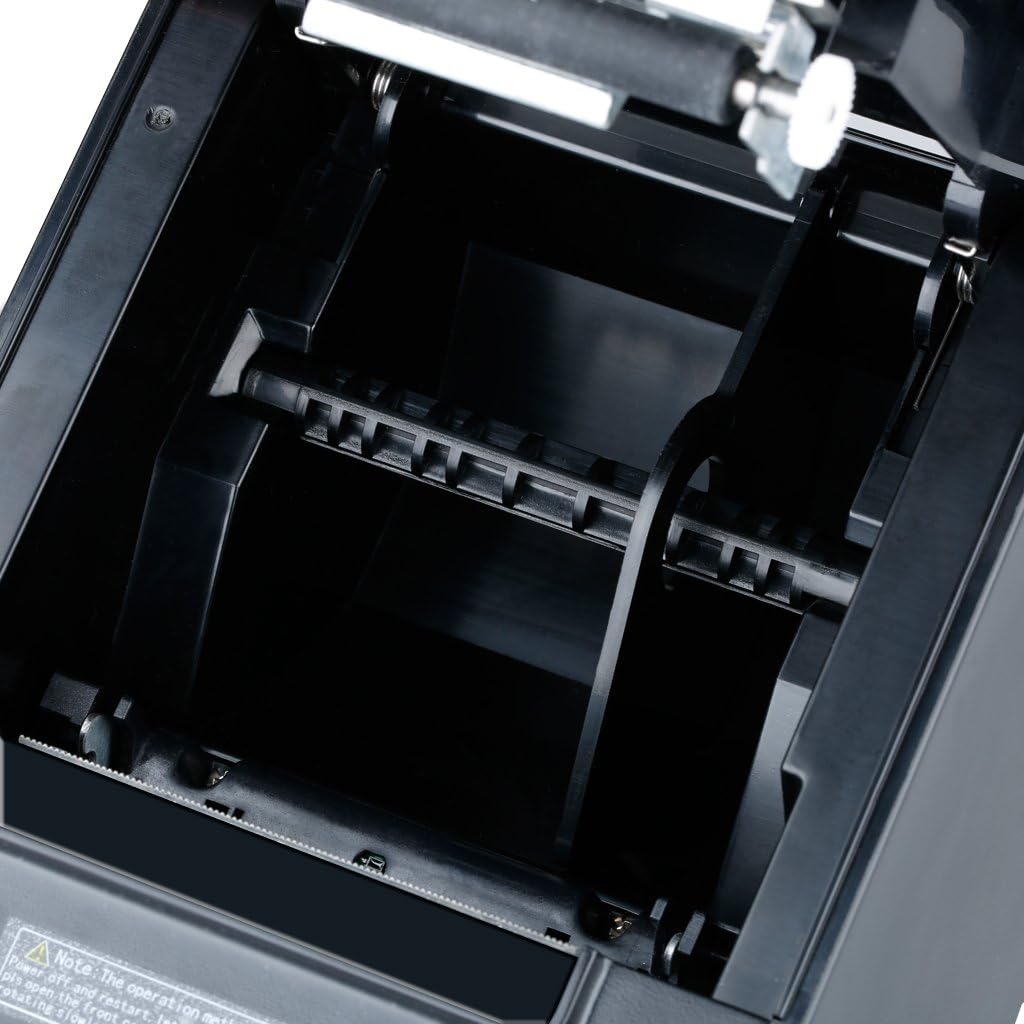
Малюнак 4.2: Унутраная частка view of the paper compartment, illustrating the correct orientation for loading a thermal paper roll.
4.3 Ўстаноўка драйвера
For Windows operating systems, insert the provided Driver CD into your computer and follow the on-screen instructions to install the printer driver. Drivers for Linux, Android, and iOS may be available for download from the manufacturer's website. Ensure the correct driver is installed for your specific operating system and connection type (USB, Ethernet, or Serial).
4.4 DIP Switch Settings (Set Print Mode)
The printer features DIP switches on the bottom panel to configure various print modes and settings. Refer to the detailed DIP switch configuration table in the full user manual for specific settings. Ensure the printer is powered off before adjusting DIP switches.
Малюнак 4.3: Крупны план view of the DIP switches located on the bottom of the printer, used for setting various print modes.
5. Інструкцыя па эксплуатацыі
5.1 Уключэнне/выключэнне
Use the ON/OFF switch located at the rear of the printer to power it on or off. The 'Power' indicator light will illuminate when the printer is on.
5.2 Індыкатары стану
The printer has three indicator lights on the front panel:
- Магутнасць: Паказвае, што прынтар уключаны.
- Памылка: Illuminates to indicate a printer error (e.g., paper jam, print head overheating).
- папера: Illuminates when the paper roll is low or out.

Image 5.1: Close-up of the printer's front panel, showing the Power, Error, and Paper indicator lights, along with the paper feed button and the 'OPEN' button for the paper cover.
5.3 Самаправерка друку
To perform a self-test, ensure the printer is off and paper is loaded. Press and hold the 'FEED' button (usually next to the indicator lights) while turning on the printer. Release the button once the printer starts printing. The self-test printout will display printer information, settings, and a sample print pattern.

Image 5.2: A self-test printout from the Excelvan HOP-E801 printer, showing diagnostic information and print quality.
5.4 Базавы друк
Once the printer is connected and drivers are installed, you can send print jobs from your application. Ensure the printer is selected as the default or desired printer in your software settings.
6. Тэхнічнае абслугоўванне
6.1 Чыстка прынтара
Рэгулярная чыстка дапамагае падтрымліваць якасць друку і падаўжае тэрмін службы прынтара.
- Знешні выгляд: Працярыце знешні выгляд мяккай, damp тканіна. Не выкарыстоўвайце агрэсіўныя хімікаты або абразіўныя ачышчальнікі.
- Друкавальная галоўка: Gently clean the thermal print head with an alcohol swab or a specialized thermal printer cleaning pen. Ensure the printer is off and cooled down before cleaning.
- Шлях паперы: Выдаліце пыл або смецце з тракту праходжання паперы мяккай шчоткай або сціснутым паветрам.
6.2 Замена рулонаў паперы
Follow the instructions in Section 4.2 to replace an empty thermal paper roll.
6.3 Cutter Maintenance
The automatic cutter is designed for durability. If the cutter becomes stuck, refer to the troubleshooting section. Avoid forcing the cutter or using non-standard paper, which can damage the mechanism.
7. Выпраўленне непаладак
This section addresses common issues you might encounter with your Excelvan HOP-E801 printer.
- Прынтар не адказвае:
- Check if the power cable is securely connected and the printer is turned on.
- Verify the data cable (USB, Ethernet, COM) connection to both the printer and the host device.
- Ensure the correct printer driver is installed and selected in your application.
- 'Error' Indicator Light On:
- A paper jam might have occurred. Open the paper cover, clear any jammed paper, and re-load the paper roll.
- The print head might be overheating. Turn off the printer and let it cool down for a few minutes before restarting.
- 'Paper' Indicator Light On:
- The paper roll is low or empty. Replace the thermal paper roll as described in Section 4.2.
- Дрэнная якасць друку:
- The thermal paper might be old or of poor quality. Try a new roll of high-quality thermal paper.
- The print head might be dirty. Clean the print head as described in Section 6.1.
- Adjust print density settings if available in your driver or application.
- Cutter Stuck:
If the cutter becomes stuck, turn off the printer and restart it. This may reset the cutter mechanism. If the issue persists, gently try to rotate the cutter back to its original position if accessible, or contact support.
8. Тэхнічныя характарыстыкі
| мадэль | HOP-E801 |
| Спосаб друку | Цеплавой друк |
| Эфектыўная шырыня друку | 72 мм |
| дазвол | 576 dots/line or 512 dots/line (203 DPI) |
| Хуткасць друку | 300 mm/s (Max Monochrome Print Speed: 32 Pages per minute) |
| Шырыня паперы | 79.5 ± 0.5 mm, 57.5 ± 0.5 mm |
| Дыяметр паперы | ≤ 80 мм |
| Інтэрфейсы | USB, Ethernet (100M), COM (Serial), Cash Drawer |
| Каманды | Сумяшчальнасць з ESC/POS |
| Падтрымка штрых-кодаў | 1D: UPC-A/E, JAN13/8, CODE39/ITF/CODABAR/CODE93/128 2D: QRCODE |
| Graphic Printing | Supports bitmap download and printing |
| Функцыя фрэзы | Automatic Cutter |
| Тэрмін службы друкавальнай галоўкі | 100 km (at print density ≤ 12.5) |
| Cutter Lifespan | 1,000,000 XNUMX XNUMX разрэзаў |
| Уваходны буфер | 2048 K Bytes |
| NV Flash | 256 K Bytes |
| Уваходны кнtage | AC 110 V-240 V, 50-60 Hz |
| Выхадны ток | Пастаянны ток 24 В/2.5 А |
| Вывад грашовай скрыні | Пастаянны ток 24 В/1 А |
| Памеры прадукту | 18 см x 14.5 см x 12.5 см (7.09 x 5.71 x 4.92 цалі) |
| Падтрымка аперацыйнай сістэмы | Windows 2000/2003/XP/Win7/Win8/Win8.1/Linux/Android/iOS |

Image 8.1: Diagram illustrating the dimensions of the Excelvan HOP-E801 Thermal Receipt Printer in centimeters and inches.
9. Гарантыя і падтрымка
Warranty information for the Excelvan HOP-E801 Thermal Receipt Printer is not provided in this document. For details regarding warranty coverage, technical support, or spare parts availability, please refer to the documentation included with your purchase or contact Excelvan customer service directly.