
Logitech M337
Logitech M337 Wireless Bluetooth Mouse User Manual
Мадэль: M337
Уводзіны
The Logitech M337 Wireless Bluetooth Mouse is a compact and portable input device designed for use with virtually any Bluetooth-enabled computer, laptop, or tablet. It offers a comfortable curved shape, precise optical tracking, and a long battery life, making it ideal for on-the-go productivity across various operating systems including Mac, Windows, Chrome OS, and Android.
Настройка
Што ў скрынцы
- Logitech M337 Wireless Bluetooth Mouse
- 1 батарэйка тыпу АА (папярэдне ўсталяваная або ўваходзіць у камплект асобна)
- Карыстальніцкая дакументацыя
Ўстаноўка акумулятара
- Знайдзіце батарэйны адсек на ніжняй баку мышы.
- Адкрыйце крышку батарэйнага адсека.
- Устаўце батарэйку тыпу АА, якая ўваходзіць у камплект, сачыце за правільнай палярнасцю (+/-).
- Надзейна зачыніце крышку батарэйнага адсека.
Спалучэнне Bluetooth
The M337 mouse connects wirelessly via Bluetooth, freeing up USB ports. Follow these steps to pair your mouse with your device:
- Turn on the mouse using the On/Off switch located on the underside. The LED indicator on the top of the mouse should start blinking rapidly, indicating it's in pairing mode. If not, press and hold the Bluetooth connect button (usually near the battery compartment or on the top, below the scroll wheel) until the LED blinks.
- On your computer, laptop, or tablet, navigate to the Bluetooth settings:
- Windows: Go to Start > Settings > Devices > Bluetooth & other devices. Turn Bluetooth On, then click "Add Bluetooth or other device" and select "Bluetooth".
- MacOS: Go to Apple menu > System Preferences > Bluetooth. Ensure Bluetooth is On.
- Chrome OS: Click the status area (bottom right) > Bluetooth > Enable Bluetooth.
- Android: Go to Settings > Connected devices > Connection preferences > Bluetooth. Turn Bluetooth On.
- In the Bluetooth device list, select "Logitech M337" or a similar name.
- Follow any on-screen prompts to complete the pairing process. The LED indicator on the mouse will turn solid blue for a few seconds and then turn off once successfully connected.
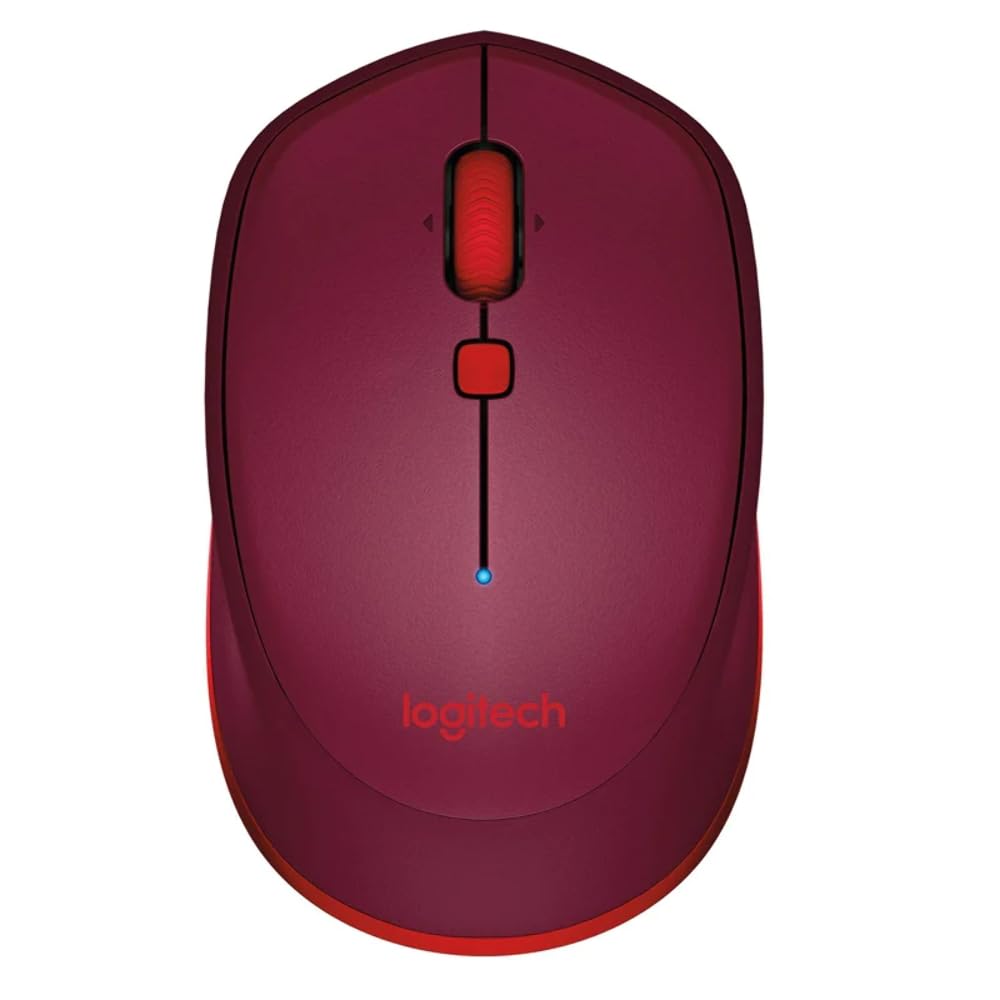
This image displays the Logitech M337 Wireless Bluetooth Mouse from a top-down perspective, highlighting its compact design, the red scroll wheel, and the central navigation button. The Logitech logo is visible at the bottom.
Кіраванне мышшу
Асноўныя функцыі
- Пстрычка левай кнопкай мышы: Primary button for selecting items and interacting with software.
- Пстрыкніце правай кнопкай мышы: Дадатковая кнопка для кантэкстных меню і дадатковых опцый.
- Кола пракруткі: Пракручвайце дакументы ўверх або ўніз і web старонкі.
- Нахіл кола: Tilt the scroll wheel left or right for horizontal scrolling (if supported by software).
- Кнопка навігацыі: The button located below the scroll wheel. By default, this button can be configured to perform various functions, such as opening the task view on Windows or Mission Control on Mac. Customization is available through Logitech Options software.
Камфорт і партатыўнасць
The M337 features a comfortable curved shape with rubber grips, designed for extended use by both right and left-handed users. Its compact size allows for easy portability, fitting conveniently into laptop bags or pockets.

Пад вуглом view of the Logitech M337 mouse, showcasing its comfortable curved shape and the textured rubber grips on the sides, designed for both right and left-handed users.
Тэхнічнае абслугоўванне
Замена батарэі
The Logitech M337 mouse boasts an average battery life of up to 19 months. When the battery is low, the LED indicator on the mouse may blink red. To replace the battery, follow the battery installation steps outlined in the Setup section.
Уборка
To maintain optimal performance and hygiene, periodically clean your mouse:
- Выкарыстоўвайце мяккую безворсовую тканіну, злёгку dampзмыць вадой або мяккім мыйным растворам.
- Пазбягайце выкарыстання агрэсіўных хімікатаў, абразіўных ачышчальнікаў або апускання мышы ў вадкасць.
- Акуратна працярыце паверхню мышы, звяртаючы ўвагу на ўчасткі, якія часта датыкаюцца з вашай рукой.
- Для аптычнага датчыка старанна выдаліце пыл і смецце з дапамогай сухога ватовага тампона.
Ліквідацыю непаладак
Праблемы з падключэннем
- Мышка не падключаецца: Ensure the mouse is turned on and the battery has sufficient charge. Re-initiate pairing mode on the mouse and re-scan for Bluetooth devices on your computer.
- Перарывістае падключэнне: Move the mouse closer to your device. Ensure there are no large metal objects or other wireless devices causing interference between the mouse and your computer.
- Bluetooth not found on computer: Verify that your computer's Bluetooth is enabled and its drivers are up to date.
Tracking Problems
- Няправільны рух курсора: Clean the optical sensor on the underside of the mouse. Ensure you are using the mouse on a clean, non-reflective, and uniform surface.
- Няма руху курсора: Check battery level. Ensure the mouse is properly paired.
Іншыя пытанні
- Кнопкі не рэагуюць: Check battery. If using Logitech Options software, ensure button assignments are correct.
- Scroll wheel not working: Ачысціце прастору вакол кола пракруткі, каб выдаліць смецце.
Тэхнічныя характарыстыкі
| Асаблівасць | Дэталь |
|---|---|
| Марка | Logitech |
| Нумар мадэлі | М337 |
| Тэхналогія падлучэння | Bluetooth |
| Тэхналогія выяўлення руху | Аптычны |
| Колер | Чырвоны |
| Крыніца харчавання | Battery Powered (1 AA battery) |
| Сярэдні тэрмін службы батарэі | Да 19 месяцаў |
| Сумяшчальнасць аперацыйнай сістэмы | Android, Chrome OS, Mac, Windows |
| Памеры прадмета (ДxШxВ) | 18.6 х 12.6 х 8.3 см |
| Вага прадмета | 82 г |
Гарантыя і падтрымка
Інфармацыя аб гарантыі
The Logitech M337 Wireless Bluetooth Mouse typically comes with a 1 -гадовая абмежаваная гарантыя на абсталяванне з даты пакупкі. Калі ласка, захавайце пацвярджэнне пакупкі для прэтэнзій па гарантыі. Гарантыя распаўсюджваецца на дэфекты матэрыялаў і вырабу пры нармальным выкарыстанні.
Падтрымка кліентаў
Каб атрымаць дадатковую дапамогу, тэхнічную падтрымку або прэтэнзіі па гарантыі, наведайце афіцыйную службу падтрымкі Logitech. website or contact their customer service. You can usually find detailed FAQs, troubleshooting guides, and driver downloads on their webсайт.
Служба падтрымкі Logitech Webсайт: support.logi.com
Ask a question about this manual
Ask about setup, troubleshooting, compatibility, parts, safety, or missing instructions. Manuals+ will review the question and use this page’s manual context to help answer it.