
1. Уводзіны
The Excelvan BP-9502BL is a versatile Bluetooth wireless USB laser barcode scanner designed for efficient data entry and storage. It supports both wireless Bluetooth and wired USB modes, offering flexible connectivity options for various devices and environments. This manual provides detailed instructions for setup, operation, and maintenance of your barcode scanner.

Figure 1: Excelvan BP-9502BL Barcode Scanner. This image shows the main view of the black barcode scanner with a yellow trigger button.

Figure 2: Labeled components of the Excelvan BP-9502BL Barcode Scanner. Key parts include LED Lights, Handle, Rebound button (trigger), and Scan Window.
2. Змесціва ўпакоўкі
- 1x Wireless Bluetooth Barcode Scanner
- 1x USB Cable (approximately 135cm / 4.43ft)
- 1x 3.0 Bluetooth Receiver
- 1x Paperclip
- 1x Кіраўніцтва карыстальніка

Figure 3: Barcode scanner with included USB cable and Bluetooth receiver. This image displays the main scanner unit alongside its essential connectivity accessories.
3. Налада і падключэнне
The Excelvan BP-9502BL scanner offers multiple connectivity options to suit various devices.
3.1. Desktop Computer (Bluetooth Wireless Mode)
- Insert the included Bluetooth receiver into an available USB port on your desktop computer.
- Install any necessary drivers (typically, the system will install them automatically).
- Уключыце сканер штрых-кодаў.
- Press and hold the yellow button on the scanner for approximately 10 seconds to enter pairing mode.
- Follow your computer's Bluetooth pairing instructions to connect to the scanner.
3.2. Desktop Computer (Wired Mode)
- Insert the included Bluetooth receiver into an available USB port on your desktop computer.
- Connect the USB cable from the scanner to the Bluetooth receiver.
- The scanner will automatically switch to wired mode and be ready for use.
3.3. Laptop Computer (Bluetooth Wireless Mode)
If your laptop has built-in Bluetooth:
- Ensure your laptop's Bluetooth is enabled.
- Уключыце сканер штрых-кодаў.
- Press and hold the yellow button on the scanner for approximately 10 seconds to enter pairing mode.
- Follow your laptop's Bluetooth pairing instructions to connect to the scanner. The external Bluetooth receiver is not required for laptops with integrated Bluetooth.
3.4. Mobile Phone (Bluetooth Wireless Mode)
- Уключыце сканер штрых-кодаў.
- Уключыце Bluetooth на мабільным тэлефоне.
- Press and hold the yellow button on the scanner for approximately 10 seconds to enter pairing mode.
- On your phone, search for available Bluetooth devices and select the scanner to pair.

Figure 4: Diagram illustrating various connection methods for the barcode scanner, including mobile phone via Bluetooth, laptop with or without receiver via Bluetooth, and desktop computer via Bluetooth (wireless) or USB (wired).
4. Інструкцыя па эксплуатацыі
Once connected, the scanner is ready to read barcodes.
4.1. Сканіраванне штрых-кода
- Point the scanner's beam at the barcode you wish to read.
- Ensure the beam covers the entire barcode.
- Press the yellow trigger button (Rebound button) to activate the laser.
- A successful scan is typically indicated by an audible beep and/or a visual confirmation from the LED indicator.
4.2. Best Scanning Practices
- кут: Maintain a slight bevel (angle) between the scanner and the barcode for optimal reading. Avoid holding the scanner at a 90-degree angle directly perpendicular to the barcode, as this can prevent successful reading.
- Ахоп: The laser beam must fully cover the barcode from end to end. Partial coverage may result in reading errors.
- Адлегласць: The optimal scanning width is between 5cm and 30cm. Adjust the distance to the barcode for best performance.

Малюнак 5: Выпamples of the barcode scanner in use, demonstrating scanning a document barcode and its application in a point-of-sale environment.
5. Тэхнічнае абслугоўванне
To ensure the longevity and optimal performance of your Excelvan BP-9502BL barcode scanner, follow these maintenance guidelines:
- Уборка: Для чысткі вонкавай паверхні сканера выкарыстоўвайце мяккую сухую тканіну. Для акна сканавання выкарыстоўвайце тканіну без ворса, злёгку прамакнутуюampачышчайце мяккім неабразіўным ачышчальнікам. Пазбягайце выкарыстання агрэсіўных хімічных рэчываў або абразіўных матэрыялаў.
- захоўванне: Store the scanner in a cool, dry place away from direct sunlight, extreme temperatures, and excessive dust.
- Апрацоўка: Пазбягайце падзення сканера або моцных удараў, бо гэта можа пашкодзіць унутраныя кампаненты.
- акумулятар: The scanner has an internal Li 800mAh/3.7V power source. Charge the device when the battery is low. Charging time is approximately 30 minutes.
6. Выпраўленне непаладак
If you encounter issues with your barcode scanner, refer to the following common problems and solutions:
- Scanner does not connect via Bluetooth:
- Пераканайцеся, што сканер уключаны.
- Confirm Bluetooth is enabled on your host device (computer, laptop, phone).
- Press and hold the yellow button on the scanner for 10 seconds to enter pairing mode.
- If using a desktop, ensure the Bluetooth receiver is properly inserted and drivers are installed.
- Паспрабуйце перазагрузіць сканер і галоўную прыладу.
- Сканер не чытае штрых-коды:
- Ensure the laser beam fully covers the entire barcode.
- Adjust the angle of the scanner relative to the barcode. Avoid a 90-degree perpendicular angle; a slight bevel is recommended.
- Check the scanning distance (optimal 5cm-30cm).
- Ensure the barcode is not damaged, smudged, or poorly printed.
- Verify the scanner is properly connected to your device (either wirelessly or via USB).
- No data output after scanning:
- Confirm the scanner is successfully paired/connected to your device.
- Open a text editor or application where scanned data should appear to test functionality.
- Check if the host device's input method is correctly configured.
7. Тэхнічныя характарыстыкі
| Асаблівасць | Дэталь |
|---|---|
| Марка | Эксэльван |
| мадэль | BP-9502BL |
| Нумар дэталі | SZLG0109 |
| Тэхналогія падлучэння | Bluetooth, кабель USB |
| Сумяшчальныя прылады | Desktop Computer, Laptop Computer, Tablet, Mobile Phone |
| Працоўная магутнасць | 250mW (operation), 35mW (standby), 500mW (max) |
| Крыніца харчавання | Internal Li 800mAh/3.7V battery |
| Шырыня сканавання | 5 см - 30 см |
| Decoding Speed | 300 сканаванняў/сек |
| Час зарадкі | Прыкладна 30 хвілін |
| Матэрыял | ABS + PC + TPE |
| Памеры прадукту | 21.84 х 17.78 х 8.89 см |
| Вага прадукту | 294.84 г |
| UPC | 723120423060 |
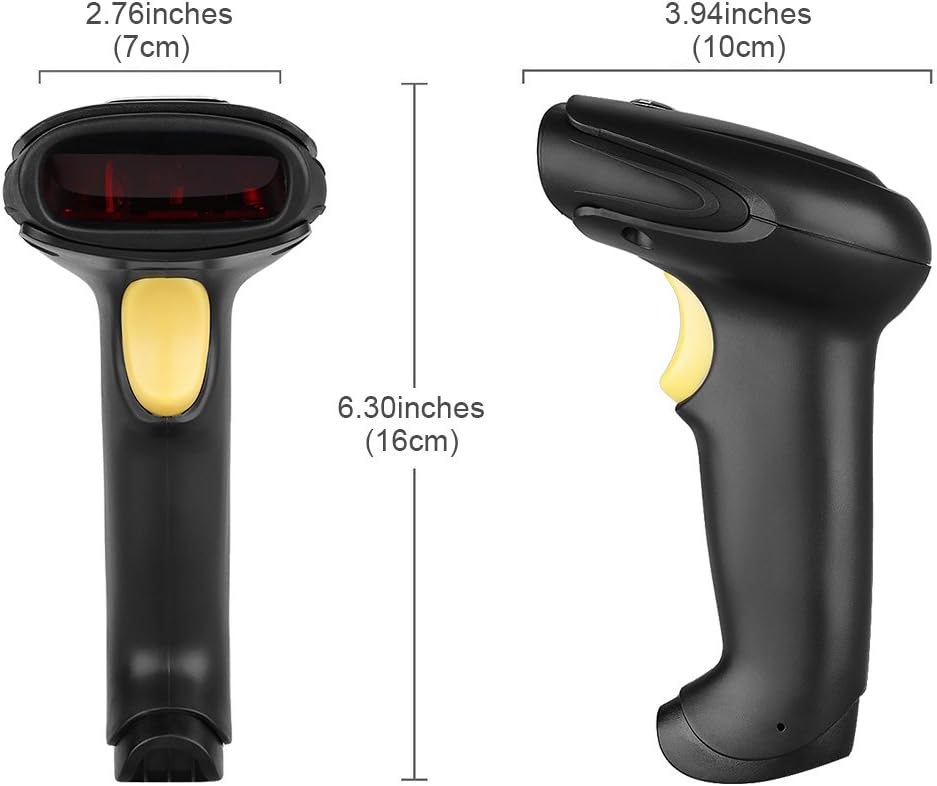
Малюнак 6: Памеры надview of the Excelvan BP-9502BL Barcode Scanner, showing measurements in both inches and centimeters for width (7cm / 2.76in), height (16cm / 6.30in), and depth (10cm / 3.94in).
8. Гарантыя і падтрымка
Information regarding product warranty and customer support is not available in the provided data. Please refer to the product packaging or the seller's website for details on warranty coverage and how to obtain technical assistance.