
1. Уводзіны
This manual provides detailed instructions for the Symcode 1D Mini Wireless Handheld Barcode Scanner, model MJ-2877L. This device is designed for efficient 1D barcode scanning and offers versatile connectivity options, including Bluetooth, 2.4G wireless via USB dongle, and wired USB. It is compatible with various operating systems, including Windows, Android, and iOS.

Image 1.1: Symcode 1D Mini Wireless Handheld Barcode Scanner MJ-2877L. This image displays the compact, black barcode scanner with blue buttons and a USB dongle.
2. Кампаненты прадукту
The Symcode MJ-2877L barcode scanner package includes the following items:
- Symcode 1D Mini Wireless Handheld Barcode Scanner
- USB-кабель для зарадкі
- Кароткае кіраўніцтва
- USB Dongle (for 2.4G wireless connection)
- Папружка для рукі
- Літый-палімерная акумулятарная батарэя
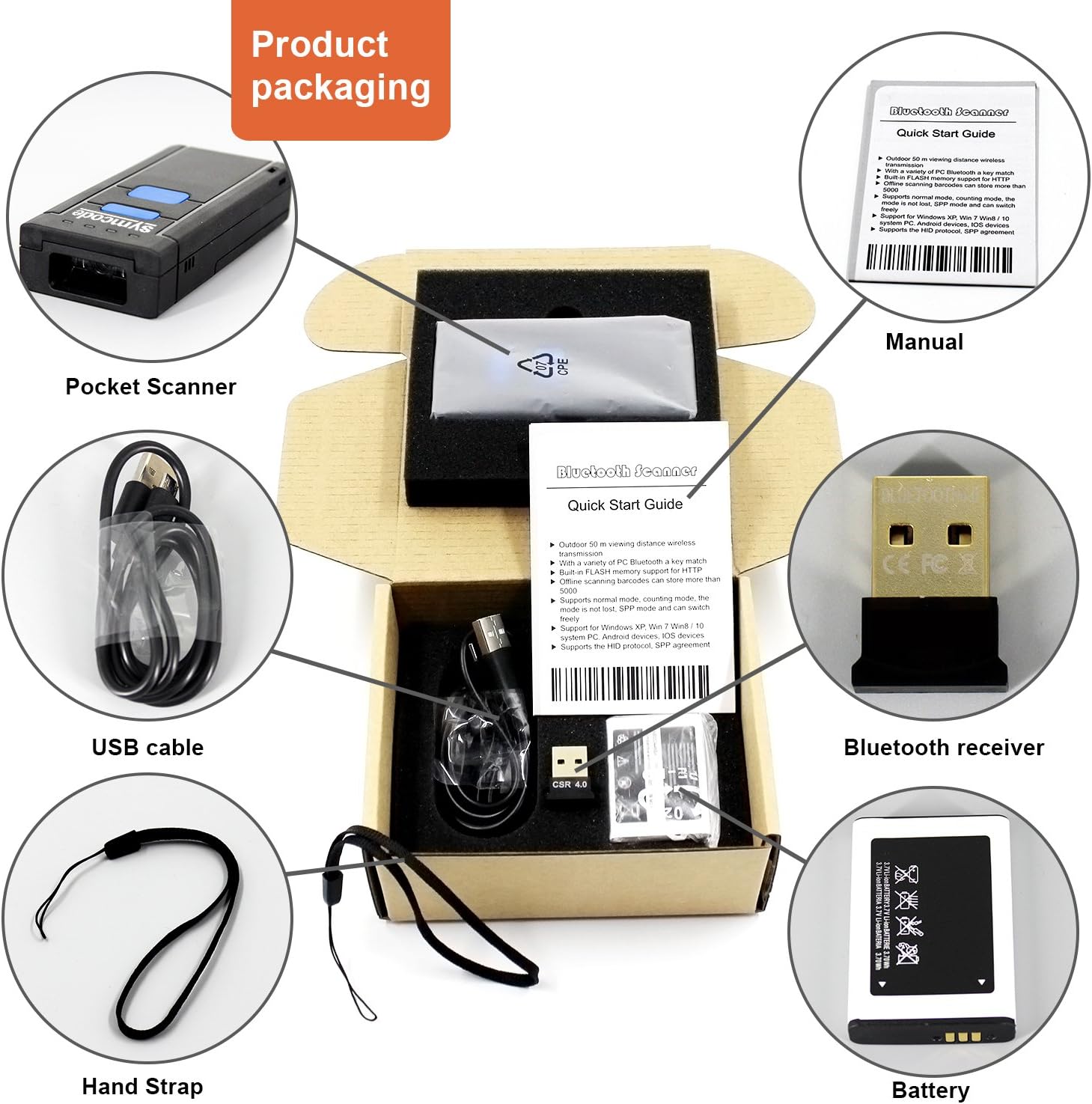
Image 2.1: Product Packaging Contents. This image shows the scanner, USB cable, quick start guide, USB dongle, hand strap, and battery as they appear in the product box.
2.1. Scanner Parts Overview

Image 2.2: Product Analysis. This diagram labels key components of the scanner: Scan window, Indicator lights, ON&OFF button, Scanning switch, Battery compartment, and Hand Strap attachment point.
- Акно сканавання: Emits the laser for reading barcodes.
- Светавыя індыкатары: Provide status feedback (e.g., power, connection, scan success).
- Кнопка ўключэння і выключэння: Уключае або выключае прыладу.
- Scanning Switch: Triggers the barcode scan.
- Батарэйны адсек: Змяшчае акумулятарную батарэю.
- Папружка для рукі: Для бяспечнага абыходжання.
3. Настройка
3.1. Усталёўка і зарадка акумулятара
- Адкрыйце крышку батарэйнага адсека.
- Insert the provided Lithium Polymer battery, ensuring correct polarity.
- Надзейна зачыніце крышку батарэйнага адсека.
- Connect the scanner to a USB power source using the USB charging cable. The indicator light will show charging status. A full charge takes approximately 3 hours.
3.2. Пачатковае ўключэнне
Press and hold the ON&OFF button until the indicator lights illuminate, indicating the scanner is powered on.

Image 3.1: Product Instructions. This image illustrates the steps for battery installation, connecting the USB dongle, and operating the scanner.
4. Operating Modes and Connection
The scanner supports three connection modes: wired USB, 2.4G wireless via USB dongle, and Bluetooth.

Image 4.1: Wired and Wireless Modes. This diagram shows the scanner connecting to a computer via USB cable (wired mode) and wirelessly via a USB dongle or directly via Bluetooth to mobile devices.
4.1. Wired Mode (USB)
Connect the scanner directly to a computer's USB port using the provided USB cable. The cable serves as both a charging cable and a data transmission cable. The computer will typically recognize the scanner as a keyboard input device without requiring additional drivers.
4.2. Бесправадны рэжым 2.4G
- Падключыце USB-адаптар да даступнага USB-порта на вашым кампутары.
- Кампутар павінен аўтаматычна выявіць і ўсталяваць неабходныя драйверы.
- Ensure the scanner is powered on. It will automatically attempt to pair with the dongle.
- Once paired, the scanner will function as a wireless input device.
4.3. Рэжым Bluetooth
The scanner supports Bluetooth Class 4.0 + EDR, providing a wireless range of up to 10 meters and supporting HID virtual keyboard mode. This mode is suitable for connecting to smartphones, tablets, and PCs.
- Ensure the scanner is powered on and in Bluetooth pairing mode (refer to the Quick Start Guide for specific barcode scans to enter Bluetooth mode).
- On your host device (smartphone, tablet, or PC), enable Bluetooth and search for available devices.
- Select the scanner (usually named 'Symcode Scanner' or similar) from the list of found devices to pair.
- Once paired, the scanner will transmit scanned data as keyboard input to your device.
4.4. Бесправадны дыяпазон

Image 4.2: Wireless Range. This diagram illustrates the typical wireless operating distances: up to 100 feet (30m) indoors with the 2.4G dongle, up to 330 feet (100m) outdoors with the 2.4G dongle, and up to 33 feet (10m) for Bluetooth connections to mobile devices.
- 2.4G Wireless (with dongle): Up to 100 feet (30 meters) indoors, up to 330 feet (100 meters) outdoors.
- Bluetooth: Да 33 футаў (10 метраў).
5. Scanning Operations
The Symcode MJ-2877L scanner is designed to read 1D linear barcodes.
5.1. How to Scan
- Point the scan window towards the barcode.
- Press the scanning switch. A red laser line will appear.
- Ensure the laser line crosses the entire barcode. A successful scan is typically indicated by an audible beep and/or a change in the indicator light.

Image 5.1: Handheld Scanning. This image shows the scanner being held in a hand, with the laser beam active, ready to scan a barcode. Example 1D barcodes are displayed next to it.
5.2. Barcode Types Supported
This scanner is compatible with common 1D barcode symbologies.
5.3. Абмежаванні
- This is a 1D barcode scanner and нельга read 2D barcodes (e.g., QR codes, PDF417).
- It нельга scan barcodes displayed on device screens.
- It may not be suitable for reading barcodes from highly reflective surfaces, such as silver foil paper.
5.4. Offline Storage
The scanner features 16MB of built-in flash memory, capable of storing over 50,000 barcodes in offline working mode. This allows for data collection without a live connection to a host device.

Image 5.2: Large Capacity. This image illustrates the scanner's 16MB storage capacity, capable of holding over 50,000 barcode entries.
6. Канфігурацыя
The scanner's operational settings, such as automatic reading, trigger reading, sound preferences, and sleep time, can be configured by scanning specific barcodes provided in the accompanying Quick Start Guide. Refer to the guide for a complete list of configuration barcodes and their functions.
7. Тэхнічнае абслугоўванне
7.1. Сыход за батарэяй
- The device is powered by a 3.7V 1000mA Li-ion battery.
- A full charge provides approximately 8 hours of continuous operation.
- To prolong battery life, avoid extreme temperatures and store the scanner with a partial charge if not used for extended periods.
7.2. Уборка
Use a soft, dry cloth to clean the exterior of the scanner. For the scan window, use a lens cleaning cloth to avoid scratches. Do not use abrasive cleaners or immerse the device in liquids.
8. Выпраўленне непаладак
If you encounter issues with your Symcode barcode scanner, consider the following:
- Сканер не ўключаецца: Пераканайцеся, што акумулятар усталяваны правільна і цалкам зараджаны.
- Not scanning barcodes: Verify the scanner is powered on and the laser is active. Ensure the barcode is a 1D type and not on a screen or highly reflective surface. Check if the scanner is in the correct operating mode (e.g., connected via Bluetooth or 2.4G dongle).
- Праблемы з падключэннем: For Bluetooth, ensure the scanner is in pairing mode and your host device's Bluetooth is enabled. For 2.4G wireless, ensure the USB dongle is properly inserted and recognized by the computer. Try re-pairing the device.
- Няма перадачы дадзеных: Confirm successful pairing/connection. Ensure the application on your host device is ready to receive keyboard input.
- Loud beeping: Refer to the Quick Start Guide for configuration barcodes to adjust or disable the beep sound.
If problems persist, please refer to the detailed troubleshooting section in the full user manual or contact Symcode customer support.
9. Тэхнічныя характарыстыкі
| Нумар мадэлі | MJ-2877L |
| Памеры прадукту | 3.86 х 0.83 х 1.81 цалі |
| Вага прадмета | 5.5 унцыі |
| Тэхналогія падлучэння | Bluetooth (Class 4.0 + EDR), 2.4G Wireless, USB Wired |
| Хуткасць сканавання | 200 сканаванняў у секунду |
| Крыніца святла | 650nm Visible Laser Light |
| Унутраная памяць | 16 МБ (захоўвае больш за 100 000 штрых-кодаў) |
| акумулятар | 3.7V 1000mA Lithium Polymer (included) |
| Бесперапынны час працы | Да 8 гадзін |
| Час зарадкі | Прыкладна 3 гадзіны |
| Сумяшчальныя прылады | Smartphones, Tablets, PCs (Windows XP/7/8/WinCE, Windows Mobile, Android OS, iOS) |
10. Гарантыя і падтрымка
Symcode products are manufactured to high-quality standards. For warranty information, please refer to the documentation included with your purchase or contact Symcode customer service directly. If you require technical assistance, have questions about product functionality, or need to report an issue, please reach out to Symcode customer support. Contact details are typically available on the official Symcode webсайт або праз вашу платформу для пакупак.