
1. Уводзіны
This manual provides detailed instructions for the setup, operation, maintenance, and troubleshooting of your EXCELVAN E300 Portable Thermal Printer. Please read this manual carefully before using the printer to ensure proper function and longevity of the device.
The EXCELVAN E300 is a compact and efficient thermal printer designed for printing receipts and tickets. It features high-speed printing, a durable print head, and versatile connectivity options including Bluetooth and USB, making it suitable for various point-of-sale (POS) environments.
2. Прадукт скончыўсяview
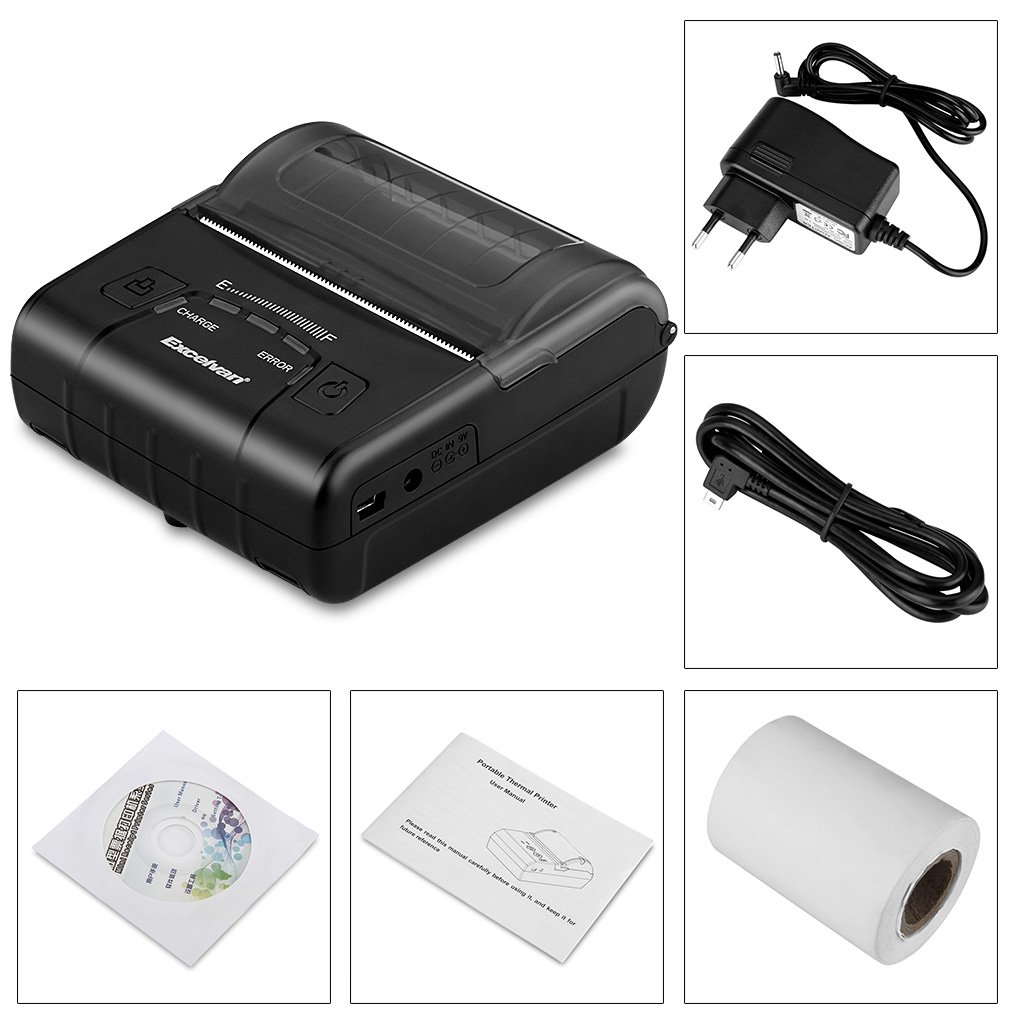
2.1 Змест пакета
Пасля распакавання пераканайцеся, што ў камплекце ёсць усе пералічаныя ніжэй прадметы:
- 1 x 80mm Thermal Printer
- 1 х адаптар сілкавання
- 1 х літыевая батарэя
- 1 х USB-кабель (110 см)
- 1 х рулон термопаперы
- 1 х Кіраўніцтва карыстальніка (гэты дакумент)
- 1 x CD (containing drivers and software)
2.2 Кампаненты прынтара
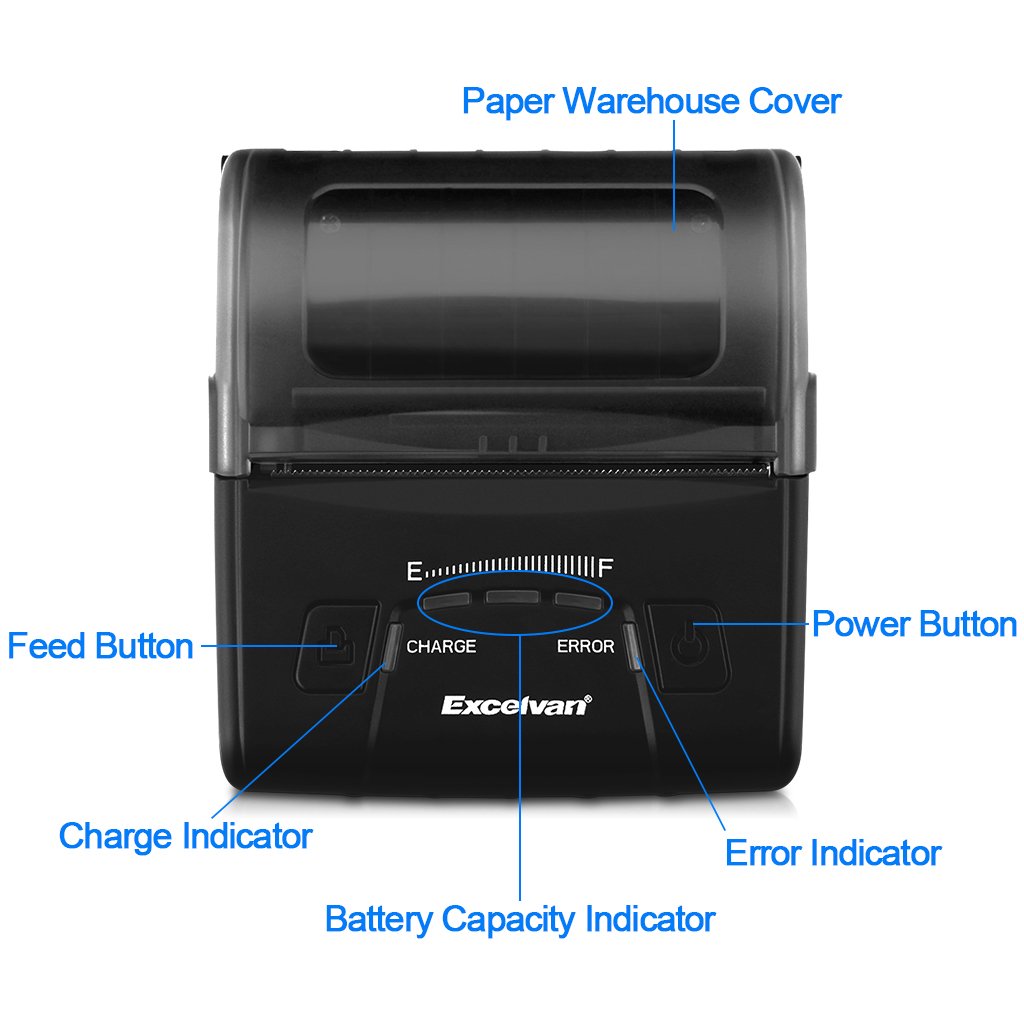
Familiarize yourself with the main components of your EXCELVAN E300 printer:

Малюнак 1: Фронт view of the EXCELVAN E300 printer with key components labeled.
- Paper Warehouse Cover: Protects the paper roll compartment.
- Кнопка падачы: Advances the paper.
- Індыкатар зарада: Lights up when the battery is charging.
- Індыкатар ёмістасці батарэі: Паказвае бягучы ўзровень батарэі.
- Індыкатар памылкі: Lights up to indicate an error (e.g., paper out, cover open).
- Кнопка харчавання: Уключае/выключае прынтар.
3. Настройка
3.1 Устаноўка батарэі
- Open the battery compartment cover located on the bottom of the printer.
- Insert the provided lithium battery, ensuring the contacts align correctly.
- Важна: Remove any insulating tape from the battery contacts before installation or charging.
Малюнак 2: Battery installation and warning to remove insulating tape.
- Надзейна зачыніце крышку батарэйнага адсека.
3.2 Зарадка акумулятара
Before first use, fully charge the printer battery.
- Connect the power adapter to the printer's DC IN 9V port.
- Падключыце адаптар сілкавання да насценнай разеткі.
- The Charge Indicator light will illuminate during charging. It will turn off or change color (depending on model) when fully charged.
- Заўвага: The USB cable is for data connection to a computer only and does not charge the device.
Малюнак 3: Charging port and USB port. Use the power adapter for charging.
3.3 Загрузка тэрмапаперы
The printer uses 80mm wide thermal paper rolls.
- Open the Paper Warehouse Cover by gently lifting it.
- Insert the thermal paper roll into the compartment, ensuring the paper feeds from the bottom and the leading edge comes out towards the front of the printer.
- Выцягніце невялікі кавалак паперы за рэжучы край.
- Close the Paper Warehouse Cover firmly until it clicks into place.
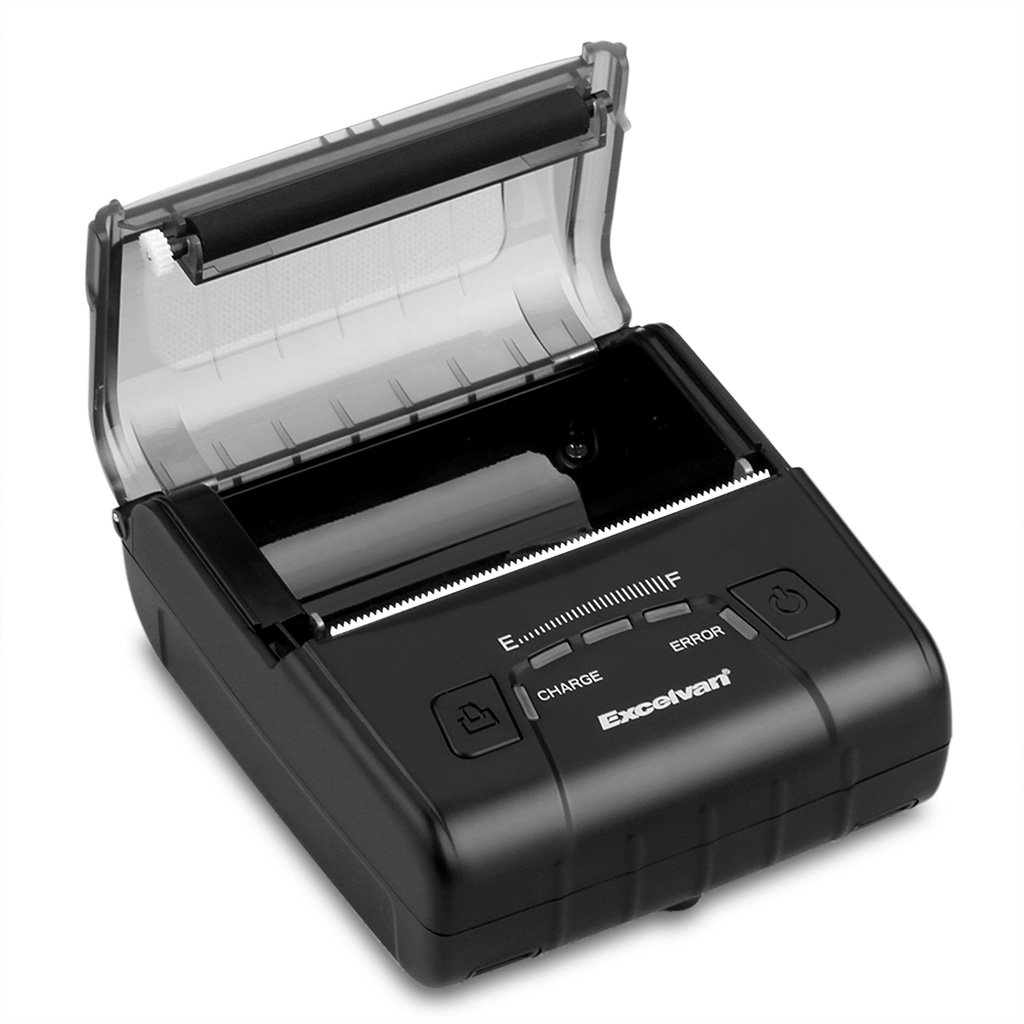
Малюнак 4: Loading thermal paper into the printer.
4. Інструкцыя па эксплуатацыі
4.1 Уключэнне/выключэнне сілкавання
- Каб уключыць: Press and hold the Power Button until the indicator lights illuminate.
- Каб выключыць: Press and hold the Power Button until the indicator lights turn off.
4.2 Ўстаноўка драйвера
Install the appropriate drivers for your operating system from the provided CD or download them from the official EXCELVAN webсайт (калі ёсць).
- Supported Operating Systems: Android, iOS, Linux, Windows (2000, 2003, XP, 7, 8, 8.1, 10).
4.3 Падключэнне прынтара
The EXCELVAN E300 supports both Bluetooth and USB connectivity.
4.3.1 Злучэнне Bluetooth
- Пераканайцеся, што прынтэр уключаны.
- На вашай прыладзе (смартфоне, планшэце, камп'ютары) уключыце Bluetooth і знайдзіце даступныя прылады.
- Select "EXCELVAN E300" or a similar name from the list.
- Enter the pairing PIN (usually "0000" or "1234") if prompted.
- Once paired, you can select the printer from your application's print settings.
4.3.2 USB-злучэнне
- Падключыце адзін канец USB-кабеля да USB-порта прынтара.
- Падключыце другі канец да вольнага порта USB на вашым кампутары.
- Ensure the necessary drivers are installed. The printer should appear as an available printing device in your system settings.
4.4 Друк
Once connected and drivers are installed, you can initiate printing from your application.

Малюнак 5: The printer in operation, producing a receipt.
- Use the Feed Button to advance paper manually if needed.
- The printer supports ESC/POS commands for advanced control.
- Graphic printing, including bitmaps and QR codes, is supported.
5. Тэхнічнае абслугоўванне
5.1 Ачыстка друкавальнай галоўкі
Рэгулярная ачыстка друкавальнай галоўкі забяспечвае аптымальную якасць друку і падаўжае тэрмін службы прынтара.
- Turn off the printer and disconnect the power adapter.
- Open the Paper Warehouse Cover.
- Злёгку працярыце ватовым тампонамampened with isopropyl alcohol to gently wipe the thermal print head (the dark strip inside the cover).
- Дайце друкавальнай галоўцы цалкам высахнуць, перш чым зачыніць вечка і ўключыць прынтар.
5.2 Сыход за акумулятарам
- Пазбягайце частай поўнай разрадкі акумулятара.
- Charge the battery regularly, even if the printer is not in use for extended periods.
- Калі прынтар не выкарыстоўваецца, захоўвайце яго ў прахалодным сухім месцы.
6. Выпраўленне непаладак
This section addresses common issues you might encounter with your EXCELVAN E300 printer.
| праблема | Магчымая прычына | Рашэнне |
|---|---|---|
| Прынтар не ўключаецца. | Нізкі акумулятар або адсутнасць энергіі. | Charge the battery using the power adapter. Ensure the power adapter is correctly connected. |
| No paper output. | Paper out, paper jam, or cover not closed. | Check if the paper roll is empty and replace if necessary. Clear any paper jams. Ensure the Paper Warehouse Cover is securely closed. |
| Error Indicator is lit. | Paper out, cover open, or print head overheating. | Check paper status and cover. If the printer has been printing continuously, allow it to cool down. |
| Дрэнная якасць друку. | Dirty print head, low battery, or incorrect paper. | Clean the print head (see Section 5.1). Ensure the battery is sufficiently charged. Use high-quality thermal paper. |
| Немагчыма падключыцца праз Bluetooth. | Bluetooth not enabled, incorrect pairing, or interference. | Ensure Bluetooth is enabled on both devices. Re-attempt pairing. Move closer to the printer and away from other wireless devices. |
7. Тэхнічныя характарыстыкі
Detailed technical specifications for the EXCELVAN E300 Thermal Printer:
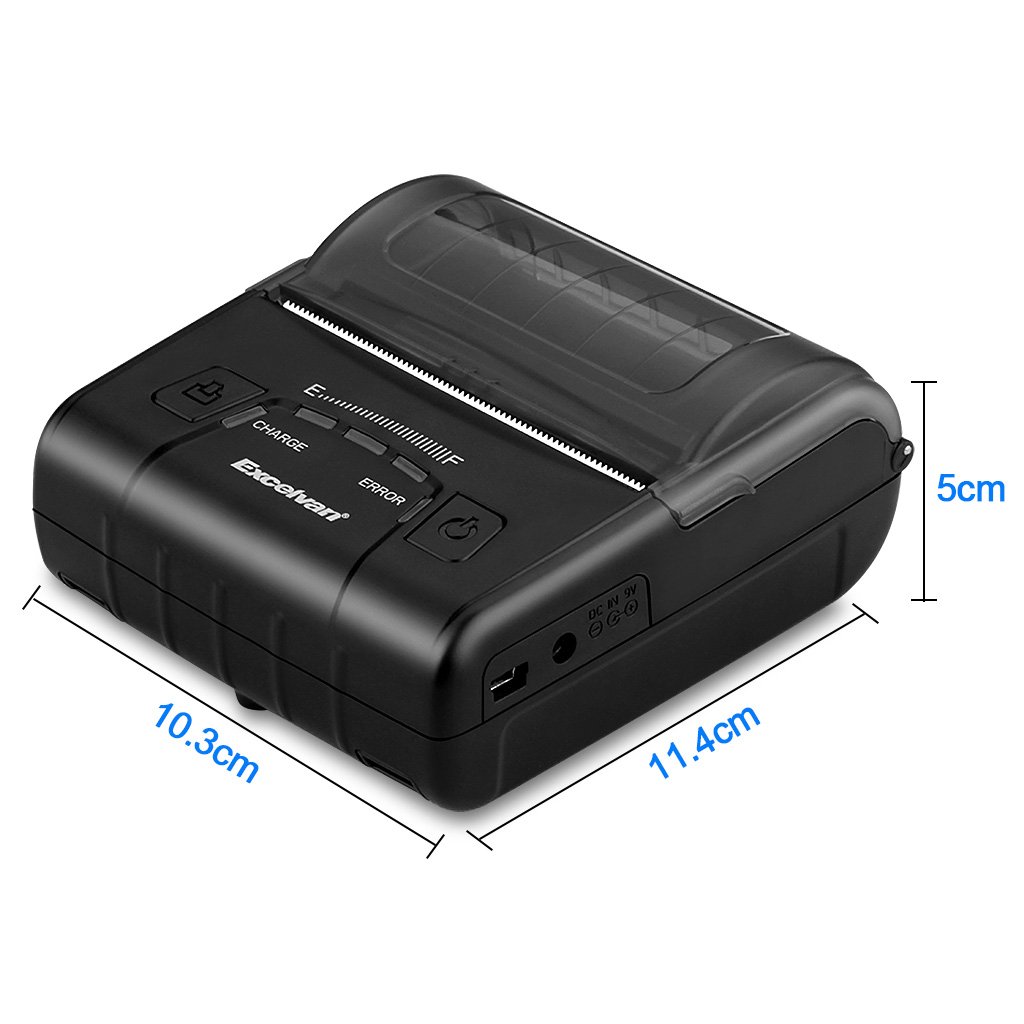
Малюнак 6: EXCELVAN E300 Printer Dimensions.
| Асаблівасць | Спецыфікацыя |
|---|---|
| Спосаб друку | Цеплавой друк |
| Эфектыўная шырыня друку | 72 мм |
| дазвол | 384 кропак / радок |
| Хуткасць друку | 90 мм/с |
| Інтэрфейс | USB, Bluetooth |
| Тып паперы | Тэрмапапера |
| Шырыня паперы | 79.5 ± 0.5 мм |
| Дыяметр паперы | ≤ 43 mm (40 mm recommended) |
| Каманды | Сумяшчальнасць з ESC/POS |
| Электразабеспячэнне | Літыевая палімерная акумулятарная батарэя |
| Ёмістасць батарэі | 2500 мАг / 7.4 В. |
| Выхад адаптара сілкавання | 9.0 В / 2 А |
| Праграмнае забеспячэнне для драйвераў | Android, iOS, Linux, Win2000/2003/XP/7/8/8.1/10 |
| Жыццё друкаванай галоўкі | 50 km (Print Density ≤ 12.5) |
| Працоўная тэмпература | 5 °C ~ 45 °C |
| Працоўная вільготнасць | 10% ~ 80% |
| Памеры (Д х Ш х У) | 11 х 5 х 10 см (прыблізна) |
| Вага | 285 грам |
8. Гарантыя і падтрымка
8.1 Інфармацыя аб гарантыі
The EXCELVAN E300 printer comes with a standard manufacturer's warranty. Please refer to the warranty card included in your package or contact your retailer for specific terms and conditions regarding warranty coverage and duration.
8.2 Падтрымка кліентаў
For technical assistance, troubleshooting not covered in this manual, or inquiries about your product, please contact EXCELVAN customer support or your authorized dealer. Contact information can typically be found on the product packaging or the official EXCELVAN webсайт.