
1. Уводзіны
This user manual provides comprehensive instructions for the setup, operation, maintenance, and troubleshooting of your CipherLab 1500P HP 1D Corded Barcode Scanner. Please read this manual thoroughly before using the device to ensure proper functionality and to maximize its lifespan. Keep this manual for future reference.
2. Прадукт скончыўсяview
The CipherLab 1500P HP is a high-performance 1D corded barcode scanner designed for efficient data capture. It comes with a USB cable for connectivity and an autosense stand for hands-free operation.
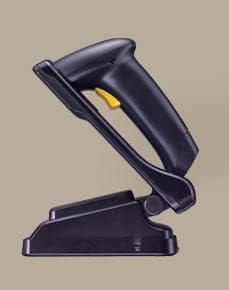
Малюнак 2.1: CipherLab 1500P HP barcode scanner placed in its autosense stand. The scanner is black with a yellow trigger button, and the stand is also black, providing a stable base for the scanner.
Змест пакета:
- CipherLab 1500P HP Barcode Scanner
- USB-кабель
- Autosense Stand
- This User Manual (or link to digital version)
3. Настройка
- Распакуйце прыладу: Carefully remove the barcode scanner, USB cable, and autosense stand from their packaging.
- Падключыце USB-кабель:
- Locate the USB port on the base of the barcode scanner.
- Insert the smaller end of the USB cable into the scanner's port.
- Insert the larger USB-A end of the cable into an available USB port on your host computer or point-of-sale (POS) system.
- Усталёўка драйвера (падключы і працуй): The CipherLab 1500P HP is typically a plug-and-play device. Your operating system should automatically detect and install the necessary drivers. Wait for the installation to complete (usually indicated by a notification).
- Position the Autosense Stand: Place the autosense stand on a stable, flat surface. The stand is designed to hold the scanner in an optimal position for hands-free scanning.
- Place Scanner in Stand: Gently place the barcode scanner into the autosense stand. Ensure it is securely seated. The scanner will automatically switch to presentation mode when placed in the stand, allowing it to detect and scan barcodes without pressing the trigger.
- Тэст падключэння: Open a text editor (e.g., Notepad, WordPad) or a compatible application on your computer. Scan a known barcode. The scanned data should appear in the text editor, confirming successful setup.
4. Інструкцыя па эксплуатацыі
Ручны рэжым:
- Remove the scanner from the autosense stand.
- Point the scanning window towards the barcode you wish to scan.
- Press and hold the yellow trigger button. A red scanning line will emit from the scanner.
- Position the scanner so the red line crosses the entire barcode.
- Once the barcode is successfully read, the scanner will emit an audible beep and/or a visual indicator (e.g., LED flash). The data will be transmitted to your connected device.
- Адпусціце кнопку націску.
Autosense (Presentation) Mode:
- Ensure the scanner is securely placed in the autosense stand.
- Hold the barcode in front of the scanner's window.
- The scanner will automatically detect the barcode and activate its scanning engine.
- Once the barcode is successfully read, the scanner will emit an audible beep and/or a visual indicator. The data will be transmitted to your connected device.
Парады па сканаванні:
- Ensure the barcode is clean and not damaged.
- Adjust the distance between the scanner and the barcode for optimal reading.
- Avoid scanning at extreme angles; try to keep the scanner perpendicular to the barcode.
- For reflective surfaces, try tilting the scanner slightly to avoid glare.
5. Тэхнічнае абслугоўванне
- Уборка:
- Рэгулярна працірайце акно сканавання мяккай тканінай без ворса.
- Для ўстойлівага бруду злёгку ачысціцеampen the cloth with water or a mild, non-abrasive cleaner. Do not spray cleaner directly onto the scanner.
- Avoid using harsh chemicals, solvents, or abrasive materials, as these can damage the scanner's surface or internal components.
- захоўванне: Захоўвайце сканер у прахалодным, сухім месцы, удалечыні ад прамых сонечных прамянёў і экстрэмальных тэмператур.
- Сыход за кабелем: Пазбягайце празмернага згінання або скручвання USB-кабеля, бо гэта можа пашкодзіць унутраныя правады.
- Сыход за падстаўкай: Keep the autosense stand clean and free of obstructions to ensure the scanner can be placed and removed smoothly.
6. Выпраўленне непаладак
| праблема | Магчымая прычына | Рашэнне |
|---|---|---|
| Сканер не чытае штрых-коды. |
|
|
| No data transmitted to computer. |
|
|
| Сканер гудзіць, але дадзеных няма. |
|
|
7. Тэхнічныя характарыстыкі
| Асаблівасць | Дэталь |
|---|---|
| мадэль | 1500P HP (33-A1500PCBKU001) |
| Тып | 1D Corded Barcode Scanner |
| Сувязь | USB |
| Аксэсуары ў камплекце | USB Cable, Autosense Stand |
| Вытворца | CipherLab |
| ASIN | B01MDRIJRS |
| Першая даступная дата | 24 студзеня 2024 г |
8. Гарантыя і падтрымка
For specific warranty information regarding your CipherLab 1500P HP barcode scanner, please refer to the warranty card included with your product or contact your point of purchase. Warranty terms may vary by region and reseller.
For technical support, driver downloads, or additional product documentation, please visit the official CipherLab website or contact their customer support directly. You may need your product model number (33-A1500PCBKU001) and serial number for support inquiries.
CipherLab Official Webсайт: www.cipherlab.com