
1. Уводзіны
This manual provides essential information for the safe and efficient operation of your Xerox AltaLink C8030 Multifunction Printer. Please read these instructions carefully before using the device and retain them for future reference. This device integrates printing, scanning, copying, and faxing capabilities to support various office tasks.
2. Інфармацыя па бяспецы
Always follow basic safety precautions to reduce the risk of fire, electric shock, and injury. Ensure the device is connected to a grounded power outlet. Do not block ventilation openings. Keep the device away from water and excessive humidity. Refer to the safety labels on the product for specific warnings.
3. Прадукт скончыўсяview
The Xerox AltaLink C8030 is a color multifunction printer designed for high-volume office environments. It features a 10-inch touchscreen for intuitive navigation and control. Key capabilities include:
- Print Speed: Up to 30 pages per minute (ppm) for both color and monochrome.
- Copy Resolution: 600 x 600 DPI.
- Memory: 8 GB RAM, 1 GB RAM, 250 GB HDD.
- Connectivity: NFC, Wireless, USB.
- Paper Supply: Multiple trays including 2 x 520-sheet trays, a 2,000-sheet high-capacity tandem tray, and a 100-sheet bypass tray.
- Features: Single Pass DADF, Data Security, Job Accounting, PostScript Kit, Network Scanning, Server Fax, iFax, Standard Output Tray, Office Finisher LX.
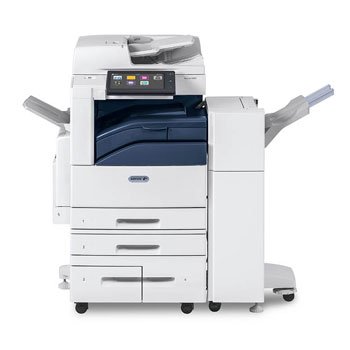
Выява: спераду view of the Xerox AltaLink C8030 multifunction printer, showing its various paper trays and the integrated touchscreen control panel.
4. Настройка
4.1 Распакоўка і размяшчэнне
- Акуратна дастаньце прынтар з упакоўкі.
- Размясціце прынтар на ўстойлівай, роўнай паверхні з належнай вентыляцыяй.
- Ensure sufficient space around the printer for maintenance and paper loading.
4.2 Падключэнне харчавання
- Падключыце шнур харчавання да прынтара, а затым да заземленай электрычнай разеткі.
- Націсніце кнопку харчавання, каб уключыць прыладу.
4.3 Загрузка паперы
- Open the desired paper tray (e.g., Tray 1, Tray 2, or Bypass Tray).
- Адрэгулюйце накіроўвалыя для паперы ў адпаведнасці з памерам паперы.
- Загрузіце стос паперы, пераканаўшыся, што ён не перавышае лінію максімальнага запаўнення.
- Надзейна зачыніце латок для паперы.
4.4 Сеткавае і USB-падключэнне
- Сетка: Connect an Ethernet cable to the printer's network port and to your network router/switch. Configure network settings via the touchscreen if necessary.
- Бесправадная сувязь: Access the network settings on the touchscreen, select your Wi-Fi network, and enter the password.
- USB: Connect a USB cable from your computer to the printer's USB port for direct connection.
5. Інструкцыя па эксплуатацыі
5.1 Друк
- На камп'ютары або мабільнай прыладзе адкрыйце дакумент, які вы хочаце раздрукаваць.
- У меню праграмы абярыце пункт «Друк».
- Choose the Xerox AltaLink C8030 as your printer.
- Adjust print settings (e.g., number of copies, color/monochrome, paper size) as needed.
- Націсніце кнопку «Друк».
5.2 Сканаванне
- Змесціце дакумент тварам уніз на шкло сканера або тварам уверх у аўтаматычны падавальнік дакументаў (ADF).
- На сэнсарным экране прынтара абярыце функцыю «Сканаваць».
- Choose your scan destination (e.g., email, network folder, USB drive).
- Configure scan settings (e.g., resolution, file format, color mode).
- Press 'Start' to begin scanning.
5.3 Капіраванне
- Змесціце дакумент на шкло сканера або ў аўтапад'ёмнік дакументаў.
- On the touchscreen, select the 'Copy' function.
- Enter the desired number of copies.
- Adjust copy settings (e.g., enlargement/reduction, 2-sided, color/monochrome).
- Press 'Start' to begin copying.
5.4 Факс
- Змесціце дакумент на шкло сканера або ў аўтапад'ёмнік дакументаў.
- На сэнсарным экране абярыце функцыю «Факс».
- Увядзіце нумар факса атрымальніка.
- Configure fax settings (e.g., resolution, delayed send).
- Press 'Start' to send the fax.
6. Тэхнічнае абслугоўванне
6.1 Замена картрыджаў з тонерам
- Адкрыйце пярэднюю крышку прынтара.
- Identify the empty toner cartridge.
- Grasp the handle and pull the cartridge out.
- Распакуйце новы картрыдж з тонерам і акуратна страсяніце яго.
- Устаўце новы картрыдж, пакуль ён не зафіксуецца на месцы.
- Зачыніце пярэднюю крышку.
6.2 Ачыстка шкла сканера
- Выключыце прынтэр і адключыце шнур сілкавання.
- Адкрыйце крышку сканэра.
- Wipe the scanner glass with a soft, lint-free cloth dampened with a mild glass cleaner.
- Ensure the glass is dry before closing the cover and restoring power.
7. Выпраўленне непаладак
7.1 Захрасанне паперы
- Follow the on-screen instructions to locate and clear the paper jam.
- Open all accessible covers and trays to check for jammed paper.
- Gently pull the paper in the direction of the paper path.
7.2 Праблемы з якасцю друку
- Праверце ўзровень тонера і заменіце картрыджы, калі ён нізкі.
- Выканайце ачыстку або каліброўку друкавальнай галоўкі з меню абслугоўвання прынтара.
- Пераканайцеся, што вы выкарыстоўваеце адпаведныя тыпы паперы для вашага задання друку.
7.3 Праблемы з падключэннем
- Verify all cables (Ethernet, USB) are securely connected.
- For wireless connections, check Wi-Fi signal strength and network settings.
- Restart the printer, router, and computer/device.
8. Тэхнічныя характарыстыкі
| Асаблівасць | Спецыфікацыя |
|---|---|
| Марка | Ксеракс |
| Назва мадэлі | AltaLink C8030 |
| Тэхналогія друку | Лазерная |
| Вывад на прынтэр | Колер |
| Максімальная хуткасць друку (монахромны) | 30 праміле |
| Максімальная хуткасць капіявання (чорна-белае) | 30 праміле |
| Тэхналогія падлучэння | NFC, бесправадная сувязь |
| Вага прадмета | 349 фунта |
| Метад кантролю | Пульт дыстанцыйнага кіравання, сэнсарны |
| Сумяшчальныя прылады | PC |
| GTIN / UPC | 095205880151 |
9. Гарантыя і падтрымка
For warranty information, please refer to the documentation included with your product or visit the official Xerox website. For technical support, driver downloads, or service requests, please contact Xerox customer support through their official channels. Keep your product's serial number and purchase date readily available when contacting support.
Інтэрнэт-рэсурсы: Xerox Official Webсайт