
Xerox C505/X
Кіраўніцтва карыстальніка каляровага лазернага шматфункцыянальнага прынтара Xerox VersaLink C505/X
Model: C505/X
1. Уводзіны
This manual provides detailed instructions for the setup, operation, and maintenance of your Xerox VersaLink C505/X Color Laser Multifunction Printer. The C505/X is designed for efficient performance in fast-paced work environments, offering print, copy, scan, and fax functionalities.
Key features include a customizable 7-inch color touchscreen for intuitive control, mobile and cloud connectivity, and robust security measures.
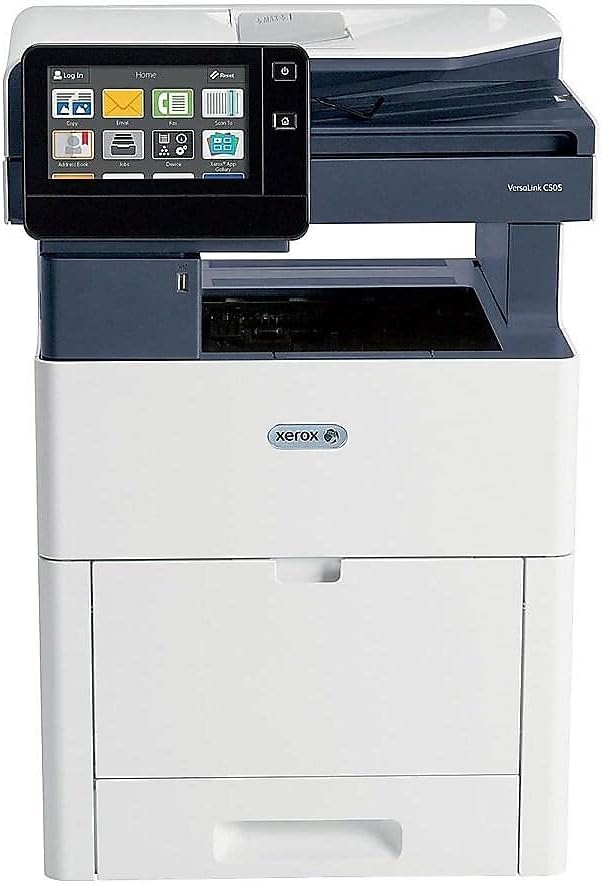
Малюнак 1: Спераду view of the Xerox VersaLink C505/X Multifunction Printer.
2. Настройка
2.1 Распакоўка і першапачатковы агляд
Carefully remove the printer from its packaging. Verify that all components listed below are present and undamaged:
- Xerox VersaLink C505 Color MFP
- Starter capacity toner cartridges (one each of cyan, magenta, yellow: 2,400 capacity; black: 5,000 capacity)
- Кампакт-дыск з праграмным забеспячэннем і дакументацыяй
- Кіраўніцтва па ўстаноўцы
- Quick User Guides
- Шнур харчавання
2.2 Падключэнне харчавання
- Размясціце прынтар на ўстойлівай, роўнай паверхні.
- Падключыце прыкладзены шнур харчавання да ўваходу харчавання прынтара, а затым да заземленай электрычнай разеткі.
- Do not power on the device until all other connections are made.
2.3 Усталёўка картрыджа з тонерам
Install the starter toner cartridges into their respective slots. Refer to the Quick User Guides for specific instructions on opening the toner access panel and inserting cartridges.

Figure 2: Toner cartridge access panel open, showing toner installation.
2.4 Сеткавае і USB-падключэнне
The printer supports both Ethernet and USB connectivity.
- Ethernet: Падключыце кабель Ethernet ад порта Ethernet прынтара да сеткавага маршрутызатара або камутатара.
- USB: Connect a USB cable from the printer's USB port to your computer.
2.5 Усталёўка праграмнага забеспячэння
Insert the provided software and documentation CD into your computer's CD/DVD drive. Follow the on-screen instructions to install the necessary drivers and utilities. Alternatively, visit the official Xerox support webСайт апошніх драйвераў.
3. Кіраванне прынтарам
3.1 Сэнсарны інтэрфейс
The 7-inch color touchscreen provides access to all printer functions. Navigate through menus by tapping and swiping, similar to a smartphone. The home screen displays icons for various functions such as Print, Copy, Scan, and Fax.

Figure 3: Close-up of the 7-inch color touchscreen control panel.
3.2 Друк
Каб раздрукаваць дакументы:
- Пераканайцеся, што прынтар падлучаны да кампутара або сеткі.
- Open the document on your computer and select the print option.
- Choose the Xerox VersaLink C505/X from the list of available printers.
- Adjust print settings (e.g., color/monochrome, duplex printing, paper size) as needed. The printer supports up to 43 ppm color and 45 ppm monochrome, with automatic duplexing.
- Пацвердзіце заданне друку.
3.3 Капіраванне
Каб зрабіць копіі:
- Place the original document on the scanner glass or in the automatic document feeder (ADF).
- On the touchscreen, tap the "Copy" icon.
- Select desired settings such as number of copies, color/black and white, and two-sided copying. The maximum copy speed is 45 ppm (black & white) with resolutions up to 1200 x 2400 dpi.
- Націсніце кнопку «Пуск».
3.4 Сканаванне
To scan documents:
- Змесціце дакумент на шкло сканера або ў аўтадататар дакументаў.
- On the touchscreen, tap the "Scan" icon.
- Choose the scan destination (e.g., email, network folder, USB drive) and adjust scan settings.
- Націсніце кнопку «Пуск».
3.5 Факс
Каб адправіць факс:
- Змесціце дакумент на шкло сканера або ў аўтадататар дакументаў.
- On the touchscreen, tap the "Fax" icon.
- Увядзіце нумар факса атрымальніка.
- Наладзьце ўсе неабходныя параметры факса.
- Націсніце кнопку «Пуск».
3.6 Mobile and Cloud Connectivity
The VersaLink C505/X offers out-of-the-box connectivity to cloud services like Google Drive, Microsoft OneDrive, and DropBox. Additional options are available through the Xerox App Gallery, allowing for flexible workflow integration.
4. Тэхнічнае абслугоўванне
4.1 Замена картрыджа з тонерам
When a toner cartridge is low or empty, the printer's display will indicate which cartridge needs replacement. Always use genuine Xerox toner cartridges for optimal performance and print quality.
- Open the front access panel of the printer.
- Асцярожна выміце пусты картрыдж з тонерам, пацягнуўшы яго прама вонкі.
- Распакуйце новы картрыдж з тонерам і акуратна страсяніце яго, каб размеркаваць тонер.
- Устаўце новы картрыдж у адпаведны слот, пакуль ён не зафіксуецца на месцы.
- Close the front access panel.
4.2 Ачыстка
Рэгулярная чыстка дапамагае падтрымліваць якасць друку і падаўжае тэрмін службы прынтара.
- Знешні выгляд: Працярыце вонкавыя паверхні мяккай, damp, тканіна без ворса.
- Шкло сканера: Use a soft cloth moistened with glass cleaner to clean the scanner glass. Ensure no residue remains.
- Унутраныя кампаненты: Refer to the detailed user manual on the software and documentation CD for instructions on cleaning internal components, such as the print heads or rollers, if necessary.
5. Выпраўленне непаладак
This section addresses common issues you might encounter with your Xerox VersaLink C505/X. For more complex problems, consult the full user manual or contact support.
5.1 Захрасанне паперы
If a paper jam occurs, the touchscreen will display an error message indicating the location of the jam. Follow the on-screen instructions to clear the jammed paper. Always pull paper in the direction of the paper path to avoid tearing.
5.2 Праблемы з якасцю друку
If printouts show streaks, faded areas, or incorrect colors:
- Праверце ўзровень тонера і заменіце картрыджы з нізкім узроўнем тонера.
- Пераканайцеся, што вы выкарыстоўваеце адпаведную паперу для задання друку.
- Выканайце дыягностыку якасці друку з панэлі кіравання прынтара.
- Clean the print heads or other internal components as instructed in the detailed manual.
5.3 Праблемы з падключэннем
If the printer is not communicating with your computer or network:
- Verify that all cables (power, USB, Ethernet) are securely connected.
- Перазагрузіце прынтар і камп'ютар/маршрутызатар.
- Check network settings on the printer's touchscreen.
- Ensure the correct printer drivers are installed on your computer.
6. Тэхнічныя характарыстыкі
| Асаблівасць | Дэталь |
|---|---|
| Назва мадэлі | Xerox C505/X VersaLink |
| Функцыі | Друк, капіраванне, сканаванне, факс |
| Тэхналогія друку | Каляровы лазер |
| Максімальная хуткасць друку (монахромны) | 45 праміле |
| Максімальная хуткасць друку (каляровы) | 43 праміле |
| Максімальнае разрозненне друку (чорна-белы) | 2400 dpi |
| Максімальнае разрозненне друку (каляровы) | 1200 x 2400 dpi |
| Двухбаковая друк | Аўтаматычны |
| Тып сканера | Дакумент |
| Максімальная хуткасць капіявання (чорна-белае) | 45 праміле |
| Максімальнае разрозненне капіявання (каляровае) | Да 1200 x 2400 кропак на цалю |
| Метад кантролю | App, Touch (7-inch display) |
| Сувязь | USB-Ethernet |
| Максімальная ёмістасць аркуша ўводу | 3250 лістоў |
| Стандартныя латкі | 2 (550 Sheet Tray, 150 Sheet Multi Purpose Tray) |
| Падтрымліваюцца памеры носьбітаў | Letter (8.5 x 11 inches), Legal (8.5 x 14 inches) |
| Тып чарнілаў | Toner (Black, Cyan, Magenta, Yellow) |
| Ёмістасць памяці | 4096 Мб |
| Памеры прадукту | 26" Г x 23" Ш x 31" У |
| Вага прадмета | 77.2 фунта |
| Ватtage | 600 ват |
7. Гарантыя і падтрымка
7.1 Гарантыя на выраб
The Xerox VersaLink C505/X Color Laser MFP comes with a standard one-year full warranty from the date of purchase. This warranty covers defects in materials and workmanship under normal use. For detailed terms and conditions, please refer to the warranty documentation included with your product or visit the official Xerox webсайт.
7.2 Падтрымка кліентаў
For technical assistance, troubleshooting, or service requests, please contact Xerox customer support. Support contact information can be found on the Xerox webна сайце або ў дакументацыі, якая пастаўляецца з вашым прынтарам.
Інтэрнэт-рэсурсы: Visit the official Xerox support website for FAQs, driver downloads, and additional user guides.
Звязаныя дакументы - C505/X
 |
ІТ-абсталяванне і апаратнае забеспячэнне для стратэгічных камунікацый Каталог агенцтва SEWP Поўны каталог ІТ-абсталявання і апаратнага забеспячэння ад розных вытворцаў, у тым ліку камп'ютары, маніторы, сеткавыя прылады, перыферыйныя прылады і аксэсуары, прапанаваныя Strategic Communications. |
 |
Шматфункцыянальныя прынтэры серыі Xerox VersaLink 7100: кіраўніцтва па ацэнцы Азнаёмцеся з функцыямі, перавагамі і спецыфікацыямі шматфункцыянальных прынтараў Xerox VersaLink серыі 7100. У гэтым кіраўніцтве апісаны інтуітыўна зразумелы інтэрфейс карыстальніка, гатоўнасць да мабільных прылад і воблачных тэхналогій, комплексная бяспека, кіраваныя службы друку і новыя магчымасці. |
 |
Кіраўніцтва і працэдуры ўсталёўкі прашыўкі Xerox VersaLink Падрабязныя інструкцыі па ўсталёўцы прашыўкі на прынтары Xerox VersaLink, Phaser і WorkCentre з дапамогай утыліты Windows Utility, Embedded Web Сервер і Mac OS. Ахоплівае папярэднія патрабаванні і пакрокавыя працэдуры. |
 |
Кіраўніцтва карыстальніка каляровага шматфункцыянальнага прынтэра Xerox VersaLink C625 Comprehensive user guide for the Xerox VersaLink C625 Color Multifunction Printer, detailing setup, operation, safety, features, and troubleshooting for efficient office use. |
 |
Xerox VersaLink B625 і B620: кампактныя, высокапрадукцыйныя прынтары для рабочых груп Азнаёмцеся з шматфункцыянальным прынтарам Xerox VersaLink B625 і прынтарам B620. Гэтыя кампактныя, высокапрадукцыйныя прылады прапануюць пашыраныя функцыі, тэхналогію ConnectKey, палепшаную бяспеку і ўстойлівае развіццё для сучасных рабочых груп. Уключае падрабязныя характарыстыкі і канфігурацыі. |
 |
Кіраўніцтва карыстальніка каляровага шматфункцыянальнага прынтэра Xerox VersaLink C625 Comprehensive user guide for the Xerox VersaLink C625 Color Multifunction Printer, covering setup, operation, maintenance, troubleshooting, and features. Learn how to maximize your device's capabilities. |
Ask a question about this manual
Ask about setup, troubleshooting, compatibility, parts, safety, or missing instructions. Manuals+ will review the question and use this page’s manual context to help answer it.