
Gzunelic led86+W
Gzunelic 9500 Lumens Android WiFi Projector User Manual
Model: led86+W
1. Уводзіны
Thank you for choosing the Gzunelic 9500 Lumens Android WiFi Projector. This projector is designed for home entertainment, offering a bright, high-definition viewing experience with versatile connectivity options. Featuring a native 1080p resolution, Android operating system, and wireless mirroring capabilities, it provides a comprehensive solution for your multimedia needs. This manual will guide you through the setup, operation, and maintenance of your new projector.
2. Інфармацыя па бяспецы
- Забяспечце належную вентыляцыю вакол праектара, каб прадухіліць перагрэў. Не блакуйце вентыляцыйныя адтуліны.
- Выкарыстоўвайце толькі адаптар сілкавання, які пастаўляецца з праектарам.
- Пазбягайце глядзець прама ў аб'ектыў праектара, калі lamp уключаны, бо яркае святло можа пашкодзіць вочы.
- Не стаўце праектар на няўстойлівыя паверхні.
- Трымайце праектар далей ад вады або іншых вадкасцей.
- Адключайце праектар ад сеткі падчас навальніцы або калі ён не выкарыстоўваецца працяглы час.
- Не спрабуйце рамантаваць праектар самастойна. Звяртайцеся па любыя паслугі па абслугоўванні да кваліфікаванага персаналу.
3. Што ў скрынцы
- Gzunelic 9500 Lumens Android WiFi Projector
- Сілавы кабель
- Пульт дыстанцыйнага кіравання
- Кабель HDMI
- Кабель VGA
- Кіраўніцтва карыстальніка (гэты дакумент)
4. Прадукт скончыўсяview
4.1 Фізічныя кампаненты

Малюнак 4.1: Фронт view of the Gzunelic Projector, highlighting the lens and ventilation.

Малюнак 4.2: Розныя views of the projector, including top, front, left, right, and back, showing its compact design.
The Gzunelic projector features a sleek design with a prominent lens at the front. It includes a robust cooling system with ventilation grilles on the sides and back to ensure stable operation.
4.2 Панэль кіравання

Малюнак 4.3: Top-mounted control panel with navigation and function buttons.
The control panel is located on the top of the projector, providing easy access to essential functions. It includes directional buttons for navigation, an OK button for selection, a power button, and menu/return buttons.
4.3 Парты ўводу/вываду

Малюнак 4.4: Тыл view showing the comprehensive array of input and output ports.
The projector offers a wide range of connectivity options on its rear panel, including:
- Порт VGA: For connecting to older computers or laptops.
- 2 x USB Ports: For connecting USB drives, external hard drives, mouse, or keyboard.
- 2 x HDMI Ports: For connecting modern devices like PCs, laptops, set-top boxes, gaming consoles (PS3/PS4/Xbox), and DVD players.
- Ethernet порт: Для праваднога падключэння да Інтэрнэту.
- AV-порт: For connecting older video sources.
- Аўдыяпорт 3.5 мм: Для падлучэння навушнікаў або знешніх дынамікаў.
The projector also supports Wi-Fi for direct signal connection and Bluetooth for wireless audio output.
4.4 Рэгуляванне вышыні

Малюнак 4.5: Adjustable foot for precise height and projection angle alignment.
An adjustable foot is located on the underside of the projector, allowing you to fine-tune the projection angle and height for optimal image alignment on your screen or wall.
5. Настройка
- Размяшчэнне: Position the projector on a stable, flat surface. Ensure there is adequate space around the projector for ventilation. For ceiling mounting, use the four holes on the bottom of the unit.
- Падключэнне сілкавання: Падключыце кабель харчавання да ўваходу харчавання праектара, а затым да разеткі.
- Уключэнне: Націсніце кнопку харчавання на праектары або пульце дыстанцыйнага кіравання, каб уключыць прыладу.
- Адрэгуляваць вышыню: Use the adjustable foot at the front of the projector to raise or lower the front of the unit, aligning the projected image with your screen.
- Рэгуляванне фокусу: Паварочвайце кольца факусоўкі вакол аб'ектыва, пакуль праецыраваная выява не стане рэзкай і выразнай.
- Карэкцыя трапецеідальных скажэнняў: Adjust the keystone correction dial (if available) to correct any trapezoidal distortion in the image, ensuring a rectangular projection.
6. Інструкцыя па эксплуатацыі
6.1 Асноўныя аперацыі
- Уключэнне/выключэнне харчавання: Press the power button once to turn on. Press and hold the power button for a few seconds to initiate shutdown.
- Навігацыя: Use the directional buttons on the control panel or remote to navigate through menus. Press 'OK' to select.
- Выбар крыніцы: From the main menu, select "Signal Source" to choose your input (HDMI, VGA, AV, etc.).
6.2 Падключэнне прылад
The projector supports various wired and wireless connections:
- HDMI/VGA/AV: Connect your PC, laptop, gaming console, or DVD player using the respective cables to the corresponding ports on the projector.
- USB: Insert a USB flash drive or external hard disk into a USB port to play media files directly. You can also connect a USB mouse or keyboard for easier navigation within the Android OS.
- Ethernet: Connect an Ethernet cable to the port for a stable wired internet connection.
- Wi-Fi: Navigate to the projector's settings menu to connect to your wireless network.
- Bluetooth: To connect a Bluetooth speaker, go to the settings menu, enable Bluetooth, and pair with your speaker. If using a wired external speaker, connect it via the 3.5mm audio port and set the sound output to "line out" in the Android settings.
6.3 Android OS and Wireless Mirroring
Малюнак 6.1: The Android OS home screen displaying available applications.
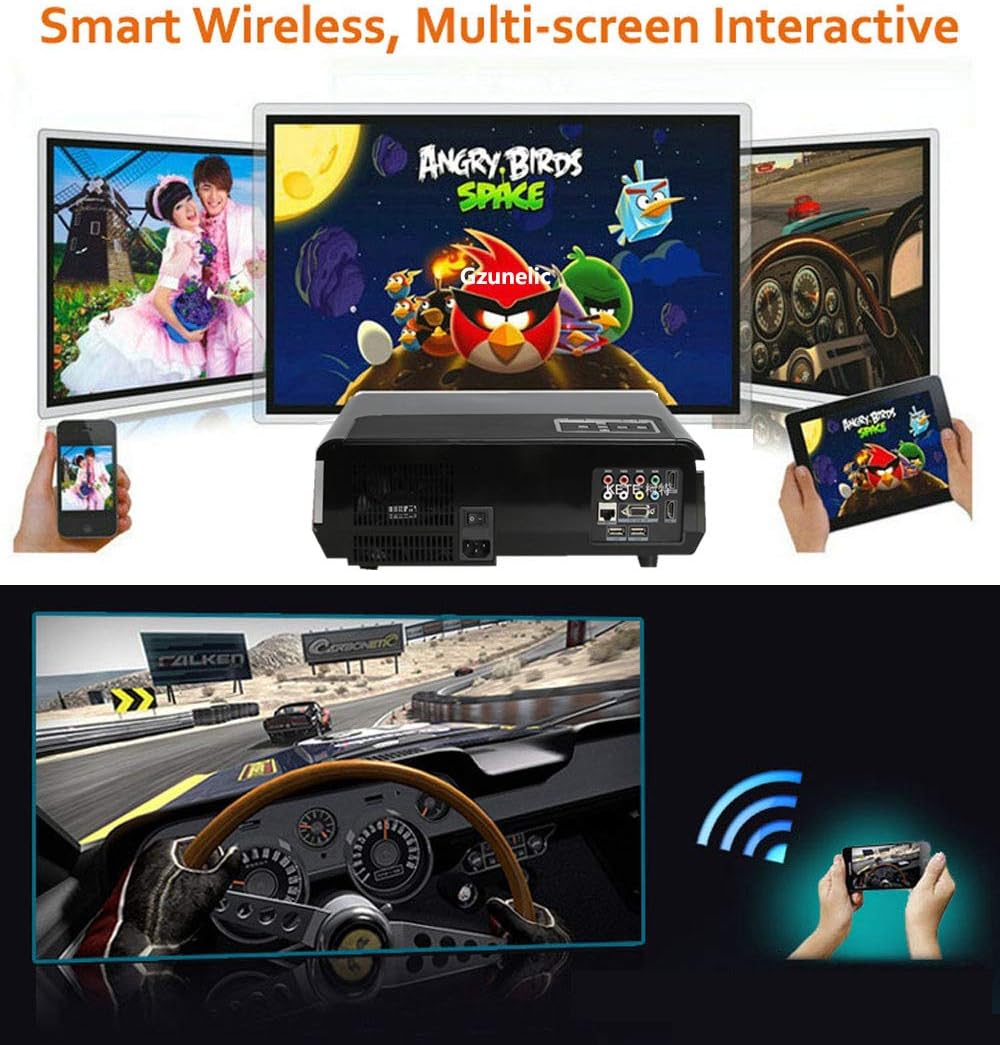
Малюнак 6.2: Illustration of wireless mirroring from smartphones and tablets to the projector.
The projector runs on an Android operating system, allowing direct access to online content, shopping, and games. You can navigate using the remote control or by connecting a USB mouse/keyboard.
- Screen Mirroring (Airplay/Miracast): On the projector's Android home page, locate and click the "Screening Assistant" app. Follow the on-screen instructions to connect your phone via Airplay (for iOS devices) or Miracast (for Android devices). Ensure both your phone and the projector are connected to the same Wi-Fi network.
- Папярэдне ўсталяваныя праграмы: Access apps like YouTube, Aptoide TV, and WPS Office directly from the home screen for various entertainment and productivity functions.
6.4 Дэманстрацыйнае відэа прадукту
Відэа 6.3: A brief demonstration video showcasing the Gzunelic projector in operation. This video provides a visual overview of the projector's capabilities and image quality.
7. Тэхнічнае абслугоўванне
- Ачыстка аб'ектыва: Выкарыстоўвайце мяккую тканіну без ворса, спецыяльна распрацаваную для аптычных лінзаў, каб акуратна праціраць аб'ектыў праектара. Пазбягайце выкарыстання абразіўных ачышчальнікаў або тканін, якія могуць падрапаць аб'ектыў.
- Ачыстка вонкавага выгляду: Wipe the projector's exterior with a soft, dry cloth. For stubborn dirt, a slightly damp можна выкарыстоўваць тканіну, але сачыце за тым, каб вільгаць не трапляла ўнутр прылады.
- Вентыляцыя: Regularly check and clean the ventilation openings to prevent dust buildup, which can impede airflow and cause overheating. Use a soft brush or compressed air to clear dust.
- захоўванне: When not in use for extended periods, store the projector in a cool, dry place, ideally in its original packaging or a protective case, to prevent dust accumulation and physical damage.
8. Выпраўленне непаладак
| праблема | Магчымая прычына | Рашэнне |
|---|---|---|
| Няма праецыравання выявы | Харчаванне не падключана; няправільная крыніца ўваходнага сігналу; прылада не ўключана. | Check power cable and outlet; Select correct input source (HDMI, VGA, AV); Ensure connected device is on. |
| Размыты малюнак | Out of focus; Incorrect keystone adjustment; Projector too close/far from screen. | Adjust focus ring; Adjust keystone correction; Reposition projector for optimal distance. |
| Няма гуку | Volume too low/muted; Incorrect audio output setting; External speaker not connected/paired. | Increase volume, unmute; Check audio settings (e.g., set to "line out" for wired external speakers); Ensure Bluetooth speaker is paired. |
| Wireless mirroring not working | Not on same Wi-Fi network; "Screening Assistant" not active. | Ensure both devices are on the same Wi-Fi network; Open "Screening Assistant" app on projector and follow instructions. |
| Projector turns on by itself | Possible software glitch or power issue. | Unplug the projector from the wall to fully power cycle it. If the issue persists, contact customer support. |
9. Тэхнічныя характарыстыкі
| Марка | Гзунеліч |
| Нумар мадэлі | святлодыёд 86+W |
| Яркасць | 9500 lumens LED light utilization efficiency |
| Роднае дазвол | 1920 x 1080 (Full HD), supports 2K/4K (limited to 100Mbps, 60Hz) |
| Каэфіцыент кантраснасці | 10000:1 |
| Аперацыйная сістэма | АС Android |
| Тэхналогія падлучэння | Ethernet, Wireless (Wi-Fi), Bluetooth, 2x HDMI, 2x USB, AV, VGA, 3.5mm Audio |
| Памеры прадукту | 13.77 х 10.82 х 5.51 цалі |
| Вага прадмета | 8.5 фунта |
| Бачная дыяганаль экрана | Да 300 цаляў / 762 см |
10. Гарантыя і падтрымка
Gzunelic offers comprehensive support for your projector:
- Палітыка вяртання: 6 Months Return for Full Payment Refund.
- Палітыка замены: 1 Year Free Replacement.
- Служба рамонту: 3 Years Repair service available at our repair center in LA, United States.
- Тэхнічная падтрымка: Пажыццёвая прафесійная тэхнічная падтрымка.
For any problems or questions, please feel free to contact us. We aim to reply within 24 hours.