
1. Уводзіны
This manual provides instructions for the Fintie Keyboard Case designed for the Fire HD 10 tablet. It covers setup, operation, maintenance, and troubleshooting to ensure optimal use of your device. This accessory combines a protective case with a detachable wireless Bluetooth keyboard, enhancing the functionality of your tablet.
2. Змесціва ўпакоўкі
- Fintie Keyboard Case
- Detachable Wireless Bluetooth Keyboard
- USB-кабель для зарадкі
- Кіраўніцтва карыстальніка (гэты дакумент)
3. Сумяшчальнасць
This Fintie Keyboard Case is specifically designed for the following Amazon Fire HD 10 tablet models:
- Fire HD 10 (9-е пакаленне, выпуск 2019 г.)
- Fire HD 10 (7-е пакаленне, выпуск 2017 г.)
Important: This case is NOT compatible with the Fire HD 10 (5th Generation, 2015 Release) or any other Fire tablet models.
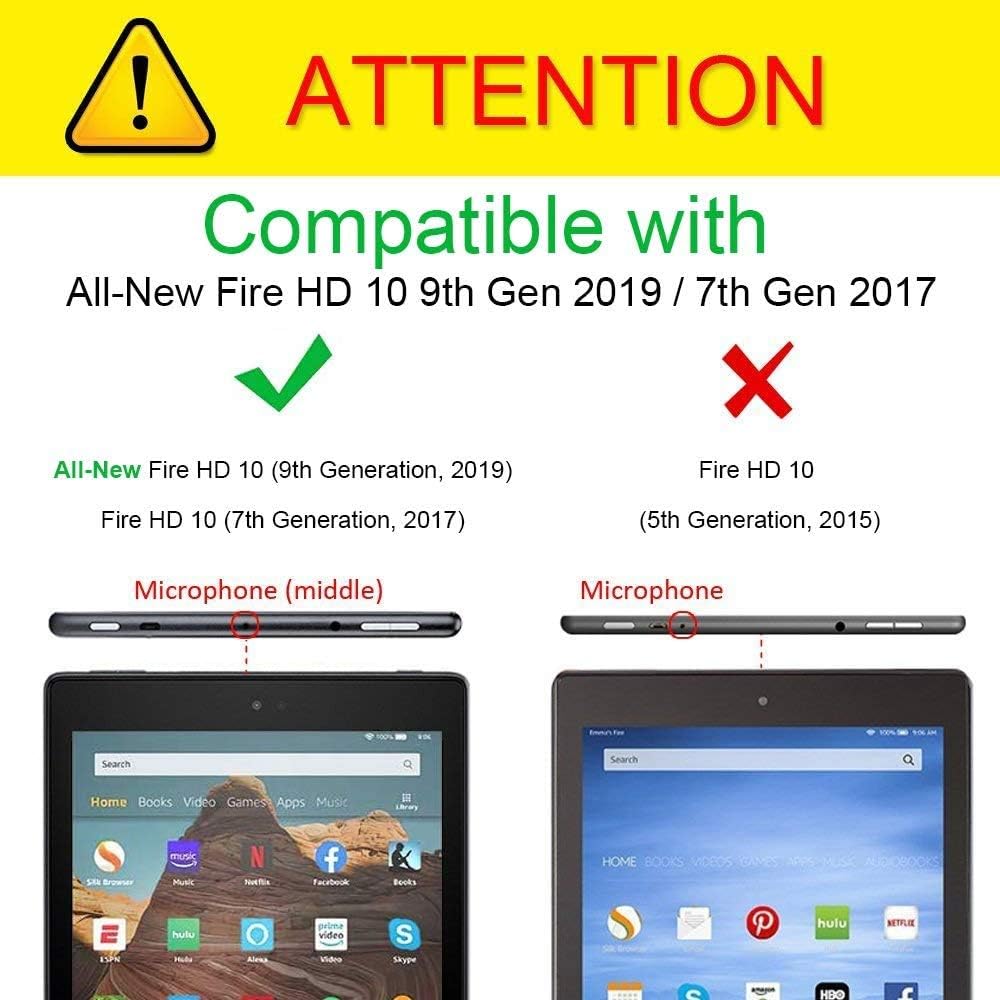
Image: Visual guide for tablet compatibility, highlighting microphone placement differences between compatible and incompatible models.
4. Асноўныя магчымасці
- Дызайн 2-у-1: Combines a protective case with a detachable Bluetooth keyboard.
- Прэміум-абарона: Constructed with premium PU leather exterior, sturdy PC backshell, and anti-slip soft lining to protect against bumps, abrasions, and scratches.
- Множны Viewвуглы: Integrated stand feature allows for various viewныя пазіцыі.
- Magnetically Detachable Keyboard: The wireless keyboard can be easily attached or removed from the case.
- Scissor-Switch Keys: Забяспечвае камфортны і спагадлівы набор тэксту.
- Тонкі і лёгкі: Designed for portability without adding significant bulk.
- Доўгі тэрмін службы батарэі: The keyboard features an extended battery life.

Выява: спераду і ззаду view of the Fintie Keyboard Case in its closed state, showcasing its design and material quality.

Image: The 2-in-1 design, showing the tablet securely in the case with the detachable keyboard positioned for use.

Image: The case configured as a stand, providing multiple viewing angles for the tablet, with the keyboard in front.

Image: Detail of the keyboard's magnetic integration with the case, showing how it securely attaches.

Image: Diagram illustrating the scissor-switch key mechanism and highlighting features like long battery life and thin design.

Выява: Разабраная view showing the layers of the case construction, including premium PU leather, PC backshell, and soft lining.
5. Інструкцыі па ўсталёўцы
5.1. Inserting Your Tablet into the Case
- Align your Fire HD 10 tablet with the hard shell frame of the case.
- Gently press the tablet into the frame, ensuring all corners and edges are securely seated. The sturdy PC backshell is designed to hold your tablet firmly in place.
- Verify that all ports, buttons, and cameras are accessible and unobstructed.
5.2. Зарадка клавіятуры
Before initial use, fully charge the Bluetooth keyboard.
- Locate the micro USB charging port on the side of the keyboard.
- Connect the included USB charging cable to the keyboard's charging port.
- Падключыце другі канец USB-кабеля да адаптара харчавання USB (не ўваходзіць у камплект) або да USB-порта кампутара.
- The charging indicator light on the keyboard will illuminate (usually red) during charging.
- Once fully charged, the indicator light will typically change color (e.g., turn off or turn green/blue). A full charge usually takes 2-3 hours.
Note: The keyboard can be used for several weeks on a single charge with moderate use.
5.3. Pairing the Bluetooth Keyboard with Your Fire HD 10
- Уключыце клавіятуру: Slide the power switch on the keyboard to the "ON" position. The power indicator light will briefly illuminate.
- Activate Bluetooth on the keyboard: Націсніце Злучыцца кнопка (ці Fn + C, depending on keyboard model) on the keyboard. The Bluetooth indicator light will start blinking, indicating it is in pairing mode.
- Enable Bluetooth on your Fire HD 10:
- Go to your tablet's Налады.
- Націсніце на Бесправадная сувязь і Bluetooth or Падключаныя прылады.
- Націсніце на Bluetooth and ensure it is turned On.
- Пошук прылады: Your tablet will automatically search for available Bluetooth devices.
- Select the keyboard: Look for "Bluetooth Keyboard" or a similar name in the list of available devices and tap on it.
- Confirm pairing: Your tablet may display a pairing code. Type this code on the Fintie keyboard and press Увайдзіце.
- Спалучэнне паспяхова: Once paired, the Bluetooth indicator light on the keyboard will stop blinking and turn off, and your tablet will show the keyboard as "Connected."
Note: If pairing fails, turn off both the keyboard and your tablet's Bluetooth, then repeat the steps.
6. Інструкцыя па эксплуатацыі
6.1. Using the Stand Feature
The case is designed to convert into a stand for hands-free viewінж.
- Open the case and detach the keyboard if desired, or slide it down to the edge of the case.
- Fold the front cover back to create a triangular stand. The anti-slip soft lining helps secure the tablet at various angles.
- Position your tablet in the grooves or against the folded cover for your preferred viewкут нахілу.

Выява: Задняя частка view of the Fintie Keyboard Case configured as a stand, demonstrating its stability.
6.2. Функцыі клавіятуры
The keyboard features standard QWERTY layout keys and several function keys for quick access to tablet features.
- Функцыянальныя клавішы (Fn): Многія клавішы маюць другарадныя функцыі, даступныя пры ўтрыманні Fn key and pressing the desired function key (e.g., volume control, media playback, screen lock). Refer to the key legends for specific functions.
- Спецыяльныя клавішы: Dedicated keys for Home, Search, Back, and other tablet-specific commands may be present.
6.3. Кіраванне харчаваннем
- Аўтаматычны рэжым сну: The keyboard will automatically enter sleep mode after a period of inactivity to conserve battery. Press any key to wake it up.
- Выключэнне: For extended periods of non-use, slide the power switch to "OFF" to completely power down the keyboard and save battery.
7. Тэхнічнае абслугоўванне
7.1. Cleaning the Case and Keyboard
- Справа: Працярыце вонкавую штучную скуру мяккай сурвэткайamp тканінай. Пазбягайце агрэсіўных хімічных рэчываў або абразіўных ачышчальнікаў.
- Клавіятура: Use a soft, dry cloth to clean the keys. For dust between keys, use compressed air. Do not immerse the keyboard in liquids.
7.2. Сыход за батарэяй
- Рэгулярна зараджайце клавіятуру, нават калі яна не выкарыстоўваецца пастаянна, каб падтрымліваць акумулятар у працоўным стане.
- Пазбягайце частай поўнай разрадкі акумулятара.
- Захоўвайце клавіятуру ў прахалодным, сухім месцы, калі яна не выкарыстоўваецца працяглы час.
8. Выпраўленне непаладак
8.1. Keyboard Not Pairing
- Ensure keyboard is on: Check if the power switch is in the "ON" position and the battery is charged.
- Activate pairing mode: Націсніце Злучыцца кнопка (ці Fn + C) on the keyboard until the Bluetooth indicator blinks.
- Tablet Bluetooth: Verify that Bluetooth is enabled on your Fire HD 10 tablet.
- Перазапуск прылад: Turn off the keyboard and turn off/on Bluetooth on your tablet. Then attempt pairing again.
- Forget device: If the keyboard was previously paired but isn't connecting, go to your tablet's Bluetooth settings, "forget" or "unpair" the keyboard, and then attempt to pair it as a new device.
- Адлегласць: Ensure the keyboard is within 10 meters (33 feet) of your tablet.
8.2. Клавішы не рэагуюць
- Праверце злучэнне: Ensure the keyboard is properly paired and connected to your tablet.
- Узровень зарада батарэі: A low battery can cause keys to become unresponsive. Charge the keyboard.
- Перазапуск: Выключыце клавіятуру, а затым зноў уключыце.
- Перашкоды: Адыдзіце ад іншых бесправадных прылад, якія могуць выклікаць перашкоды.
8.3. Tablet Screen Goes to Sleep When Case is Folded Back
- This can occur due to the strong magnets in the case interacting with the tablet's sleep/wake function.
- To prevent this, slightly adjust the tablet's position within the case or ensure the front cover is not folded directly behind the tablet in a way that triggers the magnetic sensor.
9. Тэхнічныя характарыстыкі
| Асаблівасць | Дэталь |
|---|---|
| Марка | КАНЦА |
| Сумяшчальныя прылады | Fire HD 10 (7th and 9th Generations) |
| Тэхналогія падлучэння | Bluetooth |
| Апісанне клавіятуры | Physical, Bluetooth, Slim (7mm), Laptop-style, ABS material |
| Асаблівасць | Bluetooth, бесправадная сувязь |
| Матэрыял | Acrylonitrile Butadiene Styrene, Faux Leather, Polycarbonate |
| Уключаныя кампаненты | Кабель USB |
| Крыніца харчавання | Харчаванне ад USB |
| Колькасць ключоў | 78 |
| Тып перамыкача | Tactile (Scissor-Switch) |
| Раскладка клавіятуры | QWERTY |
| Вага прадмета | 1.41 фунта (прыкладна 640 грамаў) |
| Вытворца | DRONAR (for FINTIE) |
10. Гарантыя і падтрымка
10.1. Інфармацыя аб гарантыі
Specific warranty details for this product are not provided in the available information. Please refer to the product packaging or the official FINTIE webсайт, каб азнаёміцца з самай актуальнай гарантыйнай палітыкай.
10.2. Падтрымка кліентаў
For technical assistance, troubleshooting beyond this manual, or warranty claims, please contact FINTIE customer support through their official webсайт або прадаўца, дзе быў набыты тавар.
Visit the FINTIE Store: FINTIE Official Store on Amazon