
ILEBYGO H18
ILEBYGO H18 Mini Wireless Keyboard Touchpad Combo User Manual
Model: H18 | Brand: ILEBYGO
1. Уводзіны
This manual provides detailed instructions for the ILEBYGO H18 2.4Ghz Mini Wireless Keyboard Touchpad Combo. This device combines a QWERTY keyboard with a multi-touch touchpad, offering versatile control for various smart devices. Please read this manual thoroughly before use to ensure proper operation and longevity of your device.
2. Што ў скрынцы
- 1 x ILEBYGO H18 2.4G Mini Wireless Keyboard (Batteries included)
- 1 х USB-прыёмнік
- 1 х USB-кабель для зарадкі
- 1 х Кіраўніцтва карыстальніка
3. Прадукт скончыўсяview
The ILEBYGO H18 features a compact design with a large touchpad area that doubles as a keyboard. Key indicators and control buttons are strategically placed for ease of use.
3.1 Макет прылады

Figure 1: ILEBYGO H18 device dimensions and top view.
3.2 Індыкатары і кнопкі
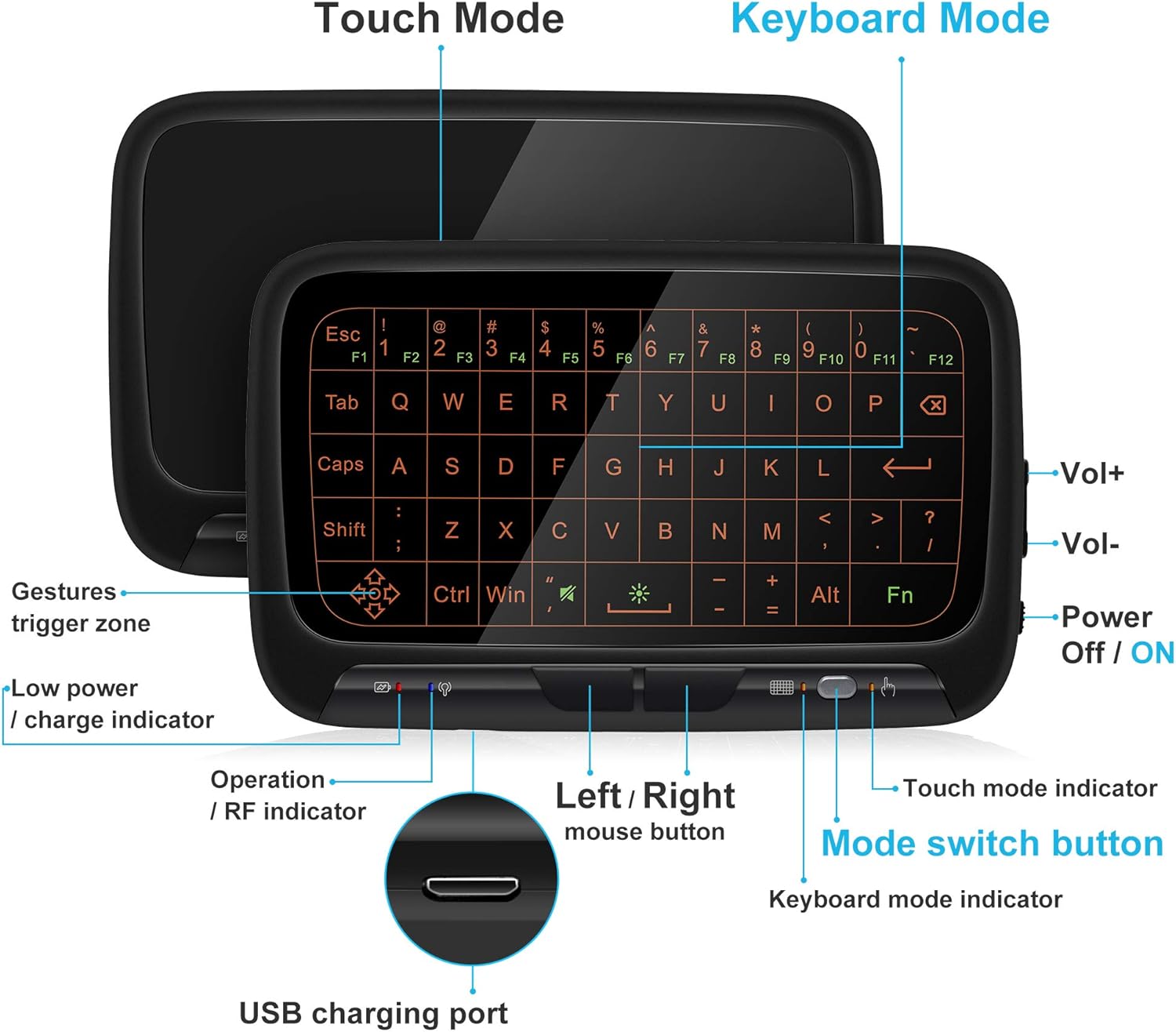
Малюнак 2: Спераду view of the ILEBYGO H18 with labeled indicators and buttons.
- Порт для зарадкі USB: Для зарадкі прылады.
- Low Power / Charge Indicator: Паказвае стан батарэі.
- Operation / RF Indicator: Паказвае стан злучэння.
- Left / Right Mouse Buttons: Physical buttons for mouse clicks.
- Кнопка пераключэння рэжымаў: Toggles between Touchpad Mode and Keyboard Mode.
- Touch Mode Indicator: Lights up when in Touchpad Mode.
- Keyboard Mode Indicator: Lights up when in Keyboard Mode.
- Volume Controls (Vol+ / Vol-): Adjusts audio output.
- Power Off / ON Switch: Уключае або выключае прыладу.
4. Настройка
4.1 Зарадка прылады
- Connect the provided USB charging cable to the micro USB port on the device.
- Падключыце другі канец кабеля да крыніцы харчавання USB (напрыклад, USB-порт кампутара, насценны адаптар USB).
- The Low Power / Charge Indicator will illuminate during charging. It will change or turn off when fully charged.

Figure 3: Charging the ILEBYGO H18.
4.2 Падключэнне да прылады
- Locate the USB receiver included in the package.
- Insert the USB receiver into an available USB port on your target device (e.g., Android TV Box, Projector, HTPC, PC, Laptop).
- Turn on the ILEBYGO H18 by sliding the Power Off / ON switch to the "ON" position.
- The Operation / RF Indicator will blink, then turn solid blue once a connection is established.

Figure 4: Connecting the ILEBYGO H18 via USB receiver.
5. Інструкцыя па эксплуатацыі
5.1 Switching Between Touchpad and Keyboard Modes
Націсніце Кнопка пераключэння рэжымаў (located near the right mouse button) to toggle between Touchpad Mode and Keyboard Mode. The corresponding indicator light will illuminate to show the active mode.

Figure 5: Switching between Keyboard and Touchpad Modes.
5.2 Touchpad Mode Gestures
The touchpad supports various multi-touch gestures for intuitive navigation:

Figure 6: Touchpad gesture guide.
- Адзін націск: Пстрычка левай кнопкай мышы.
- Націсканне двума пальцамі: Пстрычка правай кнопкай мышы.
- Single Finger Drag: Mouse movement.
- Two-Finger Drag: Пракруціць экран.
- Two-Finger Pinch: Павелічэнне/памяншэнне.
- Three-Finger Swipe: Switch applications or access multitasking view.
5.3 Рэжым клавіятуры
In Keyboard Mode, the touchpad area illuminates to display a full QWERTY keyboard layout. You can type by tapping on the virtual keys. The keyboard supports standard functions like Shift, Ctrl, Alt, and Windows key combinations.
5.4 Рэгуляванне падсвятлення
The keyboard features a 3-level adjustable backlight. To adjust the backlight brightness, press the Fn key and the backlight adjustment key (often indicated by a sun icon or similar) simultaneously or in sequence, depending on the specific model's implementation.

Figure 7: Adjusting keyboard backlight.
6. Тэхнічнае абслугоўванне
- Трымайце прыладу ў чысціні, праціраючы яе мяккай сухой тканінай.
- Пазбягайце ўздзеяння экстрэмальных тэмператур, вільгаці або прамых сонечных прамянёў на прыладу.
- Не спрабуйце разбіраць прыладу, бо гэта прывядзе да анулявання гарантыі.
- Charge the device regularly to maintain battery health, even if not in frequent use.
7. Выпраўленне непаладак
7.1 Прылада не адказвае
- Пераканайцеся, што прылада ўключана.
- Check if the USB receiver is securely plugged into the host device.
- Verify the device battery is charged. Recharge if the low power indicator is active.
- Try plugging the USB receiver into a different USB port on the host device.
7.2 Падсветка не працуе
- Ensure the device is in Keyboard Mode.
- Press the Fn key and the backlight adjustment key to cycle through brightness levels or turn it on.
7.3 Touchpad Sensitivity Issues
- Ensure the device is in Touchpad Mode.
- Clean the touchpad surface to remove any dirt or oils that might affect sensitivity.
8. Тэхнічныя характарыстыкі
| Асаблівасць | Дэталь |
|---|---|
| Марка | ІЛЕБЫГА |
| Нумар мадэлі | H18 |
| Тэхналогія падлучэння | 2.4Ghz Wireless (USB Receiver) |
| Раскладка клавіятуры | QWERTY |
| Асаблівасці | 3-Level Backlit, Rechargeable, Touchpad Mode, Keyboard Mode |
| акумулятар | Убудаваны літый-іённы акумулятар ёмістасцю 300 мАг |
| Памеры прадукту | 5.6 см Д х 3.6 см Ш х 0.7 см В |
| Вага прадмета | 0.13 фунта |
| Сумяшчальныя прылады | Laptop, PC, Projector, Android TV Box, IPTV, HTPC |
9. Гарантыя і падтрымка
ILEBYGO provides a 12-month warranty for this product. For any issues, questions, or support needs, please contact our customer service. Refer to the contact information provided with your purchase or visit the official ILEBYGO webсайт.
Note: The warranty does not cover damage caused by misuse, accidents, or unauthorized modifications.
10. Відэа пра прадукты
Відэа 1: Афіцыйнае скончанаеview of the ILEBYGO 2.4Ghz Mini Wireless Keyboard Touchpad Combo, demonstrating its features and functionality.