
waveshare 13.3inch HDMI LCD (H)
Waveshare 13.3-inch Capacitive Touch Screen LCD (V1) User Manual
Model: 13.3inch HDMI LCD (H)
1. Уводзіны
This manual provides detailed instructions for the setup, operation, and maintenance of your Waveshare 13.3-inch Capacitive Touch Screen LCD (V1). This display features a 1920x1080 resolution, HDMI input, IPS panel for wide viewing angles, and a durable toughened glass cover. Please read this manual thoroughly before using the product to ensure proper functionality and longevity.
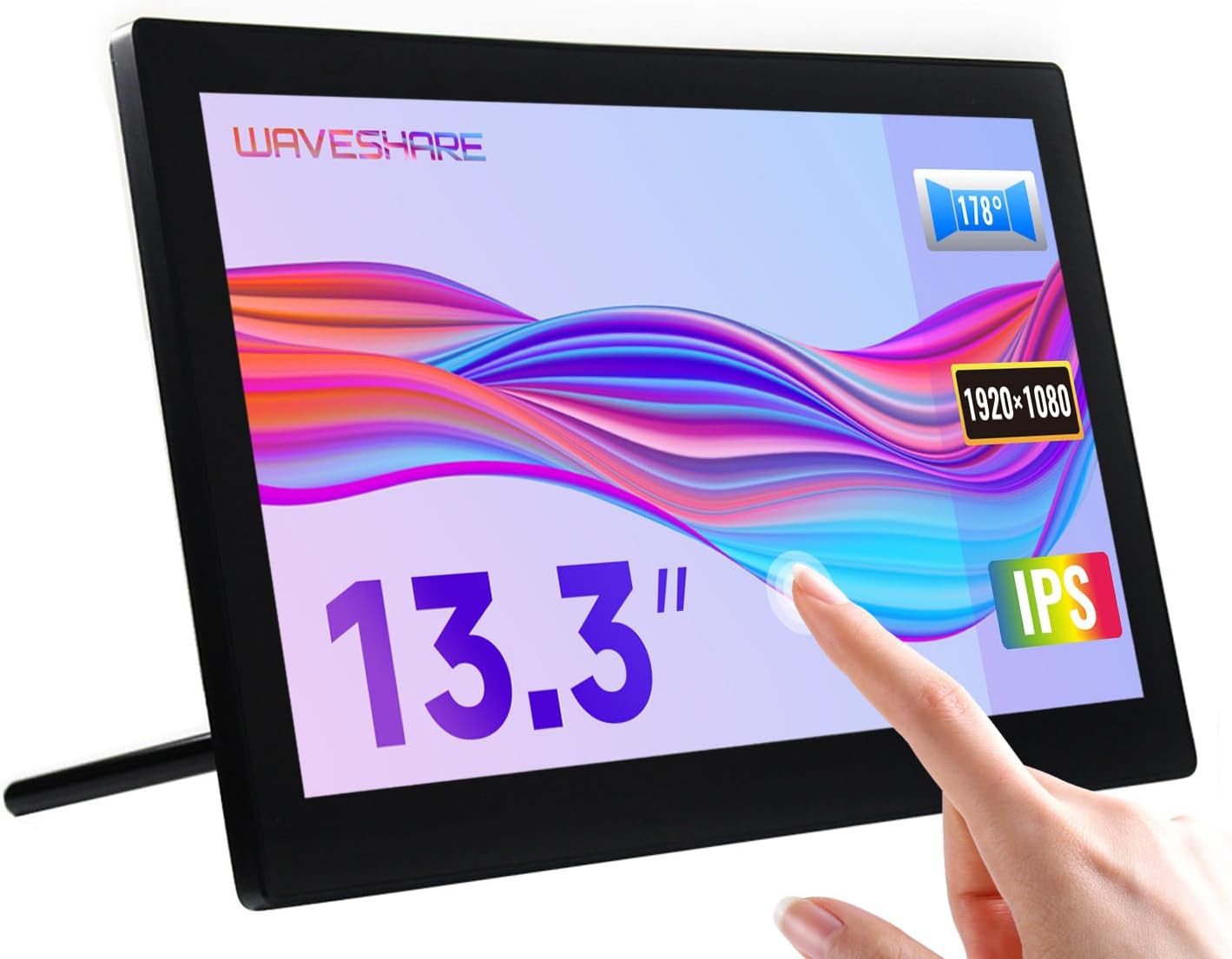
Image 1.1: The Waveshare 13.3-inch Capacitive Touch Screen LCD, showcasing its touch functionality and sleek design.
2. Інфармацыя па бяспецы
- Пераканайцеся, што аб'ём блока харчаванняtage matches the product's requirements to prevent damage.
- Avoid exposing the display to extreme temperatures, humidity, or direct sunlight.
- Не разбірайце прыладу. Любое абслугоўванне звяртайцеся да кваліфікаванага персаналу.
- Keep the screen away from strong magnetic fields.
- Handle with care to avoid dropping or impacting the screen, especially the toughened glass panel.
3. Змесціва ўпакоўкі
Праверце наяўнасць усіх прадметаў у камплекце:
- Waveshare 13.3-inch HDMI LCD (H) Display
- Адаптар сілкавання
- Кабель HDMI
- USB-A to Micro-USB Cable (for touch functionality)
- Кіраўніцтва карыстальніка (гэты дакумент)
4. Прадукт скончыўсяview
4.1. Асаблівасці
- 13.3-inch IPS panel with 1920x1080 resolution.
- Capacitive 10-point touch control (operating system dependent).
- Toughened glass panel with up to 6H hardness.
- HDMI and VGA display interfaces.
- Built-in Hi-Fi speakers and 3.5mm audio jack.
- Supports various devices including Raspberry Pi, Jetson Nano, PCs, and game consoles.
- Integrated case with a 75° back stand and VESA mounting holes (75x75mm).

Image 4.1: Detailed features and system compatibility of the display.
4.2. Фізічныя кампаненты
The display includes various ports and control buttons:
- VGA Display Port: For video input via VGA.
- Порт HDMI: For video input via HDMI.
- 3.5 мм аўдыяраз'ём: Для выхаду гуку.
- Touch Port (USB): For connecting the touch functionality to your device.
- Уваходнае напружанне 12 В: Для падлучэння адаптара сілкавання.
- Кнопкі «Назад»: Power, direction controls, and Menu/Enter/Return buttons for OSD navigation.

Малюнак 4.2: ззаду view of the display with ports and a Raspberry Pi connection exampле.
5. Інструкцыі па ўсталёўцы
5.1. Пачатковае падключэнне
- Падключыць відэа: Use the provided HDMI cable to connect the display's HDMI port to your source device (e.g., Raspberry Pi, PC). If using VGA, connect a VGA cable.
- Connect Touch (USB): Connect the USB-A to Micro-USB cable from your source device's USB port to the display's Touch Port. This enables touch functionality.
- Падключыце харчаванне: Plug the power adapter into the display's 12V Power Input, then connect it to a power outlet.
- Уключэнне: Press the power button on the back of the display. The screen should illuminate and display content from your source device.

Image 5.1: Display showing a Windows desktop after successful connection.
5.2. Злучэнне Прampлес
The display supports various connection configurations:
- Working with Raspberry Pi 4: Connect HDMI for video and USB for touch. Power the display with its 12V adapter.
- Working with Raspberry Pi Zero W: Requires additional mini HDMI adapter and USB cable. Connect mini HDMI for video and USB for touch. Power the display with its 12V adapter.
- Working with AI Computer Jetson Nano: Connect HDMI for video and USB for touch. Power the display with its 12V adapter.
- Working with Mini PC: Connect HDMI for video and USB for touch. Power the display with its 12V adapter.

Image 5.2: Visual guide for connecting the display to different devices.
6. Інструкцыя па эксплуатацыі
6.1. Экраннае меню (OSD).
The OSD menu allows you to adjust display settings such as brightness, contrast, and input source. Use the back buttons (direction controls and Menu/Enter/Return) to navigate and select options.
- Націсніце МЕНЮ кнопку, каб адкрыць экраннае меню.
- Выкарыстоўвайце Напрамак кнопкі для навігацыі па пунктах меню.
- Прэса МЕНЮ again (or the designated Enter button) to select an option or confirm a setting.
- Выкарыстоўвайце Вярнуцца button to go back or exit the menu.
6.2. Displaying Content
Once connected and powered on, the display will automatically detect the active video input. Ensure your source device is outputting video to the selected HDMI or VGA port.

Image 6.1: The display showing multimedia content from a web браўзер.
6.3. Дакраніцеся кіравання
The display features capacitive 10-point touch control. Ensure the USB touch cable is connected to your source device for touch functionality. Driver-free operation is supported on most compatible operating systems.

Image 6.2: Illustration of touch control and audio features.
6.4. Аўдыёвыхад
The display includes built-in Hi-Fi speakers for audio output. Alternatively, you can connect external speakers or headphones to the 3.5mm audio jack for private listening or higher quality audio.
7. Device & System Support
The Waveshare 13.3-inch display offers broad compatibility:
- Маліна Пі: Supports all versions of Raspberry Pi.
- Supports Raspberry Pi OS, 10-point touch, driver free.
- Supports Ubuntu / Kali / WIN10 IoT, single point touch, driver free.
- Supports Retropie, driver free.
- Джэтсан Нана: Supports Ubuntu, single point touch, driver free.
- ПК: Supports Windows 11 / 10 / 8.1 / 8 / 7, 10-point touch, driver free.
- Гульнявыя прыстаўкі: Supports Xbox360, PS4, Switch (display and sound only).

Выява 7.1: Канецview of supported devices and operating systems.
8. Тэхнічнае абслугоўванне
- Ачыстка экрана: Выкарыстоўвайце мяккую безворсовую тканіну, злёгку dampвадой або растворам для чысткі экрана. Пазбягайце выкарыстання агрэсіўных хімічных рэчываў або абразіўных матэрыялаў.
- Агульны догляд: Keep the display free from dust. When not in use for extended periods, consider covering it to prevent dust accumulation.
- захоўванне: Store the display in a cool, dry place, away from direct sunlight and extreme temperatures.
9. Выпраўленне непаладак
| праблема | Магчымая прычына | Рашэнне |
|---|---|---|
| Няма дысплея/чорны экран |
|
|
| Touch not working |
|
|
| Няма гуку |
|
|
10. Тэхнічныя характарыстыкі
| Асаблівасць | Дэталь |
|---|---|
| Памер экрана | 13.3 цалі |
| дазвол | 1920x1080 (FHD 1080p) |
| Дысплейная панэль | IPS |
| Viewing кут | 178° |
| Сэнсарны тып | Capacitive, 10-point touch |
| Цвёрдасць сэнсарнай панэлі | Up to 6H Toughened Glass |
| Паказаць інтэрфейс | HDMI, VGA |
| Аўдыёвыхад | Built-in Hi-Fi Speakers, 3.5mm Audio Jack |
| Увод магутнасці | 12 В пастаяннага току |
| Памеры прадукту (ДxШxВ) | 7.09 x 3.94 x 3.54 цалі (прыблізна 180 x 100 x 90 мм) |
| Вага прадмета | 2.2 pounds (1 kg approx.) |
| Матэрыял корпуса | Полікарбанат / ABS |

Image 10.1: Physical dimensions of the display.
11. Гарантыя і падтрымка
Waveshare products are designed for reliability and performance. For warranty information, technical support, or further assistance, please visit the official Waveshare webсайт або звярніцеся непасрэдна ў службу падтрымкі кліентаў. Захоўвайце чэк аб куплі як пацвярджэнне пакупкі для гарантыйных прэтэнзій.
Афіцыйны Waveshare Webсайт: www.waveshare.com