
Уводзіны
The HP Wireless Mouse 200 provides a reliable and comfortable wireless experience for your computing needs. Designed for ease of use, this mouse features a 2.4 GHz wireless connection, a contoured shape for ambidextrous comfort, and a 1,000 DPI optical sensor for precise tracking. This manual provides instructions for setting up, operating, and maintaining your HP Wireless Mouse 200.
Змест пакета

Figure 1: Package Contents. The image displays the HP Wireless Mouse 200, two AAA batteries, a 2.4GHz wireless receiver, a quick start poster, product notices, and a warranty card.
Пераканайцеся, што ваш пакет змяшчае наступныя элементы:
- HP Wireless Mouse 200
- 2 батарэйкі ААА
- 2.4 GHz Wireless USB Receiver
- Кароткае кіраўніцтва
- Апавяшчэнні аб прадуктах
- Гарантыйны талон
Настройка
1. Устаноўка батарэі
- Знайдзіце батарэйны адсек на ніжняй баку мышы.
- Адкрыйце крышку батарэйнага адсека.
- Insert the two AAA batteries (included) into the compartment. Ensure correct polarity (+ and - ends) as indicated inside the compartment. Note: Some users have reported that batteries may need to be inserted in opposite directions for proper function.
- Зачыніце крышку батарэйнага адсека.
2. Connect the USB Receiver
- Locate the 2.4 GHz wireless USB receiver. This is typically stored inside the battery compartment or packaged separately.
- Падключыце USB-прыёмнік да вольнага порта USB на вашым кампутары.
- Ваш камп'ютар павінен аўтаматычна распазнаць мыш.
3. Уключыце мыш
- On the underside of the mouse, locate the On/Off switch.
- Slide the switch to the "On" position. The optical sensor light (red LED) should illuminate.
- If the mouse does not connect automatically, press the "Connect" button located near the On/Off switch on the underside of the mouse.
Кіраванне мышшу

Figure 2: Key Features of the HP Wireless Mouse 200. This image illustrates the mouse's features such as battery life, wireless range, button layout, and operating system compatibility.
The HP Wireless Mouse 200 is designed for intuitive navigation and control.
- Левая кнопка мышы: Выкарыстоўваецца для выбару элементаў, адкрыцця fileс і выкананне каманд.
- Правая кнопка мышы: Выкарыстоўваецца для доступу да кантэкстных меню і дадатковых опцый.
- Кола пракруткі: Выкарыстоўваецца для пракруткі дакументаў і web старонкі. Кола пракруткі таксама выконвае функцыю сярэдняй кнопкі мышы.
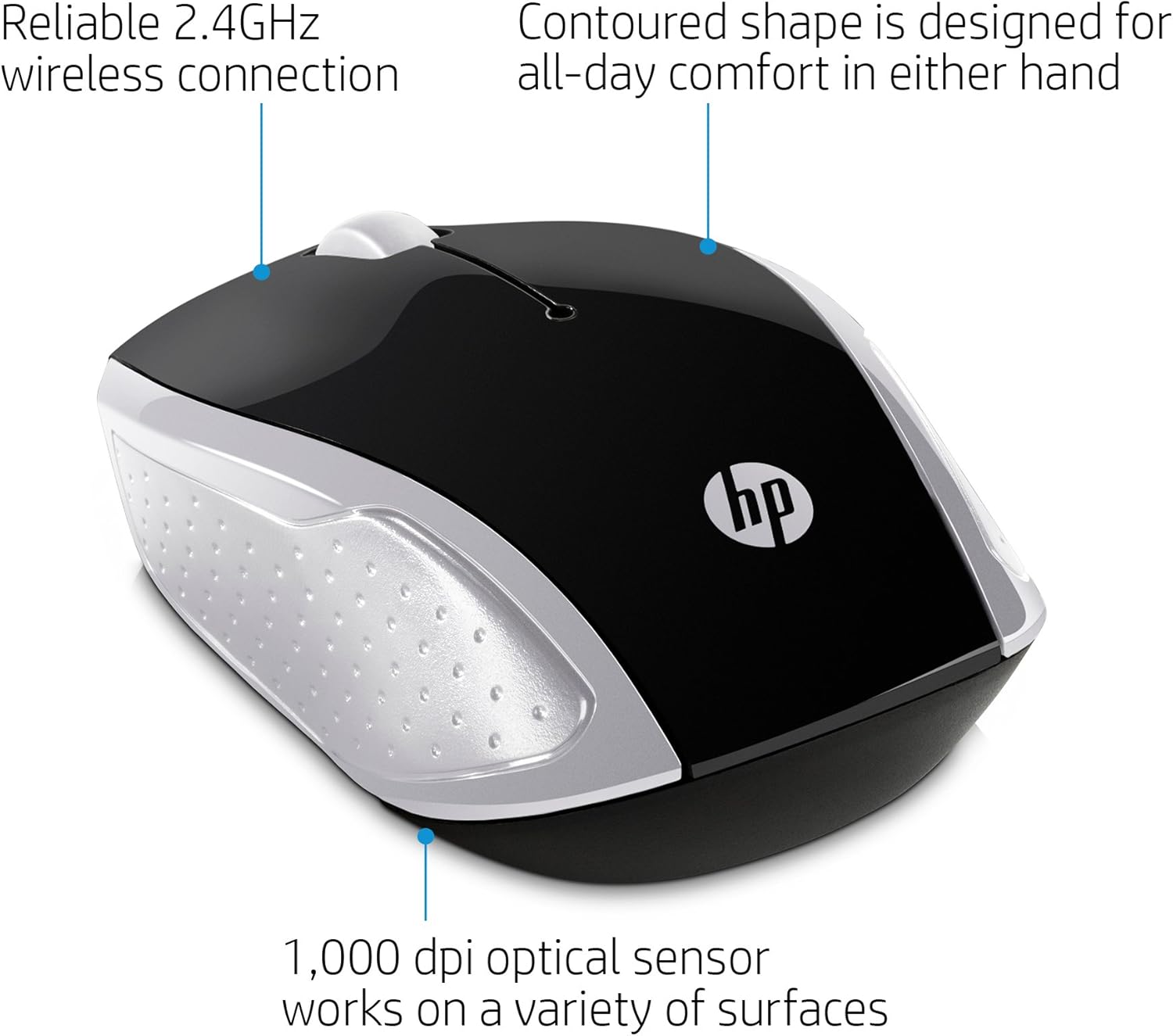
Figure 3: Ergonomic Design and Optical Sensor. This image emphasizes the comfortable, contoured shape suitable for both left and right-handed users, and the precision of the 1,000 DPI optical sensor.
The mouse features a contoured shape that fits comfortably in either hand, making it suitable for both left-handed and right-handed users. Its 1,000 DPI optical sensor provides accurate and responsive tracking on various surfaces.
Тэхнічнае абслугоўванне
Замена батарэі
When the mouse performance degrades or stops responding, it may be time to replace the batteries. Follow the battery installation steps in the Настройка section to replace the two AAA batteries.
Уборка
Для чысткі мышы выкарыстоўвайце мяккую сухую тканіну. Для ўстойлівага бруду злёгкуampen the cloth with water. Avoid using harsh chemicals or abrasive cleaners, as these can damage the mouse's surface.
Ліквідацыю непаладак
- Мышка не рэагуе:
- Ensure the mouse is powered on using the On/Off switch on the underside.
- Праверце, ці правільна ўсталяваныя батарэйкі і ці дастаткова яны зараджаныя. Пры неабходнасці замяніце іх.
- Пераканайцеся, што USB-прыёмнік надзейна падключаны да спраўнага USB-порта вашага кампутара.
- Паспрабуйце падключыць USB-прыёмнік да іншага порта USB.
- Press the "Connect" button on the underside of the mouse to re-establish the connection.
- Няправільны рух курсора:
- Ensure the optical sensor on the underside of the mouse is clean and free of obstructions.
- Use the mouse on a clean, uniform surface. Avoid highly reflective or transparent surfaces.
- Short wireless range:
- Ensure there are no large metal objects or other electronic devices interfering with the 2.4 GHz signal between the mouse and the USB receiver.
- Падсуньце мыш бліжэй да USB-прыёмніка. Эфектыўны дыяпазон складае да 10 метраў (30 футаў).
Тэхнічныя характарыстыкі

Figure 4: HP Wireless Mouse 200 Dimensions. The image provides a top-down view of the mouse with its length (3.74 inches) and width (2.3 inches) clearly marked.
| Асаблівасць | Дэталь |
|---|---|
| Марка | HP |
| Назва мадэлі | HP Wireless Mouse 200 |
| Нумар мадэлі | 200 (2HU84AA) |
| Колер | Чорны/Срэбны |
| Тэхналогія падлучэння | USB (2.4 GHz Wireless Receiver) |
| Выяўленне руху | Optical (Red LED) |
| Адчувальнасць DPI | 1000 DPI |
| Колькасць кнопак | 3 (левая, правая, кола пракруткі/сярэдняя кнопка мышы) |
| Рука арыентацыі | Амбідэкстр |
| Далёкасць бесправадной сувязі | Да 10 метраў (30 футаў) |
| Крыніца харчавання | Харчаванне ад батарэі |
| Патрабуюцца батарэі | 2 x AAA (у камплекце) |
| Сумяшчальныя аперацыйныя сістэмы | Windows 7 and above, Mac OS 10.x and above, Chrome OS |
| Вага прадмета | 2.72 унцыі |
| Памеры прадмета (Д х Ш) | 5 цалі х 3 цалі |
| Матэрыял | Пластыкавыя |
Гарантыя і падтрымка
The HP Wireless Mouse 200 comes with a standard HP 1-year limited warranty. For warranty claims, technical support, or additional product information, please refer to the official HP support website or contact HP customer service. Details can be found on the warranty card included in your package.