
Уводзіны
Thank you for choosing the MeeTion K9310 Gaming Keyboard. This manual provides detailed instructions for setting up, operating, and maintaining your new keyboard. The K9310 is designed for an enhanced gaming experience with features such as multicolor backlighting, anti-ghosting, and dedicated shortcut keys.
Змест пакета
- MeeTion K9310 Gaming Keyboard
- Кіраўніцтва карыстальніка (гэты дакумент)
Настройка
Follow these steps to connect your MeeTion K9310 Gaming Keyboard to your computer:
- Дастаньце клавіятуру з упакоўкі.
- Знайдзіце даступны USB-порт на вашым кампутары.
- Падключыце USB-раздым клавіятуры да USB-порта.
- Your operating system (Windows XP/Vista/7/8/10) will automatically detect and install the necessary drivers. No additional software installation is typically required.
- The keyboard is ready for use once the drivers are installed.

Выява: Уверсе view of the MeeTion K9310 Gaming Keyboard with its USB cable, ready for connection.
Інструкцыя па эксплуатацыі
Асноўныя характарыстыкі
- Multicolor Key Backlit: The keyboard features vibrant multicolor backlighting for enhanced visibility and aesthetic appeal, especially in low-light conditions.
- Comfortable and Soft Keys: Designed with membrane keys offering tactile feedback, providing a comfortable typing and gaming experience.
- 19 Keys Anti-Ghosting: This feature ensures that up to 19 keys can be pressed simultaneously without any input loss, crucial for complex gaming commands.
- Win Lock Function with LED Indication: Prevents accidental presses of the Windows key during gameplay, which can interrupt your game. An LED indicator shows when this function is active.
- 12 FN Shortcut Buttons: Access various multimedia and system functions quickly using the Function (FN) key in combination with the F1-F12 keys.
Кіраванне падсветкай
The K9310 keyboard features a multicolor backlight. Specific key combinations may be used to adjust brightness or switch lighting modes. Refer to the keyboard's markings for dedicated backlight control keys, often indicated by a sun or light bulb icon, or through FN key combinations.
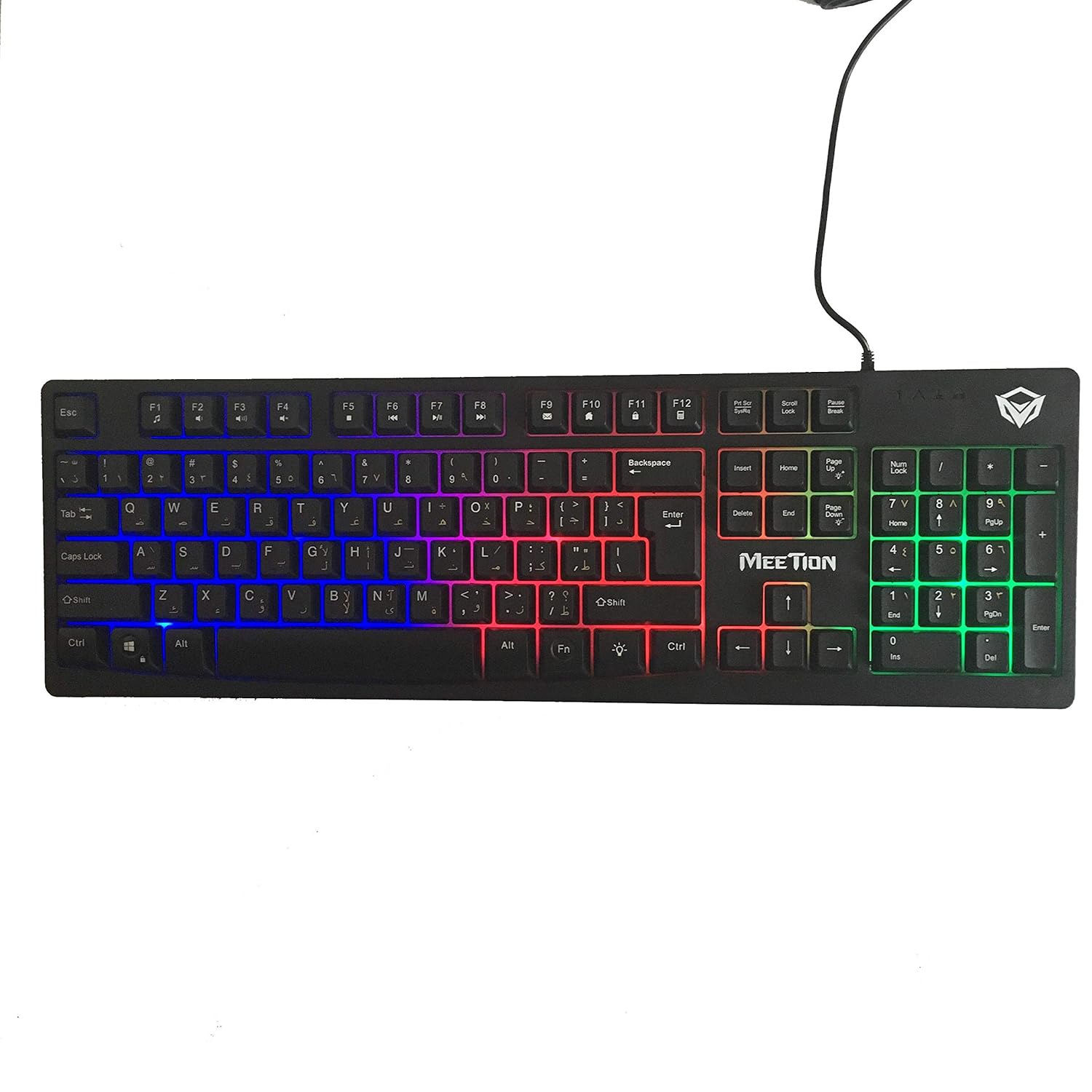
Выява: Уверсе view of the MeeTion K9310 Gaming Keyboard with its multicolor backlighting illuminated.
FN Shortcut Functions
The keyboard includes 12 FN (Function) shortcut buttons. To activate these functions, press and hold the FN key, then press the desired F-key (F1-F12).
| Камбінацыя клавіш | Функцыя |
|---|---|
| FN + F1 | Медыяплэер |
| FN + F2 | Памяншэнне гучнасці |
| FN + F3 | Павялічыць гучнасць |
| FN + F4 | Адключыць гук |
| FN + F5 | Стоп |
| FN + F6 | Папярэдні трэк |
| FN + F7 | Прайграванне/Паўза |
| FN + F8 | Наступны трэк |
| FN + F9 | Электронная пошта |
| FN + F10 | Web Браўзэр |
| FN + F11 | Мой кампутар |
| FN + F12 | Калькулятар |
Win Lock Function
To activate or deactivate the Windows key lock function, press FN + клавіша Win. When active, the Windows key will be disabled, preventing accidental presses during gaming. An LED indicator on the keyboard will typically illuminate to show the Win Lock status.
Тэхнічнае абслугоўванне
Правільнае абслугоўванне забяспечвае даўгавечнасць і аптымальную прадукцыйнасць вашай клавіятуры.
- Уборка: Выкарыстоўвайце мяккую сухую тканіну для працірання паверхні клавіятуры. Для больш глыбокай чысткі злёгкуamp можна выкарыстоўваць тканіну з мяккім мылам, сачыце за тым, каб вадкасць не патрапіла на клавішы або ўнутраныя кампаненты.
- Выдаленне пылу: Выкарыстоўвайце сціснутае паветра, каб выдаліць пыл і смецце паміж клавішамі.
- Пазбягайце вадкасці: Do not spill liquids on the keyboard. If a spill occurs, immediately disconnect the keyboard from the computer and allow it to dry completely before reconnecting.
- захоўванне: Захоўвайце клавіятуру ў прахалодным, сухім месцы, удалечыні ад прамых сонечных прамянёў і экстрэмальных тэмператур, калі яна не выкарыстоўваецца працяглы час.

Выява: Ніжняя частка view of the MeeTion K9310 Gaming Keyboard, showing the product label and rubber feet.
Ліквідацыю непаладак
If you encounter issues with your MeeTion K9310 Gaming Keyboard, refer to the following troubleshooting steps:
- Клавіятура не адказвае:
- Пераканайцеся, што кабель USB надзейна падключаны да спраўнага порта USB на вашым кампутары.
- Паспрабуйце падключыць клавіятуру да іншага USB-порта.
- Перазагрузіце кампутар.
- Праверце клавіятуру на іншым камп'ютары, каб вызначыць, у чым праблема: у клавіятуры ці ў камп'ютары.
- Keys Not Working (e.g., 'W' key):
- Check for any debris or foreign objects lodged under the affected key. Use compressed air to clear it.
- If only specific keys are not responding, and the keyboard is otherwise functional, it might indicate a hardware issue.
- Падсветка не працуе або мігціць:
- Пераканайцеся, што клавіятура правільна падключана.
- Check if the backlight brightness is set to minimum or turned off via FN key combinations.
- If the issue persists, it may indicate a hardware malfunction.
- Win Lock Function Not Working:
- Ensure you are using the correct key combination (FN + Win Key) to toggle the function.
- Check the LED indicator for Win Lock status.
Тэхнічныя характарыстыкі
| Асаблівасць | Дэталь |
|---|---|
| Марка | СУСТРЭЧА |
| мадэль | К9310 |
| Тып клавіятуры | Гульнявая клавіятура |
| Ключавы кантакт | Membrane with tactile feedback |
| Макет | Cyrillic alphabet layout (Windows Keys) |
| Анты-прывіды | 19 ключоў |
| Падсвятленне | Шматколерная падсветка клавіш |
| Win Lock Function | Так, са святлодыёднай індыкацыяй |
| FN Shortcut Buttons | 12 |
| Error-Free Running Time | More than 10 million strokes |
| Сумяшчальнасць з АС | Windows XP/Vista/7/8/10 |
| Памеры | 17.5 × 5.5 x 1.5 inches (approximate) |
| Вага | 1.2 фунтаў (прыблізна) |
| Сумяшчальныя прылады | Laptop (and Desktop PCs) |
Гарантыя і падтрымка
For warranty information or technical support, please refer to the documentation provided at the time of purchase or visit the official MEETION webсайт. Захоўвайце пацвярджэнне пакупкі для любых гарантыйных прэтэнзій.