
1. Уводзіны
This manual provides essential information for the safe and efficient operation of your Digi International WR21-L52A-DE1-TB Cellular Wireless Router. Please read this manual thoroughly before installation and use, and retain it for future reference. This device is designed to provide reliable cellular connectivity for various applications.
2. Інфармацыя па бяспецы
- крыніца харчавання: Use only the power adapter supplied with the device. Using an incorrect adapter may damage the device and void the warranty.
- Вентыляцыя: Ensure adequate ventilation around the router. Do not block ventilation openings.
- Асяроддзе: Avoid exposing the device to extreme temperatures, humidity, direct sunlight, or corrosive environments.
- Абслугоўванне: Не спрабуйце адкрываць або рамантаваць прыладу самастойна. Звяртайцеся да кваліфікаванага персаналу па любыя паслугі па абслугоўванні.
- Антэны: Ensure antennas are securely connected before powering on the device.
3. Змесціва ўпакоўкі
Праверце наяўнасць усіх прадметаў у камплекце:
- Digi International WR21-L52A-DE1-TB Cellular Wireless Router
- Адаптар сілкавання
- Antennas (quantity may vary)
- Кабель Ethernet
- Кароткае кіраўніцтва карыстальніка (калі ўключана)
Калі якія-небудзь прадметы адсутнічаюць або пашкоджваюцца, неадкладна звярніцеся да прадаўца.
4. Прадукт скончыўсяview
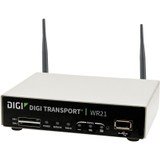
Выява: спераду view of the Digi International WR21-L52A-DE1-TB Cellular Wireless Router. This image displays the compact form factor of the device, likely showing ports for antennas, power, and network connections.
The Digi International WR21-L52A-DE1-TB is a robust cellular wireless router designed for reliable and secure connectivity. It features multiple connectivity options and is suitable for various industrial and enterprise applications requiring remote access and data transfer over cellular networks.
5. Настройка
5.1. Ўстаноўка SIM-карты
- Пераканайцеся, што маршрутызатар выключаны і адключаны ад крыніцы харчавання.
- Locate the SIM card slot(s) on the device. Refer to the device's physical markings for exact location.
- Insert the activated cellular SIM card into the slot with the gold contacts facing down and the notched corner oriented correctly. Push until it clicks into place.
- If applicable, secure the SIM card tray or cover.
5.2. Падключэнне антэны
- Identify the cellular antenna ports (typically labeled 'MAIN' and 'DIV' or similar).
- Screw the provided cellular antennas onto the corresponding ports until finger-tight. Do not overtighten.
- Размясціце антэны для аптымальнага прыёму сігналу.
5.3. Падключэнне сілкавання
- Connect the power adapter to the router's power input port.
- Падключыце адаптар сілкавання да адпаведнай электрычнай разеткі.
- The router will power on automatically or may require pressing a power button. Observe the LED indicators for power status.
5.4. Падключэнне да сеткі (неабавязкова)
- To connect a device via Ethernet, plug one end of an Ethernet cable into an available LAN port on the router.
- Plug the other end of the Ethernet cable into the network port of your computer or other network device.
6. Інструкцыя па эксплуатацыі
6.1. Уключэнне / выключэнне харчавання
- Уключэнне: Connect the power adapter. The device will typically power on automatically. Observe the power LED.
- Выключэнне: Disconnect the power adapter from the electrical outlet. For controlled shutdown, refer to the device's web interface or specific documentation for a software shutdown procedure if available.
6.2. Доступ да Web Інтэрфейс
- Ensure your computer is connected to the router via Ethernet or Wi-Fi (if enabled).
- Адкрыйце a web браўзер (напрыклад, Chrome, Firefox, Edge).
- Enter the router's default IP address (e.g., 192.168.1.1 or 192.168.0.1) into the address bar and press Enter. Refer to the Quick Start Guide or device label for the exact default IP address.
- Enter the default username and password when prompted. These are typically found on a label on the device or in the Quick Start Guide.
- Upon successful login, you will access the router's configuration interface.
6.3. Базавая канфігурацыя
У межах ст web interface, you can configure various settings:
- Cellular Settings: Verify APN settings, signal strength, and connection status.
- Налады сеткі: Configure LAN IP address, DHCP server, and port forwarding.
- Бяспека: Change default login credentials, configure firewall rules, and VPN settings.
- Абнаўленне прашыўкі: Check for and apply firmware updates to ensure optimal performance and security.
7. Тэхнічнае абслугоўванне
- Уборка: Для чысткі вонкавага боку маршрутызатара выкарыстоўвайце мяккую сухую тканіну. Не выкарыстоўвайце вадкія ачышчальнікі або аэразолі.
- Абнаўленні прашыўкі: Рэгулярна правярайце інфармацыю вытворцы webсайт для абнаўленняў прашыўкі. Абнаўленне прашыўкі забяспечвае доступ да найноўшых функцый, патчаў бяспекі і паляпшэнняў прадукцыйнасці.
- Умовы навакольнага асяроддзя: Ensure the router is operating within its specified temperature and humidity ranges to prevent overheating or damage.
8. Выпраўленне непаладак
8.1. No Cellular Connection
- Verify the SIM card is correctly inserted and activated with your cellular provider.
- Check antenna connections and ensure they are positioned for optimal signal.
- Увайдзіце ў web interface to check cellular signal strength and connection status.
- Перазапусціце роутер.
8.2. Няма доступу Web Інтэрфейс
- Ensure your computer is directly connected to the router via Ethernet.
- Verify your computer's IP address is in the same subnet as the router (e.g., if router is 192.168.1.1, computer should be 192.168.1.x).
- Паспрабуйце ачысціць кэш браўзера або скарыстацца іншым браўзерам.
- If you forgot the password, a factory reset might be necessary (refer to specific device documentation for this procedure, as it will erase all configurations).
8.3. Павольная хуткасць злучэння
- Check cellular signal strength in the web interface. Weak signal can lead to slow speeds.
- Пераканайцеся, што антэны правільна размешчаны і што няма перашкод.
- Verify your cellular data plan has not reached its data cap or is being throttled.
- Restart the router and connected devices.
9. Тэхнічныя характарыстыкі
| Асаблівасць | Апісанне |
|---|---|
| мадэль | WR21-L52A-DE1-TB |
| Марка | Digi International |
| Пратакол злучэння | Сотавы |
| Тэхналогія падлучэння | USB |
| Метад кантролю | Дыстанцыйнае |
| Асаблівасць | WPS |
| Сумяшчальныя прылады | Персанальны кампутар |
| Рэкамендуемае выкарыстанне | дадому |
| UPC | 747356312219 |
10. Гарантыя і падтрымка
For detailed warranty information, please refer to the warranty card included with your product or visit the official Digi International website. Technical support is available through the manufacturer's support channels. Please have your product model number (WR21-L52A-DE1-TB) and serial number ready when contacting support.