
1. Уводзіны
This manual provides instructions for the StarTech.com USB C Multiport Adapter, model DKT30CSDHPD3. This portable 6-in-1 USB-C docking station is designed to expand the connectivity of your USB Type-C or Thunderbolt 3 laptop, such as MacBook Pro or Dell XPS. It allows you to connect a 4K HDMI monitor, access wired network via Gigabit Ethernet, connect USB 3.0 peripheral devices, and utilize an SD card reader. The adapter also supports USB Power Delivery 3.0 for charging your laptop and powering peripherals.
2. Асаблівасці прадукту
- Выхад 4K HDMI: Connect an external display for Ultra HD video at 30Hz.
- Парты USB-A 3.0 (x2): Two USB-A ports (5Gbps) for connecting standard USB peripherals like mice, keyboards, or flash drives.
- USB-C Port (Data or Power Delivery 3.0 Pass-Through): One USB-C port for data transfer or for connecting a USB-C power adapter to charge your laptop (up to 48W) and power the dock (12W). Features Fast Role Swap to prevent USB data disruption.
- SD / SDHC / SDXC Card Reader: Integrated slot for accessing multimedia content from SD cards.
- Порт Gigabit Ethernet: Provides reliable wired network access, ideal for environments with limited Wi-Fi.
- Кампактны і лёгкі дызайн: Portable form factor suitable for mobile use and travel.
- Шырокая сумяшчальнасць: Works with Thunderbolt 3 (TB3) laptops/ultrabooks, USB-C laptops, Chromebooks, tablets, and phones across various operating systems including Windows, macOS, Chrome OS, and Android.

Выява: спераду view of the StarTech.com USB C Multiport Adapter, highlighting its various ports including USB Type-C, SD Card Reader, two USB Type-A (USB 3.0), and HDMI.
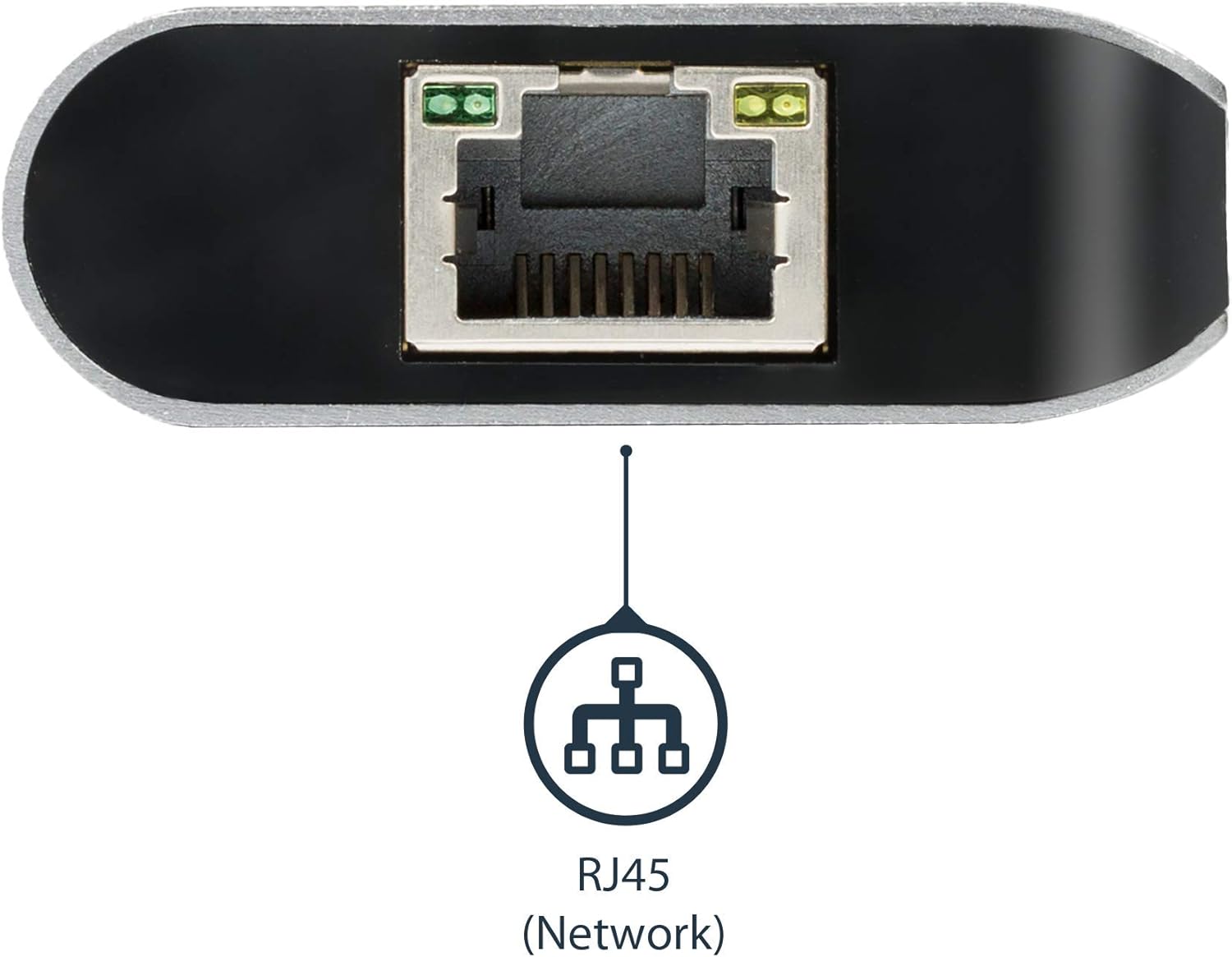
Выява: Збоку view of the StarTech.com USB C Multiport Adapter, showing the RJ45 Ethernet port for network connectivity.
3. Інструкцыі па ўсталёўцы
Follow these steps to set up your StarTech.com USB C Multiport Adapter:
- Падключэнне да хост-прылады: Plug the integrated USB-C cable from the multiport adapter into an available USB-C or Thunderbolt 3 port on your laptop or compatible device.
- Падключыце дысплей HDMI: Connect an HDMI cable from your monitor to the HDMI port on the multiport adapter. Ensure your monitor is powered on and set to the correct input source.
- Падключэнне перыферыйных прылад USB: Plug your USB-A devices (e.g., keyboard, mouse, external hard drive) into the two USB 3.0 Type-A ports on the adapter.
- Устаўце SD-карту: If needed, insert your SD, SDHC, or SDXC card into the designated card reader slot.
- Падключэнне да сеткі (неабавязкова): For wired internet access, connect an Ethernet cable from your router or network switch to the RJ45 Gigabit Ethernet port on the adapter.
- Connect Power Adapter (Optional, for charging): If your laptop requires charging through the adapter, connect your laptop's USB-C power adapter to the USB-C Power Delivery port on the multiport adapter. This will charge your laptop and provide power to the adapter and connected peripherals.

Image: The USB Type-C connector that connects the adapter to your host device.
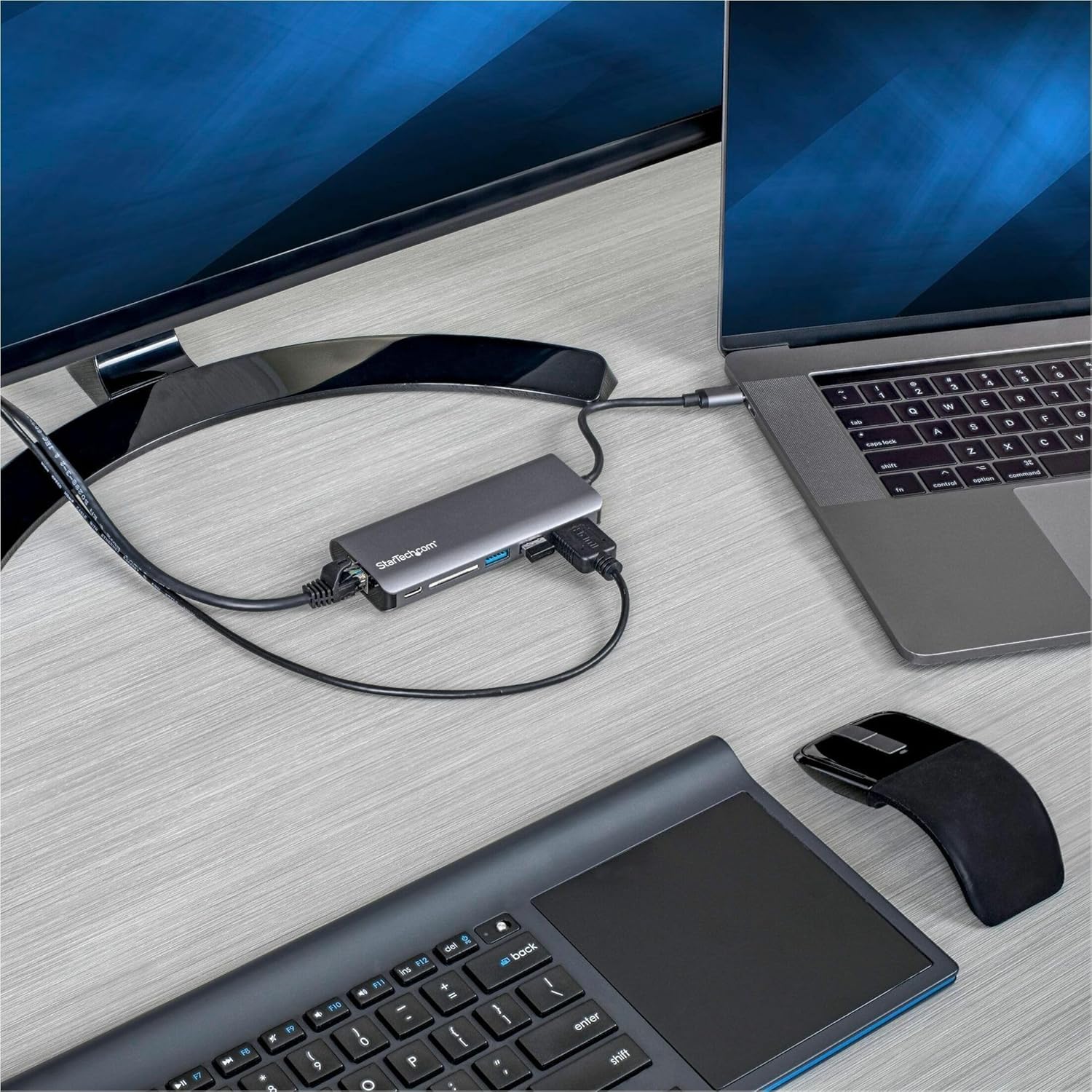
Image: The multiport adapter connected to a laptop, extending to an external monitor, and with a phone charging via a USB port.
4. Інструкцыя па эксплуатацыі
Once the adapter is set up, it operates automatically with most compatible devices and operating systems. Drivers are typically installed automatically upon first connection.
- Вывад дысплея: Your connected HDMI monitor should automatically extend or mirror your laptop's display. You may need to adjust display settings in your operating system (e.g., Windows Display Settings, macOS System Preferences > Displays) to configure resolution, refresh rate, and display arrangement.
- USB-перыферыйныя прылады: Connected USB devices will function as if directly connected to your laptop.
- Счытвальнік SD-карт: The SD card will appear as a removable drive in your file даследчык, які дазваляе перадаваць files.
- Падключэнне Ethernet: The wired network connection will be active. Verify network status in your operating system's network settings.
- Энергазабеспячэнне: When a USB-C power adapter is connected to the adapter's PD port, your laptop will charge, and the adapter will draw power to operate all its functions. The Power Delivery 3.0 with Fast Role Swap ensures stable USB data connections even when the power source is connected or disconnected.
5. Тэхнічнае абслугоўванне
To ensure the longevity and optimal performance of your multiport adapter, follow these maintenance guidelines:
- Уборка: Use a soft, dry, lint-free cloth to clean the adapter. Avoid using abrasive cleaners, solvents, or aerosol sprays.
- захоўванне: Захоўвайце адаптар у прахалодным, сухім месцы, удалечыні ад прамых сонечных прамянёў і экстрэмальных тэмператур.
- Апрацоўка: Avoid dropping the adapter or subjecting it to strong impacts. Do not pull on the cable to disconnect it from your laptop; always grasp the connector.
- Вентыляцыя: Ensure the adapter has adequate ventilation and is not covered, especially during extended use, to prevent overheating.
6. Выпраўленне непаладак
If you encounter issues with your StarTech.com USB C Multiport Adapter, refer to the following troubleshooting tips:
- Няма адлюстравання на знешнім маніторы:
- Ensure the HDMI cable is securely connected to both the adapter and the monitor.
- Verify the monitor is powered on and set to the correct HDMI input source.
- Check your laptop's display settings to ensure the external monitor is detected and configured (e.g., extended, mirrored).
- Паспрабуйце іншы кабель HDMI або манітор, калі такі маецца.
- Не працуюць перыферыйныя прылады USB:
- Ensure USB devices are properly plugged into the adapter's USB-A ports.
- Паспрабуйце падключыць USB-прыладу непасрэдна да ноўтбука, каб пераканацца, што яна працуе самастойна.
- If using high-power USB devices, ensure a USB-C power adapter is connected to the multiport adapter's PD port.
- Ноўтбук не зараджаецца:
- Confirm your laptop's USB-C power adapter is connected to the multiport adapter's USB-C PD port.
- Ensure the power adapter is functioning correctly and providing sufficient wattage for your laptop and the adapter.
- Няма падключэння да сеткі:
- Verify the Ethernet cable is securely connected to both the adapter and your router/switch.
- Check your laptop's network settings to ensure the wired connection is recognized and active.
- Паспрабуйце іншы кабель Ethernet.
- SD-карта не выяўлена:
- Ensure the SD card is fully and correctly inserted into the card reader slot.
- Test the SD card with another device to confirm it is not corrupted.
7. Тэхнічныя характарыстыкі
| Марка | StarTech.com |
| Нумар мадэлі | DKT30CSDHPD3 |
| серыял | USB-C Multiport Adapter with HDMI, SD Reader, 2xA 1xC, PD 3.0 |
| Колер | Касмічны шэры |
| Памеры прадукту | 10.6 х 1.8 х 0.6 цалі (26.9 х 4.6 х 1.5 см) |
| Вага прадмета | 3.04 унцыі (86.2 грам) |
| Абсталяванне інтэрфейсу | SDHC, SDXC, Secure Digital Card, USB, USB 3.0, USB Docking Station, microSDHC |
| Сумяшчальныя прылады | Notebooks (USB-C or Thunderbolt 3 enabled) |
| Аперацыйная сістэма | Chrome OS, Windows 10, Windows 7, macOS, Android |
| Усяго партоў USB | 3 (2x USB-A 3.0, 1x USB-C for Data/PD) |
| Усяго партоў HDMI | 1 |
| Ватtage | 60 watts (Power Delivery 3.0) |
8. Гарантыя і падтрымка
StarTech.com products are backed by a comprehensive warranty and free lifetime technical support. For specific warranty details and to access technical support resources, please visit the official StarTech.com website or refer to the Quick-start Guide included with your product.
Інтэрнэт-рэсурсы:
- For product manuals, drivers, and FAQs, visit: StarTech.com Official Webсайт
- For direct support, contact StarTech.com customer service.