
1. Уводзіны
This manual provides comprehensive instructions for the setup, operation, maintenance, and troubleshooting of your Macally QKEY Full-Size USB Wired Keyboard. Please read this manual thoroughly to ensure proper use and to maximize the lifespan of your device. Keep this manual for future reference.

Image 1.1: The Macally QKEY Full-Size USB Wired Keyboard, showcasing its layout and attached USB cable.
2. Асаблівасці прадукту
The Macally QKEY keyboard is designed for seamless integration with Apple Mac computers, offering a comfortable and efficient typing experience. Key features include:
- Поўнапамерны макет: 104 keys including a dedicated numeric keypad for data entry.
- Apple-Specific Shortcuts: 16 pre-programmed shortcut keys for quick access to macOS functions such as brightness, volume, media control, and more.
- Нізкі-Profile ключы: Designed for comfortable and quiet typing with responsive feedback.
- Эрганамічны дызайн: Features a naturally sloped profile and a foldable kickstand for adjustable typing angles, reducing wrist strain.
- Durable and Spill-Resistant: Constructed for longevity with keycaps rated for 10 million keystrokes and integrated drainage holes to protect against accidental spills.
- Падключэнне "падключы і працуй": Simple USB-A wired connection requires no software or drivers for immediate use.
- Сумяшчальнасць: Fully compatible with Apple desktops and laptops running macOS X 10.6 and later.

Image 2.1: The keyboard layout, highlighting the 16 Apple-specific shortcut keys (F1-F16) located at the top row.
Малюнак 2.2: Збоку view of the keyboard showing the adjustable kickstand in an extended position for ergonomic typing.
3. Змесціва ўпакоўкі
Праверце наяўнасць усіх прадметаў у камплекце:
- Macally QKEY Full-Size USB Wired Keyboard
- Кіраўніцтва карыстальніка (гэты дакумент)
4. Настройка
Setting up your Macally QKEY keyboard is a straightforward process:
- Locate an available USB-A port on your Mac computer (Mac Mini/Pro, iMac, MacBook Pro/Air).
- Plug the USB-A connector of the keyboard cable into the USB-A port on your computer.
- The keyboard is plug-and-play; no additional drivers or software installation is required. Your Mac will automatically recognize the device.
- Adjust the keyboard's tilt using the foldable kickstand located on the underside for your preferred typing angle.
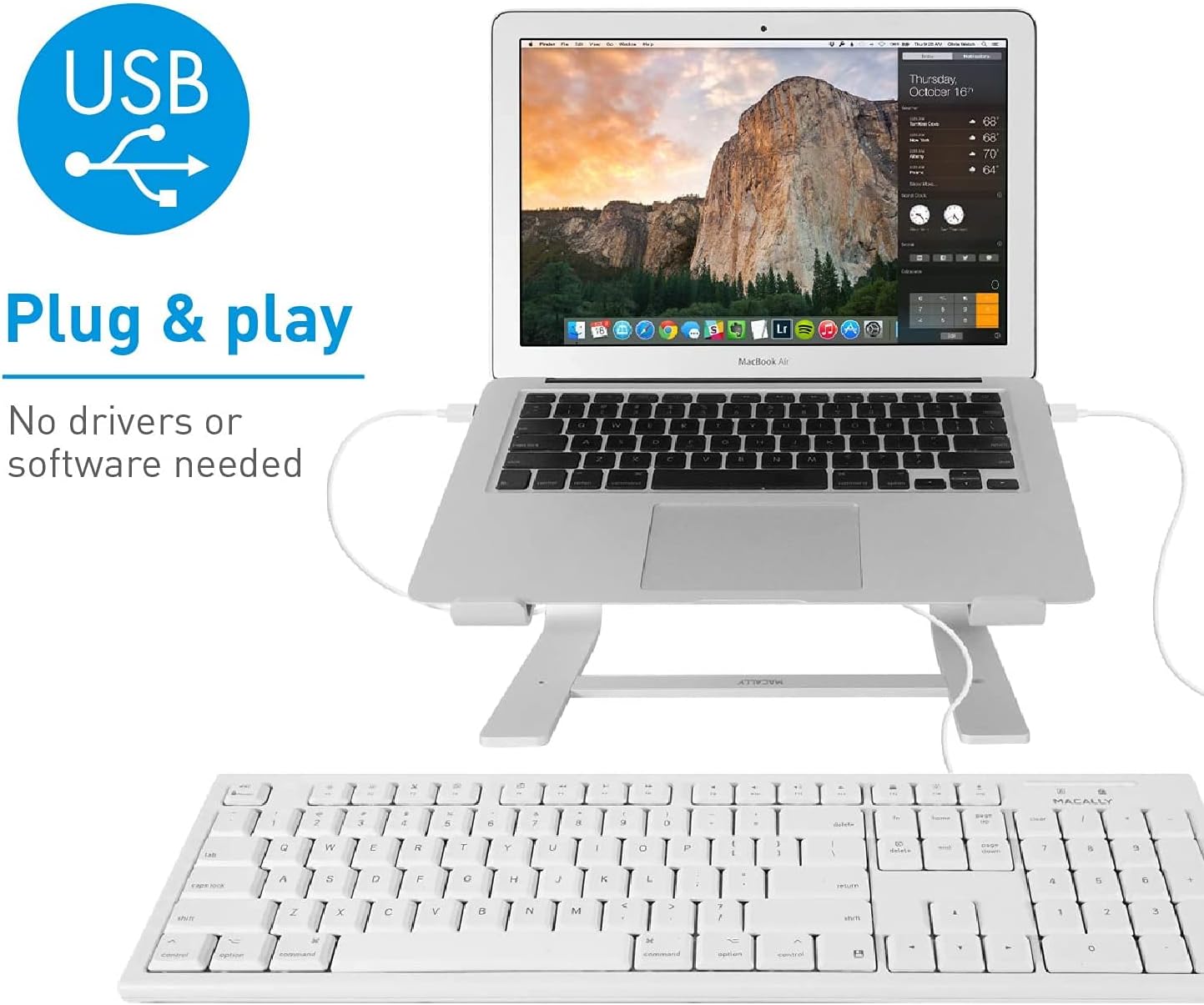
Image 4.1: The Macally QKEY keyboard connected via its USB cable to a MacBook Air, demonstrating the simple plug-and-play setup.
5. Інструкцыя па эксплуатацыі
The Macally QKEY keyboard offers standard typing functionality along with convenient macOS-specific features:
5.1 Стандартны набор тэксту
Use the alphanumeric keys for text input. The layout is consistent with standard Mac keyboards, ensuring a familiar typing experience.
5.2 лічбавая клавіятура
The dedicated numeric keypad on the right side allows for efficient entry of numbers and calculations. Ensure the 'Clear' key (Num Lock equivalent) is active if numbers are not registering.

Малюнак 5.1: Падрабязны view of the numeric keypad, including the 'Clear' key and mathematical operators.
5.3 Apple-Specific Shortcut Keys
The top row of the keyboard features 16 function keys (F1-F16) pre-configured for macOS shortcuts. These allow direct control over various system functions without needing to press the 'Fn' key (if present on your Mac's internal keyboard) or navigate menus.
| ключ | Функцыя |
|---|---|
| F1 | Паменшыць яркасць дысплея |
| F2 | Павялічце яркасць дысплея |
| F3 | Кантроль місіі |
| F4 | Стартавая пляцоўка |
| F5 | Папярэдні трэк |
| F6 | Прайграванне/Паўза |
| F7 | Наступны трэк |
| F8 | Выключэнне гуку |
| F9 | Паменшыць гучнасць |
| F10 | Павялічыць гучнасць |
| F11 | Выняць |
| F12 | Print Screen (Screenshot) |
| F13 | Выразаць |
| F14 | Копія |
| F15 | Уставіць |
| F16 | Force Quit Application |
5.4 Светавыя індыкатары
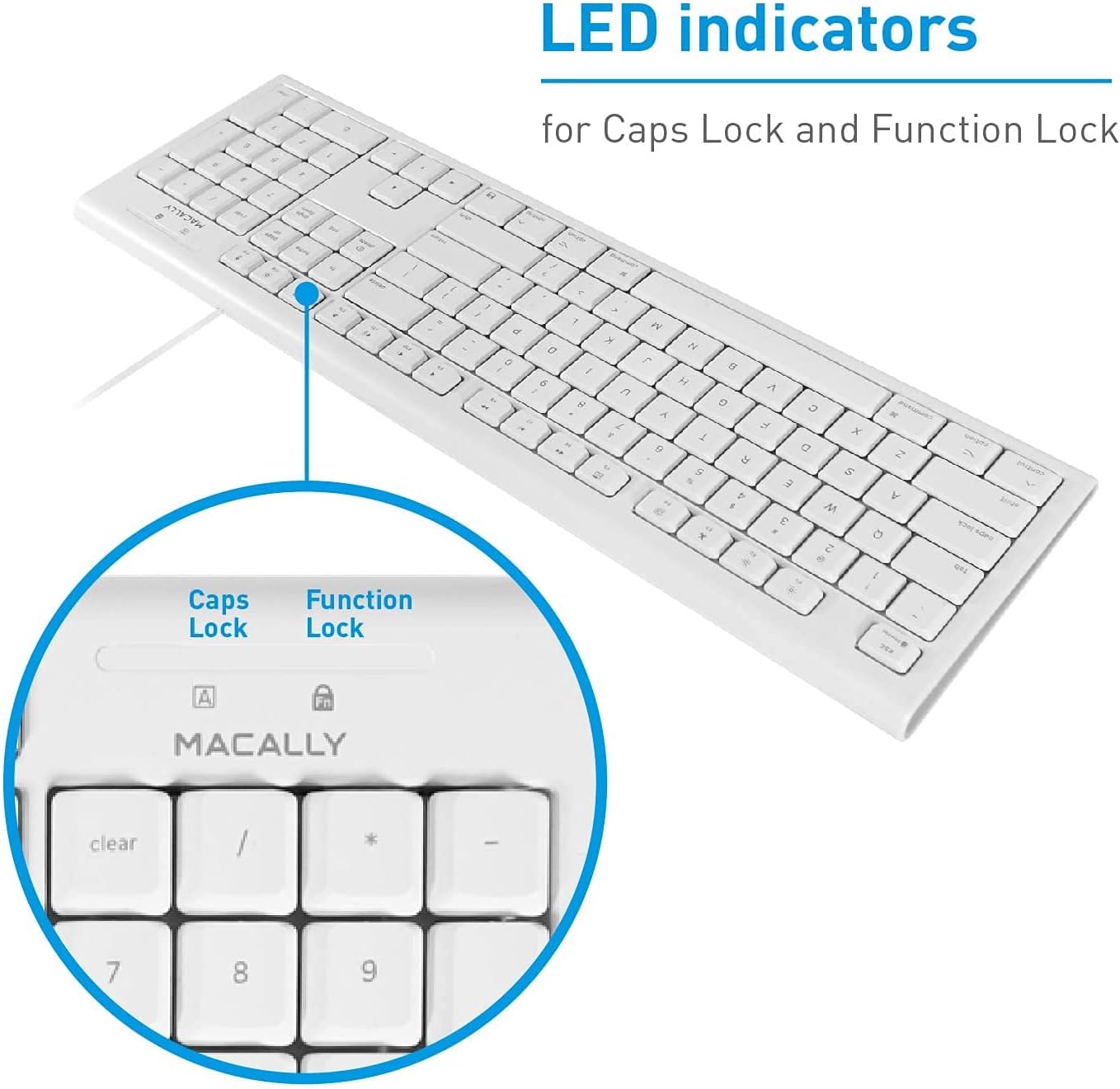
The keyboard features LED indicators for Caps Lock and Function Lock (if applicable). These lights illuminate when the respective function is active.

Малюнак 5.2: Крупны план view of the LED indicators for Caps Lock (A) and Function Lock (Fn) located above the numeric keypad.
6. Тэхнічнае абслугоўванне
Proper care will help maintain the performance and appearance of your keyboard.
- Уборка: Выкарыстоўвайце мяккую безворсовую тканіну, злёгку dampПрацірайце паверхню клавіятуры вадой або мяккім ачышчальным растворам. Пазбягайце выкарыстання агрэсіўных хімічных рэчываў або абразіўных матэрыялаў.
- Устойлівасць да разліву: The keyboard is designed with drainage holes to mitigate damage from accidental spills. In case of a spill, immediately disconnect the keyboard from your computer, invert it to allow liquid to drain, and let it dry completely before reconnecting. Do not immerse the keyboard in liquid.
- захоўванне: Калі клавіятура не выкарыстоўваецца, захоўвайце яе ў чыстым, сухім месцы, удалечыні ад экстрэмальных тэмператур.
7. Выпраўленне непаладак
If you encounter issues with your Macally QKEY keyboard, refer to the following common solutions:
- Клавіятура не адказвае:
- Ensure the USB cable is securely plugged into a functioning USB-A port on your Mac.
- Try plugging the keyboard into a different USB-A port.
- Restart your Mac computer.
- Test the keyboard on another computer if possible, to determine if the issue is with the keyboard or the computer's port.
- Не працуюць пэўныя клавішы:
- Check for any debris or obstructions under the non-functioning key.
- If the numeric keypad is not working, ensure the 'Clear' key (Num Lock) is active.
- Indicator Lights Malfunctioning:
- If the Caps Lock or Function Lock indicator lights behave erratically (e.g., stuck on, not illuminating), try disconnecting and reconnecting the keyboard.
- A system restart may also resolve temporary software glitches affecting indicator lights.
- Keys Fading:
- Keycap legends may show wear over extended periods of heavy use. This is cosmetic and does not affect keyboard functionality.
8. Тэхнічныя характарыстыкі
Detailed technical specifications for the Macally QKEY keyboard:
| Асаблівасць | Дэталь |
|---|---|
| Нумар мадэлі | QKEY |
| Сувязь | Правадной USB-A |
| Колькасць ключоў | 104 (Full-Size) |
| Клавішы хуткага доступу | 16 Apple-specific |
| Лікавая клавіятура | У камплекце |
| Сумяшчальнасць аперацыйнай сістэмы | macOS X 10.6 and later |
| Даўжыня кабеля | 5 футаў (прыблізна 1.5 метраў) |
| Памеры (ДхШхВ) | 17.5 х 5.4 х 0.78 цалі (44.45 х 13.72 х 1.98 см) |
| Вага | 1.02 фунта (0.46 кг) |
| Колер | Белы |
| Keycap Durability | Up to 10,000,000 keystrokes |
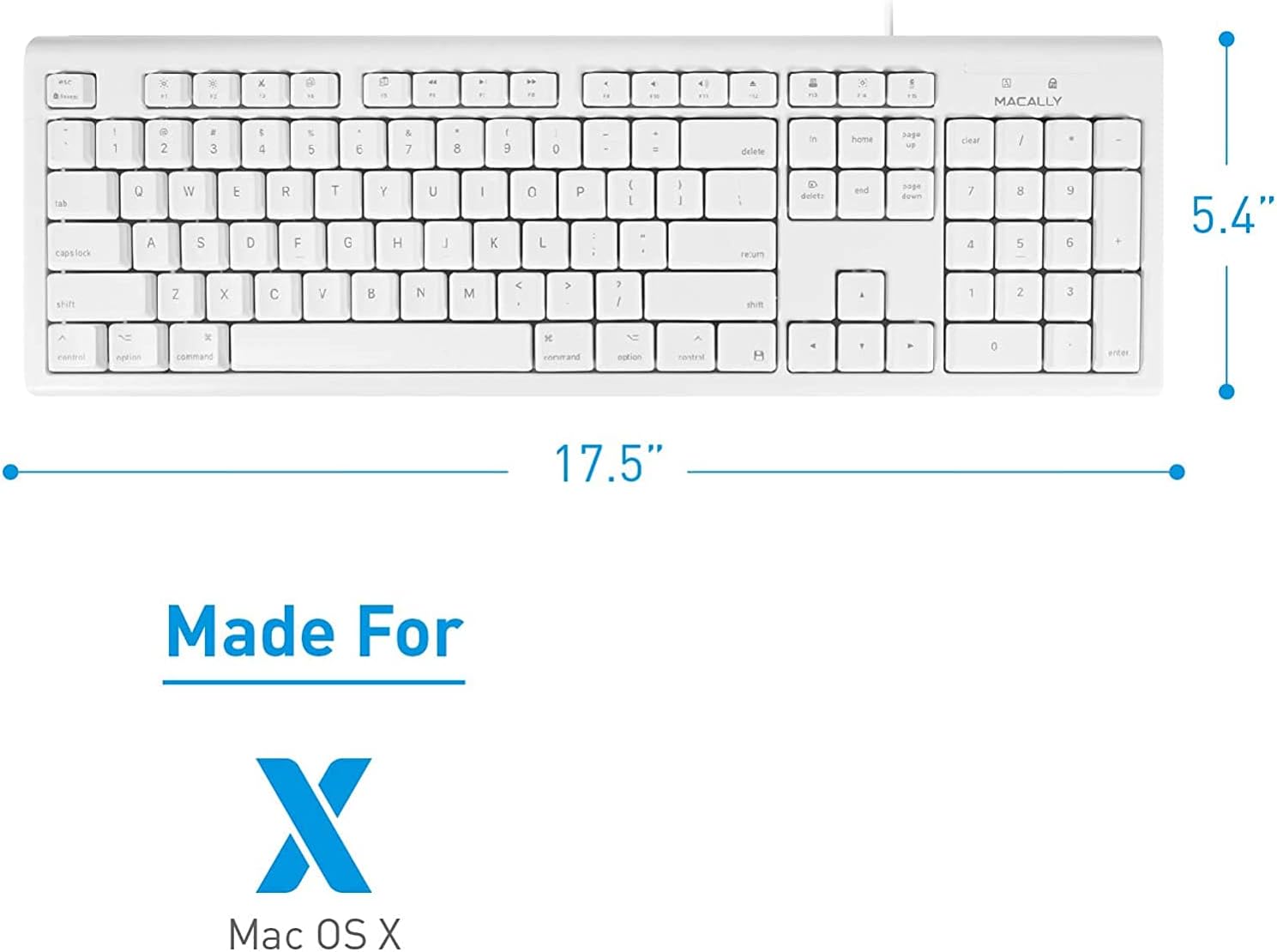
Малюнак 8.1: Зверху ўніз view of the keyboard with its length (17.5 inches) and width (5.4 inches) indicated.

Малюнак 8.2: Бакавы прафесіяналfile of the keyboard showing its thin design (0.78 inches height).
9. Гарантыя і падтрымка
The Macally QKEY keyboard comes with a one-year warranty, guaranteeing its functionality under normal use. For warranty claims, technical support, or further assistance, please visit the official Macally webна сайце або звярніцеся ў службу падтрымкі кліентаў. Больш падрабязную інфармацыю і кантактныя дадзеныя можна знайсці на Macally Store on Amazon.
10. Інфармацыя па бяспецы
Калі ласка, выконвайце наступныя правілы бяспекі:
- Do not attempt to disassemble or modify the keyboard. This may void the warranty and could result in damage or injury.
- Keep the keyboard away from excessive moisture, heat, and direct sunlight.
- Dispose of the product responsibly according to local electronic waste regulations.