
1. Уводзіны
The HyperDrive Tube 6-in-1 USB-C Hub is designed to expand the connectivity of your USB-C enabled device. It provides essential ports for data transfer, video output, network connection, and power delivery, enhancing your productivity and versatility.
2. Прадукт скончыўсяview
This 6-in-1 USB-C hub features a compact design and offers the following ports:
- 1 x HDMI Port: Supports video output up to 4K resolution at 30Hz.
- 1 x Gigabit Ethernet Port: Provides a stable wired network connection.
- 3 x USB 3.0 Type-A Ports: For connecting USB peripherals and high-speed data transfer.
- 1 x USB-C Power Delivery Port: For charging your host device and data transfer.
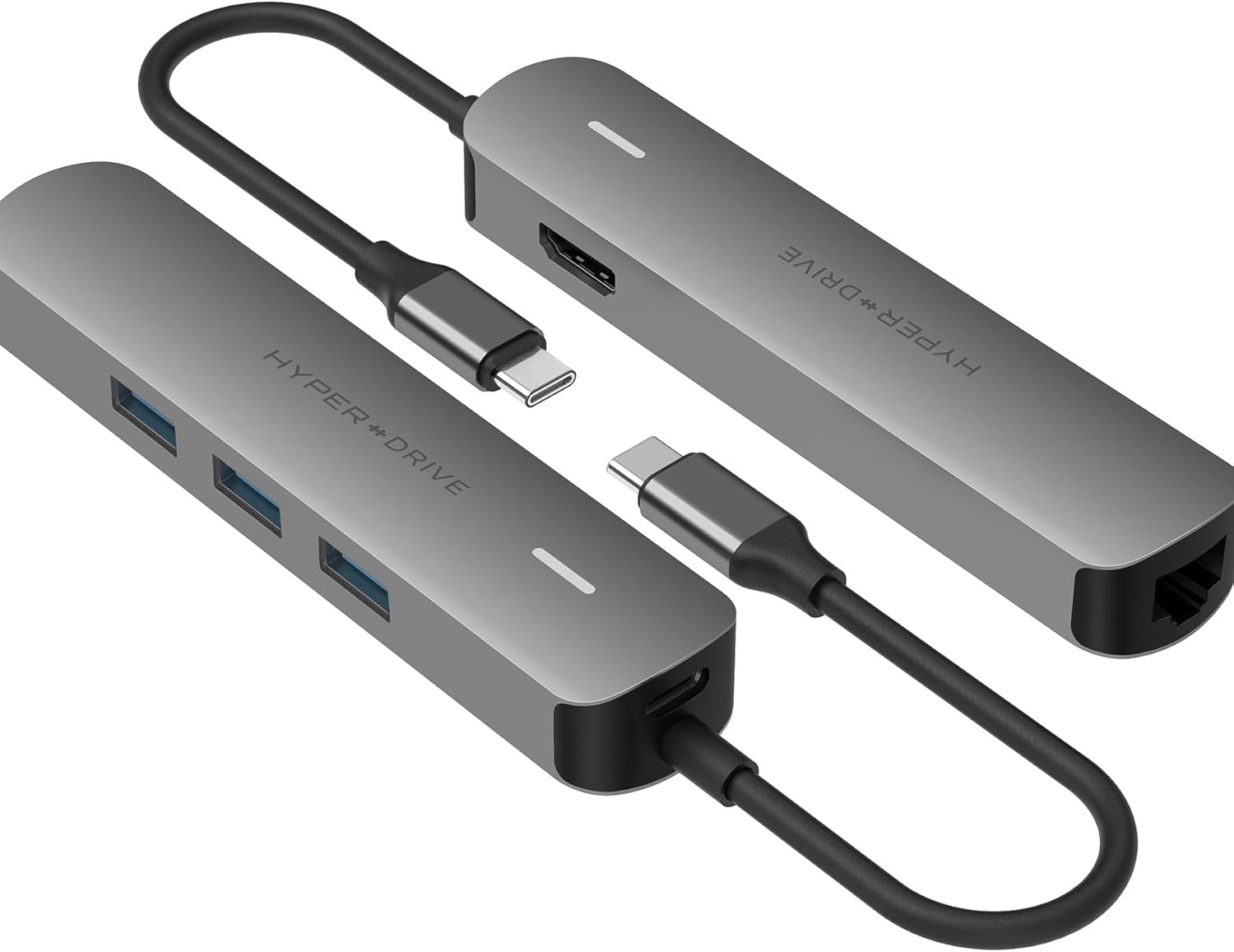
Image: The HyperDrive Tube 6-in-1 USB-C Hub, displaying its various input and output ports, including HDMI, Ethernet, and USB-A ports.
3. Інструкцыі па ўсталёўцы
- Падключыце хаб да вашай прылады: Plug the integrated USB-C cable of the HyperDrive Tube hub into a compatible USB-C port on your laptop, tablet, or smartphone. Ensure the USB-C port on your host device supports DisplayPort Alternate Mode (DP Alt-Mode) for video output and Power Delivery for charging.
- Падключэнне перыферыйных прылад:
- HDMI-дысплей: Connect an HDMI cable from your monitor or TV to the hub's HDMI port.
- Сетка Ethernet: Connect an Ethernet cable from your router or modem to the hub's Gigabit Ethernet port.
- USB прылады: Plug your USB-A peripherals (e.g., mouse, keyboard, flash drive) into the USB 3.0 Type-A ports.
- Power Adapter (Optional): If your host device requires charging, connect your device's original USB-C power adapter to the hub's USB-C Power Delivery port.
- Праверце злучэнне: Your operating system should automatically detect the connected devices and external display.

Image: The HyperDrive Tube 6-in-1 USB-C Hub connected to a MacBook Pro, extending its display to an external monitor and providing additional USB ports for peripherals.
4. Інструкцыя па эксплуатацыі
Once connected, the HyperDrive Tube hub operates automatically. Here are specific functions:
- Выхад відэа HDMI: The HDMI port supports resolutions up to 4K (3840x2160) at 30Hz. For optimal display settings, adjust your computer's display preferences. Note that 30Hz refresh rate is suitable for general use and coding, but may not be ideal for fast-paced gaming or video editing requiring higher refresh rates.
- Перадача дадзеных USB 3.0: The three USB 3.0 Type-A ports provide high-speed data transfer for external hard drives, flash drives, and other USB peripherals. These ports are not designed to support Apple SuperDrive or charge iPads.
- Гігабітны Ethernet: Enjoy a stable and fast wired internet connection. The hub automatically configures the network connection upon plugging in the Ethernet cable.
- Пастаўка харчавання USB-C: If your host device supports USB-C Power Delivery, connect your original power adapter to the hub's USB-C port to charge your device while using the hub's other functions.

Выява: буйны план view of the HyperDrive Tube 6-in-1 USB-C Hub connected to a MacBook, demonstrating simultaneous use of the Ethernet port and multiple USB devices.
5. Тэхнічнае абслугоўванне
To ensure the longevity and optimal performance of your HyperDrive Tube hub, follow these maintenance guidelines:
- Уборка: Use a soft, dry cloth to wipe the exterior of the hub. Avoid using liquid cleaners or abrasive materials.
- захоўванне: Захоўвайце канцэнтратар у прахалодным, сухім месцы, удалечыні ад прамых сонечных прамянёў і экстрэмальных тэмператур, калі ён не выкарыстоўваецца.
- Апрацоўка: Avoid dropping the hub or subjecting it to strong impacts. Do not bend or twist the integrated USB-C cable excessively.
- Вентыляцыя: Ensure the hub has adequate ventilation during operation, especially when multiple devices are connected, as it may generate heat.
6. Выпраўленне непаладак
If you encounter issues with your HyperDrive Tube hub, refer to the following common solutions:
- Няма вываду на дысплей:
- Пераканайцеся, што порт USB-C вашай прылады падтрымлівае альтэрнатыўны рэжым DisplayPort.
- Праверце падключэнне кабеля HDMI паміж канцэнтратарам і маніторам.
- Verify your monitor's input source is set correctly to HDMI.
- Паспрабуйце падключыць канцэнтратар да іншага порта USB-C на вашай прыладзе, калі ён даступны.
- USB-прылады не распазнаюцца:
- Ensure the USB device is properly plugged into the hub.
- Паспрабуйце падключыць USB-прыладу непасрэдна да кампутара, каб пераканацца, што яна працуе самастойна.
- Some high-power USB devices may require external power or a powered USB hub.
- Slow Charging / No Charging via Hub:
- Ensure your original power adapter is connected to the hub's USB-C Power Delivery port.
- Verify that your host device's USB-C port supports Power Delivery.
- Note that connecting multiple power-hungry peripherals to the hub can reduce the power available for charging the host device.
- Hub Gets Warm During Use:
It is normal for the hub to become warm during operation, especially when multiple ports are in use or when charging a device. This is due to power conversion and data processing. If the hub becomes excessively hot, disconnect it and allow it to cool down.
- Праблемы з падключэннем да сеткі:
- Check the Ethernet cable connection to both the hub and your router/modem.
- Ensure your network settings on your computer are configured for a wired connection.
- Try restarting your router/modem and your host device.
7. Тэхнічныя характарыстыкі
| Нумар мадэлі | HD233B-GRAY |
| Памеры прадукту | 4.74 х 1 х 0.65 цалі |
| Вага прадмета | 2.08 унцыі |
| Абсталяванне інтэрфейсу | Ethernet, HDMI, USB 3.0 Type-A (x3), USB Type-C (Power Delivery) |
| Дазвол HDMI | Up to 4K (3840x2160) at 30Hz |
| Сумяшчальныя прылады | MacBook Pro 2016 or Later, MacBook Air 2018 or Later, MacBook 2015, 2016; iPad Pro 2018 or later, iPad Air 2020 or later; Chrome OS laptop with Thunderbolt 4, USB4, USB 3.0 or later Type C with DP Alt-Mode; Windows OS laptop with Thunderbolt 4, USB4, USB 3.0 or later Type C with DP Alt-Mode; Any other device with USB-C* (*Requires DisplayPort over USB-C + charge + data; USB-A ports will not support Apple SuperDrive or charge iPads.) |
| Асаблівасць | Партатыўны |
| Вытворца | Гіпер |
8. Гарантыя і падтрымка
For warranty information or technical support, please visit the official Hyper webсайт або звярніцеся ў службу падтрымкі кліентаў. Захоўвайце чэк аб куплі для прэтэнзій па гарантыі.
Hyper Official Webсайт: www.hyper.com