
LMP 18251
USB-клавіятура LMP для Mac з лічбавай клавіятурай - Кіраўніцтва карыстальніка
Мадэль: 18251
1. Уводзіны
This manual provides comprehensive instructions for the setup, operation, maintenance, and troubleshooting of your LMP USB Keyboard with Numeric Keypad. Designed for macOS, this keyboard offers a fluid and precise typing experience, featuring an Italian ISO layout with 110 keys, an integrated numeric keypad, and two USB-A ports for connecting peripherals. Its space gray aluminum design ensures durability and complements Apple devices. Please read this manual thoroughly to ensure proper use and longevity of your product.
2. Прадукт скончыўсяview
2.1 Асноўныя магчымасці
- Wired USB keyboard with 110 ISO keys for Mac.
- Two integrated USB 2.0 ports for low-power peripherals.
- Durable aluminum top cover.
- Laser-etched keys for long-lasting legibility.
- Compatible with all Macs featuring a USB port and macOS 10.5 or higher.
2.2 Змест пакета
- LMP USB Keyboard with Numeric Keypad
- Убудаваны USB-кабель
2.3 Дыяграма прадукту
Below are images illustrating the LMP USB Keyboard from various angles, highlighting its design and features.

Малюнак 2.3.1: Зверху ўніз view of the LMP USB Keyboard, showcasing its full layout including the numeric keypad and function keys.
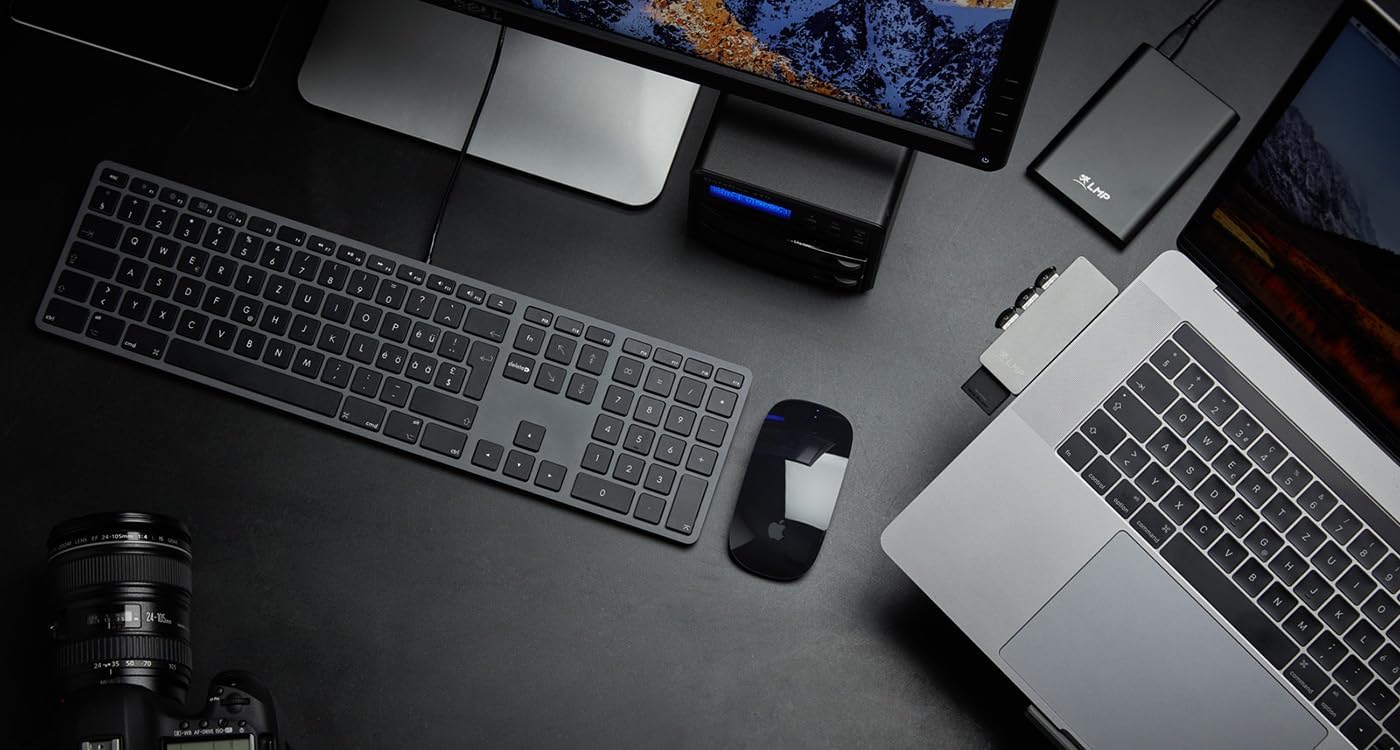
Figure 2.3.2: The keyboard shown in a typical Mac workstation environment, illustrating its compact design and seamless integration.
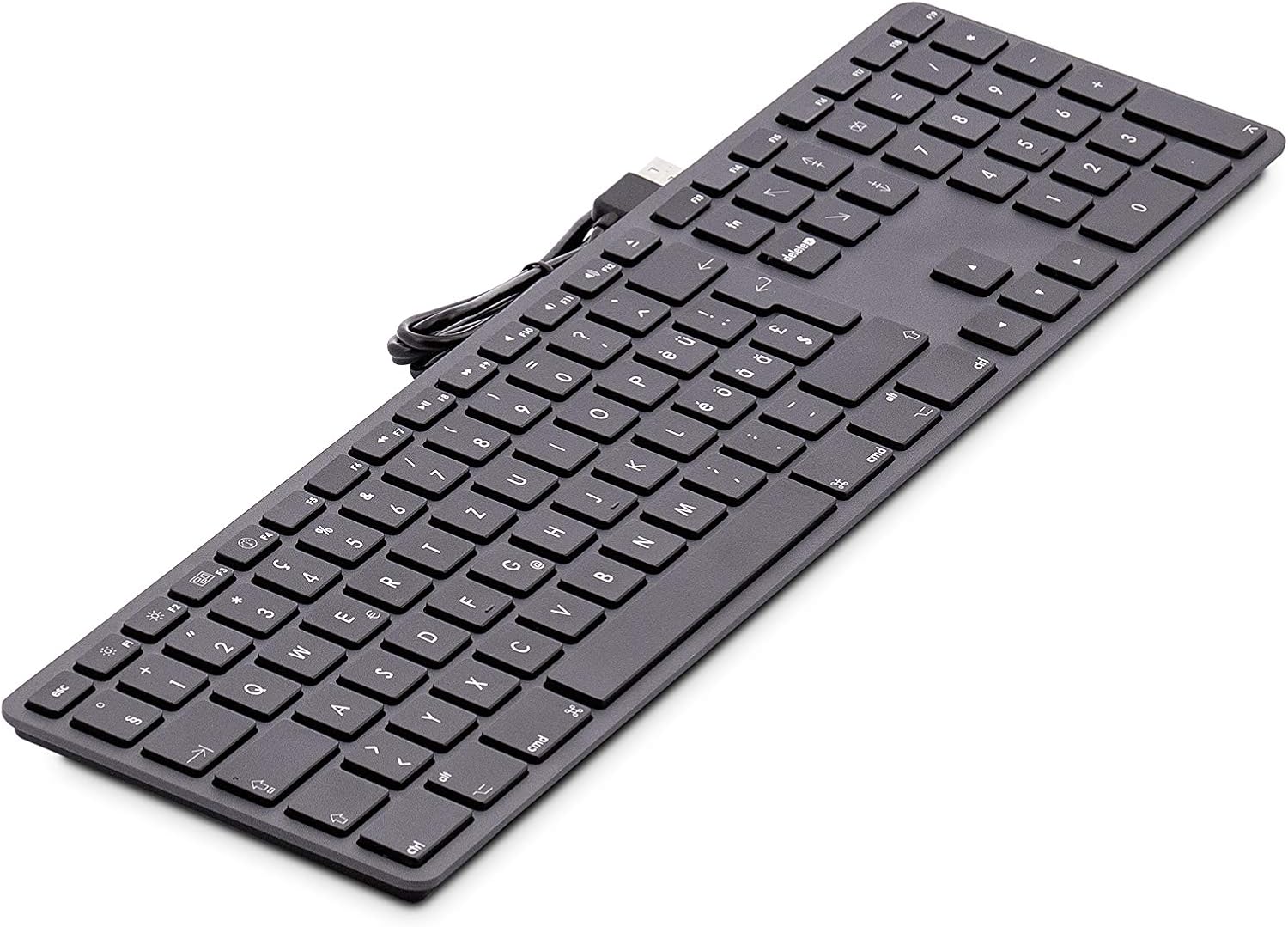
Figure 2.3.3: An angled perspective of the keyboard, emphasizing its sleek aluminum construction and keycap design.

Малюнак 2.3.4: А view from the rear, illustrating the integrated USB cable connection point.
3. Настройка
The LMP USB Keyboard is designed for simple plug-and-play operation, requiring no additional drivers for macOS.
3.1 Сістэмныя патрабаванні
- Mac computer with an available USB-A port.
- macOS 10.5 (Leopard) or later.
3.2 Падключэнне клавіятуры
- Locate an available USB-A port on your Mac computer or a compatible USB hub.
- Insert the USB connector of the keyboard cable firmly into the USB-A port.
- Your Mac should automatically detect the keyboard. Follow any on-screen prompts for initial keyboard setup, if they appear.
No software installation is required. The keyboard is ready for use immediately after connection.
4. Інструкцыя па эксплуатацыі
4.1 Асноўны набор тэксту
The keyboard functions as a standard QWERTY (Italian ISO) keyboard. Simply begin typing in any application.
4.2 Функцыянальныя клавішы (F1-F19)
The top row of keys (F1-F19) provides quick access to various macOS functions. These typically include:
- Кантроль яркасці: F1 (зніжэнне), F2 (павелічэнне)
- Кантроль місіі: F3
- Стартавая пляцоўка: F4
- Элементы кіравання мультымедыя: F7 (previous), F8 (play/pause), F9 (next)
- Рэгулятар гучнасці: F10 (адключыць гук), F11 (паменшыць), F12 (павялічыць)
- Additional keys may include eject, screen lock, etc., depending on your macOS version and settings.
To use the standard F-key functions (e.g., F5 for refresh in a browser), you may need to hold down the Fn key located on the keyboard, or adjust your keyboard settings in macOS System Settings/Preferences.
4.3 лічбавая клавіятура
The dedicated numeric keypad on the right side of the keyboard allows for efficient data entry, calculations, and navigation. It functions identically to a standard numeric keypad.
4.4 USB 2.0 парты
The keyboard features two integrated USB 2.0 ports. These ports are suitable for connecting low-power USB devices such as:
- USB mice
- USB флэшкі
- Small USB accessories
Заўвага: These ports are not designed for high-power devices like external hard drives that require significant power, or for charging devices. For optimal performance, connect high-power devices directly to your Mac's USB ports.
5. Тэхнічнае абслугоўванне і догляд
Proper care will ensure the longevity and optimal performance of your LMP USB Keyboard.
5.1 Ачыстка
- Адключыць: Always disconnect the keyboard from your Mac before cleaning.
- Ачыстка паверхні: Выкарыстоўвайце мяккую безворсовую тканіну, злёгку dampened with water or a mild, non-abrasive cleaning solution. Avoid harsh chemicals, aerosols, or solvents.
- Клавішы: For dust and debris between keys, use compressed air. Hold the can upright and spray in short bursts.
- Пазбягайце вільгаці: Не дапускайце траплення вільгаці ў якія-небудзь адтуліны.
5.2 Захоўванне
When not in use, store the keyboard in a clean, dry environment away from extreme temperatures, direct sunlight, and excessive dust.
6. Выпраўленне непаладак
If you encounter issues with your LMP USB Keyboard, refer to the following common problems and solutions.
6.1 Клавіятура не рэагуе
- Праверце злучэнне: Ensure the USB cable is securely plugged into a USB port on your Mac. Try a different USB port.
- Перазапусціце Mac: Sometimes a simple restart of your computer can resolve connectivity issues.
- Test on Another Mac: If possible, test the keyboard on another Mac to determine if the issue is with the keyboard or your computer.
- USB-канцэнтратар: If using a USB hub, try connecting the keyboard directly to your Mac. Ensure the USB hub is powered if it's a passive hub with many devices.
6.2 Пэўныя клавішы не працуюць
- Чыстыя ключы: Check for any debris or foreign objects lodged under the non-functioning keys. Use compressed air to clear them.
- Праграмнае ўмяшанне: Ensure no third-party keyboard utilities or accessibility settings are interfering with key input. Resetting keyboard preferences in macOS System Settings/Preferences might help.
6.3 Peripherals Connected to Keyboard USB Ports Not Working
- Патрабаванні да сілкавання: Ensure the connected peripheral is a low-power device. High-power devices (e.g., external hard drives) may not function correctly when connected through the keyboard's USB ports.
- Прамое падключэнне: Try connecting the peripheral directly to your Mac's USB port to confirm it functions independently.
If the problem persists after trying these solutions, please contact LMP customer support for further assistance.
7. Тэхнічныя характарыстыкі
| Асаблівасць | Дэталь |
|---|---|
| Марка | LMP |
| Нумар мадэлі | 18251 |
| Тэхналогія падлучэння | USB (правадной) |
| Сумяшчальныя прылады | Mac (macOS 10.5 or higher) |
| Колькасць ключоў | 110 (ISO Layout) |
| Апісанне клавіятуры | лікавы |
| Асаблівасць | Складаны (Note: This might refer to adjustable feet.) |
| Колер | Касмічны шэры |
| Матэрыял | Aluminum (Top Cover) |
| Памеры прадукту | 45 х 14 х 4 см |
| Вага прадмета | 630 г |
| Парты USB | 2 х USB 2.0 |
| Крыніца харчавання | Электрычны шнур (харчаванне ад USB) |
8. Гарантыя і падтрымка
LMP products are manufactured to high-quality standards. For information regarding warranty coverage and technical support, please refer to the warranty card included with your product or visit the official LMP webсайт. Захоўвайце пацвярджэнне пакупкі для прэтэнзій па гарантыі.
LMP is a Swiss company with over 20 years of experience, specializing in high-quality accessories for Apple products, focusing on innovation and design.