
1. Прадукт скончыўсяview
The Symcode Bluetooth Barcode Scanner (Model MJ-6709CB-AT) is a versatile handheld device designed for efficient 1D barcode scanning. It offers multiple connectivity options including Bluetooth, 2.4G wireless via USB receiver, and wired USB connection, providing flexibility for various environments such as retail, inventory management, and office applications. Its robust design ensures durability, and the integrated battery offers extended operational time.

Figure 1.1: Symcode Bluetooth Barcode Scanner with included USB cable and 2.4G wireless dongle.
2. Змесціва ўпакоўкі
Калі ласка, праверце змесціва пакета пасля распакавання, каб пераканацца ў наяўнасці ўсіх прадметаў:
- 1 x Symcode Bluetooth Wireless Laser Scanner
- 1 х USB-кабель для зарадкі
- 1 x USB Receiver (2.4G Wireless Dongle)
- 1 х Кіраўніцтва карыстальніка
3. Асноўныя магчымасці
- Некалькі падключэнняў: Supports Bluetooth, 2.4G Wireless (via USB receiver), and Wired USB connection for versatile use.
- Plug and Play: USB receiver automatically pairs, requiring no software or driver installation for basic operation.
- Доўгі тэрмін службы батарэі: Equipped with an integrated 1800mAh Li-Ion rechargeable battery for extended scanning sessions.
- Функцыя аўтаматычнага сну: Scanner enters auto-sleep mode to conserve power and can be easily woken by pulling the trigger.
- Трывалы дызайн: Engineered to withstand free falls from a height of 1.50 meters, ensuring durability in demanding environments.
- Rich Decoding Types: Compatible with a wide range of 1D barcodes including Codabar, Code 11, Code 93, MSI, Code 128, UCC/EAN-128, Code 39, EAN-8, EAN-13, UPC-A, Industrial 25, Interleaved 25, Standard 25, 2/5 Matrix.
- Шырокая сумяшчальнасць: Works with Windows XP / Vista / 7 / 8 / 8.1 / 10 / Wince / Mobile / Android devices. Note: For Android devices without standard USB interface (e.g., Samsung Galaxy i9300 S3, S4, S5, Nexus 4, Nexus 5, Nexus 6, Nexus 10), an extra OTG Adapter is needed.
- Падтрымка шматмоўнай клавіятуры: Supports English, French, German, Spanish, and Italian keyboard layouts.
- Дадайце прэфікс і суфікс: Allows adding characters before and after each scanned barcode.

Figure 3.1: The scanner supports various operating systems and can connect via Bluetooth to mobile devices.
4. Налада і падключэнне
The Symcode barcode scanner offers three primary connection methods:
4.1 Правадное злучэнне
Connect the scanner directly to your computer using the provided USB charging cable. The cable can be used for both charging and data transmission simultaneously. This mode is ideal for stationary setups or when wireless connectivity is not preferred.
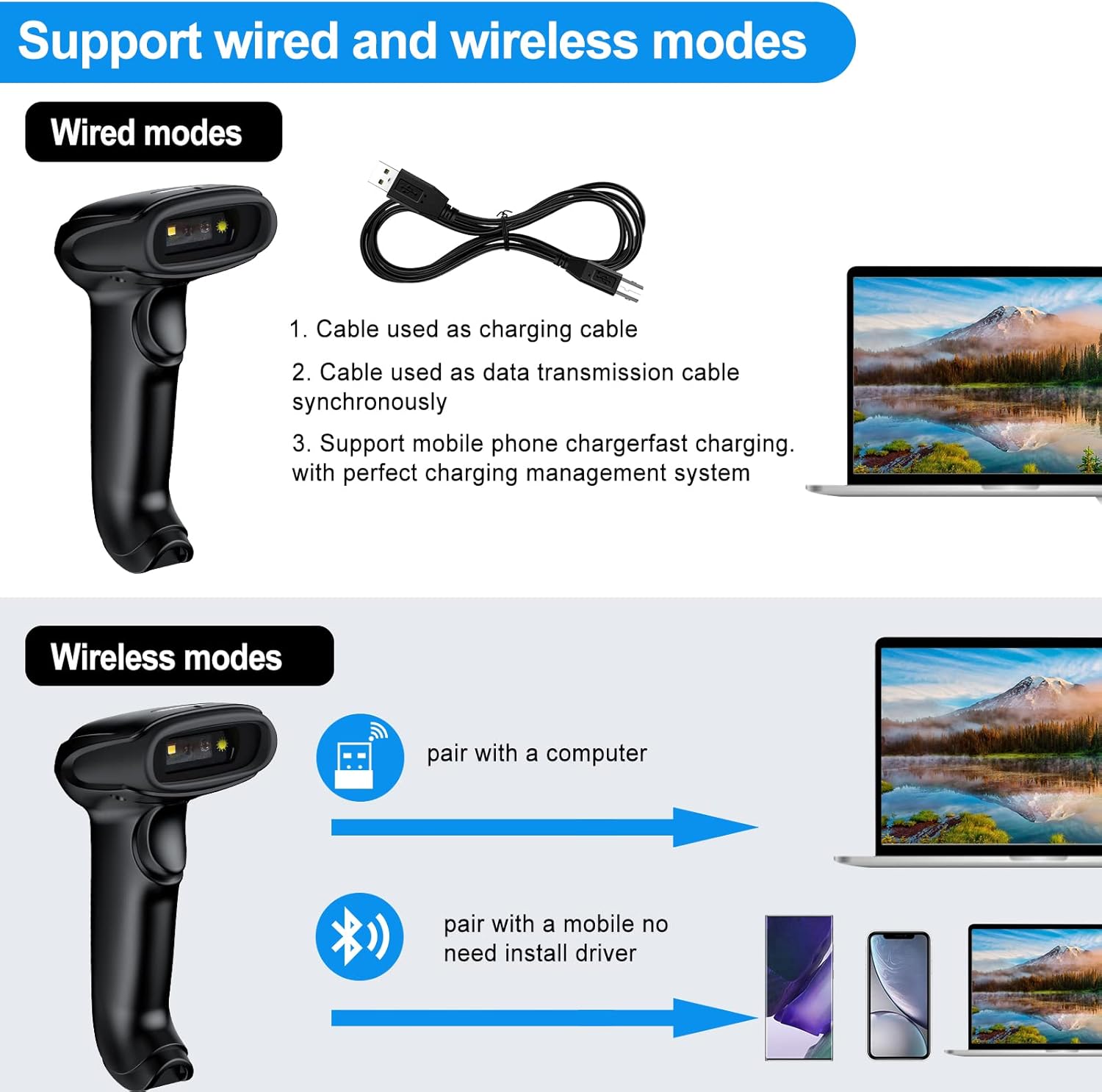
Figure 4.1: The scanner supports both wired and wireless modes. The USB cable functions as both a charging and data transmission cable.
4.2 Бесправадное злучэнне 2.4G
For wireless operation with a computer, use the 2.4G USB receiver (dongle). Simply plug the dongle into an available USB port on your laptop, PC, or POS system. The scanner and receiver will automatically pair, allowing for immediate use without driver installation.

Figure 4.2: The scanner connects easily to laptops via the 2.4G wireless dongle.
The 2.4G wireless mode offers a long transmission distance of up to 200 meters in open areas, providing significant mobility.

Figure 4.3: Long transmission distance in 2.4G wireless mode.
4.3 Злучэнне Bluetooth
To connect via Bluetooth, ensure your device (smartphone, tablet, or computer) has Bluetooth enabled. The scanner can be paired directly with your device without needing a USB receiver. This mode is ideal for mobile applications and devices without available USB ports.
Этапы спалучэння:
- Уключыце сканер.
- Activate Bluetooth on your host device.
- Пошук available Bluetooth devices. The scanner should appear as "Symcode" or a similar identifier.
- Select the scanner to pair. The blue indicator light on the scanner will confirm successful pairing.
Figure 4.4: The scanner can be easily connected to cellphones and pads via Bluetooth.
5. Рэжымы працы
The Symcode scanner supports two primary data upload modes:
5.1 Рэжым імгненнай загрузкі
In this mode, scanned barcode data is immediately transmitted to your connected device (computer, smartphone, etc.). This is suitable for real-time data entry into applications like Excel, Word, or POS systems.
5.2 Offline Storage Mode (Inventory Mode)
When operating out of range or without a connected device, the scanner can store up to 5,000 codes (or up to 100,000 barcodes) internally. Once reconnected, the stored data can be uploaded to your device. This is ideal for inventory taking in large warehouses or areas without constant connectivity.

Figure 5.1: The scanner supports both instant data upload and offline storage for later transmission.

Figure 5.2: The Symcode scanner is suitable for diverse applications, from mobile inventory to point-of-sale.
6. Светавыя індыкатары
The scanner features an indicator light that changes color to communicate its status:
- Зялёнае святло: Indicates scanning status (active scan).
- Чырвонае святло: Indicates charging status (illuminates when charging).
- Сіні святло: Indicates pairing status (illuminates during Bluetooth pairing or when successfully paired).
Video 6.1: This video demonstrates the Symcode barcode scanner's features, including its indicator lights for scanning, charging, and pairing status, and its various connectivity options.
7. Тэхнічныя характарыстыкі
| Спецыфікацыя | Каштоўнасць |
|---|---|
| Нумар мадэлі | MJ-6709CB-AT |
| Памеры прадукту | 6.5 х 3.94 х 3.07 цалі |
| Вага прадмета | 10.4 унцыі |
| акумулятар | Літый-іённы акумулятар ёмістасцю 1800 мАг (у камплекце) |
| Крыніца харчавання | Battery Powered, Corded Electric, Power Adapter |
| Тэхналогія падлучэння | Bluetooth, бесправадная сувязь 2.4G, USB-кабель |
| Сумяшчальныя аперацыйныя сістэмы | Windows, Mac, Android, iOS |
| Падтрымліваемыя коды | Codabar, Code 11, Code 93, MSI, Code 128, UCC/EAN-128, Code 39, EAN-8, EAN-13, UPC-A, Industrial 25, Interleaved 25, Standard 25, 2/5 Matrix |
| Scanning Angles | Fanning: 30º; Horizontal: 75º; Vertical: 65º |
| Scanning Depth of Field | 0~350mm (0.43mm, PCS 98%) |
| Намінальная працоўная адлегласць | 6~30 см |
| Шырыня сканавання | 30 мм |
| Light Source (CCD) | Visible LED 650+/-20nm |
| Рэжым сканавання | Auto off mode / Manual mode, Bi-directional single line scanning |
| Устойлівасць да падзення | Designed to survive free fall height of 1.50 m |
8. Тэхнічнае абслугоўванне
- Уборка: Use a soft, dry cloth to clean the scanner's exterior. For the scanning window, use a lint-free cloth and a mild glass cleaner if necessary. Avoid abrasive cleaners or solvents.
- Зарадка: Charge the scanner using the provided USB cable and a compatible power adapter. Do not use unapproved chargers.
- захоўванне: Захоўвайце сканер у прахалодным, сухім месцы, удалечыні ад прамых сонечных прамянёў, экстрэмальных тэмператур і агрэсіўных матэрыялаў.
- Сыход за батарэяй: Каб падоўжыць тэрмін службы акумулятара, пазбягайце частай поўнай разрадкі. Пры працяглым захоўванні зараджайце акумулятар прыкладна да 50% і падзараджайце яго кожныя некалькі месяцаў.
9. Выпраўленне непаладак
| праблема | Магчымая прычына | Рашэнне |
|---|---|---|
| Сканер не ўключаецца. | Нізкі зарад батарэі або адсутнасць зарада. | Connect the scanner to a power source using the USB charging cable and allow it to charge. |
| Scanner not connecting wirelessly (2.4G). | USB receiver not properly plugged in or not paired. | Ensure the USB receiver is securely plugged into a working USB port. If issues persist, refer to the manual for re-pairing instructions (usually involves scanning a specific barcode). |
| Сканер не падключаецца праз Bluetooth. | Bluetooth not enabled on host device, scanner not in pairing mode, or already paired to another device. | Ensure Bluetooth is enabled on your device. Put the scanner into pairing mode (refer to manual for specific barcode scan). Unpair from previous devices if necessary. |
| Сканер не чытае штрых-коды. | Barcode damaged, scanner too far/close, incorrect symbology enabled, or scanner window dirty. | Ensure the barcode is clear and undamaged. Adjust scanning distance. Clean the scanning window. Check the user manual for enabling/disabling specific barcode symbologies. Note: This scanner is designed for 1D barcodes; it does not read 2D QR codes. |
| Data not appearing in application (e.g., Excel). | Application not in focus, or scanner in offline storage mode. | Click into the desired text field in your application to ensure it is active. If in offline storage mode, scan the "Upload Data" barcode from the manual to transmit stored data. |
| Scanner appears "stuck" (light on, beeps, but no data transmission). | Internal software issue or temporary malfunction. | Attempt a soft reset by holding the trigger for an extended period (e.g., 10-15 seconds) or by scanning a "Factory Reset" barcode if available in the manual. If the issue persists, allow the battery to fully drain and then recharge. |
| Does not work with Mac as advertised. | Specific Mac OS version incompatibility or configuration issue. | While the product is generally compatible with Mac, specific configurations or newer OS versions might require additional setup. Ensure the scanner is in keyboard emulation mode. If problems persist, contact Symcode customer support for Mac-specific drivers or troubleshooting steps. |
10. Гарантыя і падтрымка
Symcode products are designed for reliability and performance. For warranty information, technical support, or any inquiries regarding your barcode scanner, please refer to the contact details provided on the product packaging or visit the official Symcode webсайт. Захоўвайце чэк аб пакупцы на выпадак прэтэнзій па гарантыі.
Інтэрнэт-рэсурсы:
- Visit the official Symcode Store on Amazon: Symcode Store