
1. Уводзіны
Thank you for choosing the Rapoo M300G Multi-Device Wireless Mouse. This manual provides detailed instructions on how to set up, operate, maintain, and troubleshoot your new mouse. Please read this manual carefully before use to ensure optimal performance and longevity of your device.
2. Прадукт скончыўсяview
Асноўныя характарыстыкі:
- Шматрэжавае падключэнне: Supports Bluetooth 3.0, Bluetooth 4.0, and 2.4GHz wireless connections, allowing connection to up to three devices simultaneously.
- Бясшумныя клікі: Designed with 90% noise reduction for quiet operation.
- Рэгуляваны DPI: Four adjustable DPI levels (600/1000/1300/1600) for precise control.
- Эрганамічны дызайн: Comfortable design for right-hand users, suitable for extended use.
- Доўгі тэрмін службы батарэі: Built-in 1 AA battery provides up to 9 months of battery life under normal conditions.
- High Precision Optical Engine: Works reliably on various surfaces without a mouse pad.
Змест пакета:
- Rapoo M300G Multi-Device Wireless Mouse
- USB-прыёмнік (захоўваецца ўнутры мышы)
- 1 AA Alkaline Battery (pre-installed or included)
- Кароткае кіраўніцтва (гэта кіраўніцтва)
Кампаненты мышы:

Figure 2.1: Labeled diagram of the Rapoo M300G mouse showing the scroll wheel, DPI switch button, multi-device conversion indicator, right click button, left click button, forward button, and backward button.
- Левая кнопка мышы: Стандартная функцыя асноўнага кліку.
- Правая кнопка мышы: Стандартная функцыя другаснага кліку.
- Кола пракруткі: Для вертыкальнай пракруткі і функцыі сярэдняга кліку.
- Кнопка пераключэння DPI: Цыклічнае пераключэнне налад DPI (600/1000/1300/1600).
- Multi-device Conversion Indicator: Shows current connection mode (Bluetooth A, Bluetooth B, or 2.4GHz).
- Кнопка "Наперад": Перамяшчаецца наперад web браўзэры або file даследчыкі.
- Кнопка "Назад": Пераходзіць назад у web браўзэры або file даследчыкі.
3. Настройка
3.1 Устаноўка батарэі:
The Rapoo M300G mouse uses one AA battery. The battery is typically pre-installed. If not, open the battery compartment on the bottom of the mouse, insert the AA battery with the correct polarity, and close the compartment.

Малюнак 3.1: унізе view of the Rapoo M300G mouse, illustrating the battery compartment, power switch, and Bluetooth pairing button.
3.2 Уключэнне/выключэнне харчавання:
Locate the power switch on the bottom of the mouse. Slide it to the 'ON' position to power on the mouse. Slide it to 'OFF' when not in use to conserve battery life.
3.3 Connecting to Devices:
The M300G mouse supports three connection modes: 2.4GHz wireless via USB receiver, Bluetooth 3.0, and Bluetooth 4.0. You can switch between connected devices using the mode switch button on the bottom of the mouse.
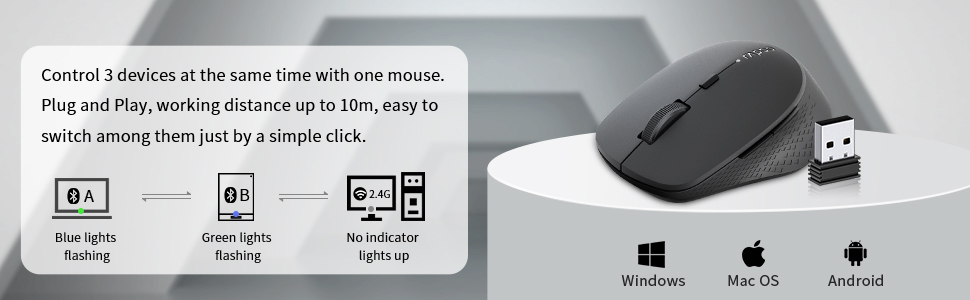
Figure 3.2: The Rapoo M300G mouse can control three devices, with easy switching. It is compatible with Windows, Mac OS, and Android operating systems.
Бесправадное злучэнне 2.4 ГГц:
- Take out the USB receiver from the battery compartment of the mouse.
- Падключыце USB-прыёмнік да вольнага порта USB на вашым кампутары.
- Turn on the mouse. The mouse will automatically connect to the receiver. No indicator light will illuminate for 2.4GHz mode.
Bluetooth Connection (Device A & B):
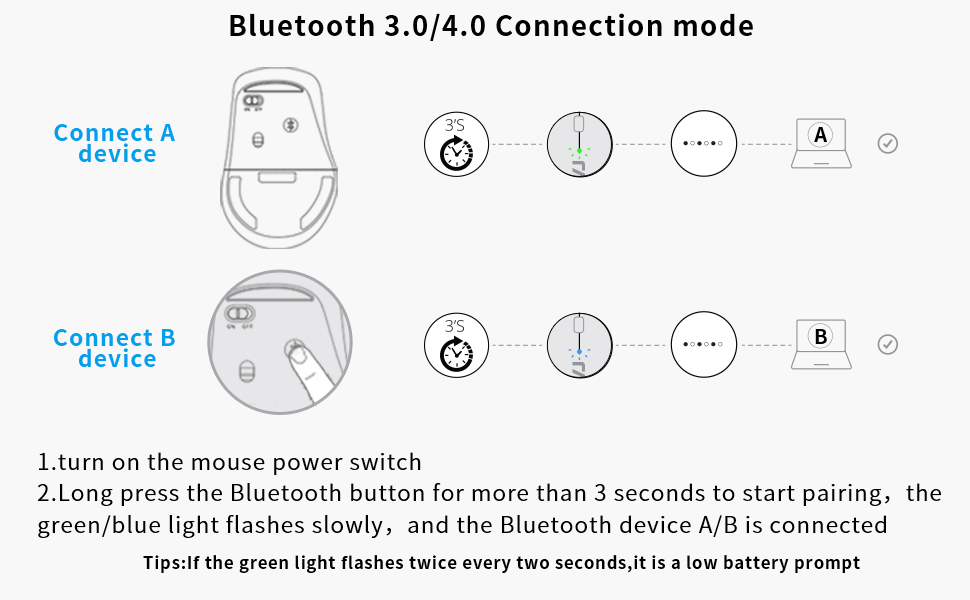
Figure 3.3: Detailed steps for connecting the mouse via Bluetooth 3.0/4.0 to Device A and Device B.
- Уключыце выключальнік харчавання мышы.
- Press the Bluetooth button on the bottom of the mouse to switch to Bluetooth Channel A (blue light flashing) or Bluetooth Channel B (green light flashing).
- Long press the Bluetooth button for more than 3 seconds until the blue or green light flashes slowly. This indicates the mouse is in pairing mode.
- На вашай прыладзе (камп'ютары, ноўтбуку, планшэце) перайдзіце ў налады Bluetooth і знайдзіце новыя прылады.
- Select 'Rapoo BT3.0 Mouse' or 'Rapoo BT4.0 Mouse' from the list of found devices to complete the pairing.
- Once connected, the corresponding indicator light will stop flashing and remain solid for a few seconds before turning off.
Савет: If the green light flashes twice every two seconds, it indicates a low battery.
3.4 Switching Between Devices:
Briefly press the Bluetooth button on the bottom of the mouse to cycle through the connected devices (Bluetooth A, Bluetooth B, 2.4GHz). The indicator light will briefly show the active channel.
4. Інструкцыя па эксплуатацыі
4.1 DPI Adjustment:
Press the DPI switch button located behind the scroll wheel to cycle through the four DPI settings: 600, 1000, 1300, and 1600 DPI. Adjust the DPI to match your preference for cursor speed and precision.
4.2 Basic Mouse Functions:
- Пстрычка левай кнопкай мышы: Выкарыстоўваць для выбару элементаў, адкрыцця fileі актывуючыя функцыі.
- Пстрыкніце правай кнопкай мышы: Use for accessing context menus and additional options.
- Кола пракруткі: Rotate to scroll vertically through documents and web pages. Press down for middle-click functionality (e.g., opening links in new tabs).
- Кнопкі наперад/назад: Located on the side of the mouse, these buttons allow for quick navigation in web браўзэры і file даследчыкі.
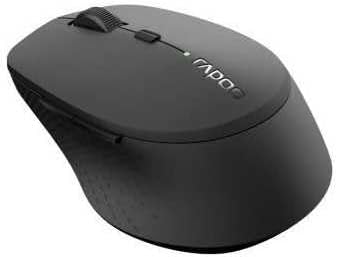
Малюнак 4.1: Пад вуглом view of the Rapoo M300G mouse, highlighting its ergonomic shape and button placement.
5. Тэхнічнае абслугоўванне
5.1 Уборка:
Каб пачысціць мыш, акуратна працярыце паверхню мяккай губкайamp cloth. Do not use harsh chemicals or abrasive cleaners. Ensure no liquid enters the mouse's internal components.
5.2 Замена батарэі:
When the low battery indicator flashes, it's time to replace the AA battery. Open the battery compartment on the bottom of the mouse, remove the old battery, insert a new AA battery with the correct polarity, and close the compartment.
5.3 Захоўванне:
When not in use for an extended period, turn off the mouse to conserve battery life. Store the USB receiver inside the mouse's dedicated slot to prevent loss. Keep the mouse in a dry, cool place away from direct sunlight and extreme temperatures.
6. Выпраўленне непаладак
If you encounter issues with your Rapoo M300G mouse, please refer to the following common problems and solutions:
| праблема | Магчымая прычына | Рашэнне |
|---|---|---|
| Мышка не рэагуе | Нізкі зарад батарэі; Мыш выключана; Няправільны рэжым падключэння; USB-прыёмнік не падключаны (для 2.4 ГГц); Bluetooth не спалучаны. | Replace battery; Turn on mouse; Switch to correct connection mode (2.4G, BT A, BT B); Plug in USB receiver; Re-pair Bluetooth. |
| Cursor erratic or not smooth | Брудны аптычны датчык; непрыдатная паверхня; нізкі ўзровень зарада батарэі. | Clean optical sensor; Use on a flat, non-reflective surface; Replace battery. |
| Немагчыма падключыцца праз Bluetooth | Mouse not in pairing mode; Device Bluetooth is off; Interference. | Long press Bluetooth button to enter pairing mode; Ensure device Bluetooth is on; Move closer to device; Try re-pairing. |
| Бакавыя кнопкі не працуюць | Application does not support forward/backward functions; Driver issue. | Test in a different application (e.g., web browser); Check for updated drivers for your operating system. |
7. Тэхнічныя характарыстыкі
| Асаблівасць | Спецыфікацыя |
|---|---|
| Нумар мадэлі | 18048 |
| Тэхналогія падлучэння | Bluetooth 3.0, Bluetooth 4.0, 2.4GHz Wireless |
| Тэхналогія выяўлення руху | Аптычны |
| Ўзроўні DPI | 600, 1000, 1300, 1600 |
| Гузікі | 6 (Налева, Направа, Кола пракруткі, Пераключальнік DPI, Наперад, Назад) |
| Тып батарэі | 1 х АА батарэя |
| Разліковы тэрмін службы батарэі | Да 9 месяцаў |
| Памеры прадукту | 4.09 х 2.6 х 0.04 цалі |
| Вага прадмета | 2.08 унцыі |
| Колер | ЧОРНЫ |
| Першая даступная дата | 30 лістапада 2018 г |
8. Гарантыя і падтрымка
8.1 Інфармацыя аб гарантыі:
The Rapoo M300G Multi-Device Wireless Mouse comes with a Адзін год гарантыі з даты пакупкі. Акрамя таго, 30 Days Return and Refund or Replacement policy is offered. This warranty covers manufacturing defects and issues arising from normal use.
8.2 Падтрымка кліентаў:
For technical support, warranty claims, or any questions regarding your Rapoo M300G mouse, please contact Rapoo customer service. Refer to the official Rapoo webна сайце або на ўпакоўцы прадукту, каб атрымаць найноўшую кантактную інфармацыю.
Інтэрнэт-падтрымка: Наведайце афіцыйны Rapoo webсайт з часта задаванымі пытаннямі, загрузкай драйвераў і рэсурсамі падтрымкі.
Падтрымка па электроннай пошце: [Refer to Rapoo's official website for email contact]
Падтрымка па тэлефоне: [Refer to Rapoo's official website for phone contact]