
1. Уводзіны
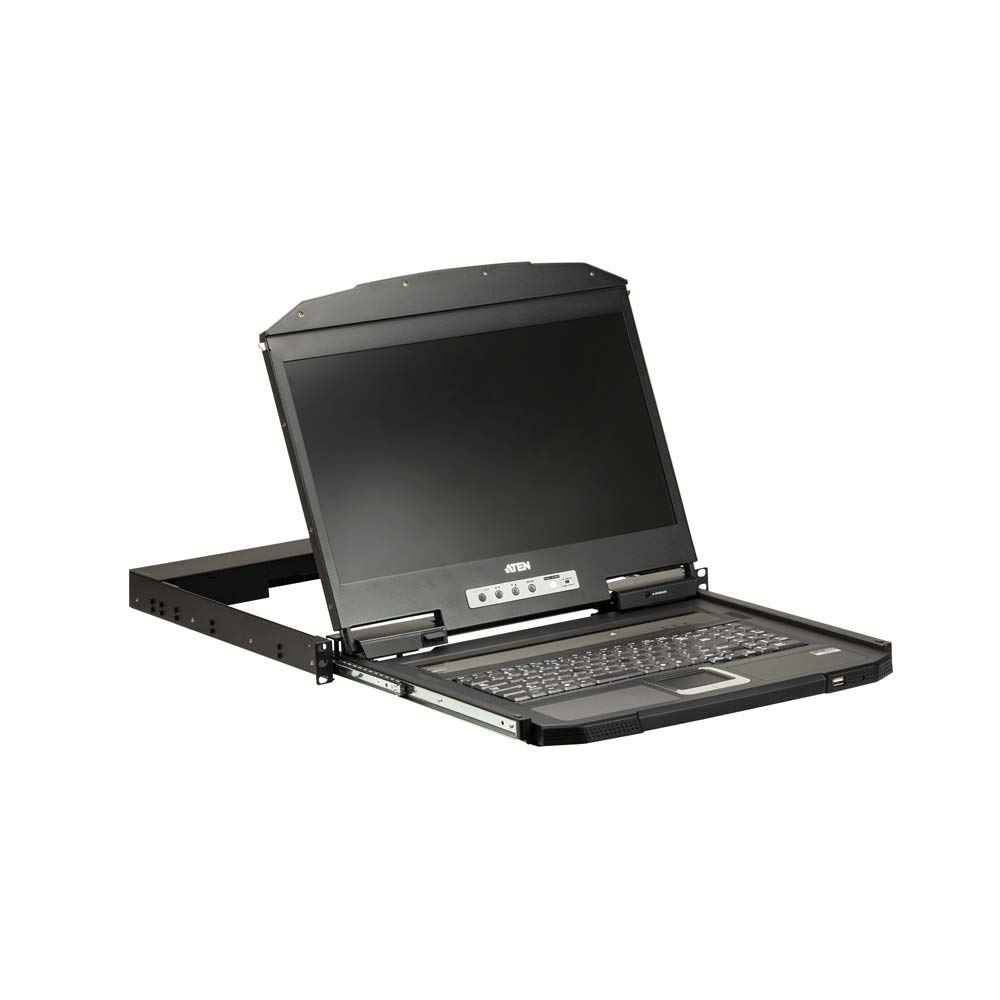
The ATEN CL3700NW is a 19-inch Ultra Short Depth Wide Screen LCD Console designed for efficient system management in server rooms and data centers. This console integrates an 18.5-inch TFT active matrix display, keyboard, and touchpad into a 1U rack-mountable sliding housing. It supports HDMI and USB connectivity, offering a compact and convenient solution for accessing and controlling connected computers.
2. Асаблівасці прадукту
- Дысплей: 18.5-inch TFT active matrix with FHD 1080p (1920 x 1080) resolution.
- Viewкут нахілу: 178 degrees (horizontal and vertical).
- Падключэнне: HDMI and USB interfaces.
- Каэфіцыент кантраснасці: 1000:1 (calculated based on luminance of 350 cd/m²).
- колер: Чорная аздабленне.
- Спажываная магутнасць: 100-240 Вт.
- Вага: Approximately 4 kilograms (8.82 pounds).
3. Прадукт скончыўсяview
Малюнак 1: Буйны план view of the ATEN CL3700NW LCD console screen.

Малюнак 2: Спераду view of the ATEN CL3700NW LCD console, showing the closed unit.

Figure 3: The ATEN CL3700NW console with the keyboard and touchpad tray extended for use.
4. Настройка і ўстаноўка
- Мантаж у стойку: Install the CL3700NW console into a standard 1U rack space using the provided mounting kit. Ensure secure fastening to prevent movement.
- Падключыце відэакабель: Connect an HDMI cable from the console's HDMI input port to the HDMI output port of the computer or KVM switch.
- Падключыце кабель USB: Connect a USB cable from the console's USB port to a USB port on the computer or KVM switch. This provides keyboard and mouse functionality.
- Падключыце харчаванне: Connect the power adapter to the console's power input and then plug it into an AC power source.
- Уключэнне: Press the power button on the console. The LCD display should illuminate, and the system will begin to boot.
5. Аперацыя
- Адкрыццё кансолі: Gently pull the console tray out from the rack until it locks into place. Lift the LCD panel to the desired viewкут нахілу.
- Клавіятура і сэнсарная панэль: Use the integrated keyboard and touchpad for input. Standard keyboard shortcuts and mouse gestures apply.
- Рэгуляванне параметраў дысплея: Use the OSD (On-Screen Display) buttons, typically located near the screen, to adjust brightness, contrast, and other display parameters. Refer to the OSD menu for specific options.
- Закрыццё кансолі: Lower the LCD panel, then push the console tray back into the rack until it clicks into its locked position.
6. Тэхнічнае абслугоўванне
- Ачыстка экрана: Выкарыстоўвайце мяккую безворсовую тканіну, злёгку dampачышчайце неабразіўным сродкам для чысткі экранаў. Не распыляйце ачышчальнік непасрэдна на экран.
- Cleaning the Keyboard/Touchpad: Use a soft brush or compressed air to remove dust and debris. A slightly damp cloth can be used for surface cleaning.
- Вентыляцыя: Ensure that the console's ventilation openings are clear of obstructions to prevent overheating.
- Кабельнае кіраванне: Periodically check all connected cables for secure connections and signs of wear.
7. Выпраўленне непаладак
- Няма дысплея:
- Ensure the console is powered on and the power adapter is securely connected.
- Verify the HDMI cable is correctly connected to both the console and the computer/KVM.
- Check the computer/KVM video output settings.
- No Keyboard/Mouse Input:
- Ensure the USB cable is securely connected to both the console and the computer/KVM.
- Try connecting the USB cable to a different USB port on the computer/KVM.
- Restart the connected computer.
- Мігатлівы або скажоны дысплей:
- Праверце кабель HDMI на наяўнасць пашкоджанняў або няшчыльных злучэнняў.
- Adjust the display resolution and refresh rate on the connected computer to match the console's specifications.
8. Тэхнічныя характарыстыкі
| Асаблівасць | Спецыфікацыя |
|---|---|
| Назва мадэлі | CL3700NW |
| Памер экрана | 18.5 цалі |
| Дазвол экрана | 1920 x 1080 (FHD 1080p) |
| Тып дысплея | Актыўная матрыца TFT |
| Viewing кут | 178 градусаў (гарызантальна/вертыкальна) |
| Каэфіцыент кантраснасці | 1000:1 |
| Тэхналогія падлучэння | HDMI, USB |
| Колер | Чорны |
| Вага прадмета | 19.82 фунта (прыблізна 8.99 кг) |
| Памеры прадукту (ДxШxВ) | 18.78 х 1.69 х 18.92 цалі |
| Энергаспажыванне | 100-240 Вт |
| Марка працэсара | NVIDIA (CPU compatibility) |
9. Гарантыя і падтрымка
ATEN is committed to providing reliable products and support. For assistance with your CL3700NW console, please refer to the following information:
- Тэхнічная падтрымка: ATEN offers free technical support. Responses to customer inquiries are typically provided within 4 hours.
- Гарантыйнае абслугоўванне: Extended warranty service and variable value-added service packages are available.
- Паслугі па рамонце: Localized repair centers are available for RMA (Return Merchandise Authorization) services.

Малюнак 4: Закончанаview of ATEN's support services, including localized repair, extended warranty, and free technical support.
For detailed warranty terms and to access support resources, please visit the official ATEN website or contact your local ATEN representative.