
1. Уводзіны
Thank you for choosing the Gembird MUS-6B-01 Optical USB Mouse. This manual provides essential information for setting up, operating, maintaining, and troubleshooting your new mouse. Please read these instructions carefully to ensure optimal performance and longevity of your device.

Image: The official Gembird brand logo, featuring the company name in a stylized font with a geometric design.
2. Прадукт скончыўсяview
The Gembird MUS-6B-01 is a reliable 6-button optical USB mouse designed for comfortable and precise navigation. Its ambidextrous design makes it suitable for both left and right-handed users.
Асноўныя характарыстыкі:
- Аптычнае адсочванне: Забяспечвае плаўнае і дакладнае кіраванне курсорам.
- 6 Кнопкі: Includes standard left/right click, scroll wheel, DPI adjustment, and two side buttons for enhanced functionality.
- Падключэнне USB: Simple plug-and-play connection to your computer.
- Амбідэкстральны дызайн: Зручны як для ляўшуноў, так і для правшей.
Кампаненты:
- Кнопка левай кнопкі
- Пстрыкніце правай кнопкай мышы
- Scroll Wheel (also functions as a middle click button)
- Кнопка рэгулявання DPI
- Кнопка «Наперад» (збоку)
- Кнопка «Назад» (збоку)
- Optical Sensor (underside)
- USB Connector (at the end of the cable)
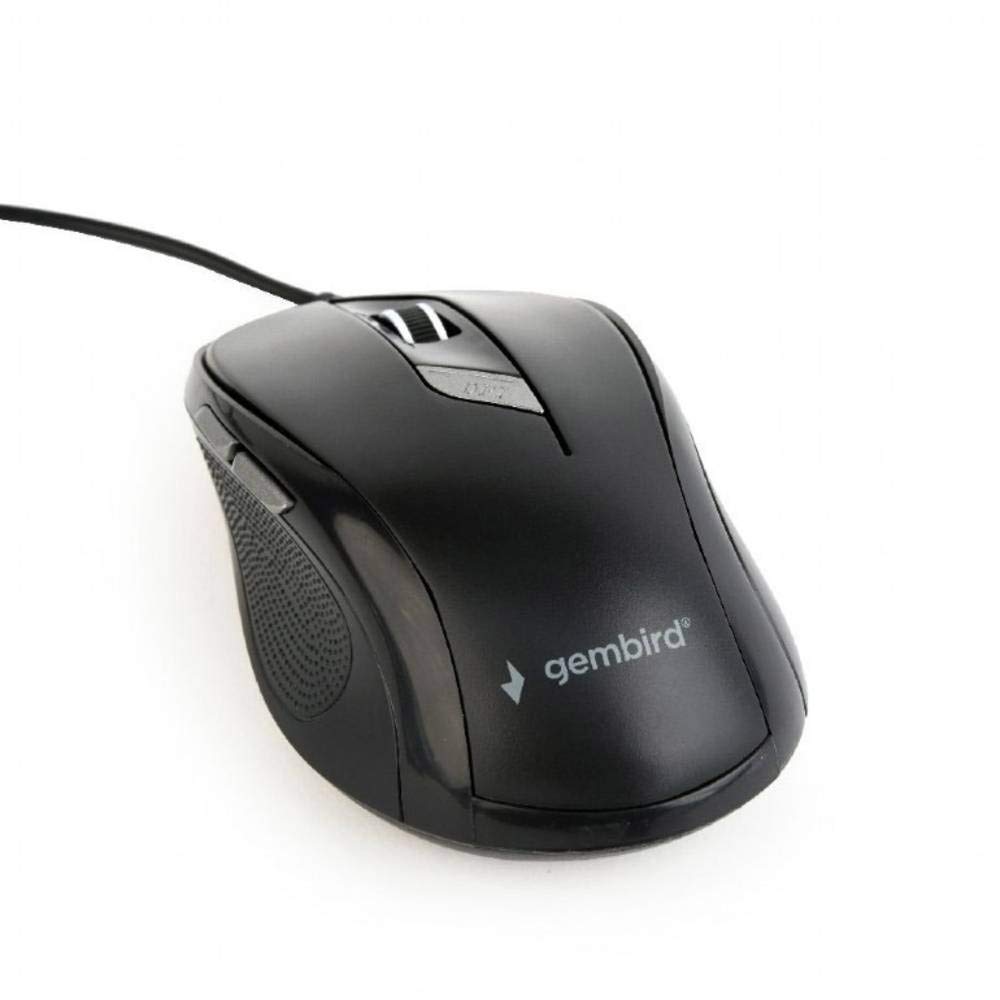
Выява: зверху ўніз view of the Gembird MUS-6B-01 optical USB mouse. The mouse is black with a matte finish, featuring a scroll wheel, left and right click buttons, a DPI button, and two side buttons. A black USB cable extends from the front of the mouse.
3. Настройка
Setting up your Gembird MUS-6B-01 mouse is a simple plug-and-play process.
Этапы ўстаноўкі:
- Знайдзіце даступны USB-порт на вашым кампутары.
- Plug the USB connector of the Gembird MUS-6B-01 mouse firmly into the USB port.
- Your operating system (Windows, Linux) will automatically detect and install the necessary drivers. This process may take a few moments.
- Пасля ўстаноўкі драйвераў мыш гатовая да выкарыстання.
No additional software installation is typically required for basic functionality.
4. Інструкцыя па эксплуатацыі
Familiarize yourself with the functions of each button on your Gembird MUS-6B-01 mouse.
Асноўныя функцыі:
- Пстрычка левай кнопкай мышы: Primary action, selecting items, opening files.
- Пстрыкніце правай кнопкай мышы: Адкрывае кантэкстныя меню, прапануе дадатковыя опцыі.
- Кола пракруткі: Пракручвайце дакументы ўверх або ўніз і web старонкі.
- Клік сярэднім кнопкай (націсканне кола пракруткі): Often used to open links in new tabs or for specific application functions.
Пашыраныя функцыі:
- Кнопка рэгулявання DPI: Located behind the scroll wheel, this button allows you to cycle through different sensitivity (DPI) settings. Press it to change the cursor speed to suit your preference.
- Кнопка «Наперад» (збоку): Звычайна перамяшчаецца наперад у web браўзэры або file даследчыкі.
- Кнопка «Назад» (збоку): Звычайна пераходзіць назад у web браўзэры або file даследчыкі.
The functionality of the side buttons may vary depending on the application or operating system settings. Some operating systems allow customization of these buttons.
5. Тэхнічнае абслугоўванне
Proper care will help extend the life of your Gembird MUS-6B-01 mouse.
Уборка:
- Адключыце мыш ад кампутара перад чысткай.
- Выкарыстоўвайце мяккую, злёгку damp, lint-free cloth to wipe the surface of the mouse.
- For stubborn dirt, a small amount of mild soap solution can be applied to the cloth (not directly to the mouse).
- Use a cotton swab or compressed air to clean around the scroll wheel and between buttons.
- Ensure the optical sensor on the underside is clean and free of dust or debris.
- Не выкарыстоўвайце агрэсіўныя хімікаты, абразіўныя ачышчальнікі і не апускайце мыш у ваду.
захоўванне:
When not in use for extended periods, store the mouse in a clean, dry environment away from extreme temperatures and direct sunlight.
6. Выпраўленне непаладак
If you encounter issues with your Gembird MUS-6B-01 mouse, try the following troubleshooting steps:
| праблема | Магчымае рашэнне |
|---|---|
| Мышка не рэагуе |
|
| Erratic or jumpy cursor movement |
|
| Кнопкі не працуюць |
|
7. Тэхнічныя характарыстыкі
Detailed technical specifications for the Gembird MUS-6B-01 Optical USB Mouse:
| Асаблівасць | Спецыфікацыя |
|---|---|
| Марка | Каштоўная птушка |
| Назва мадэлі | МУС-6Б-01 |
| Тэхналогія падлучэння | Правадной (USB) |
| Тэхналогія выяўлення руху | Аптычны |
| Колькасць кнопак | 6 |
| Рука арыентацыі | Амбідэкстр |
| Сумяшчальныя аперацыйныя сістэмы | Linux, Windows 7, Windows XP (і больш новыя версіі) |
| Апаратная платформа | Персанальны кампутар |
| Даўжыня кабеля | 5.0 метраў |
| Вага прадмета | 74 грам |
| Матэрыял | Пластыкавыя |
| Колер | Чорны |
| Патрабуюцца батарэі | няма |
8. Інфармацыя па бяспецы
Калі ласка, выконвайце наступныя правілы бяспекі:
- Не падвяргайце мыш уздзеянню вады або празмернай вільгаці.
- Пазбягайце падзення мышы і не падвяргайце яе моцным ударам.
- Do not attempt to disassemble or repair the mouse yourself. Refer to qualified service personnel.
- Трымайце прыладу далей ад экстрэмальных тэмператур і прамых сонечных прамянёў.
- Утылізуйце электронныя адходы адказна ў адпаведнасці з мясцовымі правіламі.
9. Гарантыя і падтрымка
Gembird products are designed for reliability and performance. For specific warranty terms and conditions, please refer to the warranty card included with your product or visit the official Gembird website. For technical support or further assistance, please contact your retailer or the Gembird customer service department.