
1. паview
The Wacom Cintiq Pro 32 is a professional-grade creative pen and touch display designed for digital artists and designers. It features a large 31.5-inch 4K screen, offering exceptional detail and color accuracy for an immersive creative experience. The included Wacom Pro Pen 2 provides precise control with advanced pressure sensitivity and tilt recognition, mimicking traditional art tools.
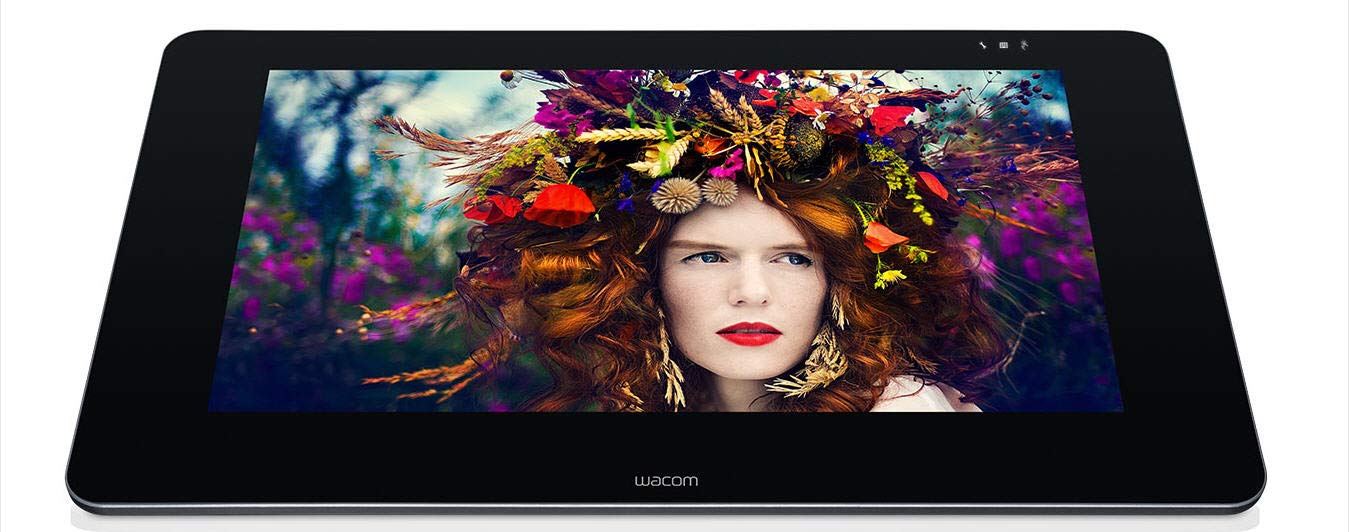
Figure 1: Wacom Cintiq Pro 32 Creative Pen Display.
Асноўныя характарыстыкі:
- 31.5-цалевы дысплей 4K UHD: Experience stunning visual clarity with a resolution of 3840x2160 pixels.
- Etched Glass Screen: Provides a natural, tactile drawing experience while minimizing glare and reflections.
- Exceptional Color Performance: Achieves 99% Adobe RGB and 97% sRGB color accuracy with 1.07 billion colors (10-bit color depth).
- Wacom Pro Pen 2: Features 8,192 levels of pressure sensitivity and tilt recognition for precise and natural pen input. Optical bonding reduces parallax for a pen-on-paper feel.
- Мультытач-жэсты: Navigate and interact with your artwork using intuitive multi-touch gestures.
- ExpressKey Remote: A customizable remote for one-touch shortcuts, enhancing workflow efficiency.
- Універсальнае падключэнне: Supports USB-C, HDMI, and Mini/DisplayPort connections for compatibility with various systems.
2. Што ў скрынцы
Upon unboxing your Wacom Cintiq Pro 32, ensure all the following components are present:
- Wacom Cintiq Pro 32 Creative Pen and Touch Display
- Wacom Pro Pen 2
- ExpressKey Remote
- USB-C кабель
- Кабель HDMI
- Mini/DisplayPort cable
- Адаптар пераменнага току і кабель харчавання
- Pen stand with replacement nibs and nib removal tool
- Кароткае кіраўніцтва

Figure 2: Wacom Cintiq Pro 32 with various connection cables.
3. Настройка
Follow these steps to set up your Wacom Cintiq Pro 32:
- Распакуйце прыладу: Carefully remove the Cintiq Pro 32 and all accessories from the packaging.
- Position the Display: Place the Cintiq Pro 32 on a stable, sturdy desk. Consider using an optional ergonomic stand (sold separately) for optimal viewныя куты і камфорт.
- Падключэнне да сілкавання: Connect the AC adapter to the Cintiq Pro 32 and plug the power cable into an electrical outlet.
- Падключыцеся да кампутара: Выберыце адзін з наступных спосабаў падлучэння:
- USB-C: Connect one end of the USB-C cable to the Cintiq Pro 32 and the other end to a compatible USB-C port on your computer. This single cable can transmit video, data, and power.
- HDMI or Mini/DisplayPort + USB-A: Connect the HDMI or Mini/DisplayPort cable for video, and then connect the USB-A cable for pen and touch functionality.
- Ўстаноўка драйвераў: Visit the official Wacom website to download and install the latest drivers for your operating system (Mac OS X 10.11 or later, Windows 7 or later). Restart your computer after installation.
- Calibrate the Pen: After driver installation, open the Wacom Desktop Center and follow the on-screen instructions to calibrate your Wacom Pro Pen 2 for optimal accuracy.

Figure 3: Wacom Cintiq Pro 32 in use with the Wacom Pro Pen 2.
4. Operating the Cintiq Pro 32
Выкарыстанне пяра Wacom Pro Pen 2
The Wacom Pro Pen 2 is your primary tool for interaction. It offers:
- Адчувальнасць да ціску: Apply varying pressure to create lines of different thickness and opacity, just like traditional art tools.
- Распазнаванне нахілу: The pen detects the angle at which you hold it, allowing for natural brush strokes and shading effects.
- Programmable Side Switches: The two side switches on the pen can be customized in the Wacom Desktop Center to perform various functions, such as right-click, scroll, or specific application commands.
- Гумка: The eraser on the back of the pen functions as a digital eraser in compatible software.

Малюнак 4: падрабязна view of a hand interacting with the Cintiq Pro 32 using the Wacom Pro Pen 2.
Жэсты Multi-Touch
The Cintiq Pro 32 supports multi-touch input, allowing for intuitive navigation and manipulation of your canvas:
- Пан: Use two fingers to drag the canvas.
- Маштаб: Звядзіце або развядзіце два пальцы, каб павялічыць.
- Паварот: Place two fingers on the screen and rotate them to rotate the canvas.
- Карыстальніцкія жэсты: Configure additional gestures in the Wacom Desktop Center for personalized shortcuts.
ExpressKey Remote
The ExpressKey Remote provides 17 customizable buttons and a Touch Ring for quick access to frequently used functions. Keep it within reach for an efficient workflow.
- Настройка: Assign specific keystrokes, mouse clicks, or application-specific functions to each button and the Touch Ring using the Wacom Desktop Center.
- Размяшчэнне: The remote can be placed anywhere on or around your Cintiq Pro 32 for convenient access.

Figure 5: Wacom Cintiq Pro 32 shown with the ExpressKey Remote for quick access to shortcuts.
5. Тэхнічнае абслугоўванне
Proper maintenance ensures the longevity and optimal performance of your Cintiq Pro 32:
- Ачыстка экрана: Use a soft, lint-free cloth (microfiber is recommended) to gently wipe the screen. For stubborn smudges, slightly dampпрацярыце тканіну вадой або сродкам для ачысткі экрана. Не выкарыстоўвайце агрэсіўныя хімікаты або абразіўныя матэрыялы.
- Чыстка ручкі: Wipe the Wacom Pro Pen 2 with a dry, soft cloth. Avoid exposing it to excessive moisture.
- Замена наканечнікаў: If the pen nib becomes worn, use the nib removal tool (found in the pen stand) to carefully pull out the old nib and insert a new one. Ensure the new nib is fully seated.
- Кабельнае кіраванне: Трымайце кабелі акуратна і без перагібаў або празмернага нацяжэння, каб прадухіліць пашкоджанне.
- захоўванне: When not in use, store the Cintiq Pro 32 in a clean, dry environment, away from direct sunlight and extreme temperatures.
6. Выпраўленне непаладак
Вось рашэнні распаўсюджаных праблем, з якімі вы можаце сутыкнуцца:
| праблема | Магчымае рашэнне |
|---|---|
| No display on Cintiq Pro 32 |
|
| Pen not responding or inaccurate |
|
| Touch gestures not working |
|
| Color inaccuracy |
|
7. Тэхнічныя характарыстыкі
| Асаблівасць | Дэталь |
|---|---|
| Нумар мадэлі | DTH3220K0 |
| Памер экрана | 31.5 цаляў |
| дазвол | 3840 x 2160 (4K UHD) |
| Прадукцыйнасць колеру | 99% Adobe RGB, 97% sRGB, 1.07 billion colors (10-bit) |
| Тэхналогія пяра | Wacom Pro Pen 2 |
| Адчувальнасць да ціску | 8192 узроўняў |
| Распазнаванне нахілу | Падтрымліваецца |
| Мультытач | Падтрымліваецца |
| Сувязь | USB-C, HDMI, Mini/DisplayPort |
| Сумяшчальнасць аперацыйнай сістэмы | OS X 10.11 or later, Windows 7 or later |
| Вага прадмета | 42.4 фунта |
| Памеры прадукту (ДxШxВ) | 33.62 х 19.92 х 2.1 цалі |
| Колер | Чорны |
| Батарэі | 1 літый-іённы акумулятар (у камплекце) |
8. Гарантыя і падтрымка
For detailed warranty information, please refer to the warranty card included with your product or visit the official Wacom website. Wacom provides comprehensive support resources, including:
- Інтэрнэт-база ведаў: Access articles, FAQs, and tutorials.
- Спампаваць драйверы: Ensure you have the latest drivers for optimal performance.
- Абслугоўванне кліентаў: Contact Wacom support for technical assistance or service requests.
Калі ласка, наведайце www.wacom.com/support for the most up-to-date support information and resources.