
1. Уводзіны
This manual provides essential information for the setup, operation, maintenance, and troubleshooting of your Acer Predator Triton 500 PT515-51-75BH gaming laptop. Please read this manual thoroughly to ensure proper use and to maximize the performance and longevity of your device.
2. Змесціва ўпакоўкі
Праверце, ці ёсць ва ўпакоўцы вашага прадукту ўсе пералічаныя ніжэй элементы:
- Acer Predator Triton 500 Laptop
- Адаптар пераменнага току
- Адаптар сілкавання
3. Прадукт скончыўсяview
The Acer Predator Triton 500 PT515-51-75BH is a high-performance gaming laptop designed for demanding applications and immersive gaming experiences. It features a 9th Generation Intel Core i7-9750H processor, NVIDIA GeForce RTX 2060 graphics, a 15.6-inch Full HD 144Hz IPS display, 16GB DDR4 RAM, and a 512GB PCIe NVMe SSD.
3.1 Візуальныя кампаненты

Малюнак 1: Пярэдняя-левая view of the Acer Predator Triton 500 laptop, showcasing the open display and keyboard. The screen features a dynamic, abstract wallpaper.

Малюнак 2: Правы бок view of the Acer Predator Triton 500 laptop, highlighting the USB ports, HDMI port, and Mini DisplayPort.
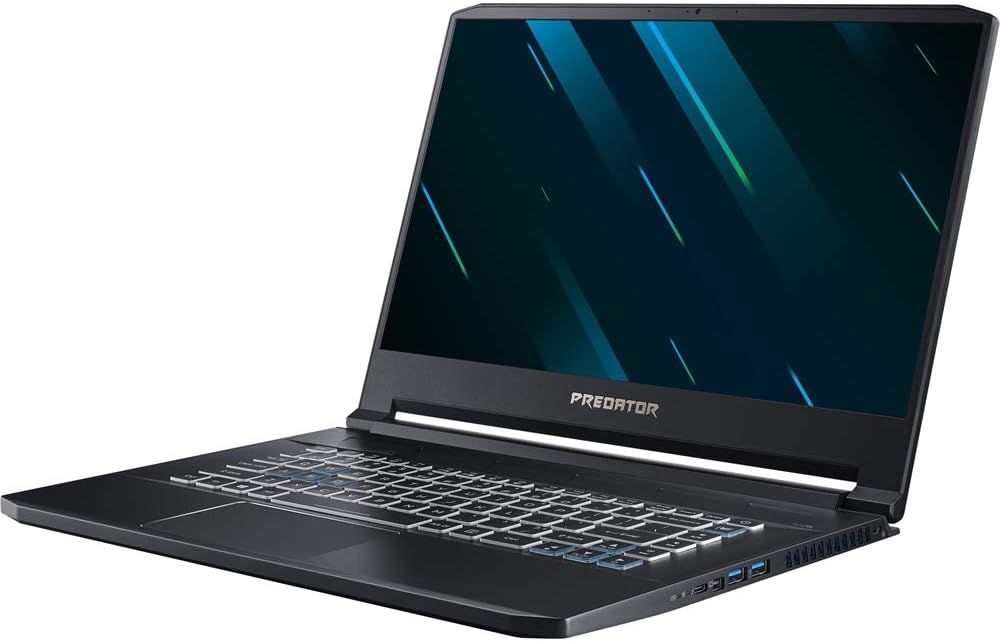
Малюнак 3: Пярэдні-правы view of the Acer Predator Triton 500 laptop, showing the open display, keyboard, and touchpad. The screen displays a dynamic, abstract wallpaper.
Відэа прадукту 3.2
Відэа 1: 360 градусаў view of the Acer Predator Triton 500 laptop, demonstrating its design and form factor from various angles.
4. Настройка
- Распакуйце ноўтбук: Акуратна дастаньце ноўтбук і ўсе аксэсуары з упакоўкі.
- Падключыце харчаванне: Plug the AC adapter into the laptop's power port and then into a wall outlet. Ensure the power indicator light on the laptop illuminates.
- Пачатковая загрузка: Open the laptop lid and press the power button. The system will guide you through the initial Windows 10 Home setup process. Follow the on-screen instructions to configure your operating system, network connection, and user account.
- Падключэнне перыферыйных прылад: Connect any external devices such as a mouse, keyboard, or external monitor to the available ports.
5. Інструкцыя па эксплуатацыі
5.1 Уключэнне/выключэнне сілкавання
- Уключэнне: Націсніце кнопку харчавання, размешчаную на клавіятурнай панэлі.
- Выключыць: Націсніце кнопку «Пуск» у Windows, а затым выберыце «Харчаванне» > «Завяршыць працу».
- Перазапуск: Націсніце кнопку «Пуск» у Windows, а затым выберыце «Харчаванне» > «Перазагрузка».
- сон: Націсніце кнопку «Пуск» у Windows, а затым выберыце «Харчаванне» > «Спячы рэжым» або зачыніце вечка ноўтбука.
5.2 Клавіятура і сэнсарная панэль
- Клавіятура: The laptop features a 3-zone RGB backlit keyboard. Customize lighting effects using the PredatorSense software.
- Сэнсарная панэль: Use the integrated touchpad for cursor control and gestures. Refer to Windows settings for touchpad customization.
5.3 Падключэнне
- Wi-Fi: Connect to wireless networks via Killer DoubleShot Pro Wireless-AC 1550 802.11ac.
- Ethernet: Use the Killer Ethernet E3000 port for wired network connections.
- Bluetooth: Pair Bluetooth devices using the integrated Bluetooth 4.2.
- парты: Utilize the Thunderbolt 3 (USB 3.1 Type C), USB 3.1 Gen 1, HDMI 2.0, and Mini DisplayPort 1.4 for external connections.
6. Тэхнічнае абслугоўванне
- Уборка: Use a soft, lint-free cloth to clean the screen and chassis. Avoid harsh chemicals. For the keyboard, use compressed air to remove dust and debris.
- Сыход за батарэяй: Каб падоўжыць тэрмін службы батарэі, пазбягайце частай поўнай разрадкі батарэі. Захоўвайце ноўтбук у прахалодным, сухім месцы, калі ён не выкарыстоўваецца працяглы час.
- Абнаўленні праграмнага забеспячэння: Regularly update your Windows operating system, drivers, and PredatorSense software to ensure optimal performance and security.
- Сістэма астуджэння: Ensure the laptop's vents are clear of obstructions to allow for proper airflow and cooling.
7. Выпраўленне непаладак
7.1 Агульныя праблемы і рашэнні
| выпуск | Магчымае рашэнне |
|---|---|
| Ноўтбук не ўключаецца | Пераканайцеся, што адаптар пераменнага току надзейна падключаны як да ноўтбука, так і да спраўнай разеткі. Праверце, ці спраўна разетка. |
| Дысплей пусты | Press the display toggle key (Fn + F6 or similar, check keyboard icons) to ensure the display is not turned off. Connect an external monitor to check if the issue is with the laptop's internal display. |
| Няма падключэння да інтэрнэту | Check Wi-Fi settings and ensure you are connected to the correct network. For wired connections, verify the Ethernet cable is properly connected and the router is working. |
| System performance is slow | Close unnecessary applications. Check for background processes consuming high resources. Ensure drivers and operating system are up to date. Run a system scan for malware. |
| Fan noise is excessive | Ensure vents are clear. Use PredatorSense software to adjust fan speeds or cooling profiles. High fan noise during intensive tasks (gaming, video editing) is normal. |
8. Тэхнічныя характарыстыкі
| Асаблівасць | Спецыфікацыя |
|---|---|
| Марка | Acer |
| Назва мадэлі | PT515-51-75BH |
| Памер экрана | 15.6 цалі |
| Колер | Чорны |
| Памер жорсткага дыска | 512 ГБ |
| Мадэль працэсара | Core i7 Family (i7-9750H) |
| Памер усталяванай аператыўнай памяці | 16 ГБ DDR4 |
| Аперацыйная сістэма | Windows 10 хатняя |
| Графічны супрацэсар | NVIDIA GeForce RTX 2060 (6GB GDDR6 VRAM) |
| Максімальнае дазвол дысплея | 1920x1080 (поўны HD) |
| Частата абнаўлення | 144 Гц |
| Тэрмін службы батарэі | Да 8 гадзін |
| Вага прадмета | 4.4 фунтаў (2.1 кг) |
| Тэхналогія падлучэння | Ethernet, HDMI, USB, Wi-Fi, Bluetooth |
| Парты | 1x Thunderbolt 3 (USB 3.1 Type C), 3x USB 3.1 Gen 1, 1x HDMI 2.0, 1x Mini DisplayPort 1.4 |
| Асаблівасць | Backlit RGB Keyboard, VR Ready |
9. Гарантыя і падтрымка
Your Acer Predator Triton 500 PT515-51-75BH comes with a One-year International Travelers Limited Warranty (ITW). This warranty covers manufacturing defects and hardware failures under normal use conditions. For detailed terms and conditions, please refer to the warranty documentation included with your product.
For technical assistance, troubleshooting beyond this manual, or warranty claims, please contact Acer's dedicated support team. You can find contact information on the official Acer webсайце або ў дакументацыі да вашага прадукту.