
Logitech 920-009294
Logitech MX Keys Illuminated Wireless Keyboard User Manual
Model: MX Keys (920-009294)
Уводзіны
The Logitech MX Keys is an advanced wireless illuminated keyboard designed for efficiency, stability, and precision. It features spherically dished keys for comfortable typing and smart backlighting that adjusts to your environment. This manual provides instructions for setting up, operating, maintaining, and troubleshooting your MX Keys keyboard.
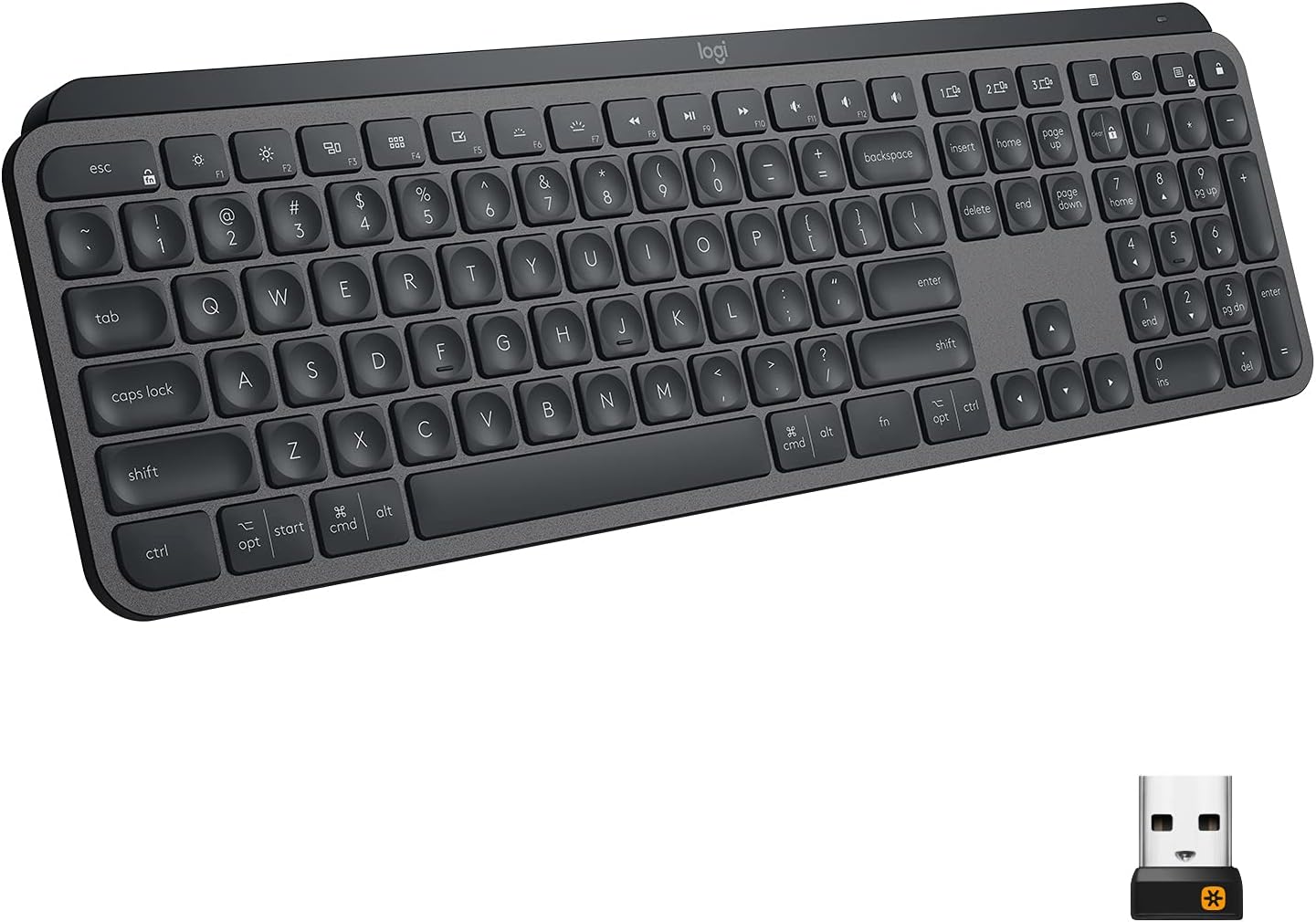
Image: The Logitech MX Keys Illuminated Wireless Keyboard, showcasinг яго поўная кампаноўка і элегантны дызайн.
Настройка
Your MX Keys keyboard can be connected to your device using either the included Unifying USB Receiver or via Bluetooth Low Energy technology.
Connecting via Unifying USB Receiver
- Locate the Unifying USB Receiver. It is a small USB dongle.
- Plug the Unifying USB Receiver into an available USB port on your computer.
- Turn on the keyboard using the power switch located on the back edge.
- The keyboard should automatically connect to the receiver. If not, use the Logitech Options software to pair the devices.
Image: The Logitech MX Keys keyboard with its accompanying Unifying USB receiver, which enables wireless connectivity.
Падключэнне праз Bluetooth
- Пераканайцеся, што на вашай прыладзе ўключаны Bluetooth.
- Уключыце клавіятуру з дапамогай выключальніка.
- Press and hold one of the Easy-Switch keys (1, 2, or 3) for three seconds until the LED light on the key starts blinking rapidly. This indicates the keyboard is in pairing mode.
- On your device, go to Bluetooth settings and select "MX Keys" from the list of available devices to complete the pairing process.

Image: A close-up of the Logitech MX Keys keyboard highlighting the Easy-Switch buttons (1, 2, 3) used for connecting to multiple devices.
Інструкцыя па эксплуатацыі
Perfect Stroke Keys
Клавішы маюць сферычную форму, якая адпавядае форме кончыкаў вашых пальцаў, што забяспечвае камфортнае і дакладнае націсканне. Павышаная стабільнасць клавіш зніжае шум і аптымізуе хуткасць рэагавання.

Выява: буйны план view of the Logitech MX Keys' spherically dished keys, designed for comfortable and precise typing.
Разумнае асвятленне
The keyboard features smart backlighting that automatically adjusts to ambient light conditions. The backlighting also lights up when your hands approach the keyboard and fades when you move away, conserving battery life.

Image: The Logitech MX Keys keyboard with its smart backlighting illuminated, demonstrating how it adapts to the environment.
Flow Cross-Computer Control
If you use multiple computers, the MX Keys keyboard supports Logitech Flow, allowing you to type on multiple computers in one fluid workflow. This feature requires a Logitech Flow-enabled mouse and the Logitech Options software.

Image: A setup showing the Logitech MX Keys keyboard and a Logitech Flow-enabled mouse seamlessly controlling multiple computers, illustrating the cross-computer control feature.
Multi-Device and Multi-OS Compatibility
The keyboard can be paired with up to three devices and easily switched between them using the Easy-Switch keys. It is compatible with Windows, macOS, Linux, iOS, and Android systems.

Image: An illustration demonstrating the Logitech MX Keys' compatibility with various operating systems and its ability to connect to multiple devices simultaneously.
Function Keys and Customization
The top row of keys includes media controls, brightness adjustments, and other function keys. These can be customized using the Logitech Options software to suit your workflow.
Тэхнічнае абслугоўванне
Зарадка клавіятуры
The MX Keys keyboard is USB-C rechargeable. A full charge can last up to 10 days with backlighting on, or up to 5 months with backlighting turned off. Connect the included USB-C cable to the keyboard's USB-C port and the other end to a USB power source.
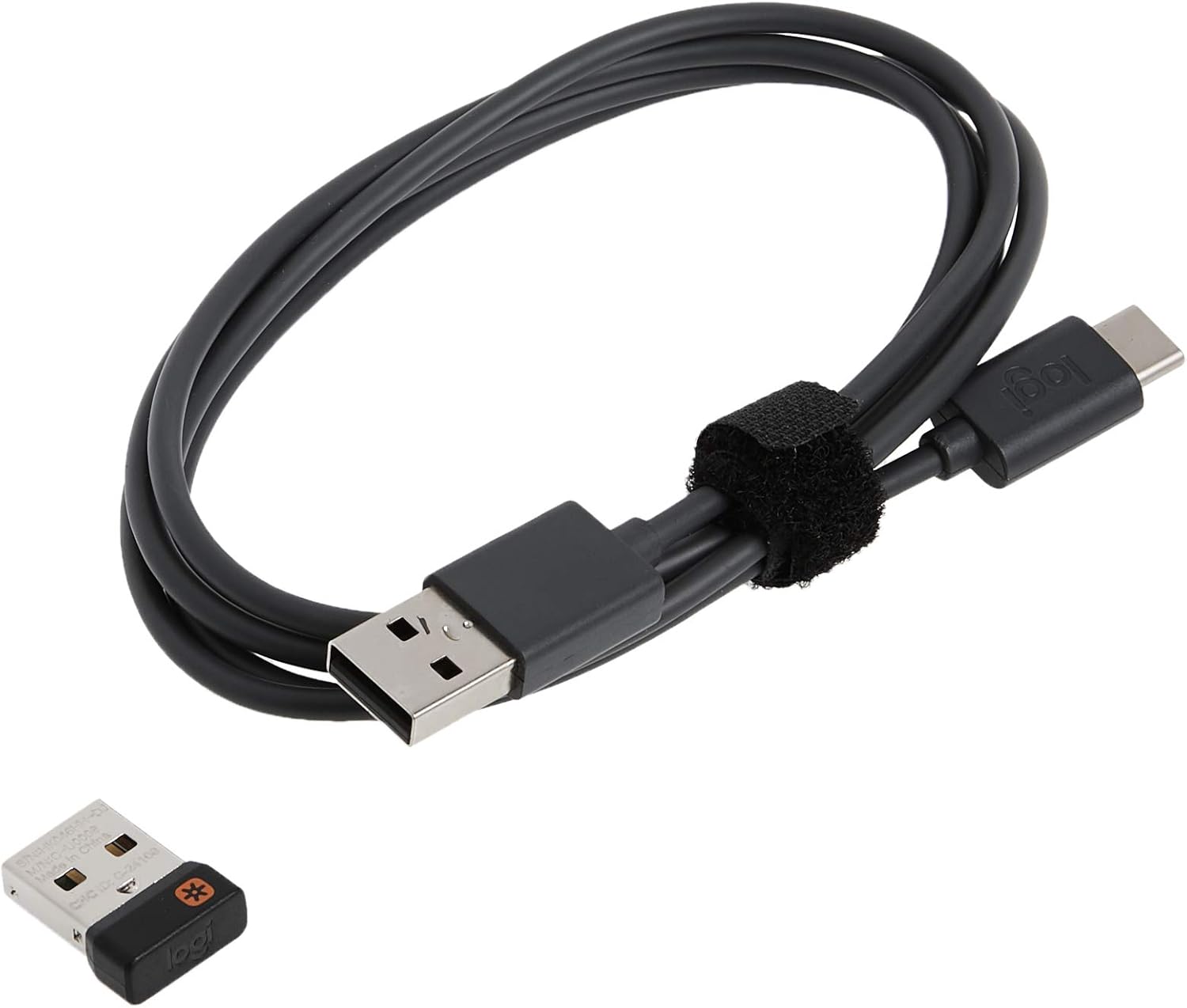
Image: The USB-C charging cable included with the Logitech MX Keys keyboard, used for recharging the internal battery.

Image: A close-up of the Logitech MX Keys keyboard's USB-C port, illustrating the quick charging capability.
Уборка
To clean your keyboard, use a soft, lint-free cloth. For stubborn dirt, slightly dampпрамыйце тканіну вадой. Пазбягайце выкарыстання агрэсіўных хімічных рэчываў або абразіўных матэрыялаў.
Ліквідацыю непаладак
Клавіятура не падключаецца
- Пераканайцеся, што клавіятура ўключана і цалкам зараджана.
- If using the Unifying Receiver, try plugging it into a different USB port.
- If using Bluetooth, ensure your device's Bluetooth is on and the keyboard is in pairing mode (blinking LED on Easy-Switch key).
- Паспрабуйце перазагрузіць камп'ютар або прыладу.
- Re-pair the keyboard using the Logitech Options software.
Падсветка не працуе
- Check the battery level; low battery can disable backlighting.
- Пераканайцеся, што датчык навакольнага асвятлення не перакрыты.
- Adjust backlighting brightness using the function keys (F5/F6 or OPT+F6/F7 depending on OS).
Клавішы не рэагуюць
- Ачысціце вакол пашкоджаных клавіш, каб выдаліць смецце.
- Пераканайцеся, што клавіятура правільна падключана.
- If the issue persists, contact Logitech support.
Тэхнічныя характарыстыкі
| Асаблівасць | Дэталь |
|---|---|
| Марка | Logitech |
| Назва мадэлі | Ключы MX |
| Нумар мадэлі тавару | 920-009294 |
| Тэхналогія падлучэння | Bluetooth, USB (прыёмнік Unifying) |
| Сумяшчальныя прылады | Laptop, PC, Tablet (Windows, macOS, Linux, iOS, Android) |
| Апісанне клавіятуры | Multi Functional, Membrane |
| Асаблівасць | Ergonomic, Low-Profile Key, Rechargeable, Smart Illumination, Flow Compatible |
| Колер | Графіт |
| Колькасць ключоў | 104 |
| Вага прадмета | 1.9 фунта |
| Памеры прадукту (ДxШxВ) | 16.9 х 0.8 х 5.1 цалі |
| Крыніца харчавання | Харчаванне ад батарэі (1 літый-палімерная батарэя ўключана) |
| Тэрмін службы батарэі | Да 10 дзён (з уключанай падсветкай), да 5 месяцаў (з выключанай падсветкай) |
| Далёкасць бесправадной сувязі | 10 метраў (33 футы) |
Гарантыя і падтрымка
The Logitech MX Keys keyboard comes with a 1-гадовая абмежаваная гарантыя на абсталяванне. For warranty claims or technical support, please visit the official Logitech support webсайт або звярніцеся да кантактнай інфармацыі, указанай на ўпакоўцы прадукту.
You can also find additional resources and software downloads (like Logitech Options) on the Старонка падтрымкі Logitech.
Ask a question about this manual
Ask about setup, troubleshooting, compatibility, parts, safety, or missing instructions. Manuals+ will review the question and use this page’s manual context to help answer it.