
1. Уводзіны
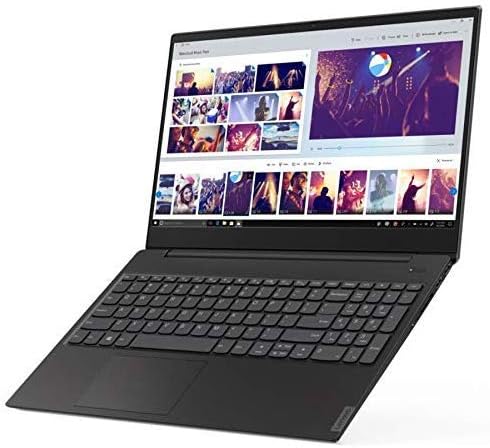
This manual provides essential information for setting up, operating, maintaining, and troubleshooting your Lenovo Flex 14 2-in-1 Convertible Laptop. Designed for versatility, this device combines the functionality of a laptop with the flexibility of a tablet, powered by an AMD Ryzen 5 3500U processor and featuring a 14-inch Full HD touchscreen display.
For additional support and resources, please visit the official Lenovo support webсайт.
2. Што ў скрынцы
Upon opening your Lenovo Flex 14 package, ensure all the following items are present:
- Lenovo Flex 14 2-in-1 Convertible Laptop
- Адаптар сілкавання
- Сілавы кабель
- Актыўная ручка
- Кароткае кіраўніцтва карыстальніка (калі ўключана)
Калі якія-небудзь прадметы адсутнічаюць або пашкоджаныя, неадкладна звярніцеся да прадаўца або ў службу падтрымкі Lenovo.
3. Асноўныя магчымасці
The Lenovo Flex 14 is engineered to provide a versatile and powerful computing experience:
- 14-цалевы сэнсарны дысплей Full HD: Experience vibrant visuals and intuitive interaction with the 1920 x 1080 resolution display.
- AMD Ryzen 5 3500U Processor: Enjoy powerful and efficient performance for multitasking, streaming, and gaming, complemented by Radeon Vega 8 graphics for enhanced visual tasks.
- 12 ГБ аператыўнай памяці DDR4 і 256 ГБ цвёрдацельнага назапашвальніка NVMe: Benefit from fast boot times, quick application loading, and ampпамяць для плаўнай працы.
- Windows 10 Operating System: Comes with comprehensive, built-in security features, including firewall and Internet protections.
- Заслонка прыватнасці: Фізічны webcam shutter allows you to cover the camera for enhanced privacy when not in use.
- Active Pen Support: The included active pen enables direct drawing or note-taking on the touchscreen.
- Long Battery Life with Rapid Charge: Up to 10 hours of battery life with technology to recharge up to 80% in just one hour.
- Універсальнае падключэнне: Includes HDMI, USB-C, and USB 3.1 inputs for connecting various peripherals.
4. Кіраўніцтва па наладцы
4.1. Распакаванне і першапачатковы агляд
Carefully remove the laptop and all accessories from the packaging. Inspect the device for any physical damage. Keep the packaging for future transport or warranty claims.

4.2. Уключэнне і першапачатковая зарадка
- Падключыце адаптар харчавання да зараднага порта ноўтбука, а затым да разеткі.
- Націсніце кнопку харчавання, размешчаную на правай баку ноўтбука, каб уключыць прыладу.
- Allow the battery to charge fully before its first use, although you can begin setup immediately.
4.3. Усталёўка Windows 10
Follow the on-screen instructions to complete the Windows 10 initial setup. This includes selecting your region, language, connecting to a Wi-Fi network, and creating a user account. Ensure you have a stable internet connection during this process.
4.4. Падключэнне перыферыйных прылад
You can connect external devices such as mice, keyboards, external storage, and displays using the available ports:
- Парты USB: Для падлучэння прылад USB.
- Порт HDMI: For connecting to an external monitor or TV.
- Порт USB-C: Для перадачы дадзеных і падключэння сумяшчальных прылад USB-C.
- Аўдыёраз'ём: Для навушнікаў або знешніх дынамікаў.

5. Operating Your Lenovo Flex 14
5.1. Канвертаваныя рэжымы
Your Flex 14 offers multiple modes to adapt to your needs:
- Рэжым ноўтбука: Стандартная канфігурацыя ноўтбука для набору тэксту і традыцыйных вылічэнняў.
- Рэжым намёта: Fold the screen back to form an A-frame, ideal for watching videos or presentations.
- Рэжым падстаўкі: Fold the screen back further, with the keyboard facing down, for a tablet-like experience with a stand.
- Рэжым планшэта: Fold the screen completely back against the base for a full tablet experience, perfect for drawing or touch-based applications.

5.2. Touchscreen and Active Pen Usage
The Full HD touchscreen allows for direct interaction with Windows 10. Use multi-touch gestures for navigation, zooming, and scrolling. The included Active Pen provides precision for writing, drawing, and annotating directly on the screen. Ensure the pen has power (if applicable) and is paired with your device according to its specific instructions.
5.3. Прыватнасць Засланка
Каб актываваць або дэактываваць webcam, slide the physical privacy shutter located above the camera lens. This provides an immediate and secure way to ensure your privacy.
5.4. Сканер адбіткаў пальцаў
For quick and secure login, configure the fingerprint reader through Windows Hello settings. Once set up, you can unlock your laptop by simply placing your registered finger on the sensor.
6. Тэхнічнае абслугоўванне
6.1. Чыстка ноўтбука
- Выкарыстоўвайце мяккую безворсовую тканіну, злёгку dampпрамыйце дысплей вадой або сродкам для чысткі экранаў.
- Для клавіятуры і корпуса выкарыстоўвайце мяккую тканіну. Пазбягайце выкарыстання агрэсіўных хімічных рэчываў або абразіўных матэрыялаў.
- Regularly clean the fan vents to prevent dust buildup, which can affect performance.
6.2. Абнаўленне праграмнага забеспячэння
Keep your operating system and drivers updated to ensure optimal performance and security. Windows Update will automatically manage most updates, but you can manually check for updates through the Settings menu.
6.3. Сыход за батарэяй
To prolong battery life, avoid extreme temperatures and fully discharging the battery frequently. For long-term storage, charge the battery to about 50-60% and store the device in a cool, dry place.
7. Выпраўленне непаладак
Here are solutions to some common issues:
- Ноўтбук не ўключаецца: Пераканайцеся, што адаптар сілкавання надзейна падключаны, а акумулятар дастаткова зараджаны. Паспрабуйце ўтрымліваць кнопку харчавання 10-15 секунд, каб выканаць апаратны скід налад.
- Праблемы з адлюстраваннем: If the screen is blank or flickering, try connecting an external monitor to check if the issue is with the laptop's display or graphics card. Adjust display settings in Windows.
- Нізкая прадукцыйнасць: Close unnecessary applications, check for malware, ensure sufficient free storage space, and update your operating system and drivers.
- Праблемы з падключэннем да Wi-Fi: Restart your router and laptop. Check network settings in Windows and ensure Wi-Fi drivers are up to date.
- Touchscreen or Pen Not Responding: Restart the laptop. Ensure the Active Pen has power and is properly paired. Check for driver updates for the touchscreen and pen.
Калі праблемы не знікнуць, звярніцеся ў службу падтрымкі Lenovo webсайт або звярніцеся ў службу падтрымкі.
8. Тэхнічныя характарыстыкі
| Асаблівасць | Спецыфікацыя |
|---|---|
| Марка | Lenovo |
| Назва мадэлі | Flex 14 |
| Нумар мадэлі | 81SS0005US |
| Памер экрана | 14 цалі |
| Максімальнае дазвол дысплея | 1920x1080 (поўны HD) |
| Мадэль працэсара | Ryzen 5 4600H (Note: Product description mentions 3500U, please verify actual CPU model) |
| Хуткасць працэсара | 2.1 GHz (up to 3.7 GHz max) |
| Памер усталяванай аператыўнай памяці | 12 ГБ DDR4 |
| Памер жорсткага дыска | 256 ГБ SSD |
| Аперацыйная сістэма | Windows 10 |
| Графічны супрацэсар | AMD Radeon Vega 8 |
| Тэрмін службы батарэі | 10 Hours (Average Standby) |
| Вага прадмета | 3.5 фунта |
| Памеры прадмета (Д х Ш х таўшчыня) | 12.91"Д х 9.02"Ш х 0.7"Т |
| Тэхналогія падлучэння | Bluetooth, HDMI, USB, Wi-Fi |
| Асаблівасць | Support Stylus |
9. Гарантыя і падтрымка
9.1. Інфармацыя аб гарантыі
Your Lenovo Flex 14 2-in-1 Convertible Laptop comes with a 1 Year Limited Parts and Labor Warranty. Please retain your proof of purchase for warranty claims. For detailed terms and conditions, refer to the warranty documentation included with your product or visit the official Lenovo support webсайт.
9.2. Падтрымка кліентаў
For technical assistance, troubleshooting, or service requests, please contact Lenovo Customer Support. You can find contact information and additional resources on the official Lenovo webсайт: www.lenovo.com/support.