
Уводзіны
This manual provides instructions for the Digitus USB to Serial Adapter (Model DA-70167). This device enables data exchange between a personal computer with a USB port and various serial peripherals, such as machine controls, modems, and sensors. It is compliant with the USB 2.0 standard and features a PL2303GT chipset, offering customizable data transfer rates.
The adapter includes one USB 2.0 Male A connector and one D-SUB 9-Pin Male (RS232) connector, with gold-plated contacts for reliable connection. An 80 cm USB extension cable is also included for convenience.
Змест пакета
- 1 x Digitus USB to Serial Adapter (DA-70167)
- 1 x 80 cm USB Extension Cable
Прадукт скончаныview

Малюнак 1: Digitus USB to Serial Adapter. This image shows the main view of the adapter, highlighting its compact design and the D-SUB 9-pin connector.

Малюнак 2: Connection points of the adapter. This diagram illustrates the RS232 (D-SUB 9-pin) and USB A 2.0 connectors on the adapter.

Малюнак 3: Буйны план view of the D-SUB 9-pin (RS232) male connector, showing the pin configuration.

Малюнак 4: View of the USB-A male connector, which plugs into the computer's USB port.
Настройка
Follow these steps to set up your Digitus USB to Serial Adapter:
- Ўстаноўка драйвера: Before connecting the adapter, it is recommended to install the necessary drivers for the PL2303GT chipset. Drivers are typically available on the Digitus support website or can be automatically installed by your operating system upon first connection.
- Падключыцеся да кампутара: Plug the USB-A male connector of the adapter into an available USB 2.0 port on your computer. You may use the included 80 cm USB extension cable if needed.
- Падключэнне да паслядоўнай прылады: Connect the D-SUB 9-pin male (RS232) connector of the adapter to the serial port of your peripheral device (e.g., modem, machine control, label printer, barcode scanner, POS system, cash register, network switch). Ensure the screws on the D-SUB connector are tightened to secure the connection.

Малюнак 5: Diagram showing a one-to-one connection setup, illustrating the adapter connecting a label printer or other RS-232 device to a laptop/PC.

Малюнак 6: The USB to Serial Adapter connected to a network switch and a laptop, demonstrating a typical application.
Інструкцыя па эксплуатацыі
Once the adapter is physically connected and drivers are installed, your computer should recognize the new serial port. You can then use software applications that require serial communication to interact with your connected peripheral device.
- Identifying the COM Port: After installation, check your computer's Device Manager (Windows) or System Information (macOS/Linux) to identify the assigned COM port number for the USB to Serial Adapter. This port number will be used by your serial communication software.
- Configuring Software: Open your serial communication software (e.g., PuTTY, Tera Term, HyperTerminal) and configure it to use the identified COM port. Set the appropriate communication parameters such as baud rate (data transfer rate), data bits, parity, stop bits, and flow control, matching the requirements of your serial peripheral device. The adapter supports customizable data transfer rates between 75 bit and 128,000 bit per second.
- Абмен дадзенымі: Initiate data exchange through your software. The adapter will facilitate the communication between your computer's USB port and the serial device.
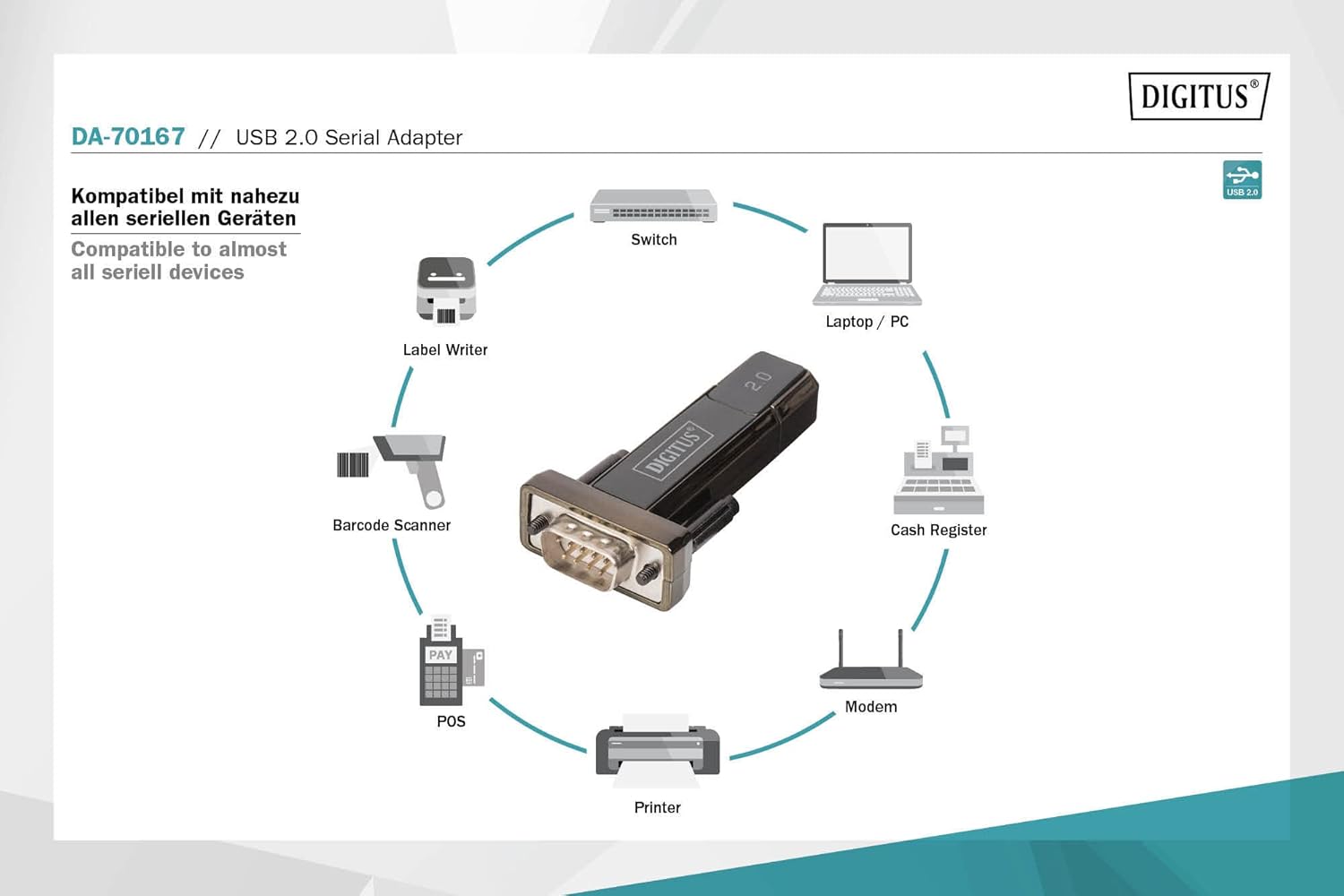
Малюнак 7: Diagram illustrating the wide range of devices compatible with the USB to Serial Adapter, including switches, laptops/PCs, label writers, barcode scanners, POS systems, printers, modems, and cash registers.
Тэхнічнае абслугоўванне
The Digitus USB to Serial Adapter requires minimal maintenance. Follow these guidelines to ensure its longevity:
- Уборка: Use a soft, dry cloth to clean the exterior of the adapter. Do not use liquid cleaners or solvents.
- захоўванне: Захоўвайце адаптар у прахалодным, сухім месцы, удалечыні ад прамых сонечных прамянёў і экстрэмальных тэмператур, калі ён не выкарыстоўваецца.
- Апрацоўка: Avoid dropping the adapter or subjecting it to strong impacts. Do not bend or twist the cable excessively.
- Сыход за раздымам: Keep the connectors free from dust and debris. If necessary, use compressed air to clean the ports.
Ліквідацыю непаладак
| праблема | Магчымая прычына | Рашэнне |
|---|---|---|
| Адаптар не распазнаецца камп'ютарам. |
|
|
| Communication errors with serial device. |
|
|
| Slow data transfer. |
|
|
Тэхнічныя характарыстыкі
| Нумар мадэлі | DA-70167 |
| Марка | Лічба |
| Злучальнікі | 1x USB 2.0 Male A, 1x D-SUB 9-Pin Male (RS232) |
| Набор мікрасхем | PL2303GT |
| Стандарт USB | Сумяшчальны з USB 2.0 |
| Хуткасць перадачы даных | 75 bit to 128,000 bit per second (customizable) |
| Даўжыня кабеля | 80 cm (USB extension cable included) |
| Колер | Чорны |
| Вага прадмета | 2.82 унцыі |
| Памеры прадукту (ДxШxВ) | 3.94 х 5.91 х 1.57 цалі |
| Сумяшчальныя прылады | PC, various serial peripherals (machine controls, modems, sensors, etc.) |
Гарантыя і падтрымка
For warranty information and technical support, please refer to the official Digitus webсайт або звярніцеся ў службу падтрымкі кліентаў. Захоўвайце чэк аб куплі як пацвярджэнне пакупкі для прэтэнзій па гарантыі.
Digitus Official Webсайт: www.digitus.info