
1. Уводзіны
Thank you for choosing the iClever BK10 Bluetooth Keyboard. This manual provides essential information for setting up, operating, maintaining, and troubleshooting your new wireless keyboard. Please read it carefully to ensure optimal performance and longevity of your device.
Што ў скрынцы
- Bluetooth-клавіятура iClever BK10
- Зарадны кабель USB-C
- Кіраўніцтва карыстальніка
- Protective Silicone Cover (for key protection)

Figure 1: Included items with the iClever BK10 Bluetooth Keyboard.
2. Асноўныя магчымасці
- Sleek & Wireless Design: Constructed with stainless steel and ABS, featuring a 10-degree tilt for comfortable desktop use.
- Multi-Device & Multi-OS Compatibility: Seamlessly switch between up to 3 devices using Bluetooth 5.1 technology. Automatically recognizes and adapts to Windows, macOS, iPadOS, Android, iPhone, and Chromebooks.
- Responsive & Low-Profile ключы: Scissor-key mechanism provides enhanced feedback, stability, and quiet typing (below 50 dB). Optimized key-travel and anti-slip tapes ensure comfort and precision.
- Compact & Efficient: Full-size layout with a standard numeric keypad. Includes hotkeys for Calculator, Fn lock, Mute, Volume up/down, and more to boost productivity.
- USB-C Rechargeable & Energy Saving: Built-in rechargeable battery offers up to 45 days of use after a 2-hour charge. Features an automatic power-saving sleep mode after 30 minutes of inactivity.
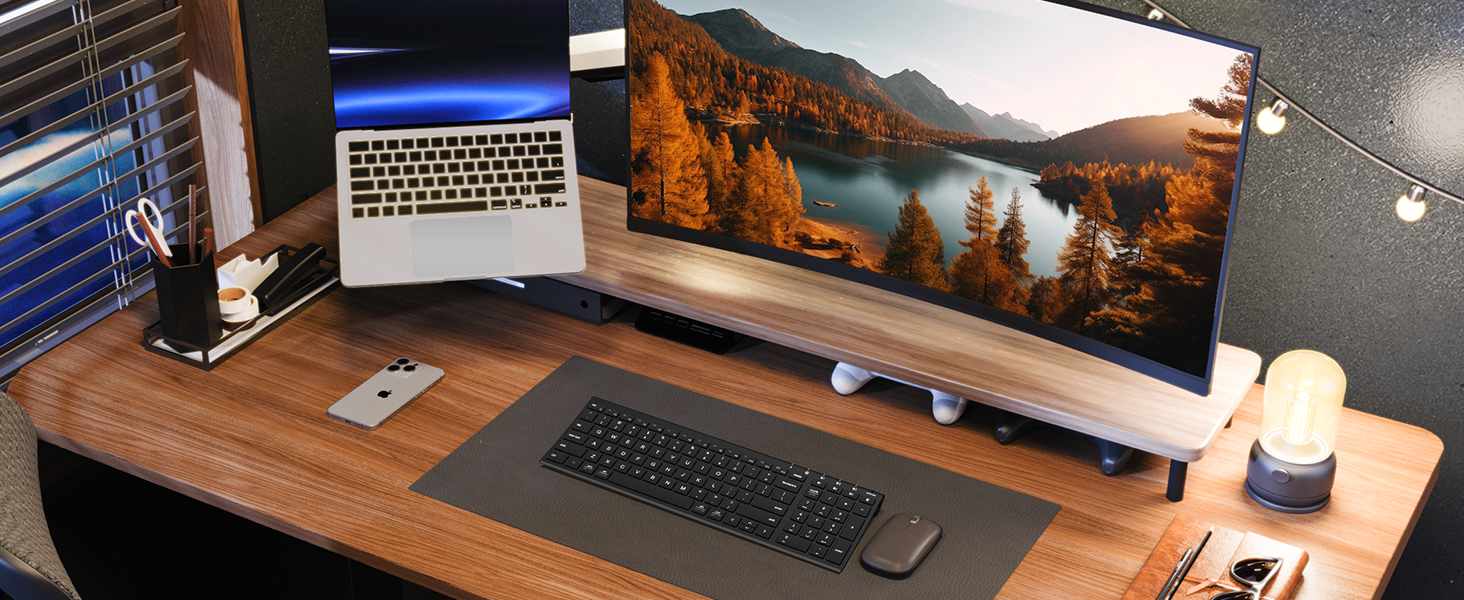
Figure 2: The sleek and wireless design of the iClever BK10 keyboard.
3. Настройка
3.1 Зарадка клавіятуры
Before initial use, fully charge the keyboard using the provided USB-C cable. Connect the USB-C end to the keyboard's charging port (located on the right side) and the USB-A end to a power source (e.g., computer USB port, USB wall adapter). The charging indicator light will illuminate during charging and turn off when fully charged.

Figure 3: USB-C charging port on the iClever BK10 keyboard.
3.2 Уключэнне/выключэнне
Locate the ON/OFF switch on the top right side of the keyboard. Slide the switch to the 'ON' position to power on the keyboard. Slide it to 'OFF' when not in use to conserve battery life.
3.3 Спалучэнне па Bluetooth
The iClever BK10 keyboard supports pairing with up to three devices simultaneously. Follow these steps to pair your devices:
- Уключыце клавіятуру з дапамогай выключальніка ON/OFF.
- Press and hold one of the Bluetooth channel keys (B1, B2, or B3) for 3-5 seconds until its indicator light starts flashing rapidly. This indicates the keyboard is in pairing mode.
- On your device (computer, tablet, smartphone), go to Bluetooth settings and search for available devices.
- Select "iClever BK10" from the list of found devices.
- Follow any on-screen prompts to complete the pairing process. The indicator light on the keyboard will stop flashing and remain solid for a few seconds, then turn off, indicating successful pairing.
- Repeat these steps for up to two additional devices using the other Bluetooth channel keys (B2 and B3).

Figure 4: Multi-device connectivity of the iClever BK10 keyboard.
4. Інструкцыя па эксплуатацыі
4.1 Пераключэнне паміж прыладамі
To switch between paired devices, simply press the corresponding Bluetooth channel key (B1, B2, or B3) once. The keyboard will connect to the selected device automatically.
4.2 Function Keys and Hotkeys
The iClever BK10 keyboard features a row of function keys (F1-F12) that also serve as hotkeys for various media and system controls. To use the hotkey functions, press the 'Fn' key simultaneously with the desired function key. Some common hotkeys include:
- Fn+F1: дадому
- Fn+F2: пошук
- Fn+F3: Выбраць усе
- Fn+F4: Копія
- Fn+F5: Уставіць
- Fn+F6: Выразаць
- Fn+F7: Папярэдні трэк
- Fn+F8: Прайграванне/Паўза
- Fn+F9: Наступны трэк
- Fn+F10: Адключыць гук
- Fn+F11: Памяншэнне гучнасці
- Fn+F12: Павялічыць гучнасць
The keyboard also includes dedicated keys for Calculator, Fn lock, and a standard numeric keypad for efficient data entry.

Малюнак 5: Закончанаview of keyboard layout and multi-OS features.
4.3 Operating System Layout Recognition
The keyboard automatically recognizes different operating systems (Windows, macOS, iPadOS, Android) and adjusts its key layout accordingly. For example, the 'Win' key functions as 'Alt' on Mac, and 'Alt' functions as 'Cmd'.
5. Тэхнічнае абслугоўванне
5.1 Ачыстка
Каб пачысціць клавіятуру, выключыце яе і адлучыце ўсе кабелі. Выкарыстоўвайце мяккую тканіну без ворса, злёгку змочануюampened with water or a mild cleaning solution. Avoid excessive moisture and harsh chemicals. The included silicone cover can be removed and washed with mild soap and water.
5.2 Сыход за акумулятарам
Каб максімальна павялічыць тэрмін службы батарэі:
- Пазбягайце частай поўнай разрадкі акумулятара.
- Зараджайце клавіятуру, калі індыкатар зарада батарэі нізкі.
- Калі клавіятура не выкарыстоўваецца працяглы час, захоўвайце яе ў прахалодным сухім месцы.
- The keyboard enters a power-saving sleep mode after 30 minutes of inactivity. Press any key to wake it up.
6. Выпраўленне непаладак
6.1 Клавіятура не падключаецца/не спалучаецца
- Пераканайцеся, што клавіятура ўключана і цалкам зараджана.
- Пераканайцеся, што Bluetooth уключаны на вашай прыладзе.
- Place the keyboard within the effective range (typically 10 meters) of your device.
- If already paired, try unpairing the keyboard from your device's Bluetooth settings and then re-pairing it.
- Паспрабуйце перазагрузіць і клавіятуру, і прыладу.
6.2 Клавішы не рэагуюць
- Check if the keyboard is connected to the correct device (verify the active Bluetooth channel).
- Пераканайцеся, што зарад батарэі не крытычна нізкі.
- Clean any debris from around the affected keys.
6.3 Connectivity Issues/Lag
- Reduce interference by moving away from other wireless devices (e.g., Wi-Fi routers, cordless phones).
- Пераканайцеся, што драйверы Bluetooth вашай прылады абноўлены.
- Try connecting to a different Bluetooth channel on the keyboard.
7. Тэхнічныя характарыстыкі
| Асаблівасць | Дэталь |
|---|---|
| Нумар мадэлі | BK10 |
| Тэхналогія падлучэння | Bluetooth 5.1 |
| Сумяшчальныя прылады | Windows laptops/desktops, MacBook/iMac, iPad/iPhone, Android tablets/phones, Chromebooks |
| Колькасць ключоў | 104 |
| Тып ключа Пераключальнік | Нажніцы-выключальнік |
| Узровень шуму | <50 дБ |
| Крыніца харчавання | Акумулятарная батарэя (USB-C) |
| Тэрмін службы батарэі | Up to 45 days (after 2 hours charging) |
| Памеры прадукту (Д х Ш х У) | 14.41" x 4.92" x 0.63" |
| Матэрыял | Акрыланітрыл-бутадыен-стырол, алюміній |
8. Гарантыя і падтрымка
8.1 Інфармацыя аб гарантыі
The iClever BK10 Bluetooth Keyboard comes with a Гарантыя 12 месяцы з даты пакупкі. Гэтая гарантыя распаўсюджваецца на вытворчыя дэфекты і гарантуе адсутнасць дэфектаў матэрыялаў і вырабу пры нармальным выкарыстанні.
8.2 Падтрымка кліентаў
If you encounter any issues or have questions regarding your iClever BK10 Bluetooth Keyboard, please refer to the contact information provided in your product packaging or visit the official iClever support webсайт для дапамогі.