
1. Уводзіны
This manual provides detailed instructions for the installation, operation, and maintenance of the ASHATA Mini PCI-E 300Mbps Network Card, Model 112BNHMW. Please read this manual thoroughly before installation and use to ensure proper functionality and longevity of the product.
2. Прадукт скончыўсяview
The ASHATA 112BNHMW is a high-performance Mini PCI-E wireless network card designed for seamless internet connectivity. It supports the LINK1000 series and offers a maximum connection speed of 300Mbps, adhering to 802.11B/G/N wireless protocols. Its robust design ensures reliable operation.

Image 2.1: ASHATA Mini PCI-E Network Card highlighting the Mini-PCI interface. This interface ensures compatibility with a wide range of devices.
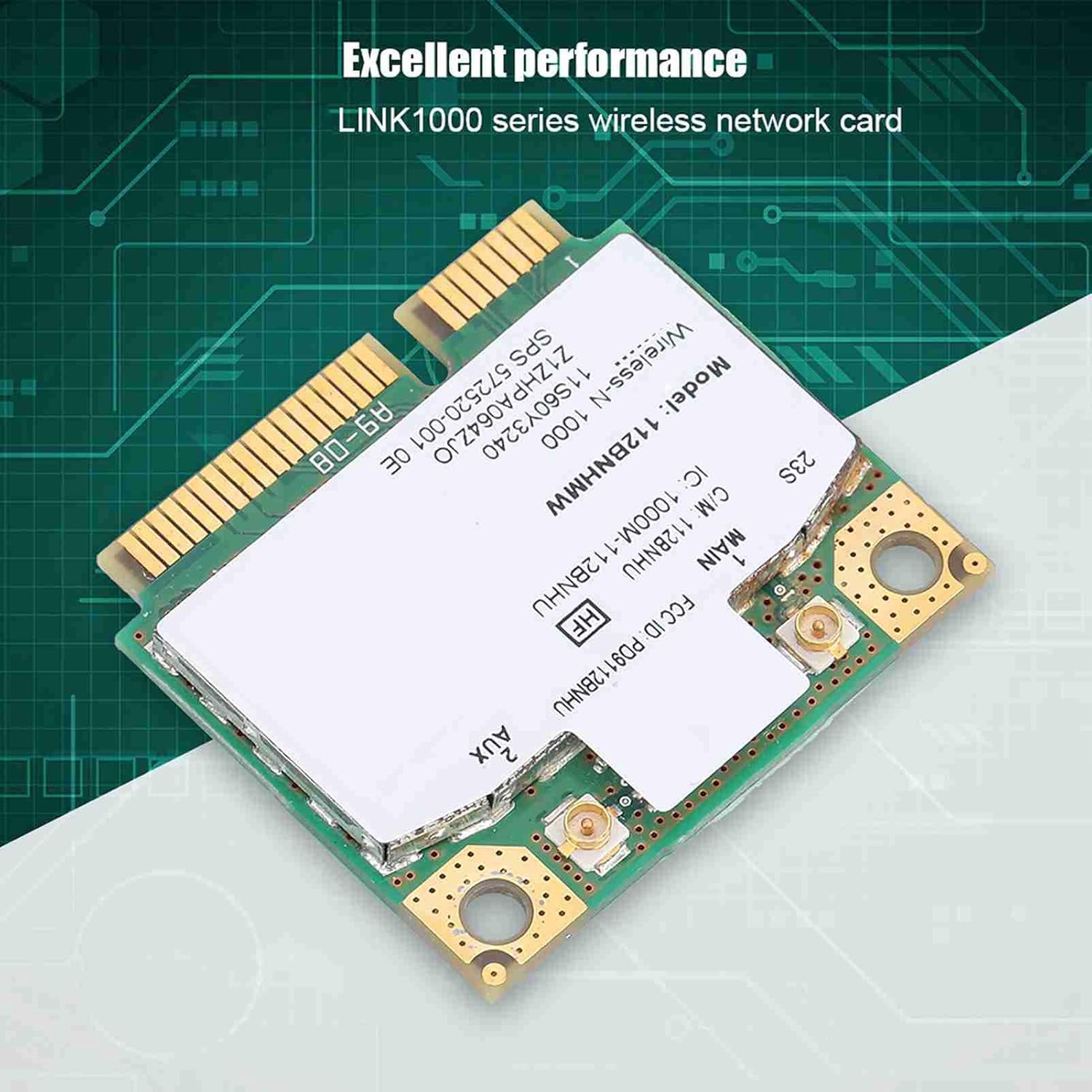
Image 2.2: The ASHATA Mini PCI-E Network Card, part of the LINK1000 series, known for its excellent performance.
3. Тэхнічныя характарыстыкі
| Асаблівасць | Дэталь |
|---|---|
| Марка | АШАТА |
| Нумар мадэлі | 112BNHMW (ASHATA92ut1irfh7) |
| Абсталяванне інтэрфейсу | Mini PCI-E |
| Хуткасць перадачы даных | Да 300 Мбіт/с |
| Бесправадныя пратаколы | 802.11B/G/N (2.4GHz) |
| Вага прадмета | 0.01 кілаграма |
| UPC | 738583134071 |
4. Сумяшчальнасць
This network card is designed for use with systems supporting the Mini PCI-E interface. It is compatible with:
- Аперацыйныя сістэмы: Windows XP, Windows 7, Windows 8.
- сшыткі: Most notebooks from Lenovo and HP, including specific models like T420S, X220, and T520.
Важная заўвага:
This card is generally not compatible with Windows 10. Please ensure your operating system is Windows XP, 7, or 8 for proper functionality. Compatibility with specific laptop models may vary; always verify your device's specifications before installation.
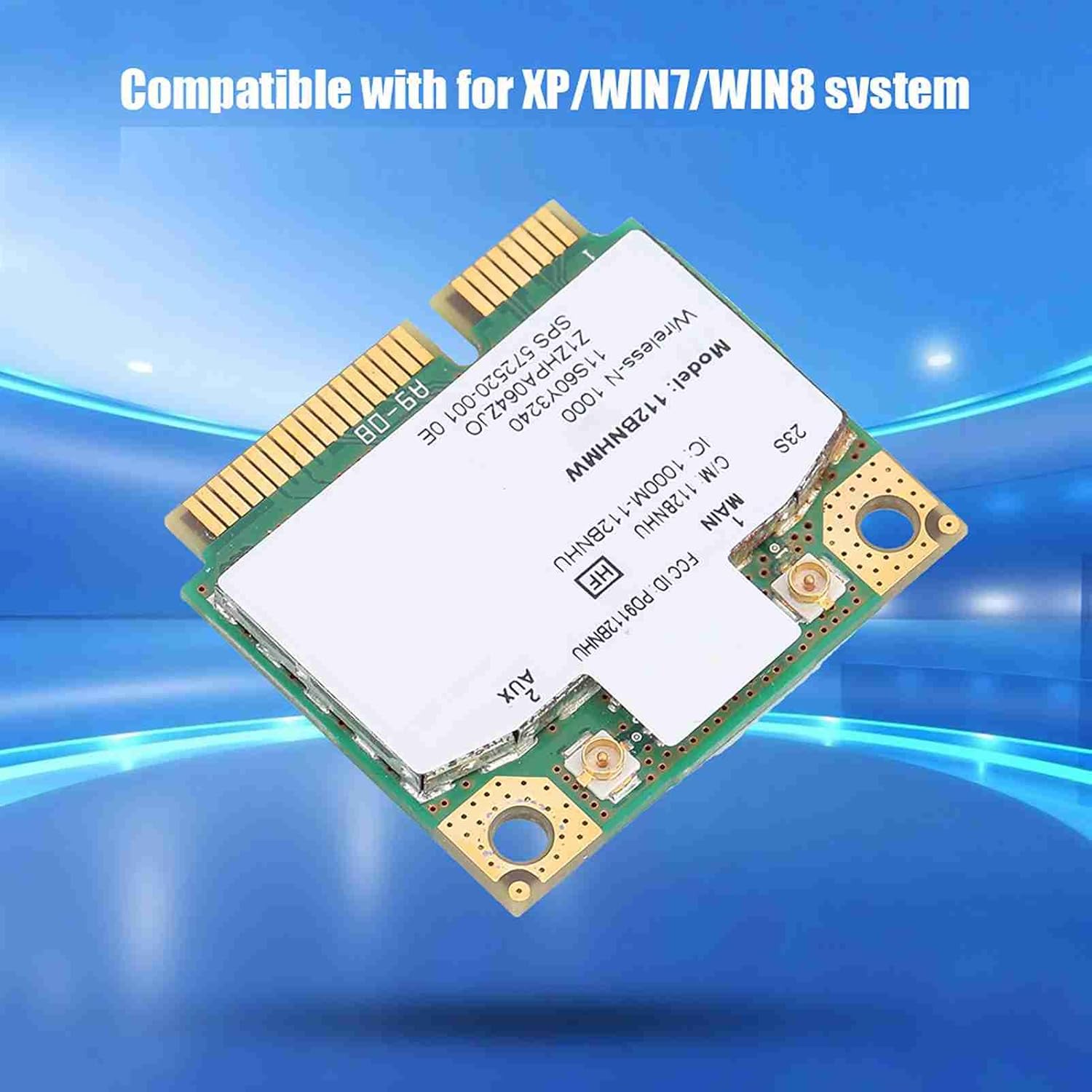
Image 4.1: The network card is compatible with Windows XP, 7, and 8 operating systems.
5. Настройка і ўстаноўка
Адмова ад адказнасці: Installation of internal computer components requires technical knowledge. If you are unsure, please consult a qualified technician. Ensure your device is powered off and disconnected from all power sources before proceeding.
- Падрыхтуйце сваю прыладу: Power down your laptop or desktop computer completely. Disconnect the power adapter and remove the battery (for laptops).
- Access the Mini PCI-E Slot: Depending on your device, you may need to remove the back panel or keyboard to access the internal components. Refer to your device's specific service manual for instructions on accessing the Mini PCI-E slot.
- Insert the Network Card: Carefully align the ASHATA 112BNHMW network card with the Mini PCI-E slot. Gently push the card into the slot until it is fully seated.
- Абараніце карту: Once seated, secure the card with the provided screws (if applicable) or the existing retention mechanism.
- Падключыце антэны (калі ёсць): If your device uses external antennas, carefully connect them to the MAIN and AUX ports on the network card. Ensure a secure connection.
- Зборка прылады: Carefully reassemble your computer, ensuring all panels and screws are replaced correctly.
- Уключэнне і ўстаноўка драйвераў: Reconnect the battery and power adapter. Power on your computer. The operating system may automatically detect and install drivers. If not, you may need to download and install the appropriate drivers for the Intel LINK1000 series from your device manufacturer's website or Intel's support site.

Малюнак 5.1: Пярэдняя і задняя часткі view of the ASHATA 112BNHMW network card, showing connection points and model information.
6. Інструкцыя па эксплуатацыі
Once the ASHATA 112BNHMW network card is successfully installed and drivers are in place, your computer should detect available wireless networks.
- Enable Wireless: Ensure your computer's wireless function is enabled. This is often done via a physical switch, a function key combination (e.g., Fn + F5), or through software settings in your operating system.
- Падключыцеся да сеткі:
- Open your operating system's network settings (e.g., "Network and Sharing Center" in Windows 7/8, "Connect to a network" in Windows XP).
- Выберыце патрэбную сетку Wi-Fi са спісу даступных сетак.
- Націсніце кнопку «Падключыцца» і ўвядзіце ключ бяспекі сеткі (пароль), калі будзе прапанавана.
- Once connected, your computer will display a connected status, and you can access the internet.
- Падключэнне манітора: You can monitor your wireless connection status and signal strength through the network icon in your system tray.
7. Тэхнічнае абслугоўванне
The ASHATA 112BNHMW network card is designed for durability and requires minimal maintenance.
- Абнаўляць драйверы: Periodically check for updated drivers from your laptop manufacturer's support website or Intel's official webсайт для забеспячэння аптымальнай прадукцыйнасці і бяспекі.
- Keep Device Clean: Ensure the internal components of your computer, including the network card, are free from dust and debris. Use compressed air to gently clean vents and internal areas if necessary.
- Пазбягайце фізічных пашкоджанняў: Protect your computer from drops, impacts, and excessive heat, which can damage internal components.
8. Выпраўленне непаладак
If you encounter issues with your ASHATA 112BNHMW network card, refer to the following troubleshooting steps:
| праблема | Магчымая прычына | Рашэнне |
|---|---|---|
| Сеткі Wi-Fi не выяўлены. |
|
|
| Павольная хуткасць злучэння. |
|
|
| Частыя адключэнні. |
|
|
If these steps do not resolve the issue, please contact ASHATA customer support or consult a professional technician.
9. Гарантыя і падтрымка
ASHATA products are manufactured with quality materials and undergo rigorous testing. For specific warranty information, please refer to the documentation included with your purchase or visit the official ASHATA website. For technical support, driver downloads, or further assistance, please contact ASHATA customer service through their official channels.
вытворца: АШАТА
мадэль: 112BNHMW
ASIN: B07ZXBC53D