
Уводзіны
Thank you for choosing the IMICE X9 Wired Optical Gaming Mouse. This manual provides detailed instructions for setting up, operating, maintaining, and troubleshooting your new gaming mouse. Please read this manual carefully to ensure optimal performance and longevity of your device.
Прадукт скончаныview
The IMICE X9 is a high-performance wired optical gaming mouse designed for precision and comfort. It features adjustable DPI settings, 6 programmable buttons, and vibrant LED lighting to enhance your gaming experience. Its ergonomic design ensures comfortable use during extended gaming sessions.
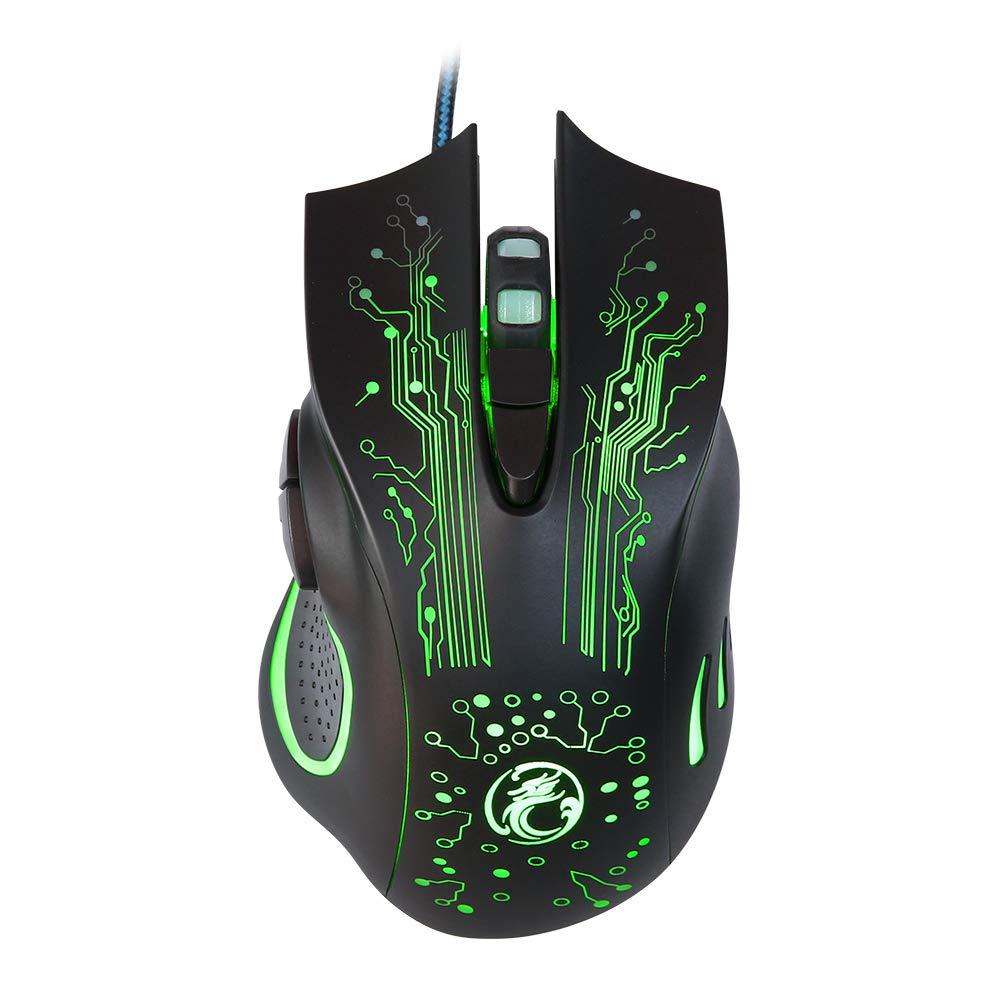
Image: The IMICE X9 gaming mouse showcasing its ergonomic design and dynamic LED lighting.
Настройка
Setting up your IMICE X9 gaming mouse is a simple plug-and-play process.
- Распакуйце мыш: Carefully remove the IMICE X9 gaming mouse from its packaging.
- Падключыцеся да кампутара: Locate an available USB port on your computer (desktop or laptop). Insert the USB connector of the IMICE X9 mouse firmly into the USB port.
- Ўстаноўка драйвера: Your operating system (Windows, Linux) should automatically detect and install the necessary drivers. This process may take a few moments.
- Гатовы да выкарыстання: Once the drivers are installed, the mouse's LED lighting will illuminate, and it will be ready for immediate use.
Інструкцыя па эксплуатацыі
Базавая функцыянальнасць
- Пстрычка левай кнопкай мышы: Першаснае дзеянне, выбар.
- Пстрыкніце правай кнопкай мышы: Secondary action, context menus.
- Кола пракруткі: Scroll up/down in documents and web pages. Pressing the scroll wheel acts as a middle click.
Рэгуляванне DPI
The IMICE X9 mouse features adjustable DPI (Dots Per Inch) settings, allowing you to change cursor sensitivity on the fly. The available DPI settings range from 800 to 2400 DPI.

Выява: Уверсе view of the IMICE X9 mouse, showing the DPI adjustment button located behind the scroll wheel.
- Кнопка DPI: Press the dedicated DPI button (usually located behind the scroll wheel) to cycle through the available DPI settings. Each press will change the sensitivity, often indicated by a change in LED color or a brief flicker.
Дадатковыя кнопкі
The IMICE X9 includes additional buttons for enhanced productivity and gaming.

Выява: Збоку view of the IMICE X9 mouse, illustrating the placement of the two thumb buttons.
- Кнопка "Наперад": Typically located on the side, this button allows you to navigate forward in web браўзэры або file даследчыкі.
- Кнопка "Назад": Also located on the side, this button allows you to navigate backward in web браўзэры або file даследчыкі.
Тэхнічнае абслугоўванне
Proper maintenance ensures the longevity and performance of your IMICE X9 gaming mouse.
- Уборка: Выкарыстоўвайце мяккую сухую тканіну для працірання паверхні мышы. Для выдалення ўстойлівага бруду злёгку працярыцеampпрацярыце тканіну вадой або мяккім ачышчальным растворам. Пазбягайце агрэсіўных хімічных рэчываў.
- Аптычны датчык: Трымайце аптычны датчык на ніжняй частцы мышы чыстым і без пылу або смецця. Пры неабходнасці выкарыстоўвайце ватовы тампон або сціснутае паветра.
- Сыход за кабелем: Пазбягайце рэзкіх выгібаў або празмернага нацягвання USB-кабеля, каб пазбегнуць пашкоджанняў.
- захоўванне: Калі мыш не выкарыстоўваецца, захоўвайце яе ў чыстым, сухім месцы, удалечыні ад экстрэмальных тэмператур.
Ліквідацыю непаладак
If you encounter issues with your IMICE X9 gaming mouse, refer to the following common solutions:
| праблема | Магчымая прычына | Рашэнне |
|---|---|---|
| Мышка не рэагуе | Слабае падключэнне USB, няспраўны порт USB, праблема з драйверам. | Try reconnecting the USB cable. Use a different USB port. Restart your computer. Check Device Manager for driver status. |
| Рух курсора няўстойлівы або скачковы | Брудны аптычны датчык, непрыдатная паверхня кілімка для мышы. | Clean the optical sensor. Use a clean, non-reflective mouse pad. |
| Святлодыёдныя лямпы не гараць або мігцяць | Праблема з харчаваннем, канфлікт праграмнага забеспячэння. | Ensure the mouse is properly connected. Try a different USB port. Restart your computer. |
| Рэгуляванне DPI не працуе | Button malfunction, temporary software glitch. | Press the DPI button firmly. Restart your computer. |
Калі праблема не знікне пасля выкарыстання гэтых рашэнняў, звярніцеся ў службу падтрымкі кліентаў.
Тэхнічныя характарыстыкі
Detailed technical specifications for the IMICE X9 Wired Optical Gaming Mouse:
- Марка: IMICE
- мадэль: X9
- Тэхналогія падключэння: USB (правадной)
- Налады DPI: 800-2400 DPI (рэгуляванае)
- Адсочванне Метад: Аптычны
- Колькасць кнопак: 6
- Арыентацыя рукі: Амбідэкстр
- Асаблівасці: Ergonomic Design, LED Lighting
- Рэкамендуемае выкарыстанне: Гульнявая
- Сумяшчальныя прылады: Ноўтбук, персанальны кампутар
- Сумяшчальныя аперацыйныя сістэмы: Linux, Windows 10
- стыль: Сучасны
- платформа: PC
- Батарэі ў камплекце: няма
- Нумар дэталі вытворцы: YX1560214

Image: A display of three IMICE X9 gaming mice, highlighting the different LED color options (red, blue, green).
Гарантыя і падтрымка
The IMICE X9 Wired Optical Gaming Mouse comes with a standard manufacturer's warranty. For specific warranty terms and conditions, please refer to the warranty card included with your product or visit the official IMICE website. For technical support, troubleshooting assistance beyond this manual, or warranty claims, please contact IMICE customer service through their official channels.